
Introduction to Quick Roof design mode
With Easy PV's Quick Roof design mode you can model a roof without using satellite imagery, making it a good option if the satellite data isn't available. Simply model the roof using the dimensions, pitch and roof covering and add any obstructions.
Creating a Quick Roof design
Quick Roof is selected when you first create a project, input project details and under Design Mode select Quick Roof. Then click Create in the bottom right.
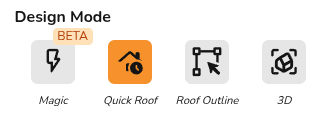
This will then take you to the Roof task where you can model the roof.
Roof task overview
In the Roof task you can create and edit your 2D roof model:
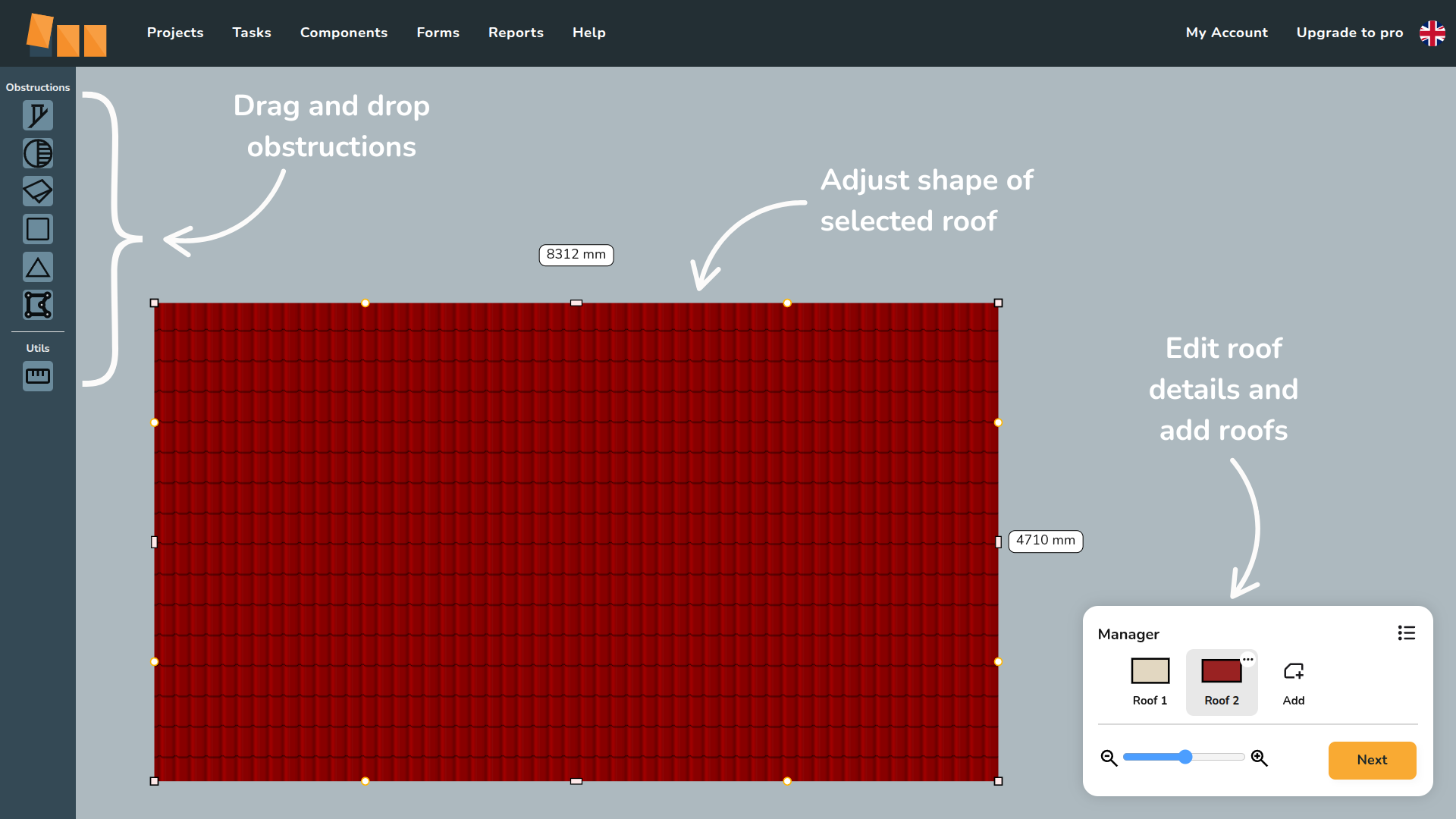
In the Roof Manager in the bottom right, clicking the ⋯ three dots on the individual roofs will show the following options:
 Edit details: Edit the roof type and dimensions
 Clone roof: Copy the roof. This option will prompt you to input the name for the clone
 Delete: Delete the roof from the project. This cannot be undone



Creating roof model
Initial roof details
When you first open a Quick Roof project, you will be prompted to fill in some initial roof details:
- Select the roof type and roof covering: this determines what mounting options are available to select
- Input roof dimensions: width, height, pitch and orientation
Orientation is taken in degrees from south going clockwise. Read more about setting the right orientation.
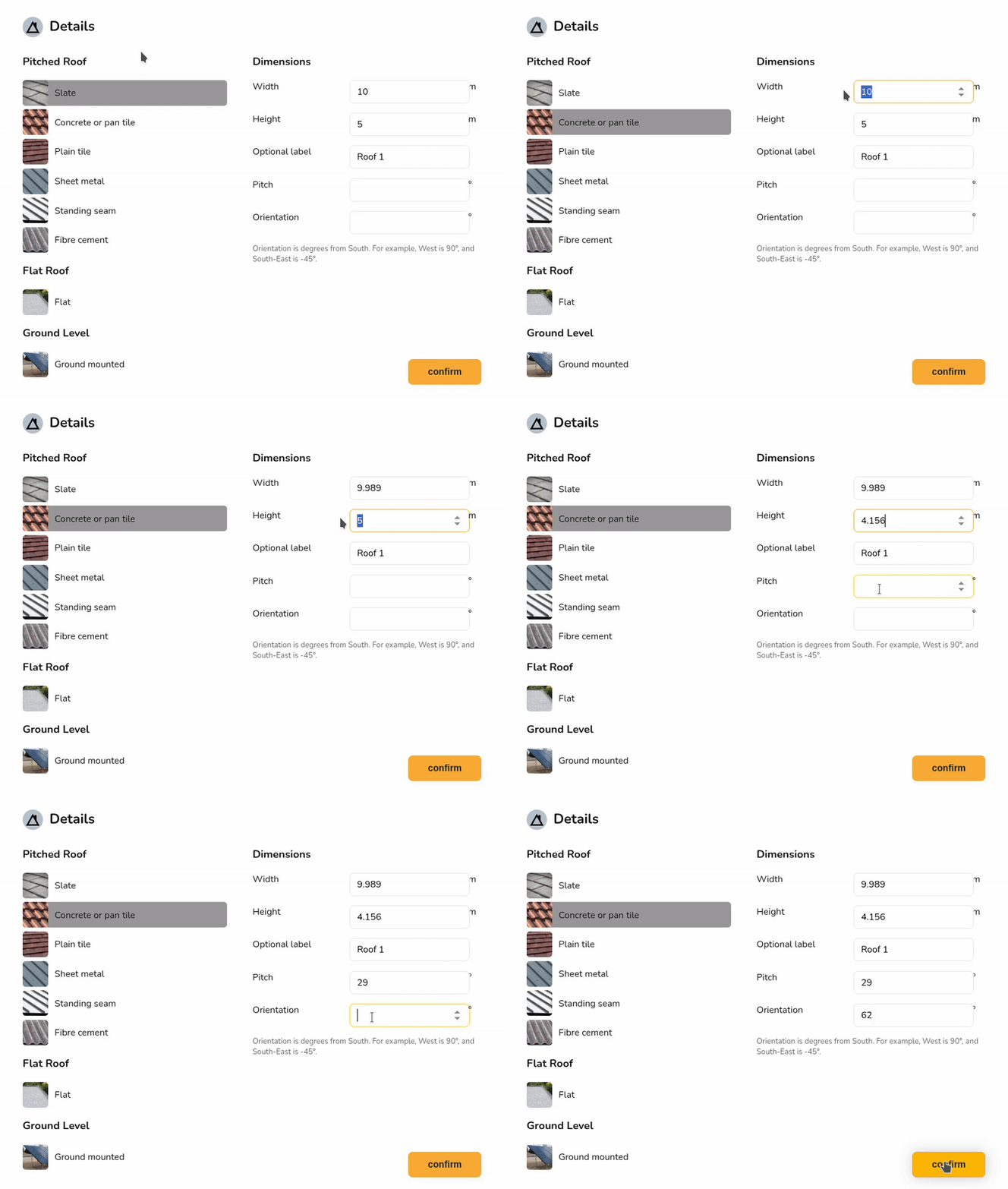
These details can be adjusted by clicking the ⋯ three dots in the Roof Manager and selecting Edit Details. The dimensions can also be adjusted directly from the model by clicking on the corners and inputting the length.
Adjusting roof shape
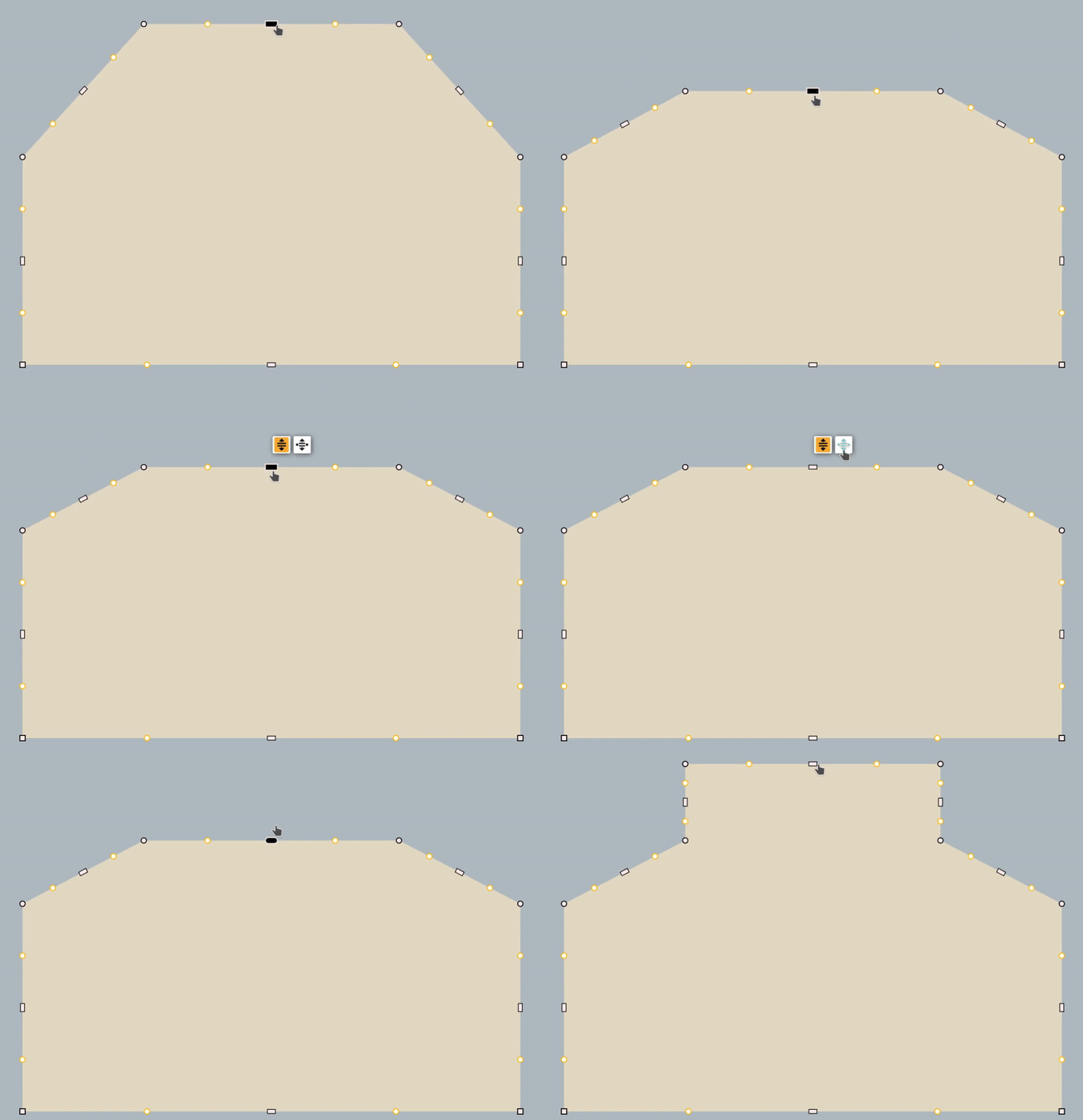
When creating a roof in the Roof task, there are a variety of different handles you can use to accurately adjust the shape:
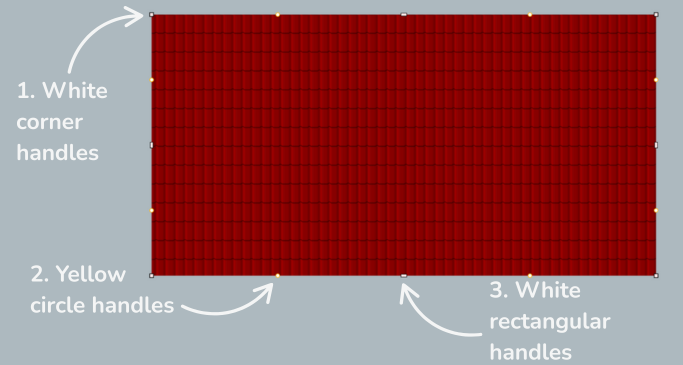
1. White corner handles
Click the white corner handles to show dimensions of the associated roof sides. You can then click on the values to manually change these.
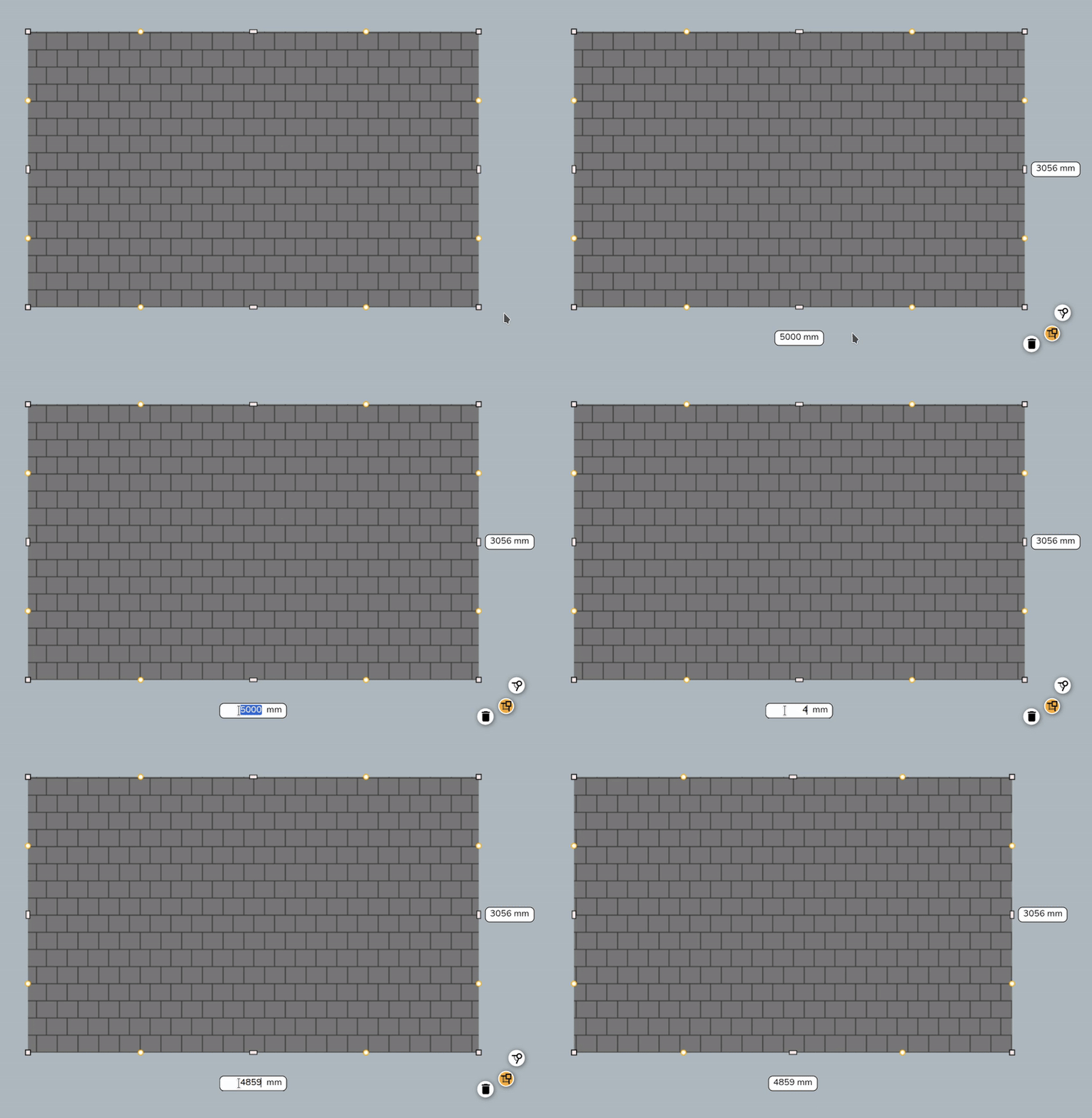
Click on the white corner handles to view the following options:
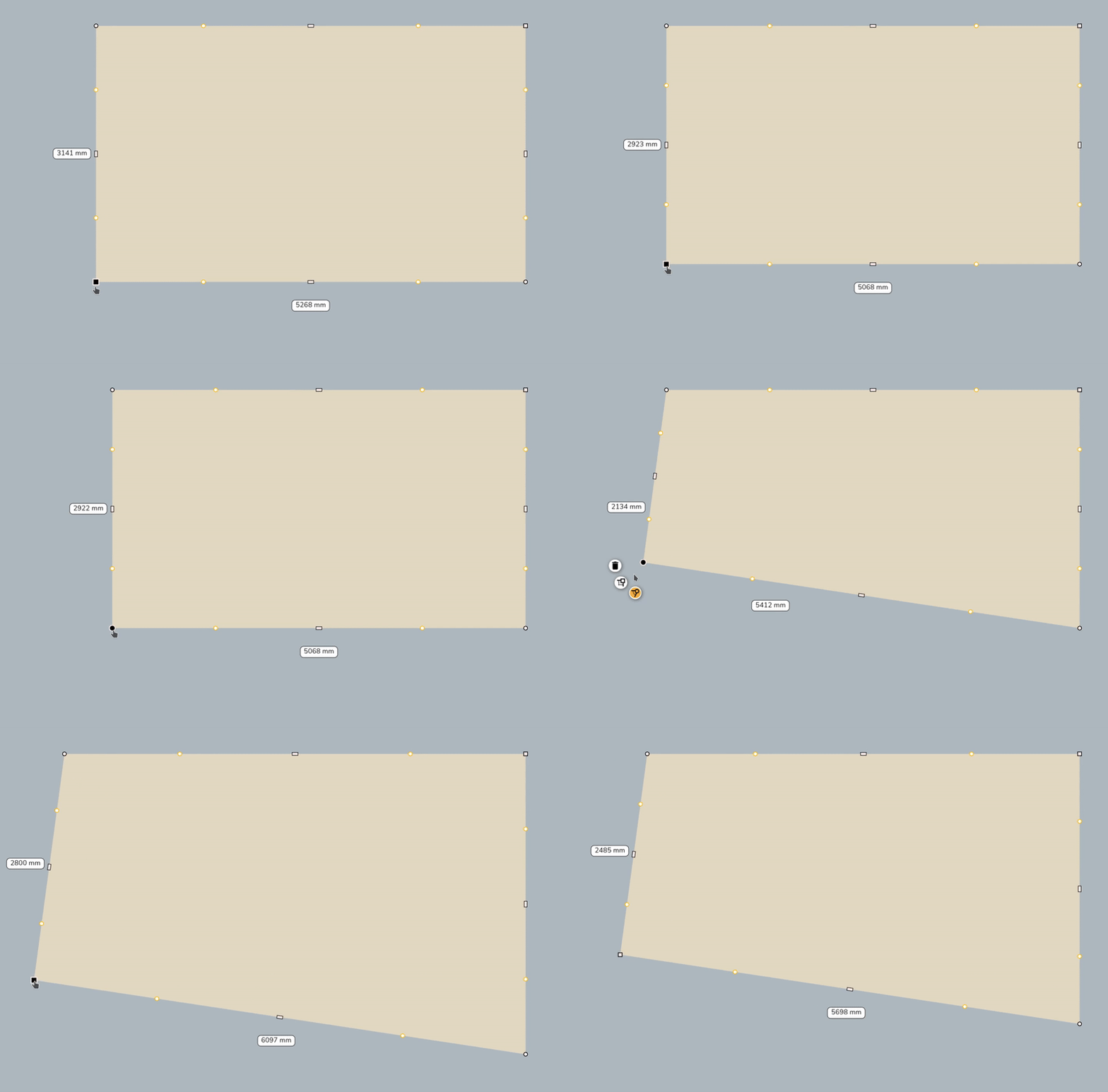
 Square corner handle: Use to resize the roof whilst keeping the adjacent sides at the same angle
 Circle corner handle: Use to move that point independently of the other points to create angled sides.
  Delete: Delete the corner. This option is only available if there are 4 or more corners on a roof


2. Yellow circle handles
Click and drag the yellow circle handles to allow you to split a roof edge and create irregular shapes. These will then convert to white handles which you can delete if needed.
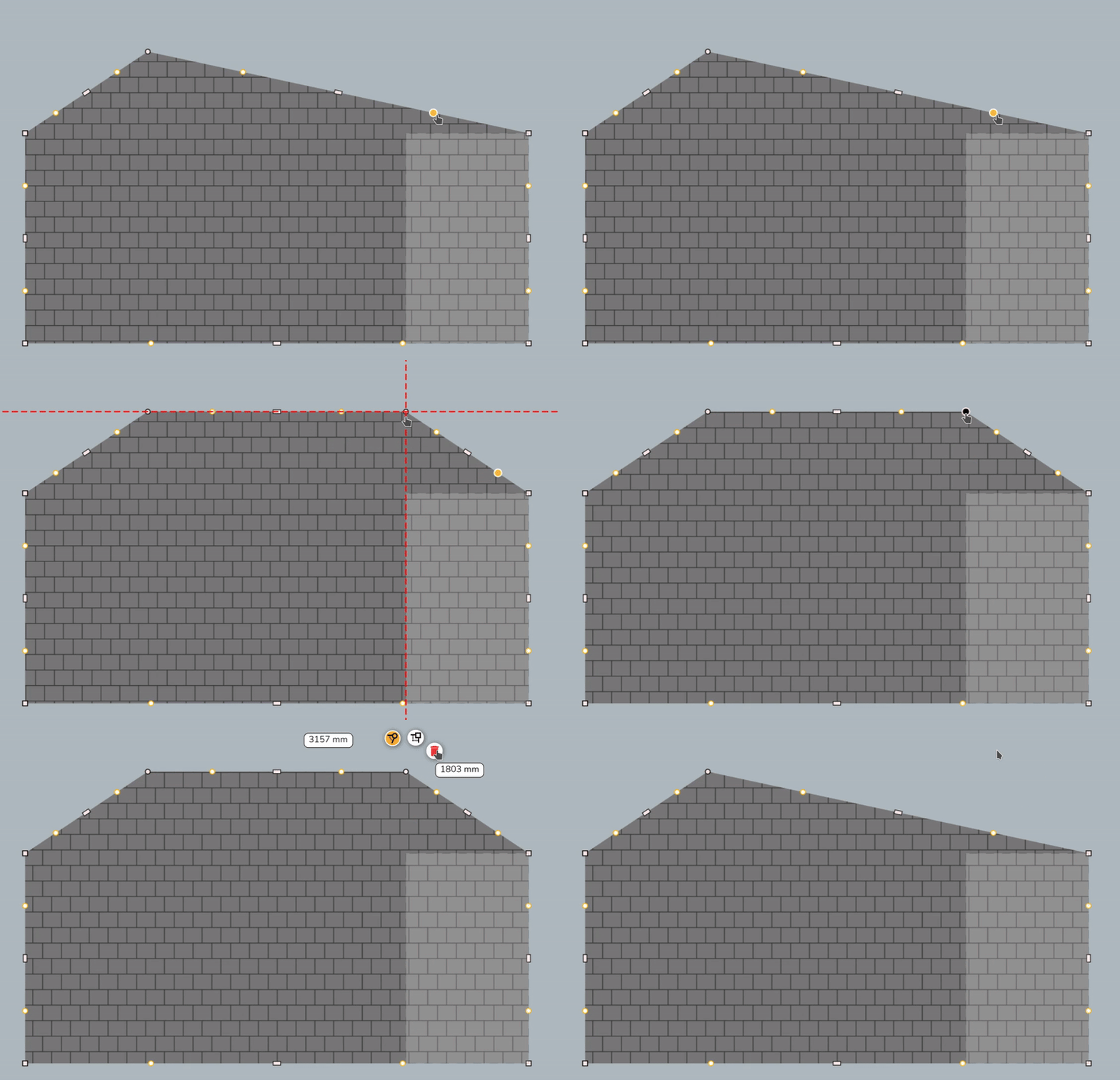
Read more about the snapping guide (transparent rectangle) used here in the next section.
3. White rectangular handles
Click on the white rectangular handles to toggle between a square and curved cornered handles:
 Square cornered handle: Use to extend a roof side out
 Curved cornered handle: Use to extend the adjoining rood side independently of the others. This will create new corners and sides which can be deleted by clicking on the corners and then the bin icon
Adding obstructions
Once you have your overall roof shape, you can add obstructions. Including obstructions will help when planning where to place panels in the Panels task. Drag and drop any obstructions and use the snapping guide to ensure the obstruction positioning is correct.
Snapping guide

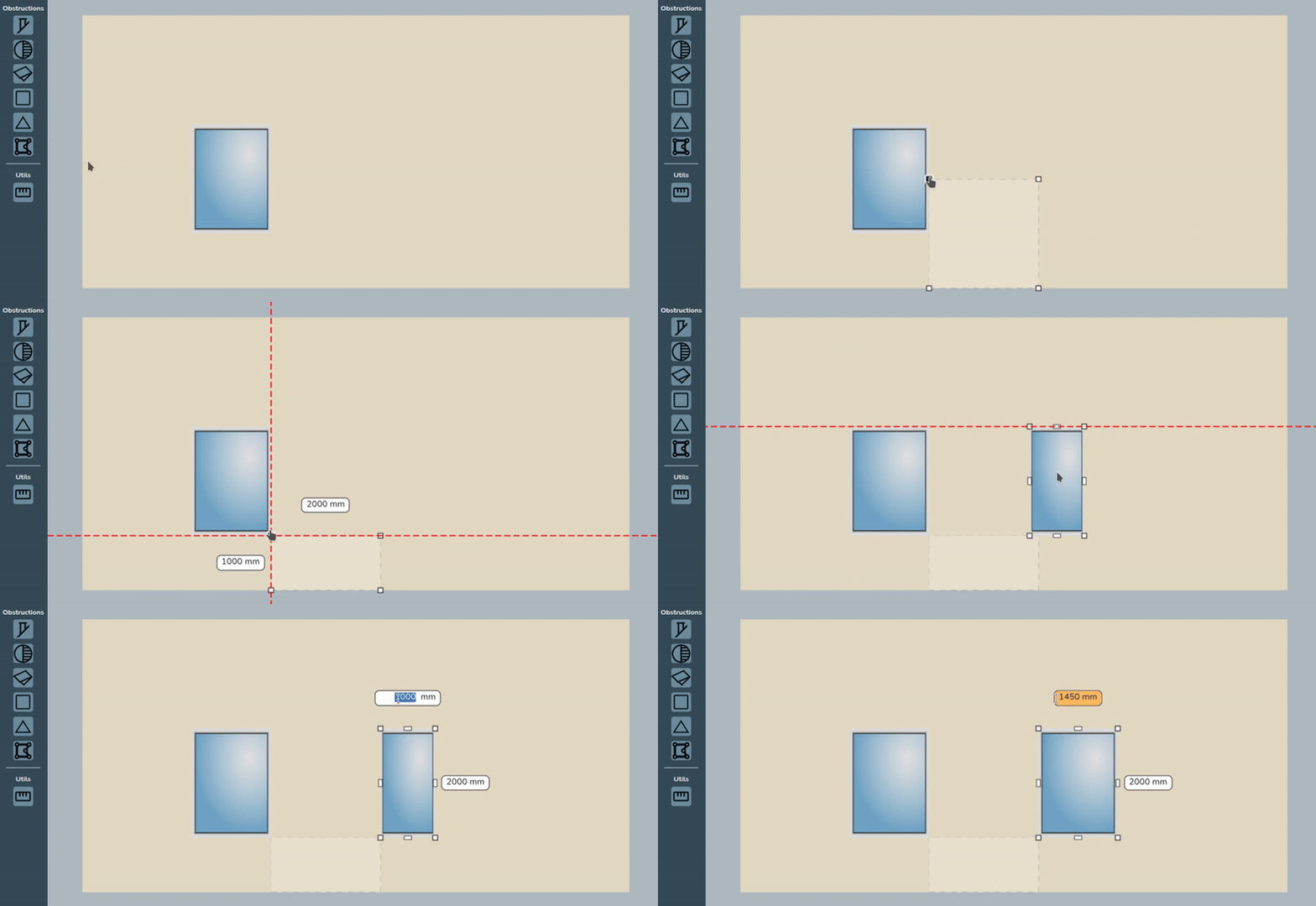
The snapping guide is a rectangle guide that you can set the dimensions of to help position obstructions correctly on a roof and to size your roof. Obstructions and roof sides will align with the sides and corners of the snapping guide.
Here is an example of using the snapping guide to position a roof light. Use the same white handles described above to resize the snapping guide and obstructions.
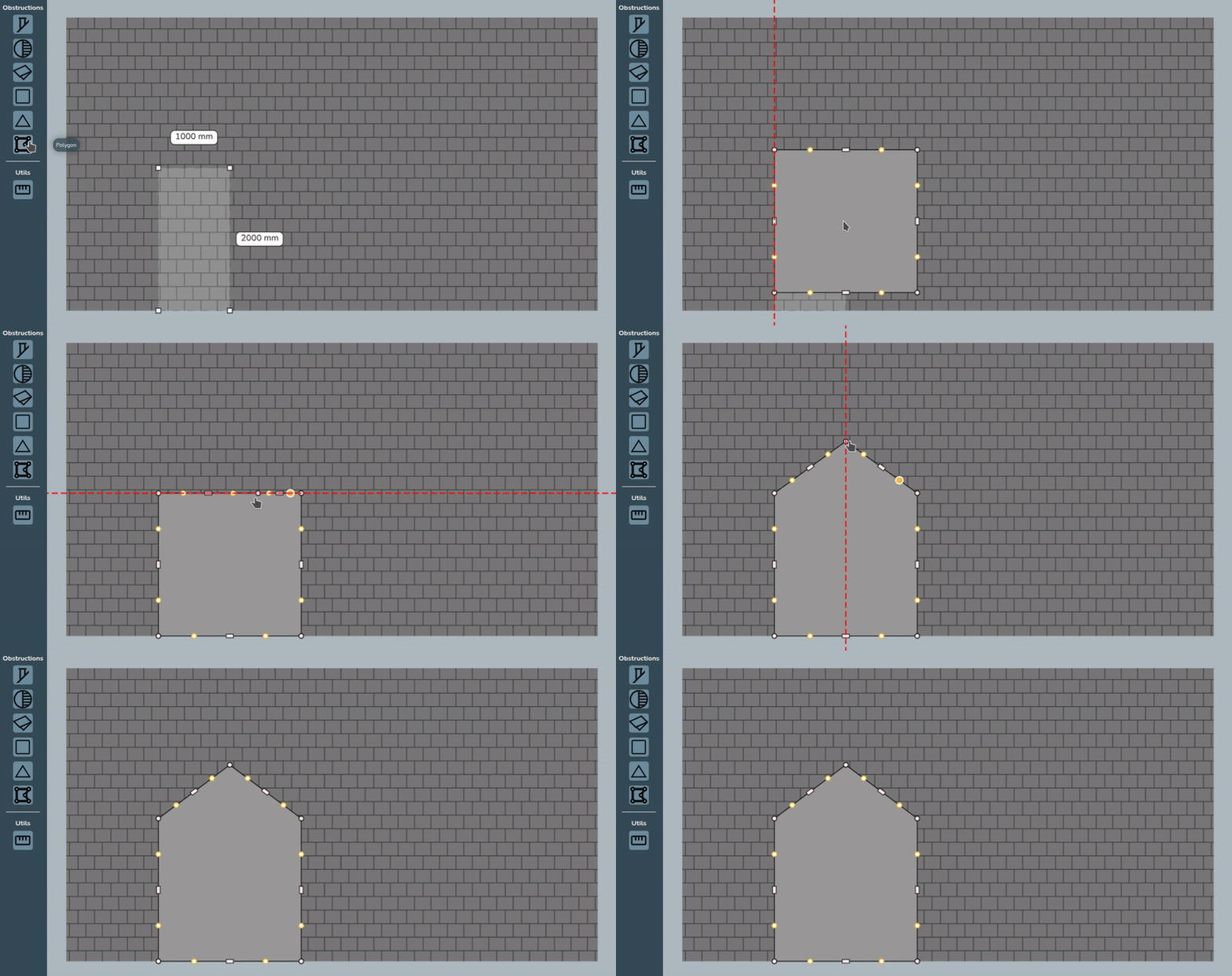
If you are modelling an irregularly shaped obstruction, you can use the polygon obstruction. This uses the same white and yellow handles as the roof. You can also use the snapping guide to ensure the dimensions are correct when creating irregular shapes.
Still Need Help?
Contact Support: If you've got further questions, get in touch with our support team at help@easy-pv.co.uk (UK) or help@easy-pv.ie (IE). If you are experiencing a bug, to help us look into your issue faster, please include the email address of your account, the name of the project and screenshots of any unexpected behaviour.