
Introduction to 3D design mode
3D design mode allows you to take into account nearby buildings or trees that may cast shade on the roofs you're working on. Easy PV can then automatically model the shade on the roof, saving you time and leading to more accurate projections for your customer.
Starting a 3D project
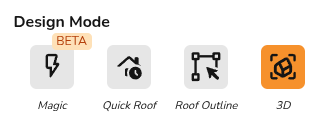
When creating your project, select the "3D" option.
Since 3D mode relies on the satellite map, you must then set the map either by zooming into the right location and selecting Set from map or inputting the address and clicking Set from address.
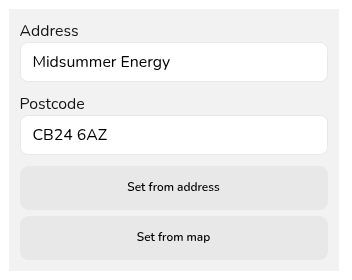
You can then click Create and start your 3D design.
Watch 3D design in action:
- Quick demo of a 3D design
- Walk-through examples using the irregular building tool
- Join our dedicated 3D design training session for more live examples
Overview of 3D design
There are three views you can use to complete your design in 3D:
- Plan: This is a top down satellite view of the property
- Drag and drop buildings and obstructions from the left-side menu and align with the satellite map
- Click in the corners to view and edit dimensions
Note: all dimensions in the plan view are all top-down. Use elevations view for pitched dimensions.
- Where available this will load with a property boundary. Only roofs within this boundary will be usable in the project
- 3D: 3D view of the model
- Useful to check elevations are correct
- Expand 3D view to view full shading model
- Elevations: View of heights and pitched dimensions
- Click on a building, extension or obstruction in the plan view to display heights and pitched dimensions
- Adjust dimensions by dragging or input directly by clicking on value
Choosing satellite map: orthorectified and standard imagery
When designing atop the satellite map, you have two choices of which map data to use:
- Orthorectified: This uses geometrically corrected satellite data to give more accurate dimensions. This will not always be available
- Standard: This uses raw satellite data. Dimensions may be distorted, particularly for sloped structures
If you are relying on the satellite map for dimensions, then orthorectified is the recommended option. We cannot guarantee the accuracy of the dimensions when using the standard imagery.
Selecting roofs to use
Once you have completed your design, click Next. A menu will then pop up showing the roofs.
- Easy PV will automatically select the roofs it thinks are most suitable based on the size, pitch and orientation
- If a property boundary is included, only roofs within this property boundary will display - remove or edit the property boundary if roofs you modelled are missing
- Select or de-select and roofs using the checkbox on the right
- Place cursor over roofs to highlight them in the map on the left
Once all the roofs you want to place panels on are selected, click Next in the bottom right to go to the Panels task.
Automatic shade analysis
One of the key benefits of designing in 3D is Easy PV will calculate the shading on the panels automatically. In order to make the most out of this feature, it's therefore important to model any surrounding buildings or obstructions that would cast shade on the panels.
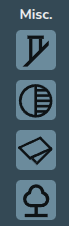
Drag and drop obstructions from the Misc. section, adjusting any heights in the elevations view:
Performance task
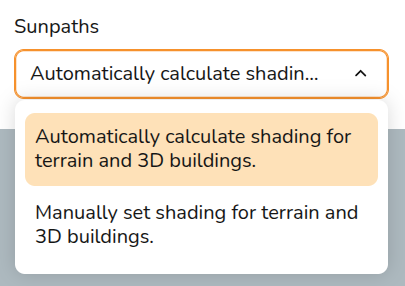
On all 3D projects, you will have the additional option in the Performance task to automatically calculate sunpath diagrams:
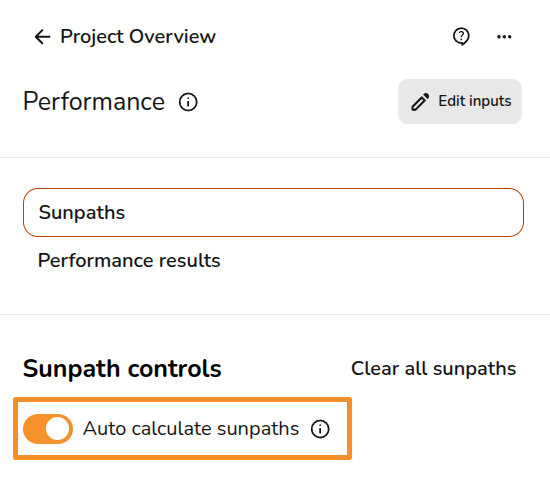
When this is selected, the shading factor/losses will be calculated for you. If you would like the shading to be calculated automatically each time, make sure this option is selected in your (pro) account performance settings:
Note: that when using optimisers shading is not calculated per panel but per shading group. Read more about that here.
3D model
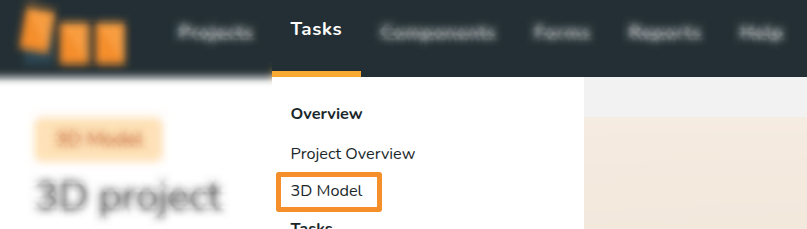
You can use the 3D model to check the shading on the roof. From the tasks drop-down, select 3D model:
In the top left you will see the date and time currently being modelled and a slider to adjust how quickly time passes.

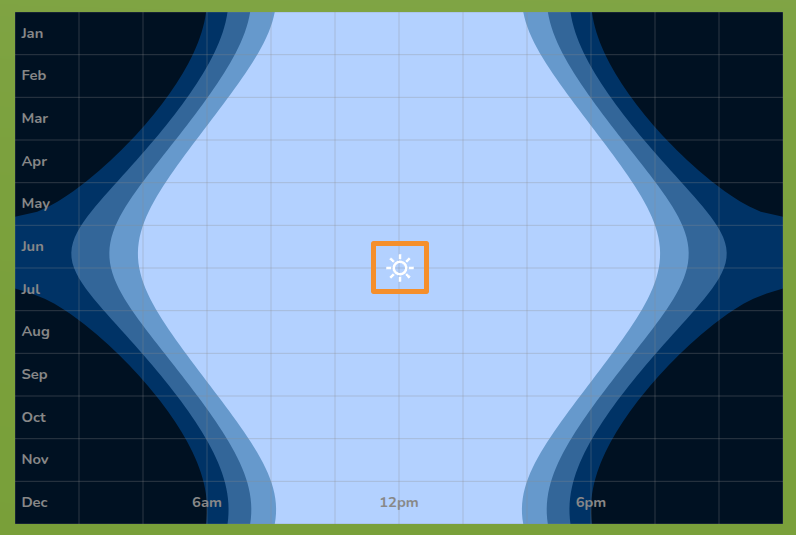
If you click the pause icon, this diagram will appear in the bottom left. Drag the sun across the dates and times to see the shading at specific times.
Still Need Help?
Contact Support: If you've got further questions, get in touch with our support team at help@easy-pv.co.uk (UK) or help@easy-pv.ie (IE). If you are experiencing a bug, to help us look into your issue faster, please include the email address of your account, the name of the project and screenshots of any unexpected behaviour.