
Panels task
Once your roofs have been created and selected, the next step is to add panels to them. This is done in the Panels task.
Choosing a panel
When you open the panels task, you'll be prompted to select a panel to use. Select from the manufacturers on the left and then from the individual panels in the middle. You may need to scroll up or down to see the individual panels.
Can't find what you're looking for? Add custom panels.
Once selected, on the right you can see the specs for the panel and Midsummer stock and price information. Click on the Midsummer box to view the full listing with datasheets, warranty and more.
Click Select in the bottom right once you've chosen your panel
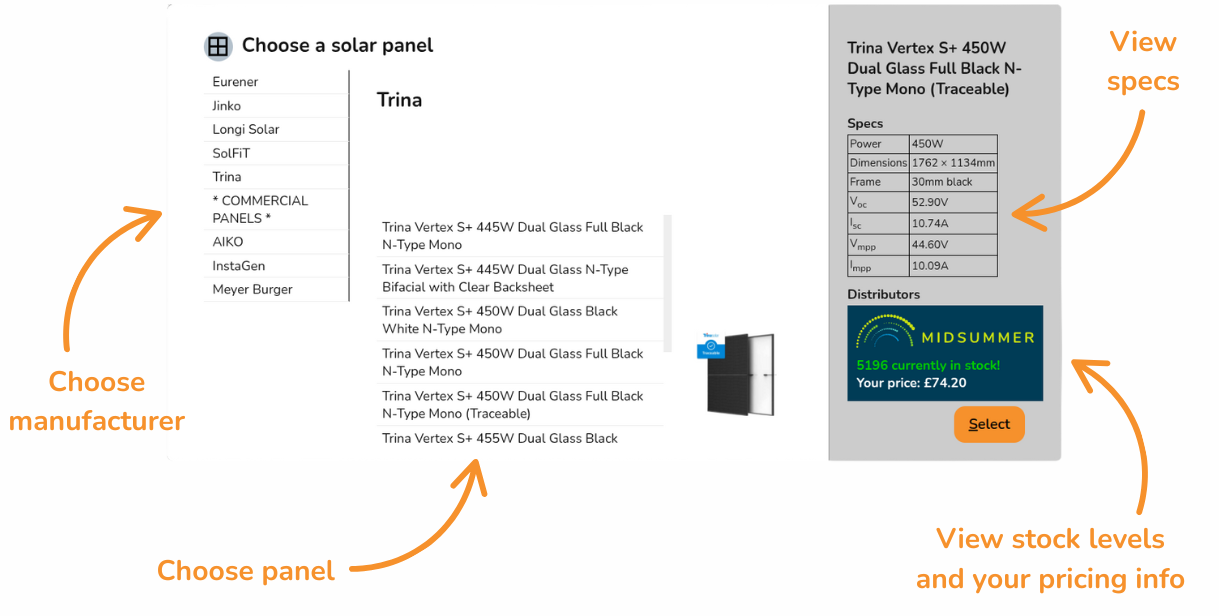
Connect your Midsummer Wholesale account for accurate pricing. Not registered? Sign up here.
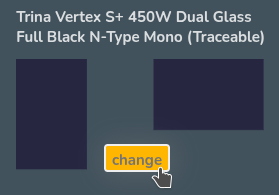
Click change on the left to reopen the panel menu.
Creating panel layout
There are various ways to add panels to a roof.
|
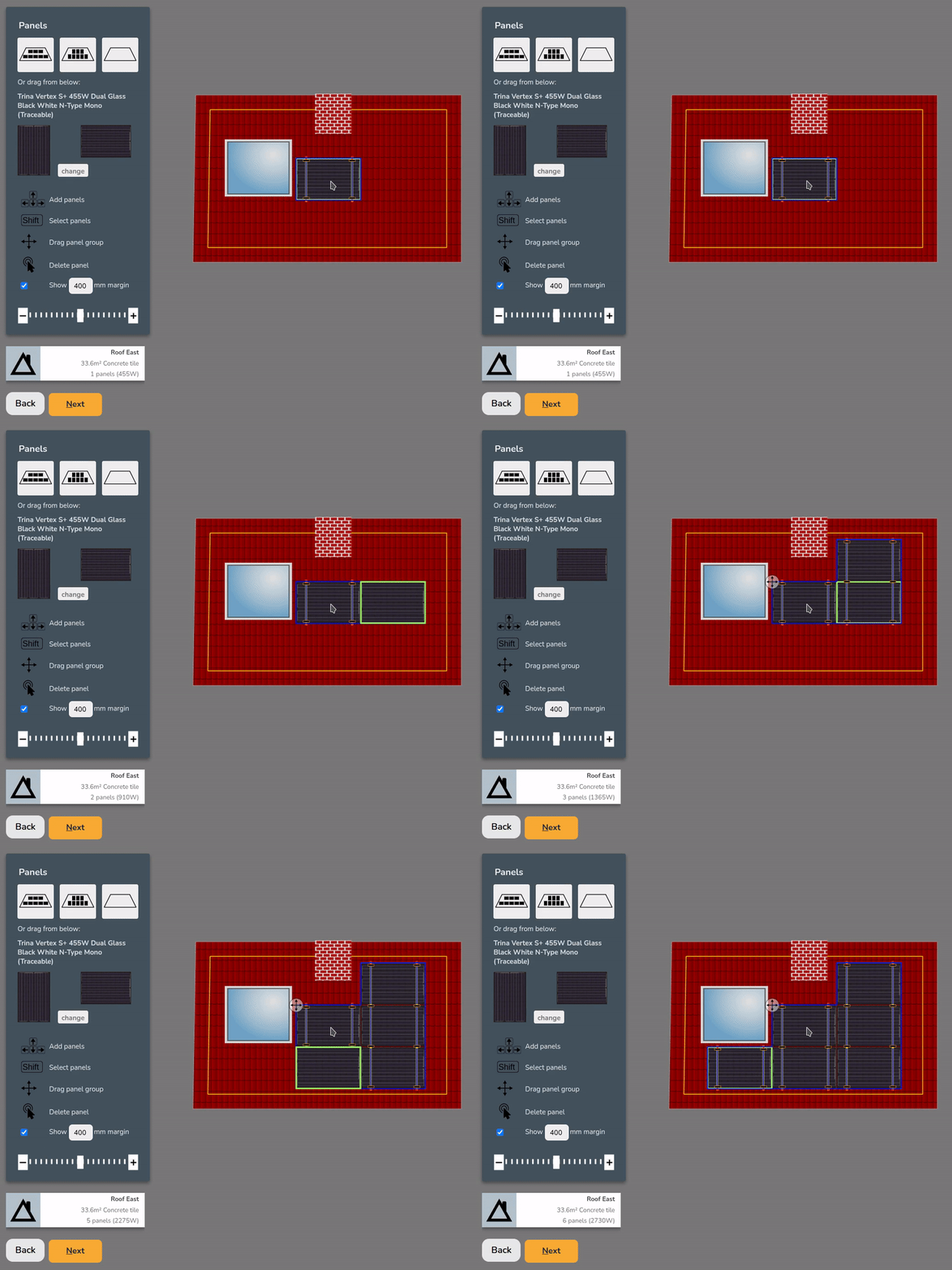
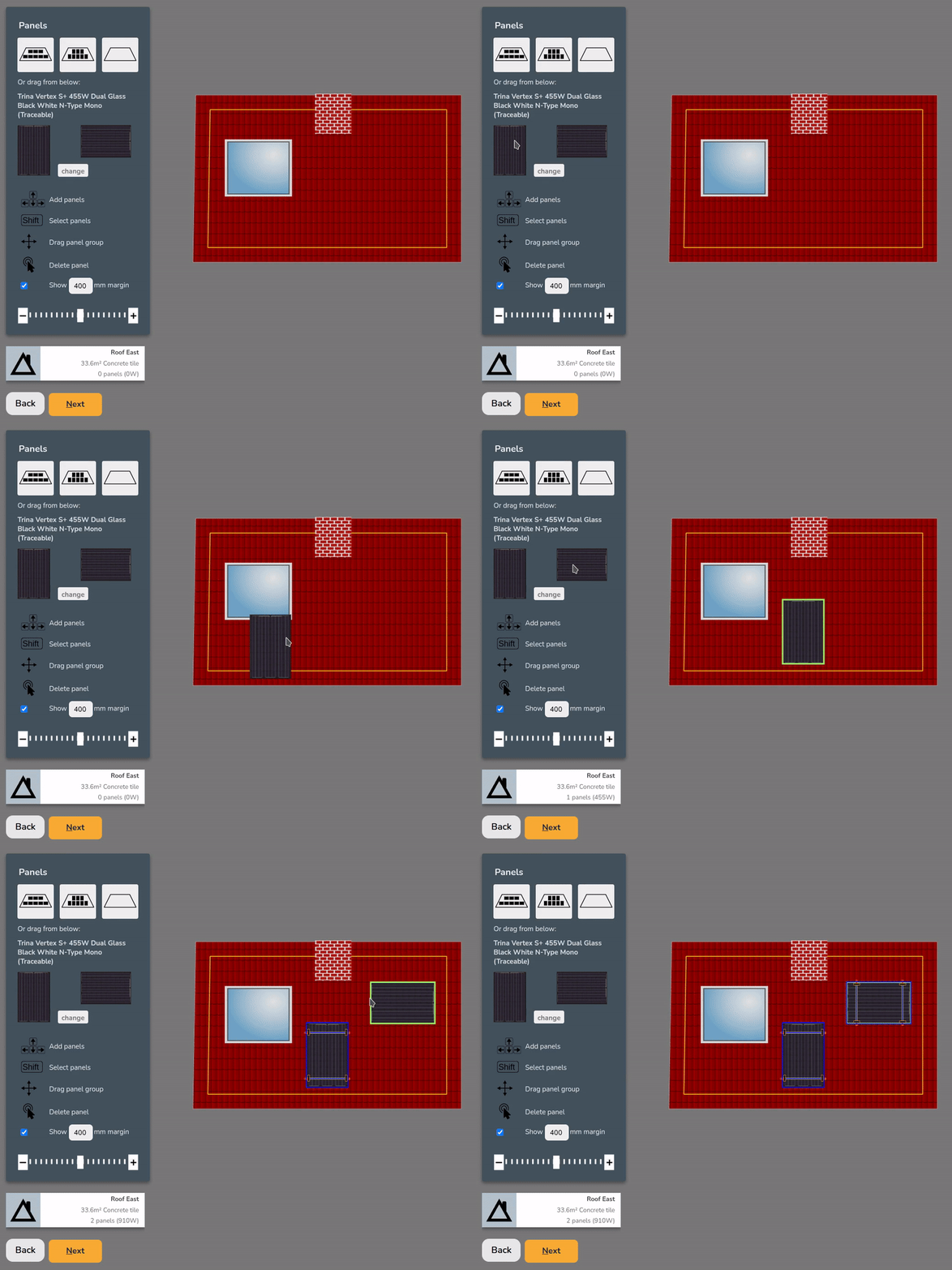
Drag and drop to place panels individually
|
|
|
Click on a panel and use the arrow keys to add adjacent panels
|
 |
|
Click auto-fill options to fill the roof with portrait or landscape panels
|
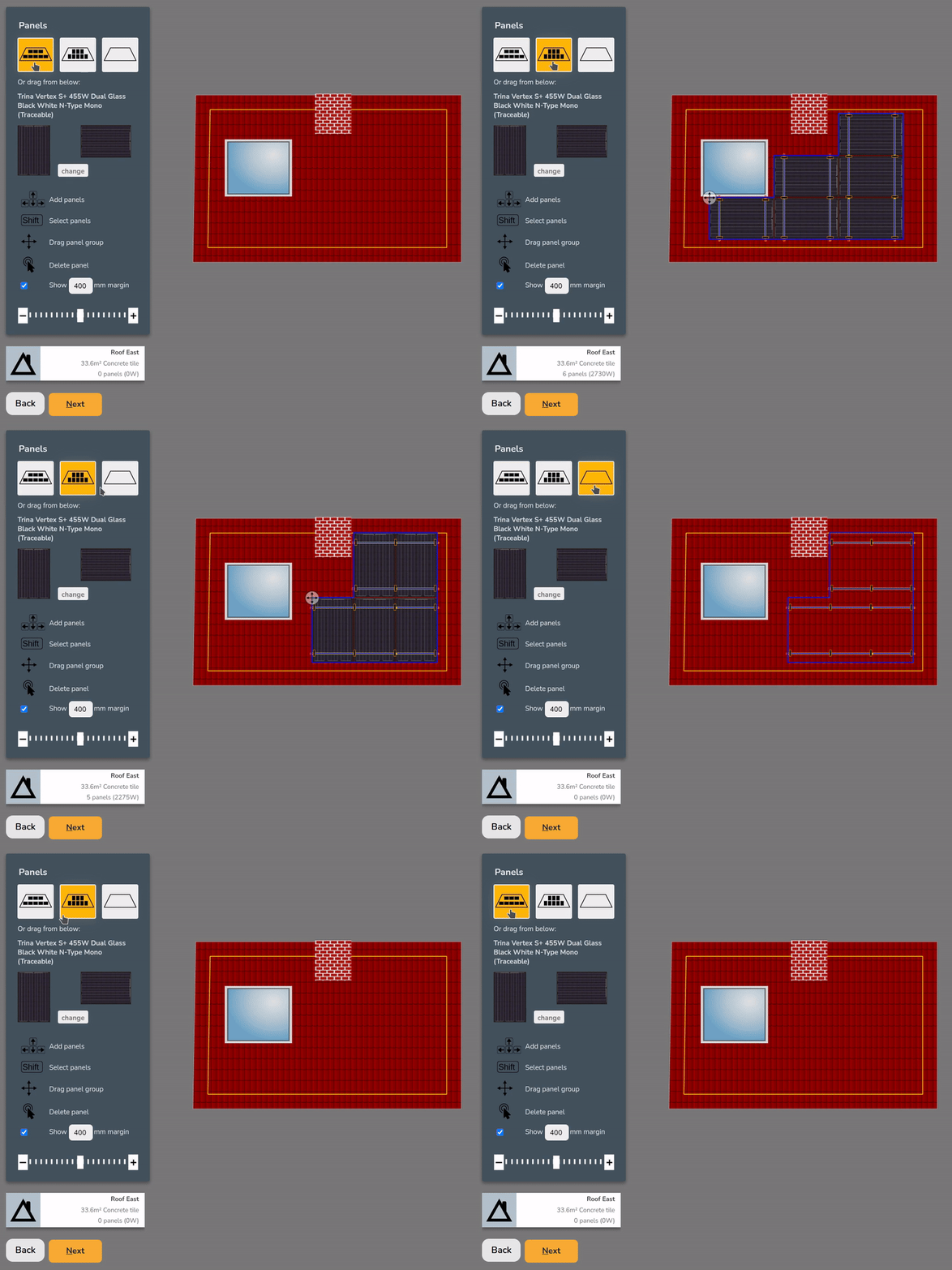 |
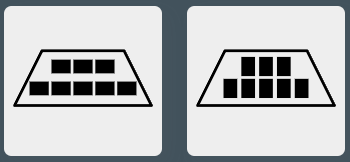
Auto-fill options will avoid obstructions and place as many panels as possible within the chosen mm margin.
You can remove panels with the following options:
|
Double click to remove an individual panel
|
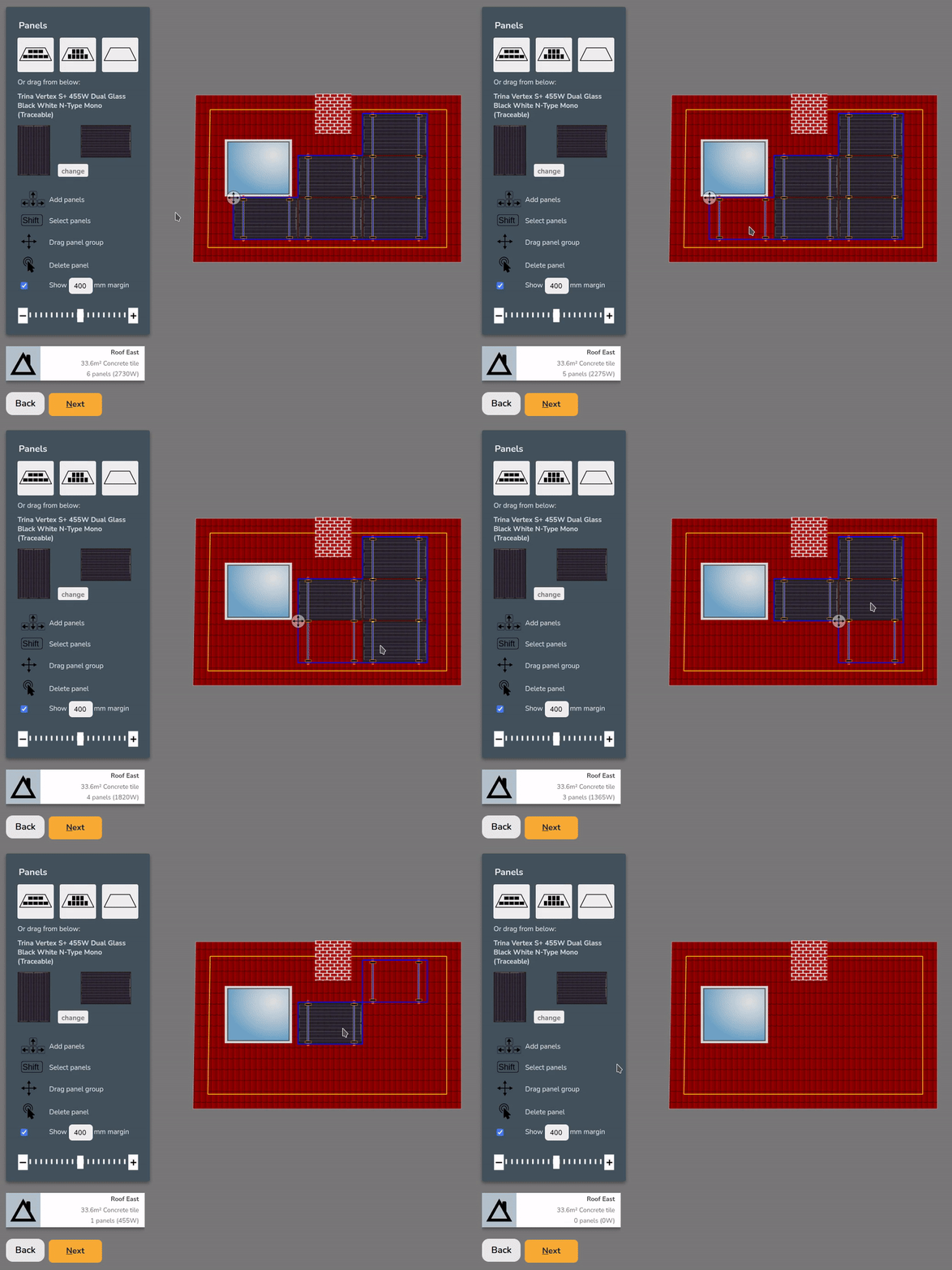 |
|
Shift + Click + Drag to select multiple panels and Delete/Backspace to remove them
|
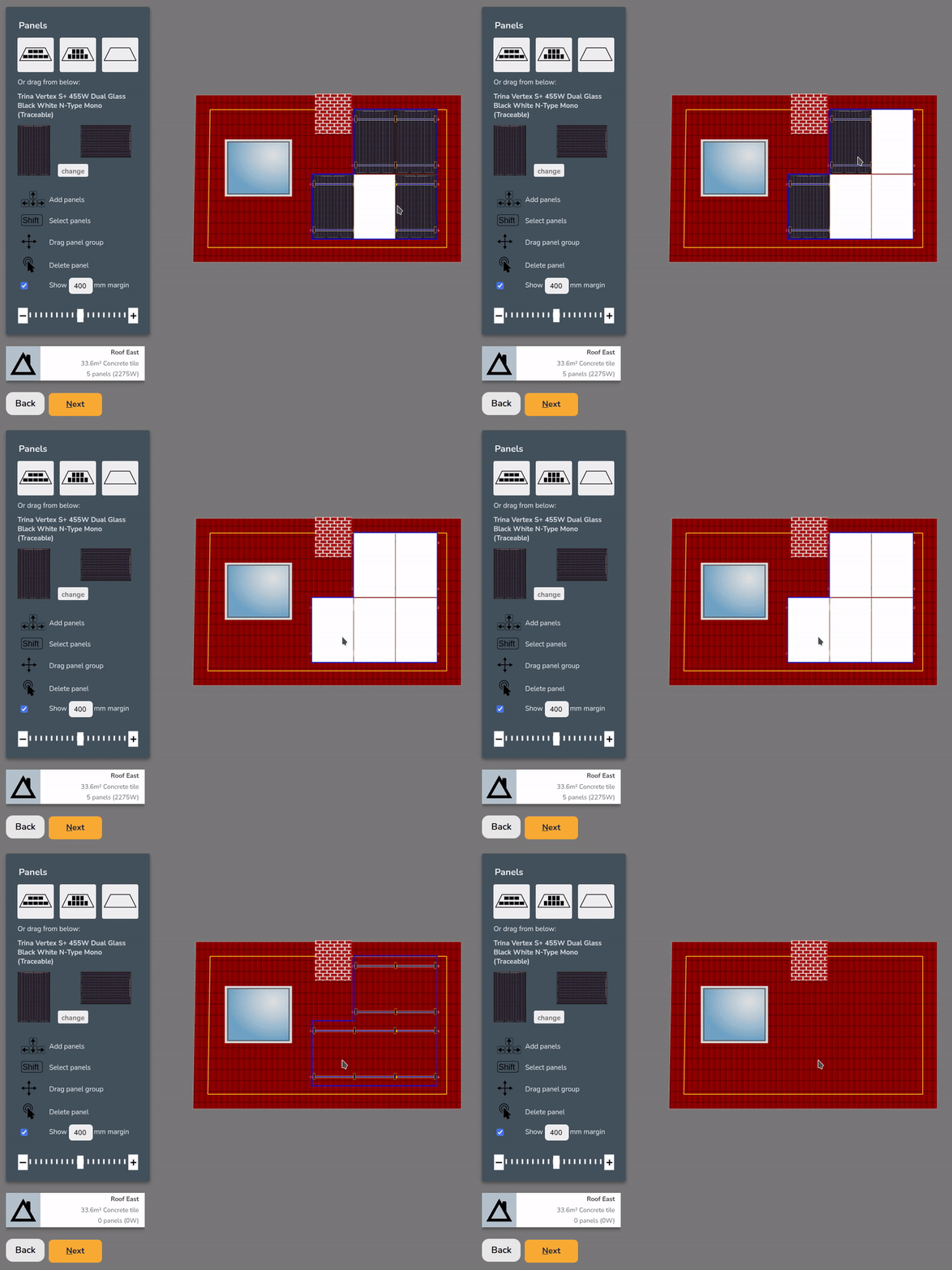 |
|
Click the clear roof option to remove all panels
|
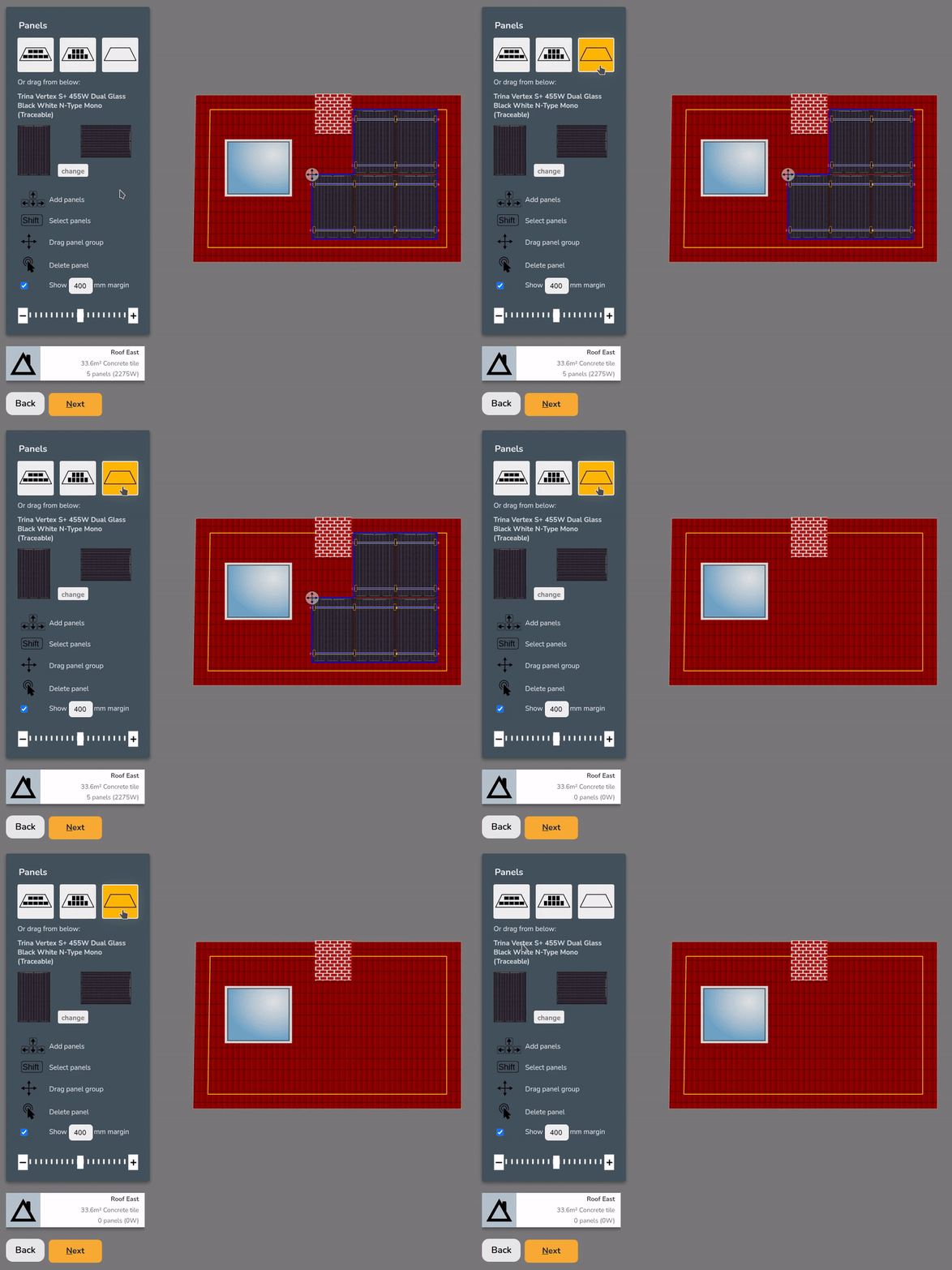 |


Choosing a mounting system
Once the roof has panels on it, you can choose from the available mounting options on the right. The mounting options displayed will be compatible with the roof and panel orientation and size.
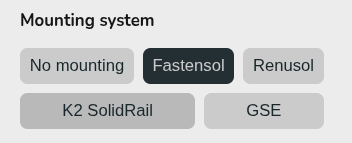
When selected, Easy PV will specify the necessary mounting components. Depending on the mounting system, you may also have additional options to configure the components further (rail colour, preferred hook, bird blocker etc.).
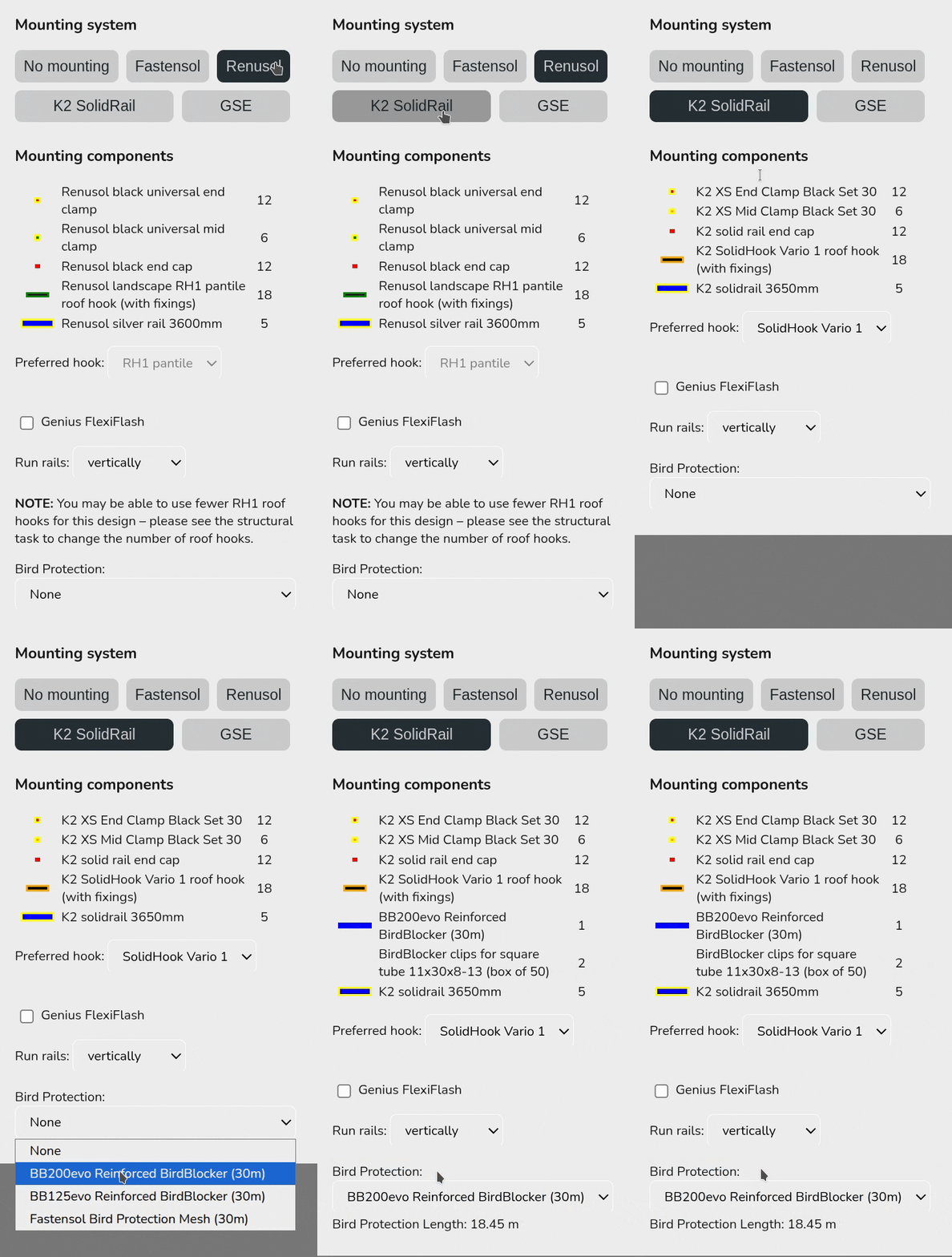
This mounting kit list does not take into account structural considerations. Adjustments needed to the number of hooks are calculated in the structural task (UK only) or otherwise.
If the mounting option you want to use is not available, select No mounting. For flat roofs, you will have additional options to configure the panel layout, including east-west options.
Multiple roofs
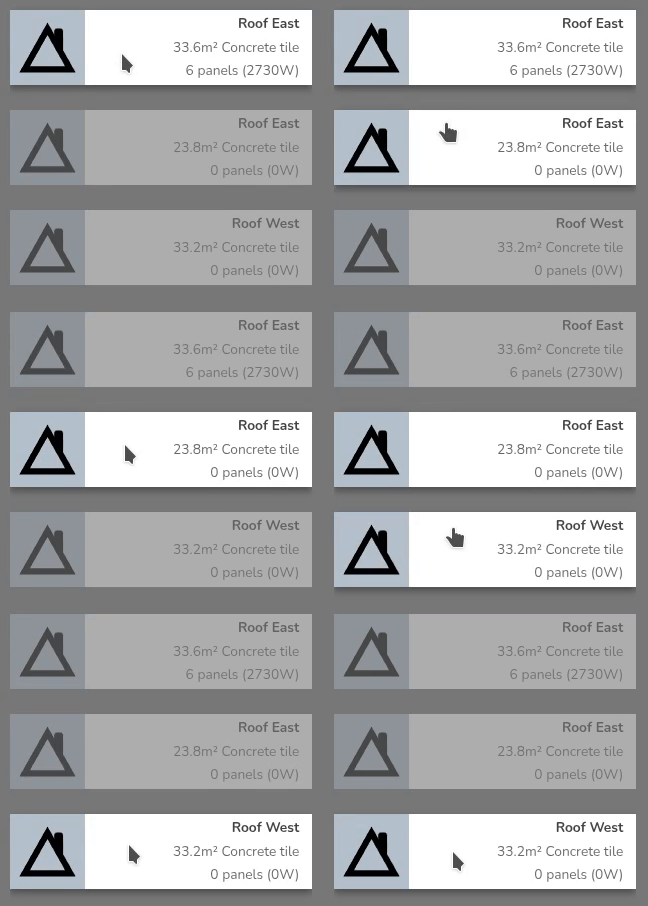
Once all roofs are completed click Next onto the inverter task.