
Performance task
The performance task uses the system data, location and shading information to estimate the annual output of the system. This is then used in self-consumption calculations to estimate how much of what is generated will be used directly, used to charge a battery or exported to the grid, which is needed to estimate the financial benefits of the system.
Getting started with the Performance task
You can access the Performance task via the 'Tasks' drop-down menu or from the task list to the left on the project overview page.
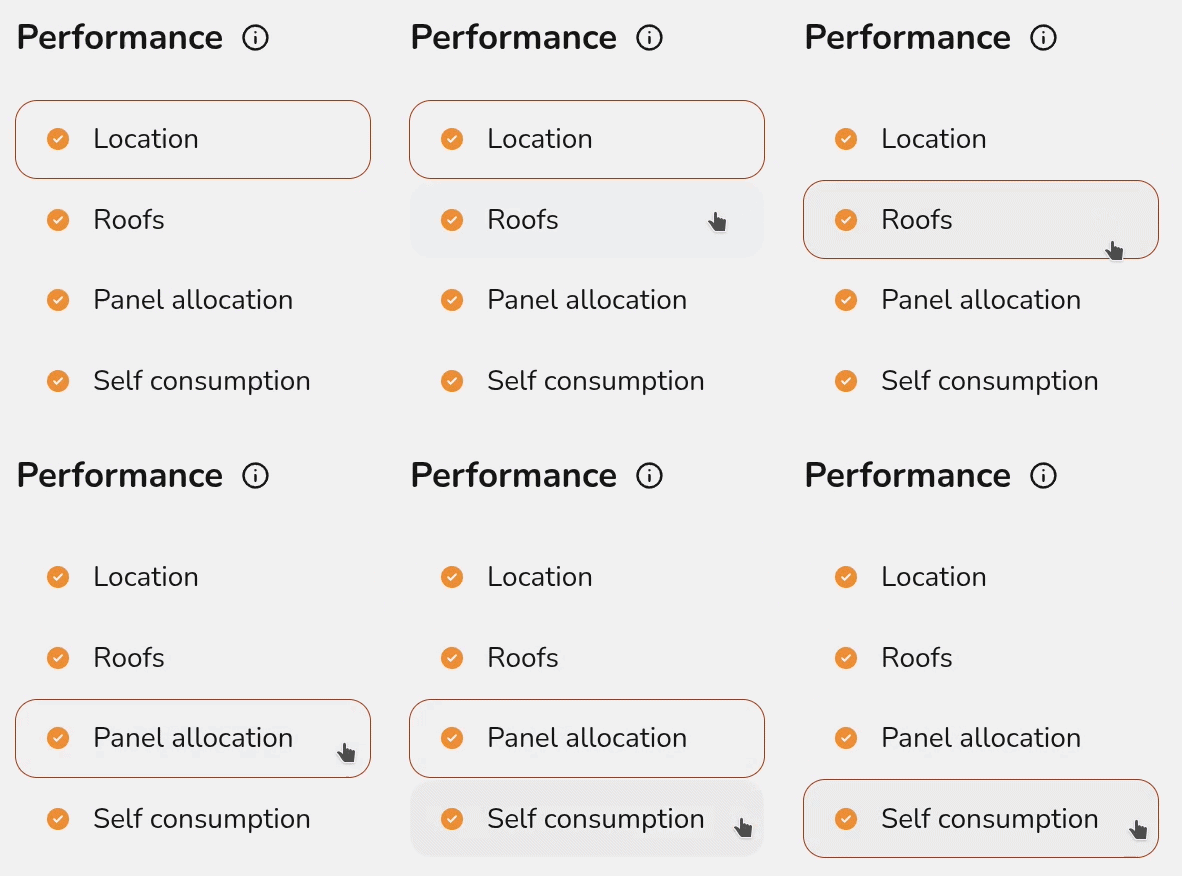
When the Performance task first opens, you'll be shown a popup that lets you configure the settings you want to use. You can use the left hand navigation to choose the settings you want to edit.
Select Edit Inputs in the top right to re-open this menu.
Performance inputs
Expand each section below for more details on each tab.
Location
This section may show as ticked and completed already if this information can be pulled from the start of the project.
A postcode is necessary for performance calculations, since where in the world the system is located determines how much sunlight it will get. If there is no postcode for the location of your system, choose the most local one you can find.
Roofs
If you are creating a flat roof system or using quick roof mode, you will also need to input pitch and orientation. Both this and the location data are used to determine the output of the system.
This section may show as ticked and completed already if the pitch and orientation can be populated from earlier in the project.
Panel allocation
This section will depend on how you have configured your settings and the system you are designing.
- If you have selected for your panels to be automatically allocated, then panel allocation will show as completed
- If you have selected suggest allocation then here you can choose to edit the allocation or select Done to accept the allocation and close the window.
- If you have manual allocation selected then you will need to allocate the panels here.
There are some cases where auto-stringing will not work and manual allocation will be required.
Read more: How to Manually Allocate Panels.
easy-pv.co.uk
Self-consumption calculation (optional)
easy-pv.co.uk
A self-consumption model is available for all users in the Consumption Task. For UK users, this can be provided to customers in addition to the MCS calculation, which is completed here in the performance task.
This process follows MCS guidelines defined in MCS 032 to predict self-consumption of the generated PV electricity. UK companies installing under MCS will need to provide this calculation when it can be used.
- Annual electricity consumption of the property
- The lookup tables for this calculation only permit values between 1500kWh and 6000kWh. Use the consumption task for more detailed consumption calculations or for values that fall outside this range.
- For the most accurate results use a value from past electricity bills. Where possible, consumption data should be taken before the installation of electric heating / hot water or electric vehicle charging.
- Occupancy archetype
- Properties that are occupied during the day will typically consume more PV-generated electricity directly. Properties that are empty during the day may benefit more from battery storage that can store PV-generated electricity for later use.
- Proportion of battery used for ancillary services such as backup power or arbitrage
- If there is a battery on the project, this question will appear. If the entire battery capacity to be used to increase self-consumption, this value will be 0%.
- The lookup tables for this calculation only permit that the usable capacity is less than 15.1kWh, in this case use the consumption task for more detailed consumption calculations.
- Is additional self-consumption anticipated?
- The MCS calculation does not account for consumption arising from "non-typical domestic loads" such as electric space heating, swimming pools, heat pumps, electricity power diverters, electric water heating and electric vehicles.
- You can enter any figure here, but the calculation assumes that a maximum of 95% of the generated electricity is available for self-consumption so the value in the results table will be capped to the remaining available generation capacity.
Read more: Differences between MCS and Easy PV self-consumption.
Click Done when all inputs have been completed.
Note: designing in 3D and configuring your settings to automate panel allocation and sunpath diagram calculations will streamline much of this task.
Navigating the performance task
The right hand sidebar contains options to switch between the Sunpaths and the Performance results:
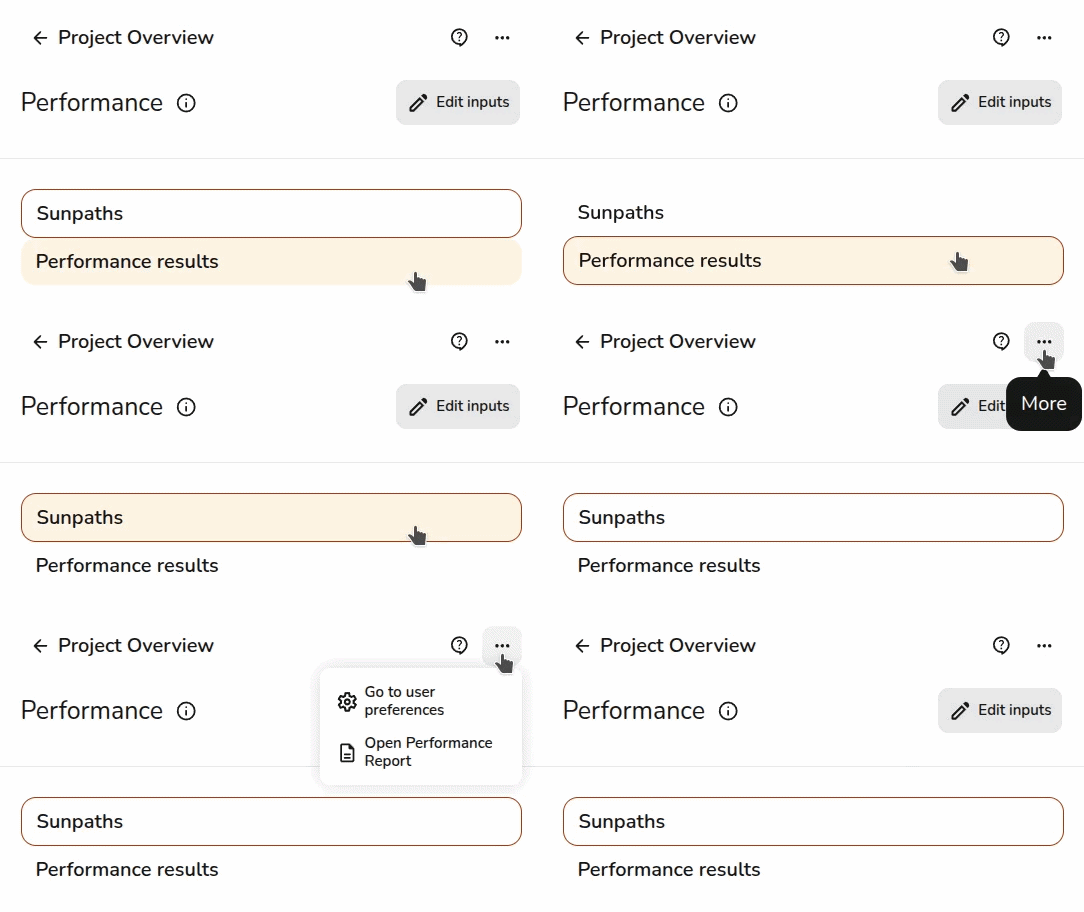
As well as the following:
Edit inputs: Click to update the location, pitch and orientation of the roofs and panel allocation- Open help page: Go directly to this help page if you're ever having trouble
- Click the
three dotsto see the following:- Go to user preferences: Adjust which performance dataset is used, sunpath and panel allocation automation, and MCS self-consumption defaults
- Open performance report: See MCS performance table with sections A, B, C and D (if MCS self consumption completed and selected in financial task)
Sunpaths
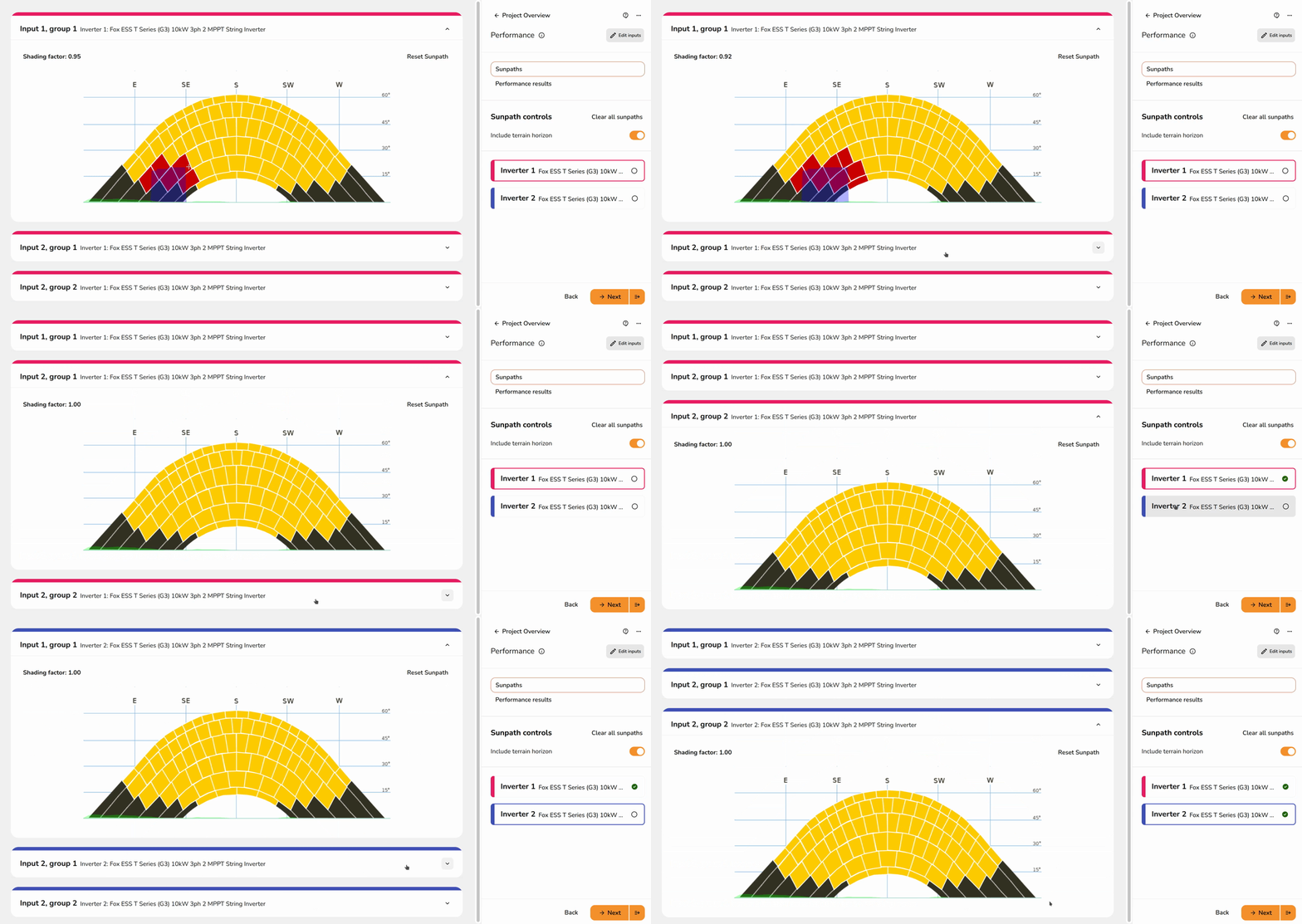
At this stage, you need to model any shading that may affect the output of the panels. The sunpath diagram is a map of the sun's position in the sky throughout the year and any shade that may be put on the array. This is then converted to a decimal or percentage, based on the shade coverage, to adjust the panel output.
Automating with 3D
If designing in 3D or magic design mode, the shading can be calculated automatically. If you would like to manually edit the sunpaths then toggle off Auto calculate sunpaths.
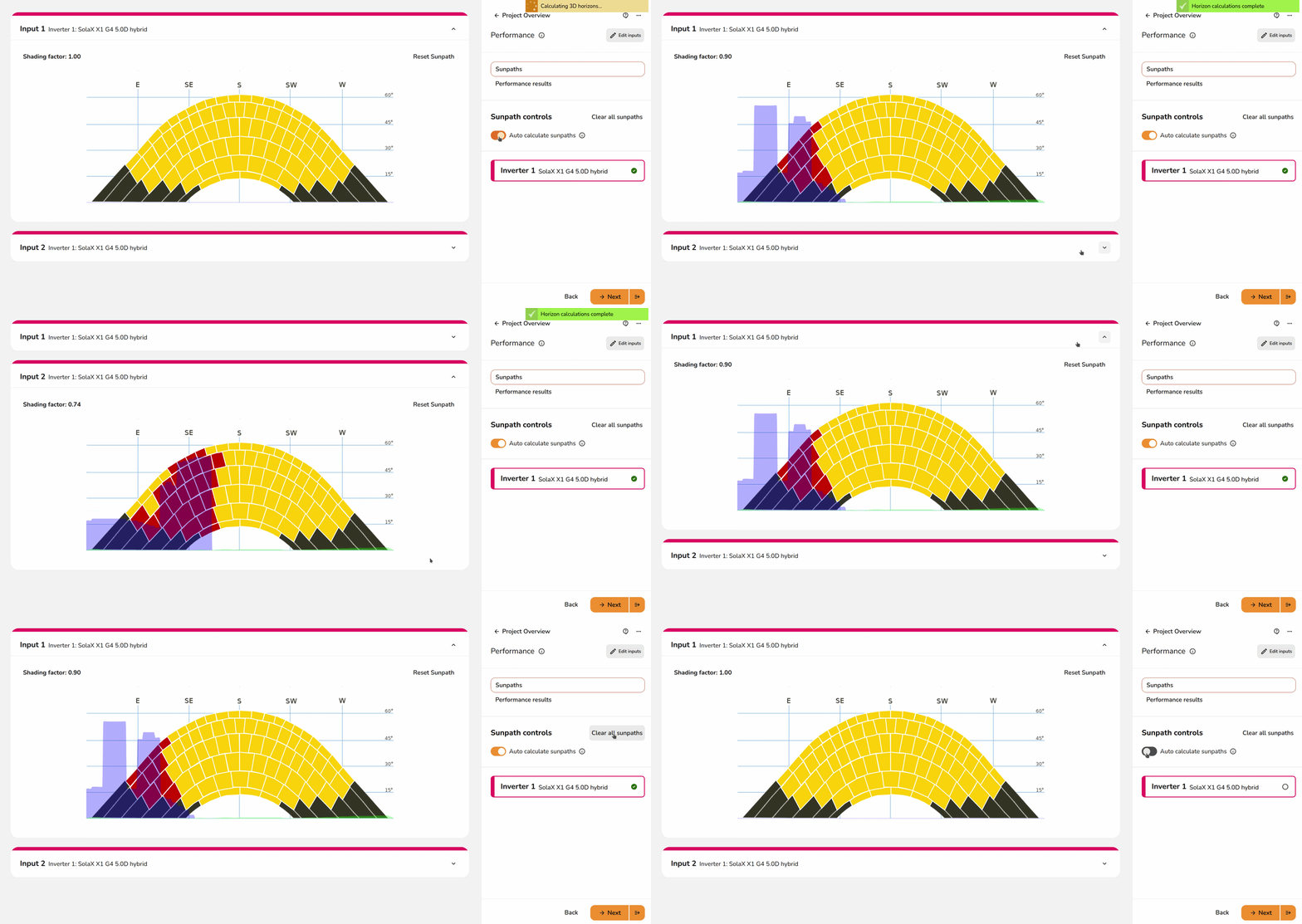
Note: You will need to make sure you have modelled any surrounding trees or buildings in the Buildings task for the shade to be calculated automatically.
Read more: Differences between design modes.
Manually editing sunpaths
If designing in 2D, you will need to manually create the sunpath diagram. Click between the inputs to expand the sunpath diagrams for each inverter.
Performance results
These results will depend on which performance calculation method you are using.
Expand the sections below for information on each version.
MCS performance and self-consumption results
easy-pv.co.uk
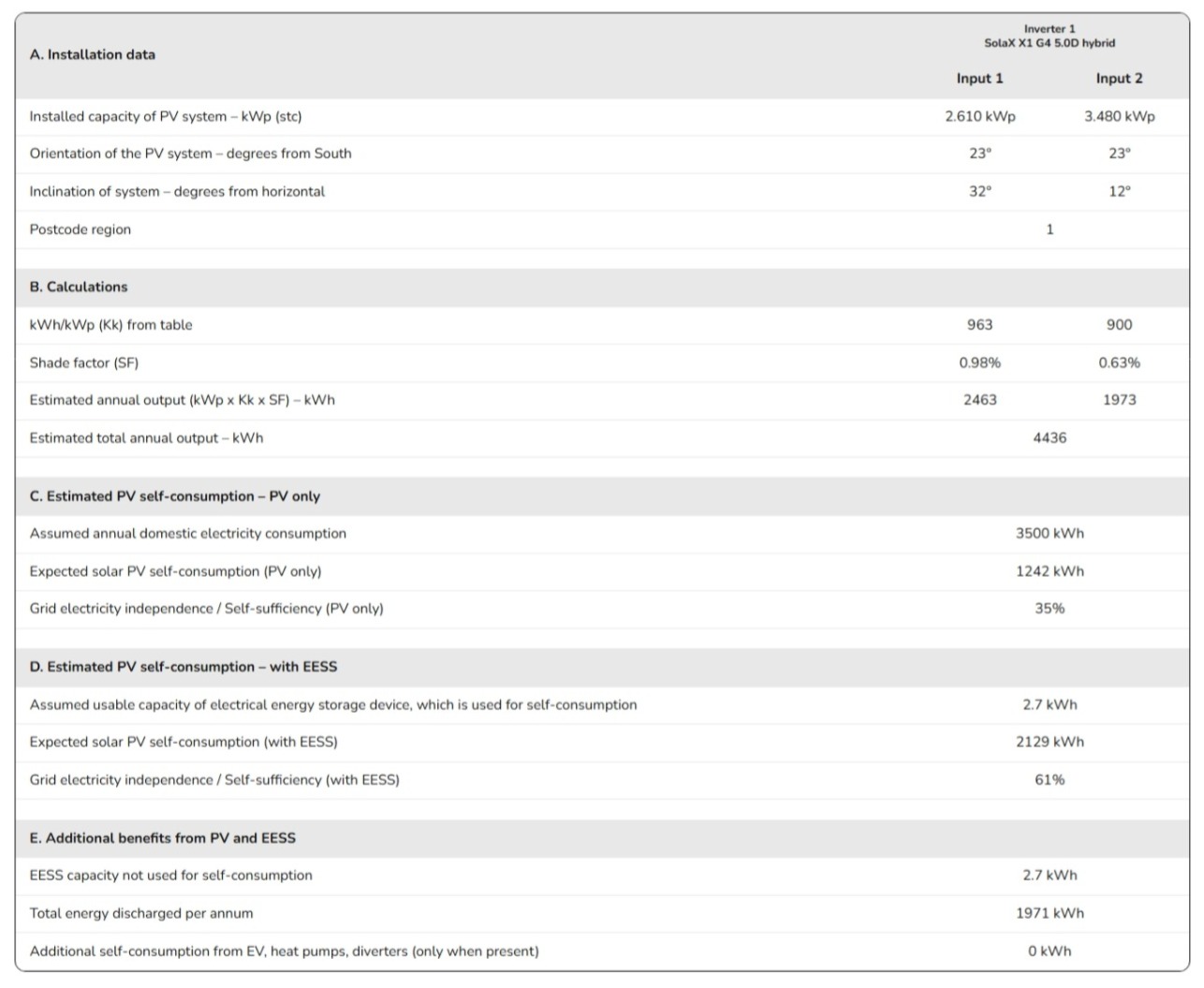
The performance estimate calculated here is based on the method detailed in MCS 032. See the end of this section for more information on the methodology used for the self-consumption calculation.
The MCS performance report can be accessed from the forms (and then reports) drop down menu.
A. Installation data
This section details the installed capacity, orientation of the system, inclination of the system and the location. These inputs can be adjusted by clicking the pen icon in the top right or by adjusting the panels on the system.
B. Calculations
Using the installation data and the shading factor, an estimated annual output is calculated. To adjust the shading factor, navigate to the sunpaths diagrams tab.
C. Estimated PV self-consumption – PV only
The estimated self-consumption for the system with PV only is taken from the MCS lookup tables, depending on the values above and those input in the task. Click the pen icon to adjust these inputs.
D. Estimated PV self-consumption – with EESS
The estimated self-consumption for the system with PV and battery storage is taken from the MCS lookup tables. This section will not show if there is no battery storage, navigate to the inverter task to include battery storage.
E. Additional benefits from PV and EESS
If additional consumption is anticipated or some of the battery capacity is reserved for ancillary services, that will be detailed here. This section will not show if that is not the case, to edit those inputs click the pen icon in the top right and navigate to the self-consumption tab.
NREL performance results
easy-pv.ieeasy-pv.co.uk
Section A details the installed capacity, orientation of the system, inclination of the system and the location. These inputs can be adjusted by clicking the pen icon in the top right.
In section B, the data in section A is used to estimate the output per kWp for the unshaded array using the NREL's PVWatts calculator. The percentage of output lost from shade is then subtracted from this value. This is then multiplied by the kWp of the input to calculate the estimated generation per input. To adjust the percentage lost, navigate to the sunpaths tab.
Still Need Help?
Contact Support: If you've got further questions, get in touch with our support team at help@easy-pv.co.uk (UK) or help@easy-pv.ie (IE). If you are experiencing a bug, to help us look into your issue faster, please include the email address of your account, the name of the project and screenshots of any unexpected behaviour.