
Getting started with the Consumption task
For UK users, theThe Consumption task ismodels ana alternativeproperty's solar generation and financial savings by configuring annual energy usage, utility tariffs, and battery management settings. With no limits on system size and options to theuse MCSclient's uploaded meter data, it's a fast and accurate way to estimate self-consumption calculation completed in the Performance task. Unlike the MCS self-consumption calculation, the Easy PV calculation can be used for projects larger than 6000 kWh and withgrid batteries over 15.1 kW.independence.
Configuring the Consumption task
When the Consumption Task opens, a popupmenu will appear.appear Here,where you can configure the settings for calculating the system’s generation and consumption. This will open on the Annual consumption. Use the left-hand navigation to choose the settings you want to edit.
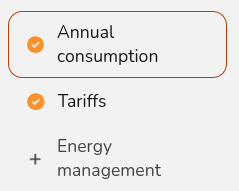
When you have finished configuring these inputs, click Done on the Energy Management tab. If you'd like to change these values at a later stage, click Edit in the top right or edit specific options directly from the right-hand sidebar. inputs
1.

Expand each section below for more details on each tab.
Annual consumption
In this section you are configuring how energy is consumed in the property across the year. This consists of the annual consumption figure (kWh) and how the consumption is distributed across the year (the consumption profile). You can select from the following options to set the annual consumption:

Expand the section below for more details on these options.
Annual usage
If you know the annual consumption in kWh (for example from an electricity bill) you can enter it here in the annual usage field.
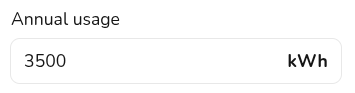
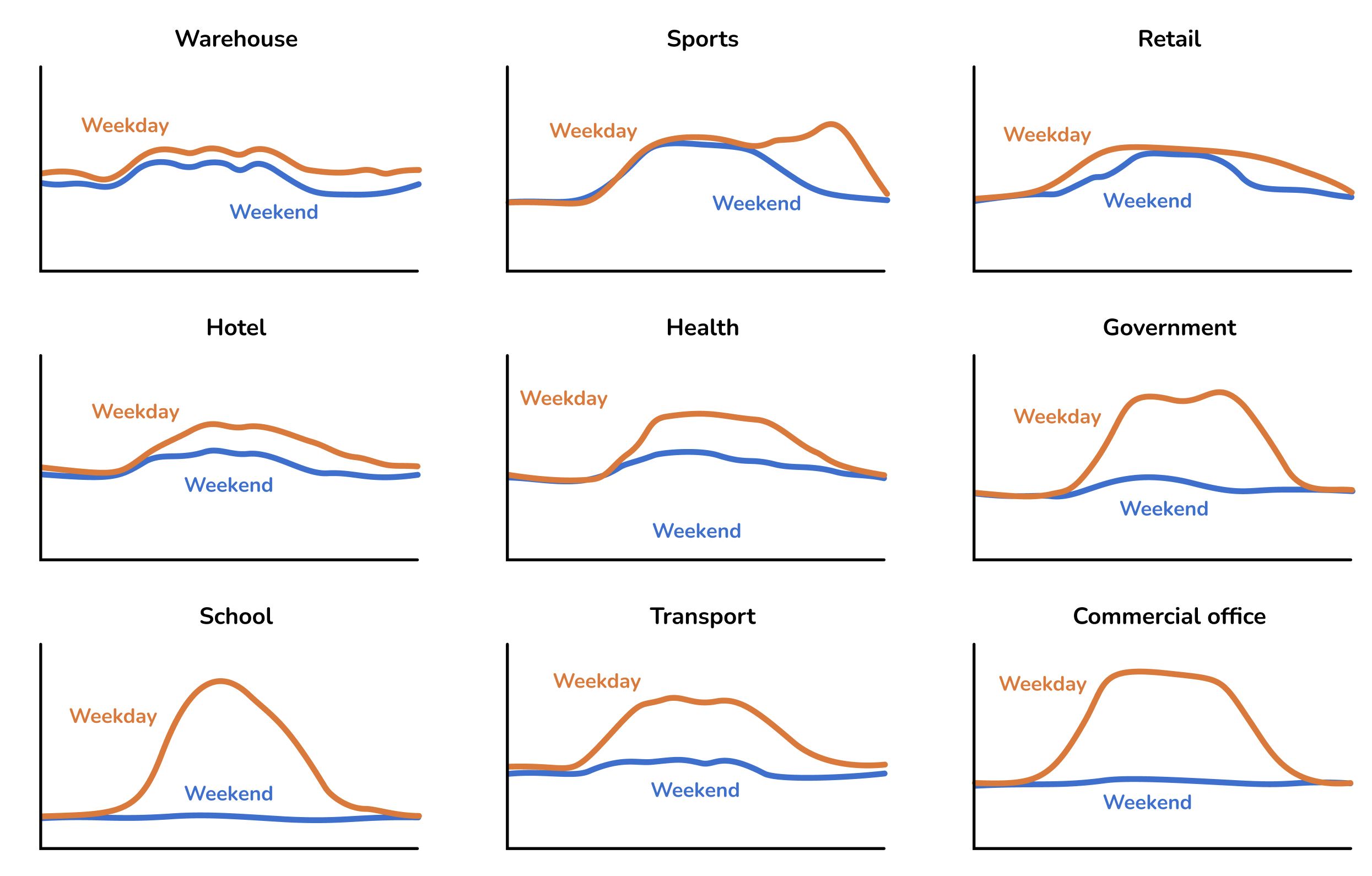
When you use this option you can choose from a variety of domestic and commercial consumption profiles, the consumption profile determines how the energy is used within a week and throughout the year.
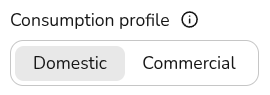
The following OFGEM commercial profiles are available
Meter data
If the property has a smart meter you can upload half-hourly data to get a more accurate projection. The file must be in a particular format for Easy PV to use it:
- The data should ideally span at least a year (but if it contains a minimum of 6 months our algorithm will automatically attempt to fill in gaps where they are detected).
- The file must have a .csv file extension. If your data is in another
formatfile type you can export it as csv from Excel, Google Sheets, Libreoffice or any other spreadsheet editor. - If
that thereyou aremanygettingdifferentanCSVerrorformatswhenfortryingsmarttometerupload the data,and we don't support all of them yet. If your upload doesn't work, please send us the spreadsheet athelp@easy-pv.co.ukorhelp@easy-pv.ieand we will see if we can add the format. Youyou can also download our sample spreadsheet here and change your data into this format.
Note
Not sure
If you don't know the electricity consumption in the property and it's domestic, you can use typical values for the size of property provided here.

These options will assume a domestic consumption profile.
2.
Setting the import and export tariffs
Tariffs
Here you should select the tariffs used in the Easy PV calculation. It is important to set suitable tariffs so the financial calculations for this project are accurate, particularly if you plan to configure forced charging or discharging of a battery. By default, we'll calculate the financial benefits using your default flat tariffs which you can specify in your financial settings.
Expand the section below for more details setting this up.
Tariff configuration
You can select from the drop down you can create and select a new tariff by selecting + New import/export tariff. See here for a full guide on creating tariffs in Easy PV.
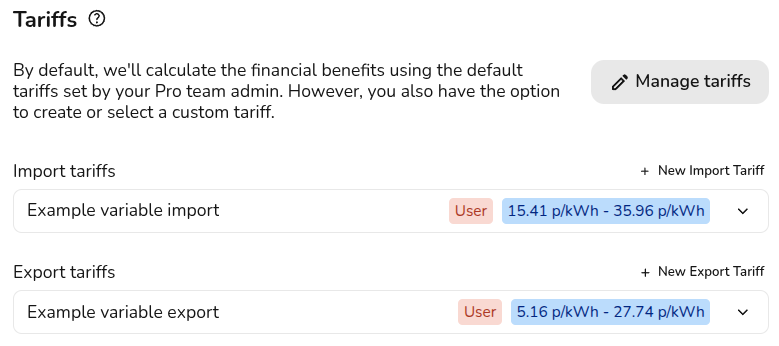
If the tariffs you've selected are different to the ones the customer is currently on, then you can select their current tariff for more accurate financial benefit calculations. This is used to calculate how much they will save on their current bills. The tariffs input above will be used for any future calculations.

Warning:
This only sets the tariffs for the Easy PV self-consumption calculation. If you'd like to use the MCS method you will need to set your tariffs in the Financial task.
3.
Learn more:
+ Energy management
In this section you can optionally model export limitation and forced charging and discharging of batteries. Read more about setting these up below.
Export limitation
limiting
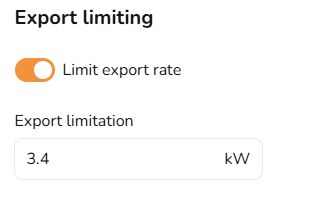
In this section you can limit the export rate if this is required by the DNO. Export limitation restricts the amount of solar power sent to the grid, preventing it from exceeding a set threshold. This is used to comply with grid regulations, prevent overloading, and encourage self-consumption. Any excess energy beyond the limit is curtailed.
Switch the toggle on and then input the annual export limit in kW.
Battery management
In this section you can set the periods where the battery will force charge and discharge to and from the grid. Switch on the toggle and then input the times and days you want the battery to charge and discharge.
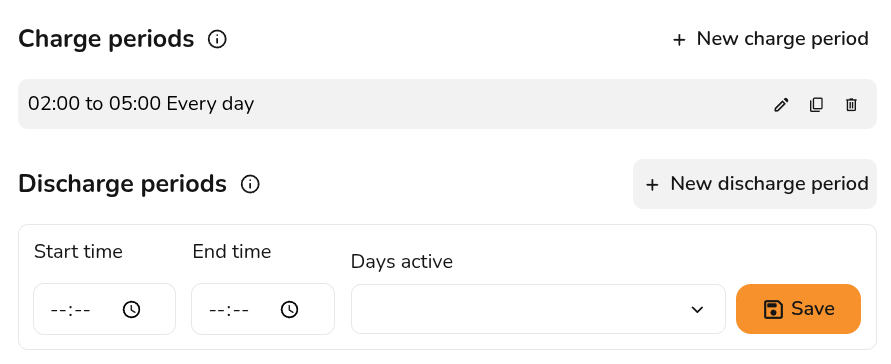
Warning: The discharge period is for discharging to the grid. Easy PV will still model when the battery will be charged and discharged based on solar production and consumption,consumption. theseThese charge and discharge periods are to override the Easy PV model.
Navigating the Consumption task
Once the task has been configured, you'll be able to view the full insights. The right-hand sidebar on the page includes options to help you navigate through the different sections of insights.
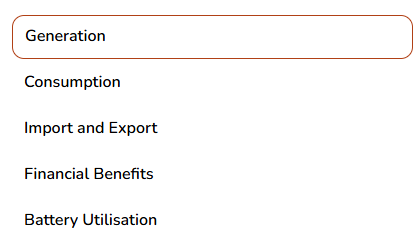
ReadLearn more: Understanding the Consumption Task outputs for more information on these insights..
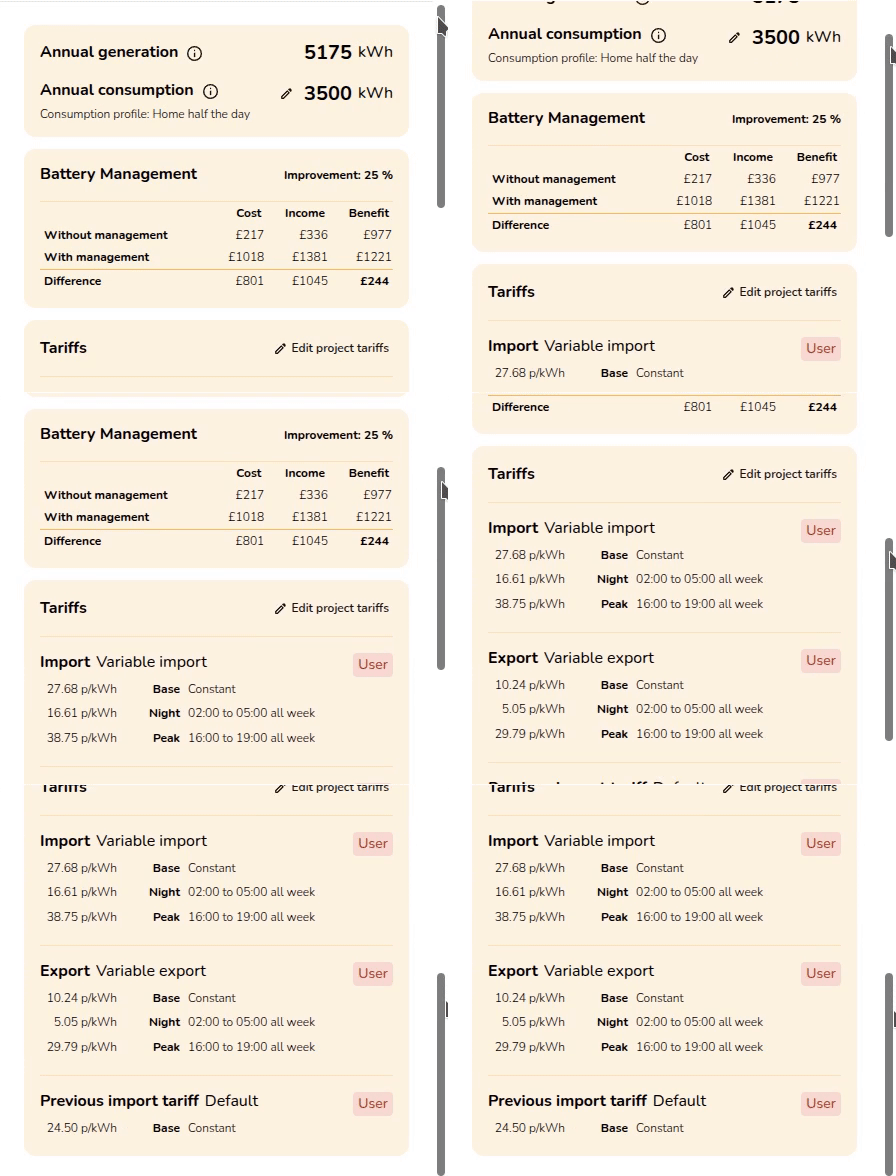
Below thaton the right-hand side you will see the following:
- Annual Generation: This pulls through from the Performance task.
- Annual Consumption: This is based on your input when opening the task. Click the pencil
toopenedit.the Annual consumption tab directly. - Battery Management: If showing battery optimisation, this will show you the percentage improvement and cost benefit of the configured optimisation. If you are not seeing the expected benefits, make sure you have the right tariffs and charging periods configured.
- Tariffs: This shows the tariffs you have selected on the project.
IfClickyou'veEditto open theselectedprojectthattariffscustomerTariffsistabchanging their tariff, their previous tariff will display here as well.directly.
In the top right corner, you'll have the following options:
|
Update the annual consumption, tariffs and energy management settings
 |
| Download data :Download  |
| Help page :Open this page |
Still Need Help?
Contact Support: If you've got further questions, get in touch with our support team at help@easy-pv.co.uk (UK) or help@easy-pv.ie (IE). If you haveare experiencing a bug, to help us look into your issue faster, please include the email address of your account, the name of the project and screenshots of any additionalunexpected questions about the consumption task, please reach out at help@easy-pv.co.uk.behaviour.