
Consumption task
Consumption task inputs
When you first open the consumption task you will see the option to edit these inputs. If you'd like to change these inputs at a later stage, click the Edit option in the top right.
1. Annual consumption
You can select from the following options to set the annual consumption:

Expand the sections below for more details on these options.
Annual usage
If you know the annual consumption in kWh (for example from an electricity bill) you can enter it here in the annual usage field.
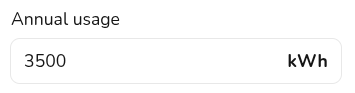
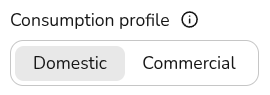
When you use this option you can choose from a variety of domestic and commercial consumption profiles, the consumption profile determines how the energy is used within a week and throughout the year.
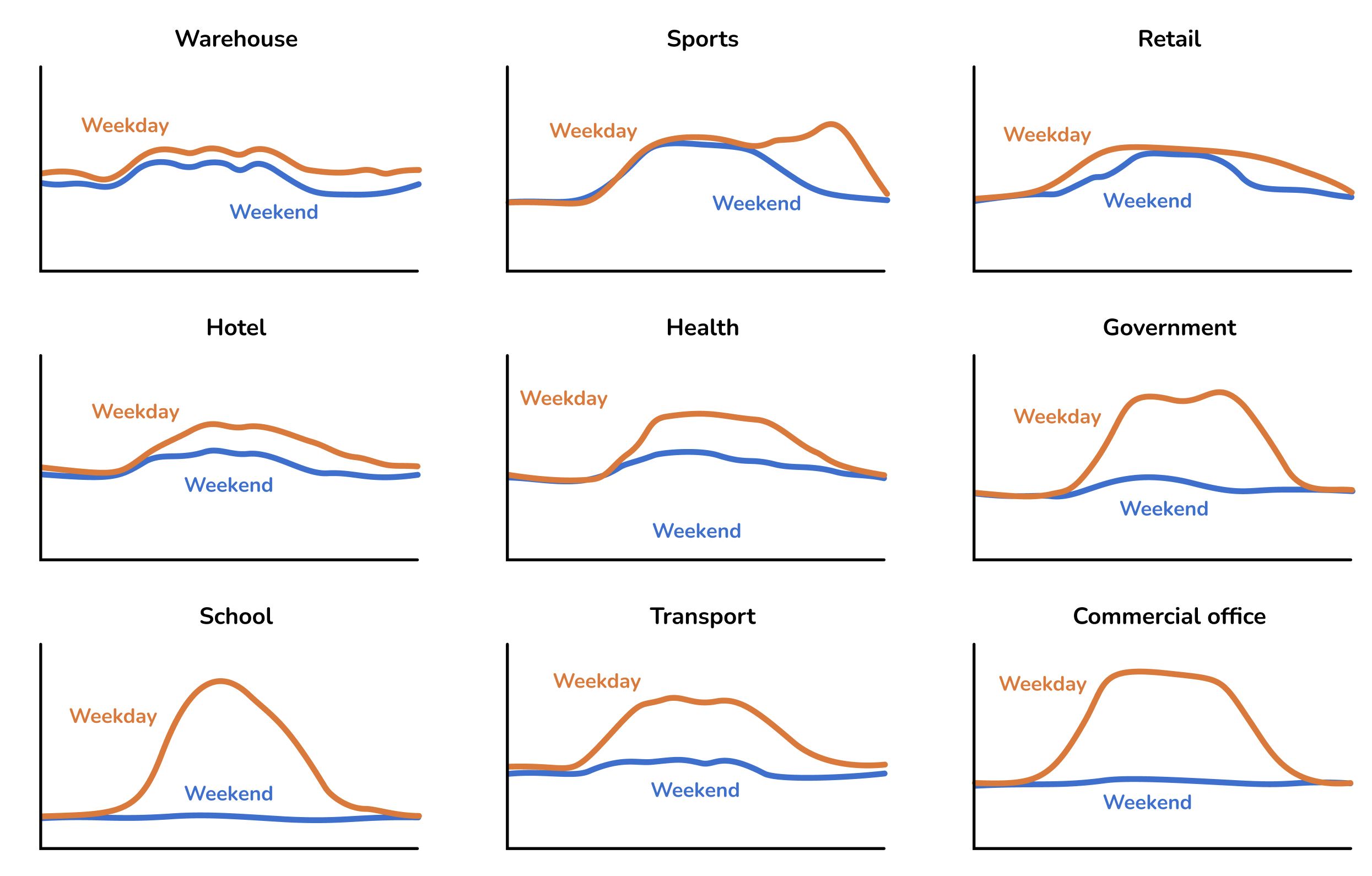
The following commercial profiles are available
Meter data
If the property has a smart meter you can upload half-hourly data to get a more accurate projections. The data should ideally span at least a year (but if it contains a minimum of 6 months our algorithm will automatically attempt to fill in gaps where they are detected).
The file must have a .csv file extension. If your data is in another format you can export it as csv from Excel, Google Sheets, Libreoffice or any other spreadsheet editor.
Note that there are many different CSV formats for smart meter data, and we don't support all of them yet. If your upload doesn't work, please send us the spreadsheet at help@easy-pv.co.uk or help@easy-pv.ie and we will see if we can add the format. You can also download our sample spreadsheet here and change your data into this format.
Not sure
If you don't know the electricity consumption in the property and it's domestic, you can use a typical values for the size of property provided here.

These options will assume a domestic consumption profile.
2. Setting the import and export tariffs
Here you should select the tariffs used in the Easy PV calculation. It is important to set suitable tariffs so the financial calculations for this project are accurate. By default, we'll calculate the financial benefits using your default flat tariffs which you can specify in your financial settings.
You can select from the drop down you can create and select a new tariff by selecting + New import/export tariff. See here for a full guide on creating tariffs in Easy PV.
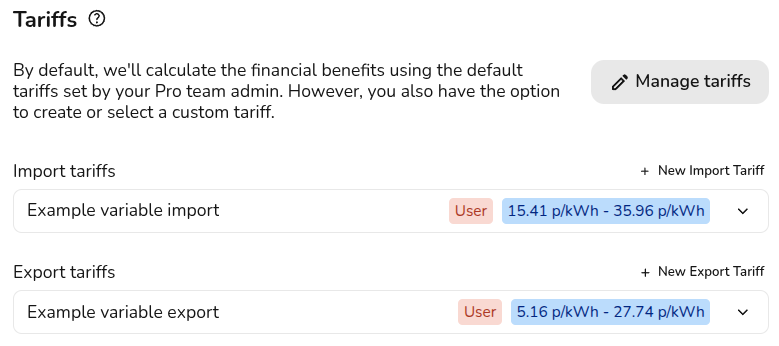
If the tariffs you've selected are different to the ones the customer is currently be on, then you can select their current tariff for more accurate financial benefit calculations. This is used to calculate how much they will save on their current bills. The tariffs input above will be used for any future calculations.

This only sets the tariffs for the Easy PV self-consumption calculation, if you'd like to use the MCS method you will need to set your tariffs in the financial task.
3. Energy management
Export limitation
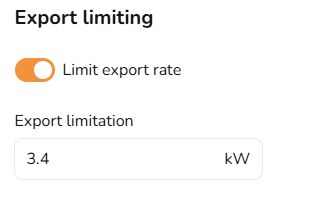
In this section you can limit the export rate if this is required by the DNO. Export limitation restricts the amount of solar power sent to the grid, preventing it from exceeding a set threshold. This is used to comply with grid regulations, prevent overloading, and encourage self-consumption. Any excess energy beyond the limit is curtailed
Switch the toggle on and then input the annual export limit in kW.
Forced charging and discharging
In this section you can set the periods where the battery will force charge and discharge to and from the grid. Switch on the toggle and then input the time times and days you want the battery to charge and discharge.
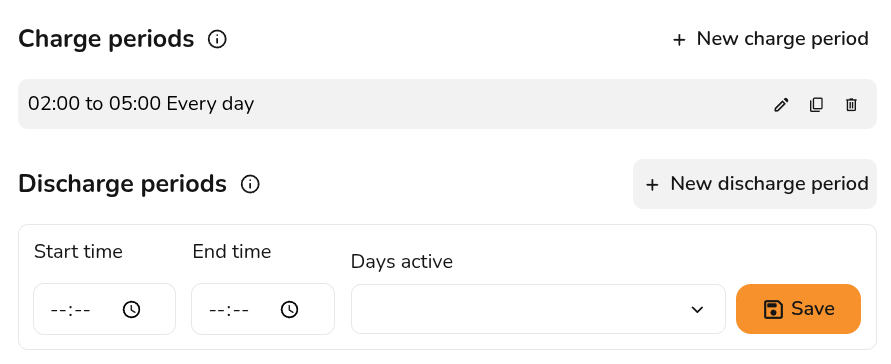
Easy PV will still model when the battery will be charged and discharged based on solar production and consumption, these charge and discharge periods are to override the Easy PV model.
If you have any additional questions about the consumption task, please reach out at help@easy-pv.co.uk.