
Setting Up Your Easy PV Pro Account
Upgrading your account
HowThe dofirst Istep in setting up your Pro team is to upgrade toyour Pro? account!
Click{{@240}}
UpgradeNote: towhen Proyou inupgrade, theyou topkeep rightyour corner, while logged into theexisting account youand wouldprojects, likebut tojust bewith the Owner of the Pro team. This Owner account cannot be changed or removed from the team.
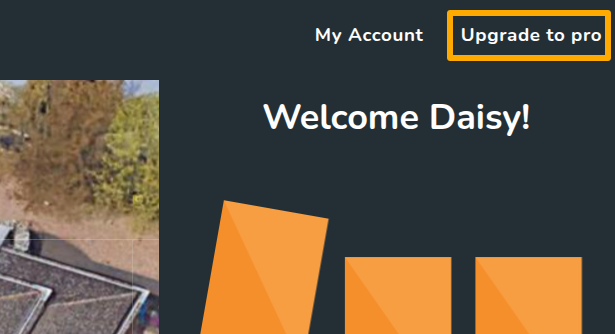
Click Upgradeaccess to Proin the top right cornerAdd team members and set theirrole typeConnect to Midsummerso your pricing correctly applies to the teamFill in billing detailsPay via GoCardless instant bank payment
Some banks do not support instant payments so if you're having trouble setting up the payment, please get in touch so we can do this manually. features.
Configure team settings
Correctly setting up your team preferences can help you make the most of Easy PV Pro. Navigate to Pro account settings and click through each tab to set this up. Find further information in each section below.

1. General
If you have multiple users in your team, you can edit team members and what role they have here. Read
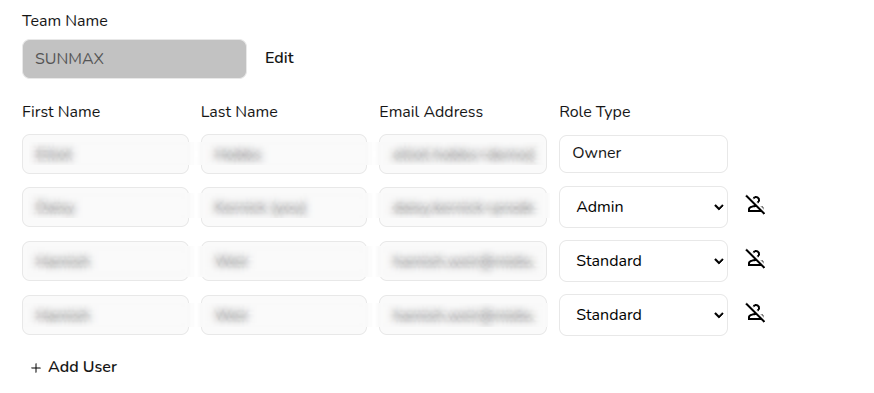
📙 Learn more about: Pro team management and user roles.
The details you set under Company Details will be used throughout Easy PV tasks, forms, and reports.
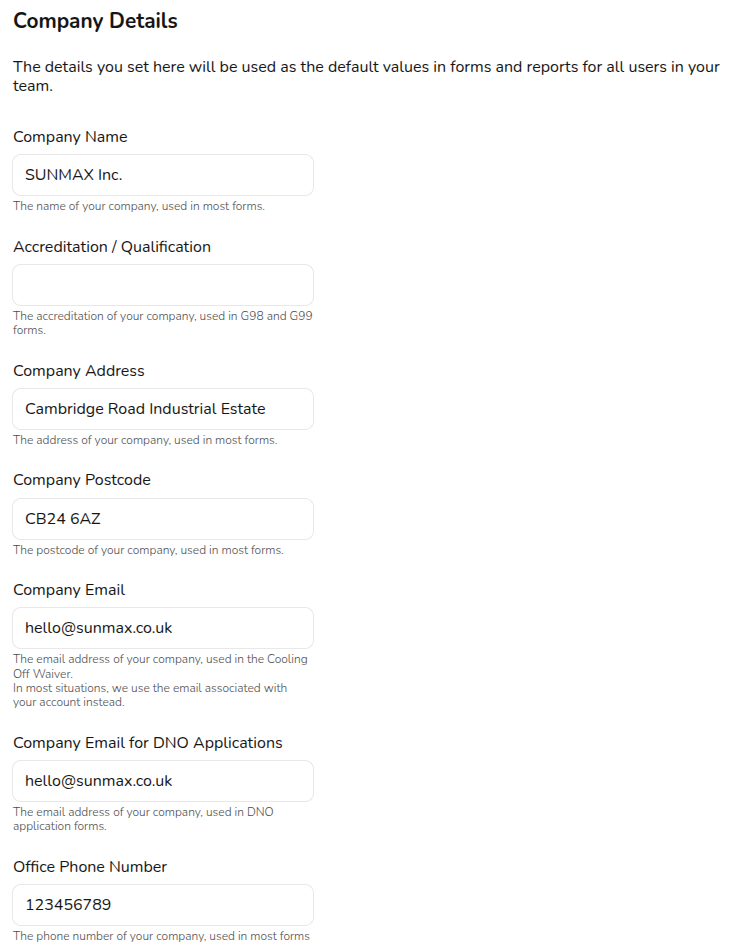
At the bottom of this section you can view and change your subscription status.status.
2. Configuring financial settings
In the Financial tab you can configure financial defaults for your team. Many of these settings are the same as those available in user settings. Team financial settings override user financial settings and apply consistently across your team's projects.
📙 aboutLearn more: configuringSetting financial settingsdefaults for more information on the options available. .
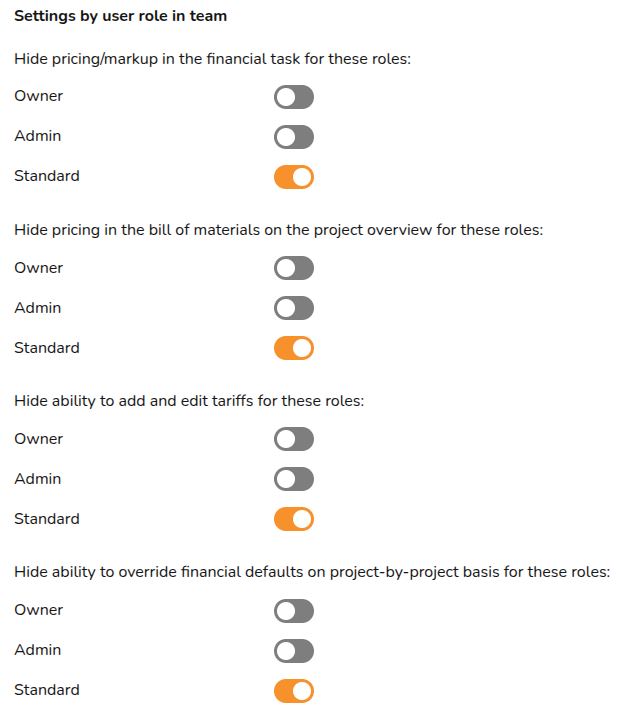
As a Pro user, you have the additional option of limiting the financial information available on a project for certain users in the team. Simply toggle on who you would like the setting to apply to based on their user role.
3. Upload team documents
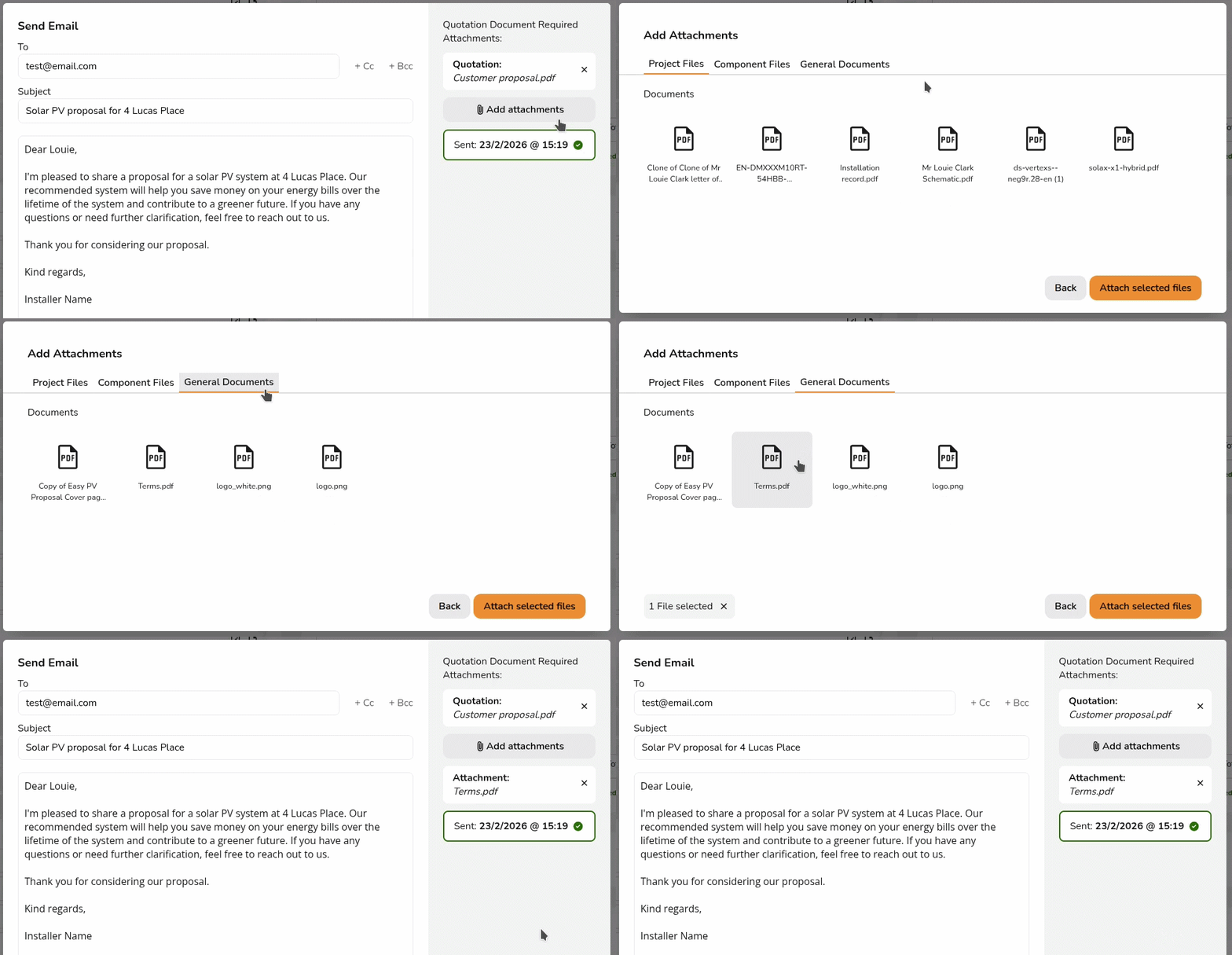
Any files uploaded to the documents tab will be accessible to any user in the team when sending emails through Easy PV. Upload your terms and conditions, MCS certificate or anything else you would like available for all projects.
4. Set up customised proposal
With Easy PV Pro you have the option to customise the customer proposal to align more with your branding.
📙Learn more about: settingSetting upUp yourYour customisedCustomised proposalProposal.
5. Configure email credentials
With Easy PV Pro you can send emails to your customer within projects.projects. By setting up your email credentials, it means these emails will send from your domain, rather than from no-reply@easy-pv.co.uk.
Read📙Learn more on: howHow to setSet upUp emailEmail credentialsCredentials.
6. Design
Adjust the default roof margin for new projects.
7. Performance
Adjust the defaults used in the performance task.
📙Learn more about these: herePerformance Task Preferences.
8. CRM connections
In this tab you can access your API key to connect with CRMs and job management platforms.
See📙Learn whatmore:
-
existingExistingintegrationsIntegrations -
developerDeveloper guidelinesifforyou would like to setsetting up your ownintegration.integration
9. Speedy PV
If you're interested in setting up Speedy PV, enable the Speedy PV configuration dashboard.
Read📙Learn more about: settingSetting up Speedy PV.
Getting start with Pro features in a project
Once you've configured your Pro account settings, you can get started using Pro features within a project.
Project statuses
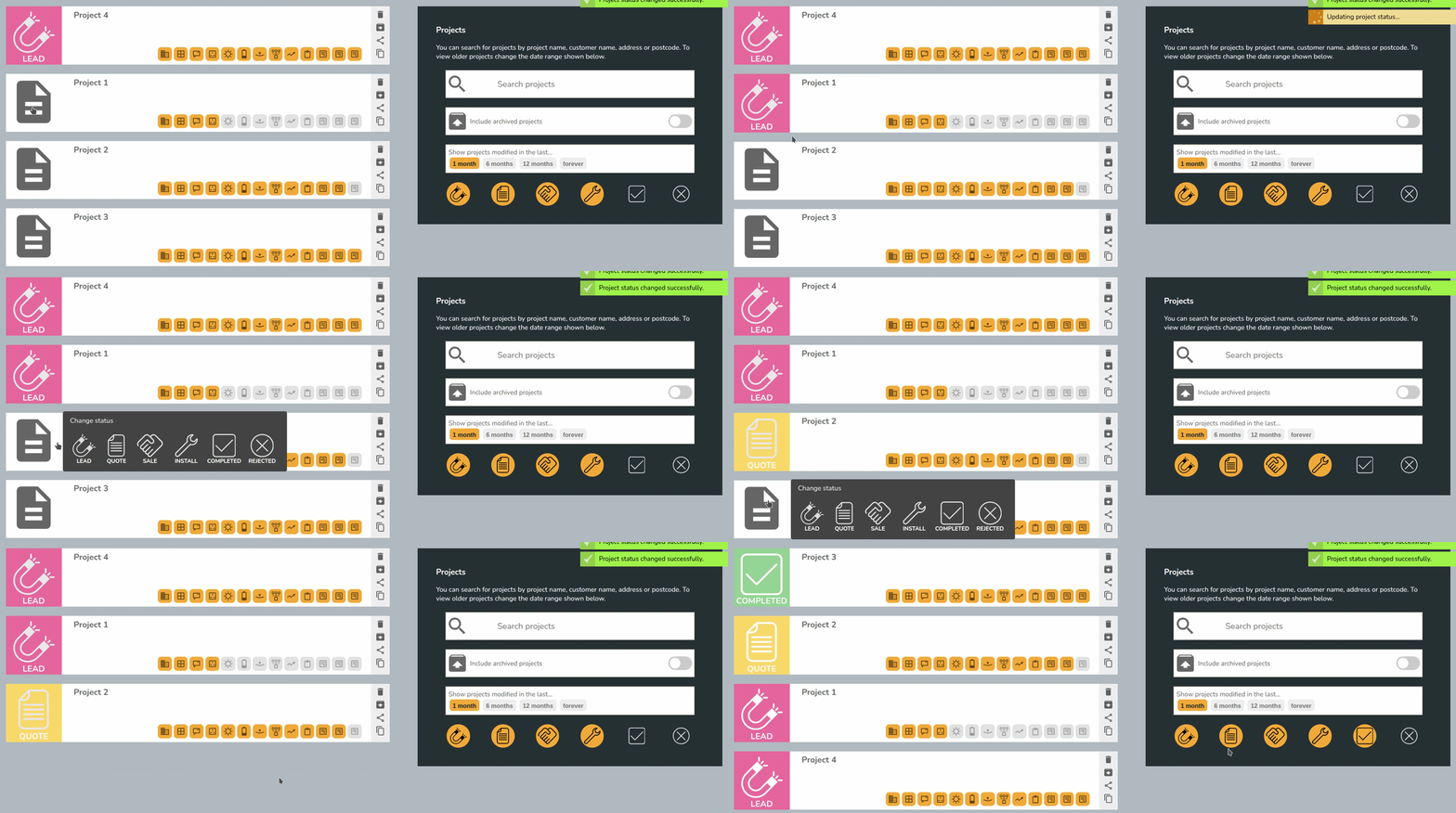
From the project overview, you'll now be able to set the status on your project. Use filters on the right-hand side to view jobs in each stage.
Project and component sharing
Old projects and components will not be shared with your team by default. Any old projects you'd like shared with your Pro team, you can share manually. If you'd like all old projects or components to be bulk shared get in touch and we can do this for you.
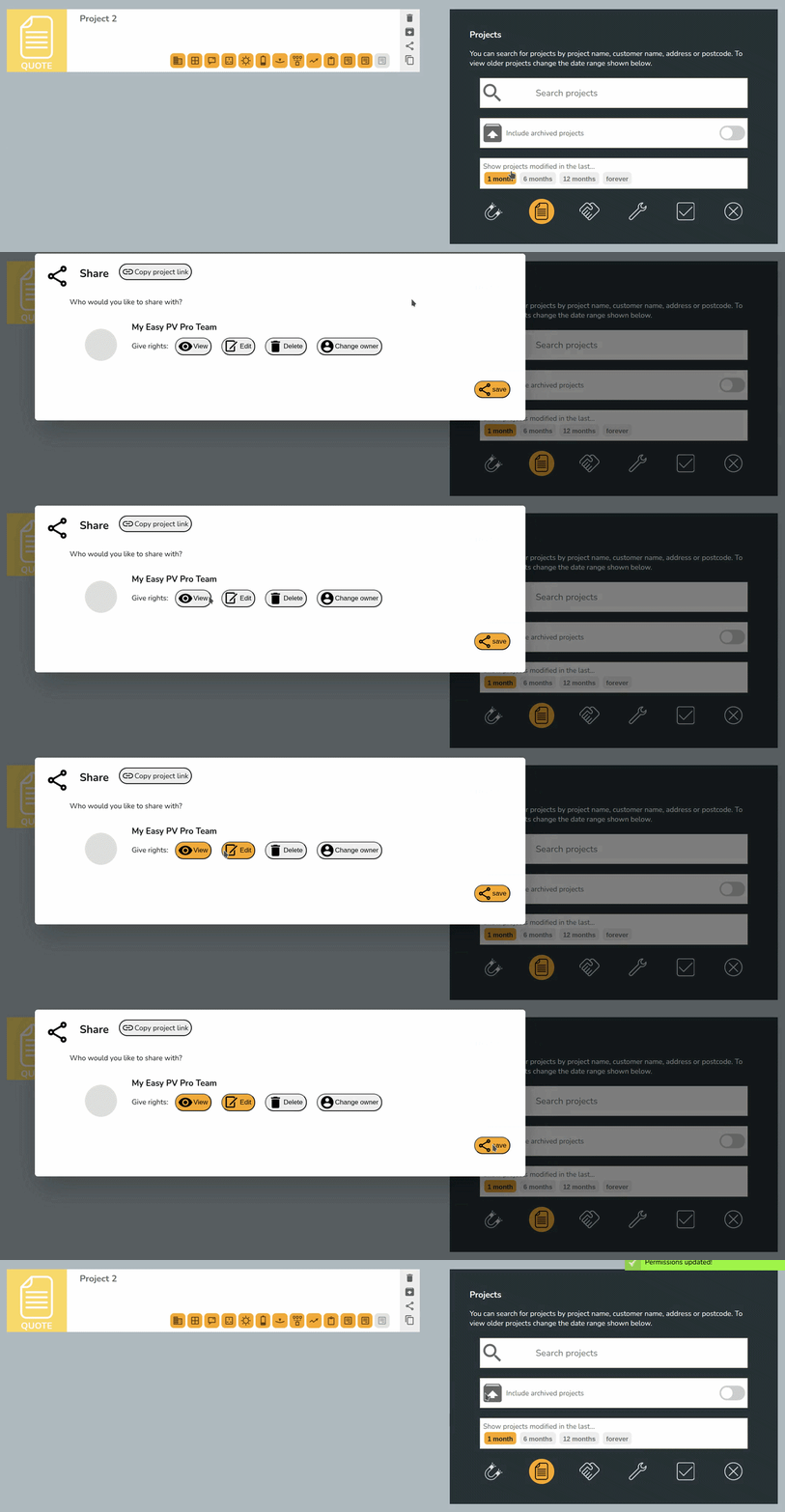
If you'd like new projects or components shared by default, navigate to My account > Preferences > General and then Default sharing. Select the permissions you'd like to be given by default on new projects. These settings are account (not team) specific so will only apply to the account you are logged into.

Read📙Learn more about: sharingProject and Component Sharing.
Using project features
Read📙Learn more about the Pro features you can now use in projects:
- E-signing
- Document storage
- Sending emails
- Survey and install records
- DNO applications via Connect Direct
If you have further questions about Pro please attend an online training session, have a look at our Pro FAQs or get in touch!