
Setting up your Easy PV Pro account
How do I upgrade to Pro?
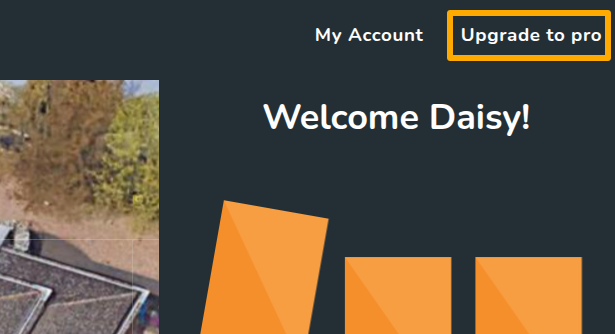
Click Upgrade to Pro in the top right corner, while logged into the account you would like to be the Owner of the Pro team. This Owner account cannot be changed or removed from the team.
- Add team members and set their role type
- Connect to Midsummer so your pricing correctly applies to the team
- Fill in billing details
- Pay via GoCardless instant bank payment
Some banks do not support instant payments so if you're having trouble setting up the payment, please get in touch so we can do this manually.
Configure team settings
ToCorrectly setting up your team preferences can help you make the most of ProEasy it'sPV important to ensure you're configuring your team settings.Pro. Navigate to Pro account settings and navigateclick through each tab to set this up. Find further information in each section below.

Below is further information on each section.
1. General
If you have multiple users in your team, you can edit whoteam is in your teammembers and what role they have here.
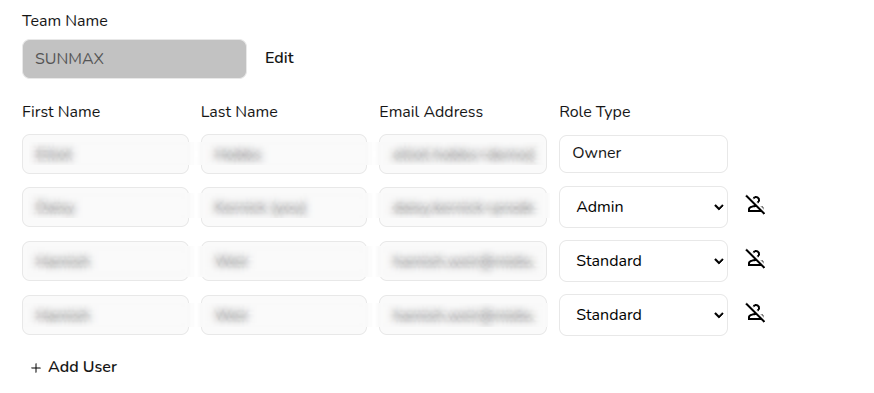
Read more about Pro team management and user roles.
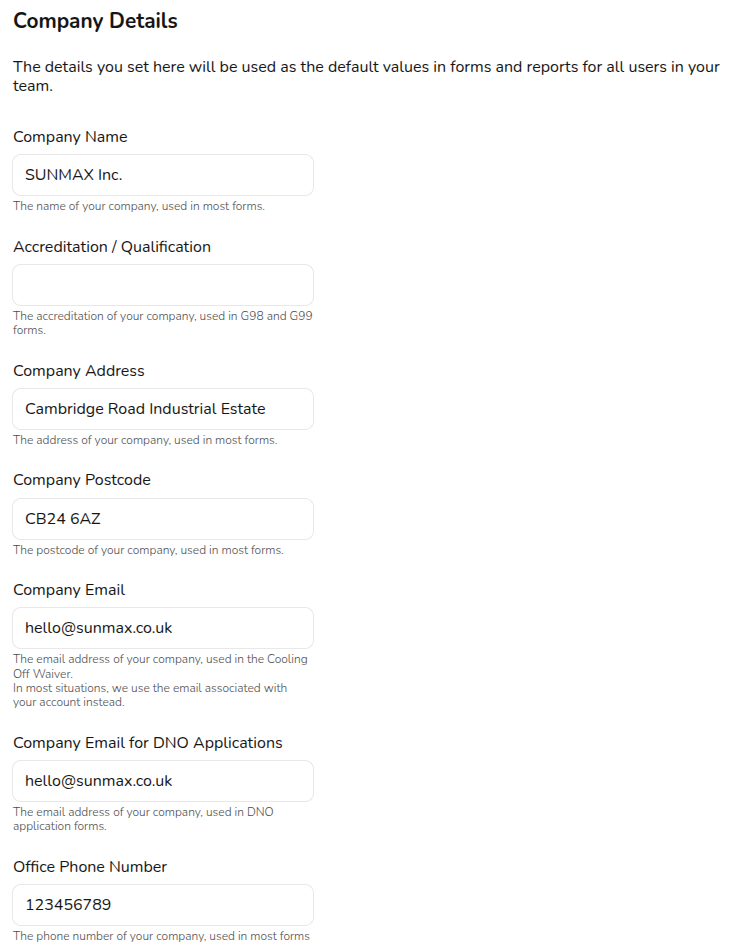
The details you set under Company Details will be used throughout Easy PV tasks, forms, and reports.
2. Configuring financial settings
In the Financial tab you can configure financial defaults for your team. Many of these settings are the same as those available in user settings,settings. theTeam differencefinancial beingsettings thatoverride theseuser financial settings and apply consistently across your team's projects. Read about configuring financial settings for more information on the options available.
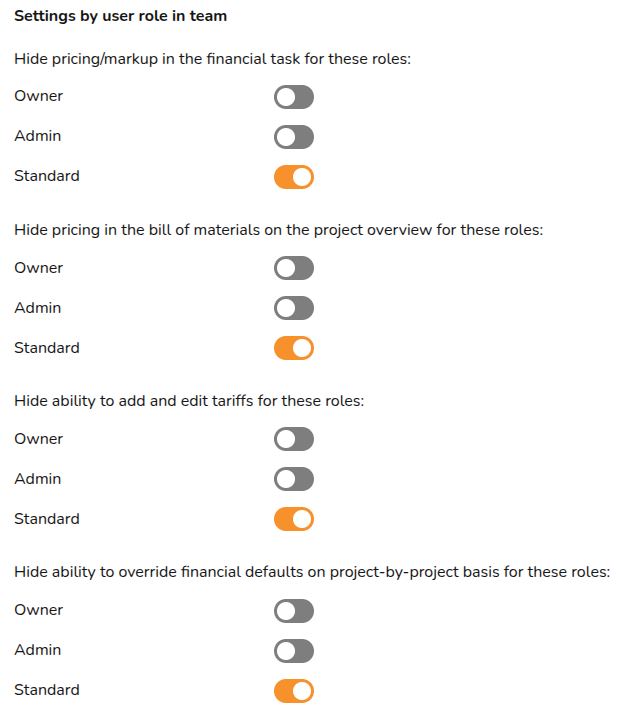
As a Pro user, you have the additional option of limiting the financial information available on a project for certain users in the team, depending on their role type. Simply toggle on wherewho you would like the setting to apply.apply to based on their user role.
3. Upload team documents
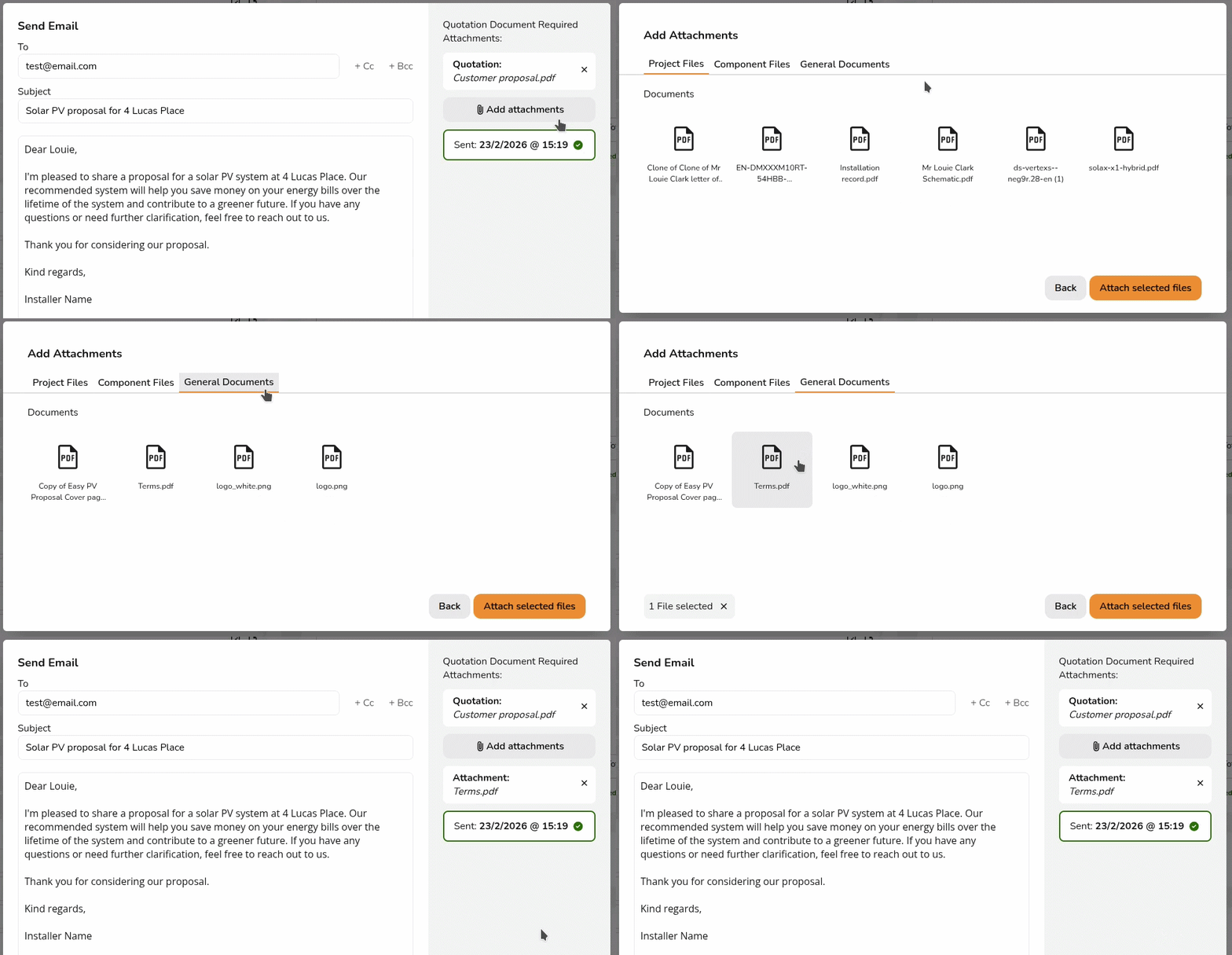
Any files uploaded to the documents tab will be accessible forto any user in the whole team when sending emails through Easy PV. Upload Termsterms and Conditions,conditions, MCS certificate or anything else you would like available for all projects.
4. Set up proposal customisation
With Easy PV Pro you have the option to customise the customer proposal to align more with your branding. Read more about setting up your customised proposal.

5. Configure email credentials
With Easy PV Pro you can send emails to your customer within projects,. byBy setting up your email credentialscredentials, it means these emails will send from your domain, rather than from no-reply@easy-pv.co.uk.
Read more on how to set up email credentials.
6. Design
Adjust the default roof margin for new projects.
7. Performance
Adjust the defaults used in the performance task. Read more about these here.
8. CRM connections
Pro gives you access to our open API. In this tab you can access your API key to connect with CRMs and job management platforms.
See what existing integrations we have or take a look at our developer guidelines if you would like to set up your own integration.
9. Speedy PV
If you're interested in setting up Speedy PV, enable the Speedy PV configuration dashboard.
Read more about setting up Speedy PV.
Getting start with Pro features in a project
Once you've configured your Pro account settings, you can get started using Pro features within a project.
Project statuses
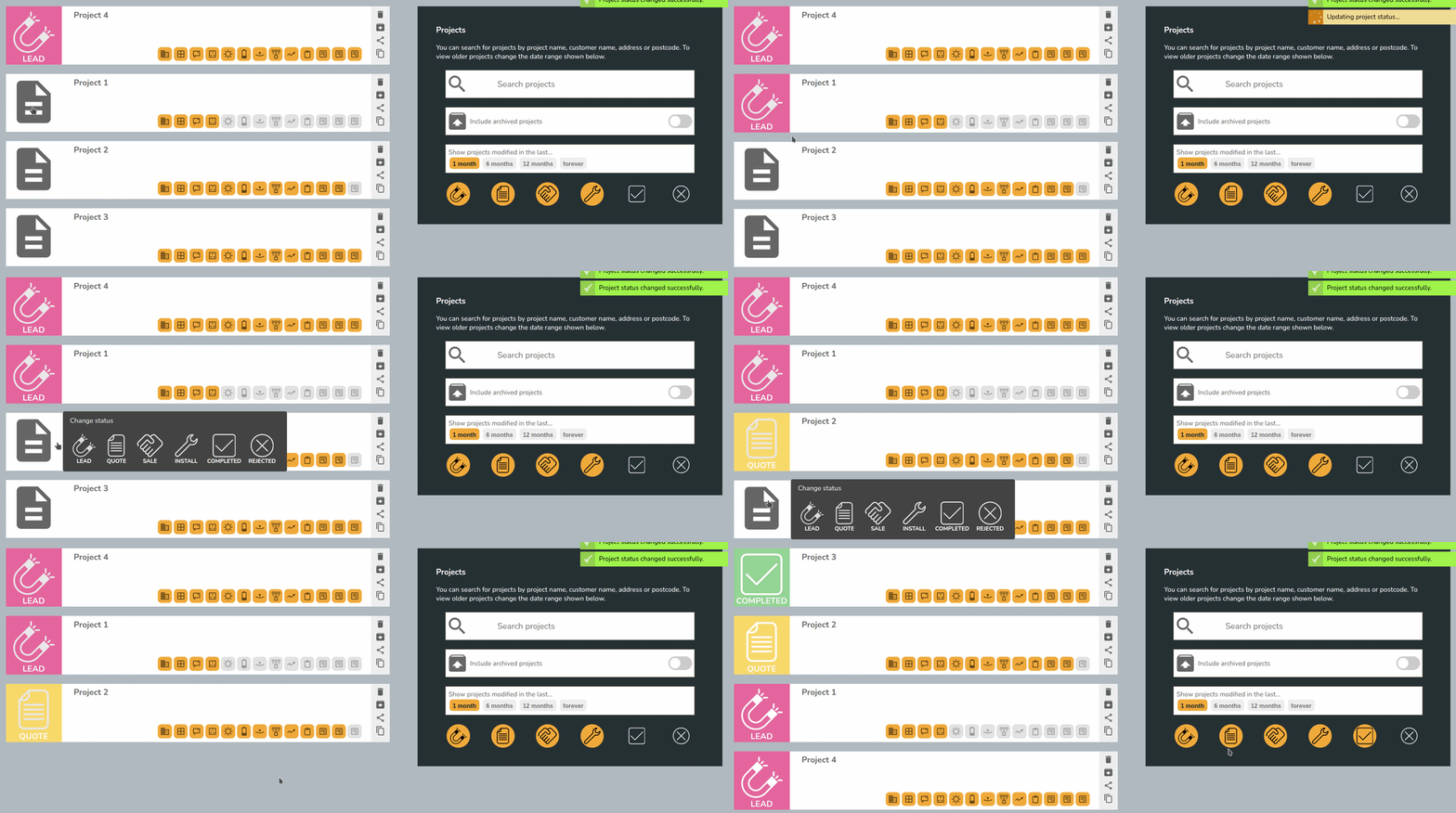
From the project overview, you'll now be able to set the status on your project. Use filters on the right-hand side to view jobs in each stage.
Project and component sharing
Old projects and components will not sharebe shared with your team by default. Any old projects you'd like shared with your Pro team, you can share manually. If you'd like all old projects to be bulk shared get in touch and we can do this for you.
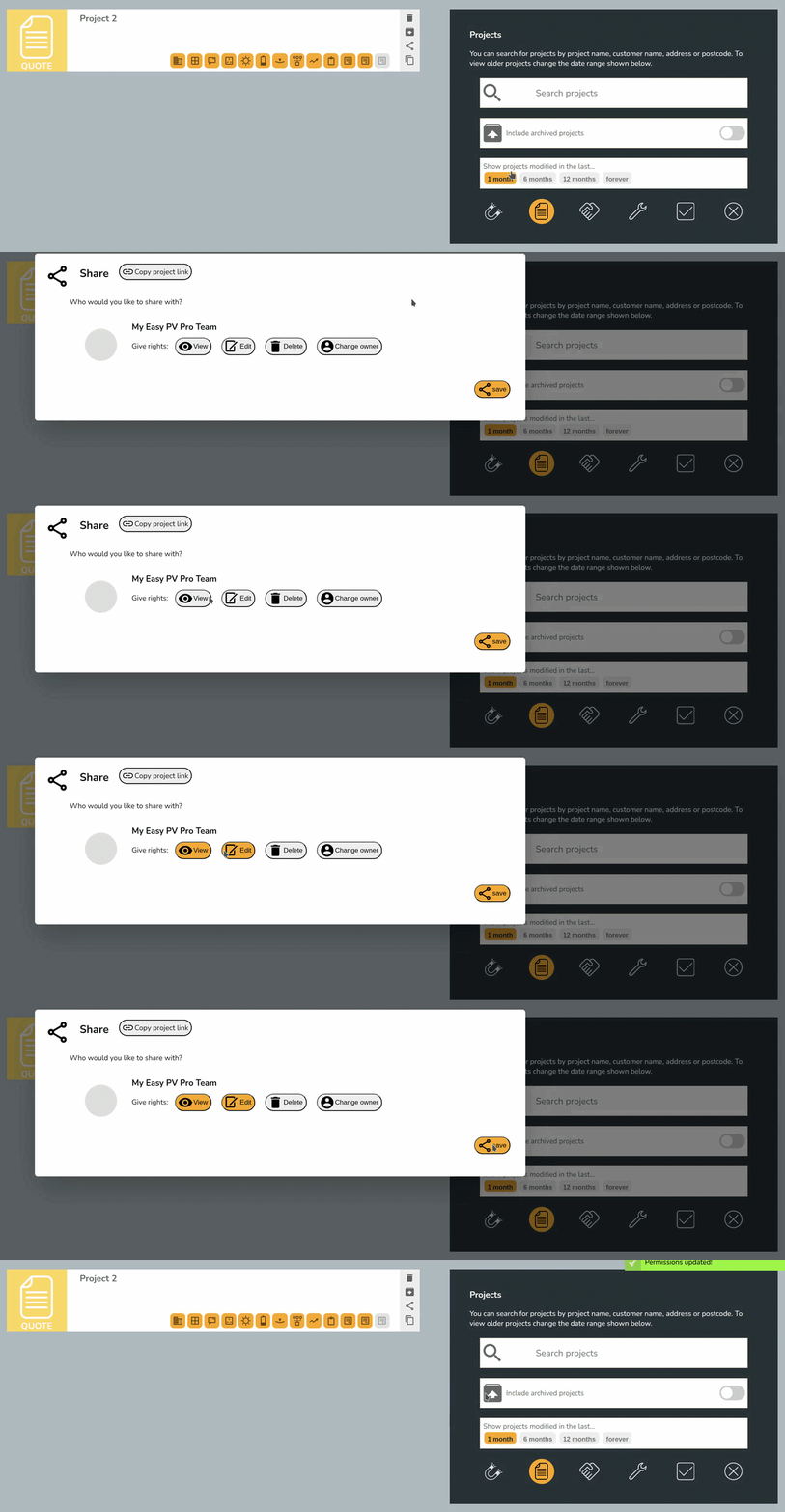
If you'd like projects or components shared by default, navigate to Navigate to My account > Preferences > General and then Default sharing. Select the permissions you'd like to be given by default on new projects. This only applies to the account you are logged into.

Read more about sharing.
Using project features
Read more about whatthe Pro features you'llyou can now haveuse accessin toprojects: within projects below
- E-signing
- Document storage
- Sending emails
- Survey and install records
- DNO applications via Connect Direct
If you have further questions about Pro please attend an online training session, have a look at our Pro FAQs or get in touch!