
Pro: Customer Proposal Customisation
This guide applies to pro versions of Easy PV. Read more about what you gain with pro.
With Easy PV Pro, you are able to customise the proposal document that you send to your customers. This can help you stand out and align the proposal more with your branding! branding.
What can I customise?
You have the option to:
- Add a custom cover
page.page - Customise colours to match your
brand.brand - Add an 'About us' section to the contents
page.page - Configure a branded footer to appear on all pages of the proposal document with your logo and company
information.information - Add your terms and
conditionsconditions and the scope of work sections to theproposal.proposal
If
Set want further customisation of the proposal or want us to create a document entirely to your own specification, please contact us about our Enterprise package upon help@easy-pv.co.uk or help@easy-pv.ie.
Setting up
Navigate to Pro account setting > Proposal. There will also be an Uploads Documents section in your Pro account settings where you can manage all the images you upload.

Colours
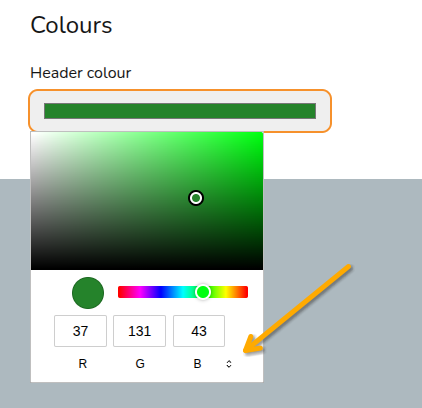
Select the colour you would like headers to appear in the proposal document.
You can precisely match this with your branding colours by typing in directly the RGB, HSL or HEX code, use the arrows to navigate between these options.
Cover page
page
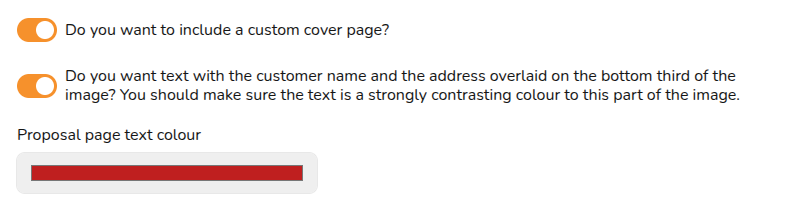
Select whether you would like to include a custom cover page and whether you would like the customer name and address overlaid on your cover page and what colour you'd like this text to be.
Cover page template: If you don't already have a preferred way of making a cover page, you might find find Canva useful. We have created a template with some additional instructions that you can use to create your own cover page design in Canva. When you are finished, click Share,Share then> download,Download change> Change the file type to PNG or JPG and> download.Download.
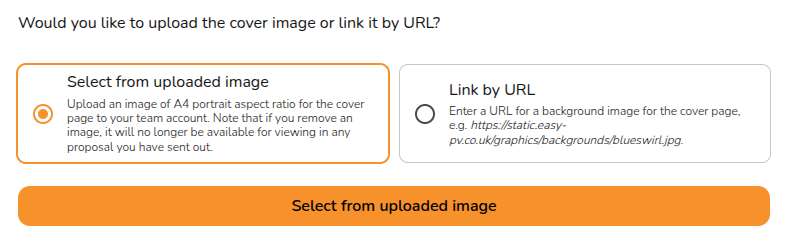
Once you have your custom cover page, either add it in the the Uploads tab or in the cover page section click Select from uploaded image > Add images. After uploading you will be able to select your cover page. You also have the option to use an image from a URL.
Footer
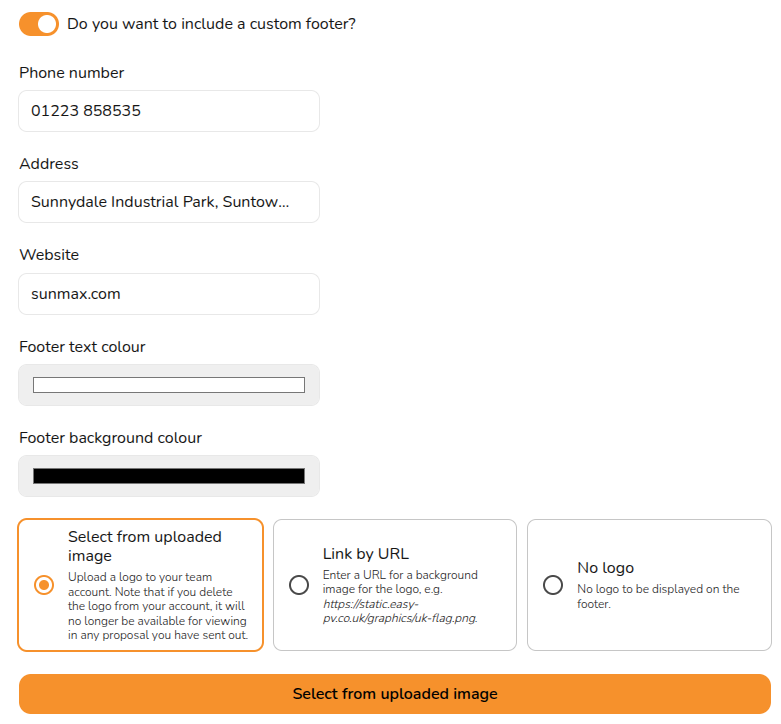
In your custom footer you can input a phone number, address and website. You can also select the footer background and text colour and upload a logo.
Contents page
In this section you can add a custom cover letter with a custom header and contents. This can be overridden on a per-project basis.

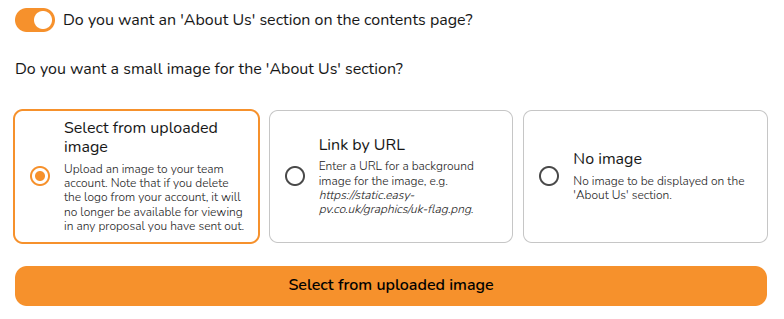
You can also include an 'About us' section with an optional custom image. The 'About us' section should be a short description, make sure it does not overflow onto the next page of the proposal.
Terms and conditions and scope of work
work
Here you can input your terms and conditions and scope of work. In each case you can use the options at the bottom of the text box to format the text:

Both these options can be overridden on a project by project basis.
Warning: Pasting formatted text from a different text editor will likely lead to formatting issues in a generated proposal.
Note: Changes made to the contents page, terms and conditions and scope of work will will not not automatically refresh in projects where you've already opened the customer proposal task. Click the refresh icon next to where it says 'Customer proposal' to reset those fields to what you've got in your settings.
If
Still youNeed haveHelp?
Contact havingSupport: issuesIf settingyou've yoursgot up,further pleasequestions, reachget outin totouch with our support team onat help@easy-pv.co.uk or (UK) or help@easy-pv.ie! (IE). If you are experiencing a bug, to help us look into your issue faster, please include the email address of your account, the name of the project and screenshots of any unexpected behaviour.