Getting started
- Who is Midsummer?
- Connecting to Midsummer
- Setting financial defaults
- Setting up your Automatic Pricing Calculator
- Performance task preferences
- Whole-system Design
Who is Midsummer?
easy-pv.co.uk

Midsummer and Easy PV
Easy PV is brought to you by Midsummer's in-house development team. Midsummer is one the UK’s leading distributors of solar PV, batteries, EV chargers and Heat Pump systems. With over 20 years of experience in the industry, our wholesale distribution and digital tools allow us to support you from design to installation.
- National reach, local support: Over 150 staff across multiple sites in Cambridge, Glasgow and Leeds, plus a subsidiary in Dublin
- Fast, accurate logistics: We offer next-day delivery and maintain over 99% picking accuracy on our dedicated vehicles
- Technical expertise: Our team is technically savvy and includes former installers. We provide free technical support and training
- Specialist sales teams: We have dedicated teams to support customers across C&I, high volume sales, residential and off grid projects
- Competitive pricing: We offer best-in-market pricing across our entire
range
Already installing heat pumps or looking to get started? Take a look at Easy PV's sister software Heatpunk.
Get the most out of your account
Whether you're a regular customer or just getting started, linking your account to Easy PV is the best way to simplify your work.
Easy PV generates a complete kit list based on your design, from the panels and inverters down to specific mounting and electrical components. You can see the kit list on the project overview page for each of your projects.
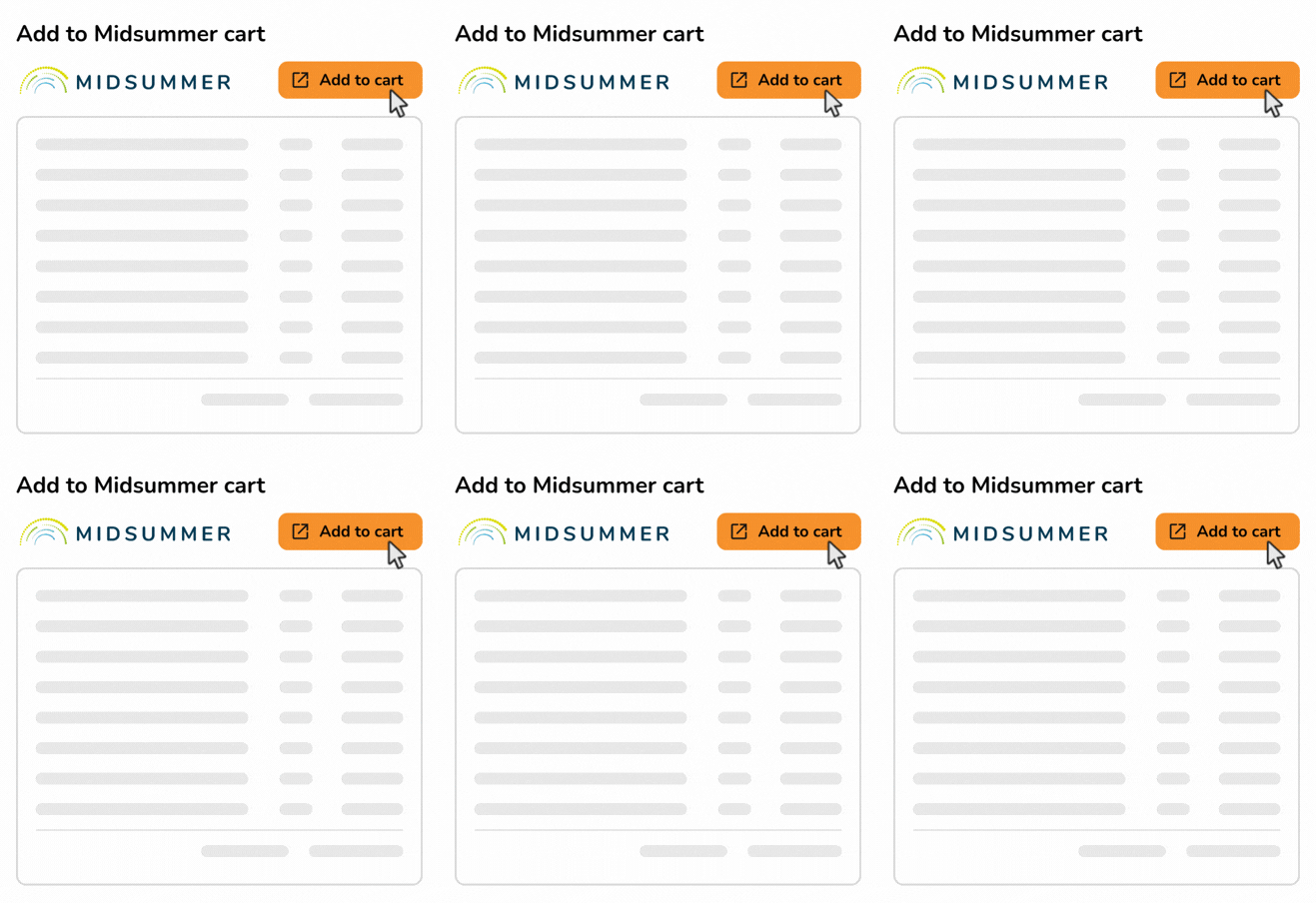
Add to cart in one-click
Just click Add to cart and we'll take you to the Midsummer Wholesale website and load all the products into your cart.
You can then:
- Place an order.
- Save cart as a quote to come back to later.
- Add or remove items and change quantities.
- Combine saved quotes to order kit for multiple projects.
Connecting your account
To make sure your pricing is accurate when designing, you can link your Midsummer and Easy PV accounts.
- If you already have a Midsummer account, just follow these steps
- Don't have an account yet? Apply here to see our full range of kit and unlock trade-only pricing
- Have an account but haven't used it lately: Get in touch with our team and we'll make sure you're getting the best pricing we can offer. Email our sales team or call 01223851535
Want to know more?
- Live training: Get started with Easy PV by booking onto a free online demo session
- FAQs: Take a look at our FAQ page
Contact Support: If you've got further questions, get in touch with our support team at help@easy-pv.co.uk (UK) or help@easy-pv.ie (IE).
Connecting to Midsummer
Connecting your Easy PV and Midsummer account will allow Easy PV to display your correct prices. This means you do not have to make changes to your goods prices in the financial task and you can be confident your jobs are being priced correctly.
Connecting Easy PV and Midsummer
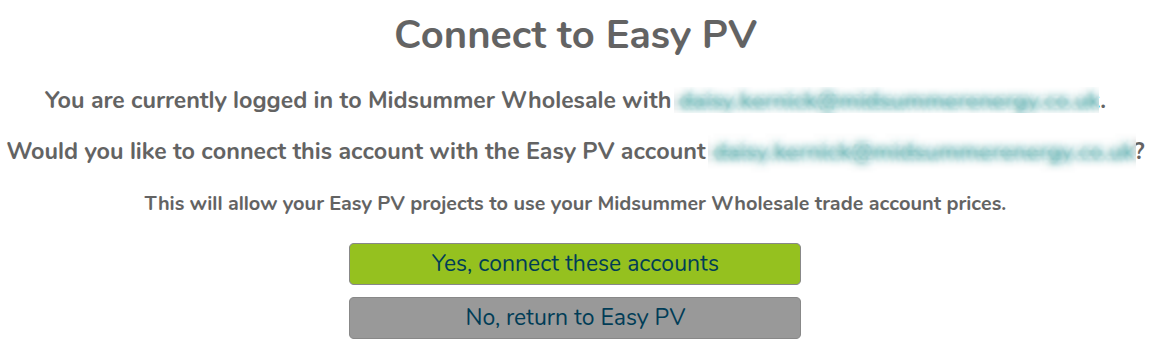
- Navigate to My account > Preferences > Connect to Midsummer
- Click
Connectand you will be redirected to Midsummer to log in. - Once you are logged into the account you'd like to connect, click
Yes, connect these accounts

- Then click
Return to Easy PV

- Your account will then refresh and your wholesale prices will apply

Note: For Easy PV Pro teams, each member will need to connect their wholesale account for discounts to apply consistently.
Want to know more?
- Live training: Get started with Easy PV by booking onto a free online demo session
- FAQs: Take a look at our FAQ page
Contact Support: If you've got further questions, get in touch with our support team at help@easy-pv.co.uk (UK) or help@easy-pv.ie (IE).
Setting financial defaults
Financial defaults set here will be automatically applied to your projects so you do not have to input them each time. These defaults can be overridden on a per-project basis.
For standard Easy PV users, you can set up financial defaults in My Account > Preferences > Financial. For Pro teams wishing to set team defaults, these can be found in Pro account settings > Financial. If you are a member of a Pro team, you may not be able to set these defaults as they will be configured by your team owner or admins.
Main settings
-
Projection term: the number of years you wish to make financial projections. This should be approximately the expected lifespan of the equipment
-
Inflation rate: this is the inflation rate for your financial projection
-
Panel degradation rate: panels gradually reduce in output as they degrade over time. Set the rate at which the output of the panels decreases each year
-
Discount rate: a discount rate is a means of determining the current value of something (like income or savings from a PV system) that you'll receive in the future
Here you can also select the default value of self-consumption. Self-consumption is the proportion of electricity generated from a solar array that is used in a property can significantly affect financial returns. Easy PV has several different methods you can use:
- (For UK) MCS: this can only be used with flat tariffs and properties with annual consumption between 1500 - 6000 kWh, battery storage below 15.1 kWh and generation below 6000kWh.
- Easy PV: this can be used for a project of any size and can be used with variable tariffs. Information on setting up variable tariffs can be found in the consumption task guide.
- Custom percentage: this contains significantly less information than the above methods. When using a custom percentage the 'Battery Storage' section in the Customer Proposal will not generate. If you would like this to generate, select the MCS or Easy PV self-consumption.
Tariffs
Here you can set default tariffs for the Easy PV and (for UK) MCS consumption calculations.
- Manage tariffs by selecting View and edit team-/user- level tariffs
- Select from existing tariffs in the drop down menus and set whether you want them indexed to inflation, above inflation, fixed or none
Inflation rates and indexing in Easy PV
There are two ways to set inflation rates in Easy PV. Understanding the difference is important and will affect the accuracy of the financial projections and the calculated benefits.
General inflation
This is the base inflation rate that will be applied to all project projections by default. This should be a sensible economic inflation rate that is realistic to apply across the full project term.
-
You can set the default value in your account preferences (this can be overwritten in the Financial task settings on a per-project basis)
- You should refer to relevant government guidance for setting this value, for example data published by the ONS in the UK or by CSE in Ireland.
Energy inflation
Energy inflation can be configured separately for your default tariffs or on a per project basis in the Financial task and is specific to import and export tariffs. This distinction is crucial: energy prices often rise faster than general inflation. By setting the indexing on tariffs you can model scenarios where electricity costs increase more steeply than other household expenses, or where export payments might not grow as quickly due to wider market influences.
Choose how energy inflation should be indexed by selecting from the following options:
- Indexed to inflation - this means it will increase in line with the general inflation rate applied to the project.
- Indexed above inflation - this means the energy price will increase by a percentage amount on top of the general inflation rate. For example, if your general inflation rate is 3% and you set 2% above inflation, the inflation applied to the tariff rates will be 5%.
- Fixed indexing - this will let you choose a different fixed inflation rate to apply.
- None - this will keep the rate the same for the full projection term.
Learn more: Setting Up Tariffs.
Pricing calculation
Here you can select whether you want to use the automatic pricing calculation or, alternatively, what default pricing mark up you want to use.
Automatic pricing calculator
This is where you can tailor the financial settings so you do not have to make significant adjustments on each project. You can set up rules based on look-up tables or a set markup and then set costs for the delivery and installation and optionally scaffolding, roofing, electrical, travel costs and any additional services you provide.
Learn more: Setting up Your Automatic Pricing Calculator.
Manual pricing markup
If you are not using the pricing calculator, you can set a default markup which is applied to the cost of goods.
Tax settings
Here you can set defaults for the tax rate for material and services and select whether the customer will be able to reclaim the tax.
Note: Business customers can usually reclaim tax paid on an installation, but domestic customers typically can't reclaim tax. Tax rates may be different for domestic and business customers.
Saving rules
Create savings rules which can be used in the Financial task. You can add savings based on a percentage of bills, percentage of annual generation, fixed monetary amount or a saving in kWh each year.
Running cost rules
Add lines for costs you expect to be incurred in the future. You can choose whether costs are applied on an annual basis (for example a maintenance contract) or as one-off costs (for example an inverter replacement).
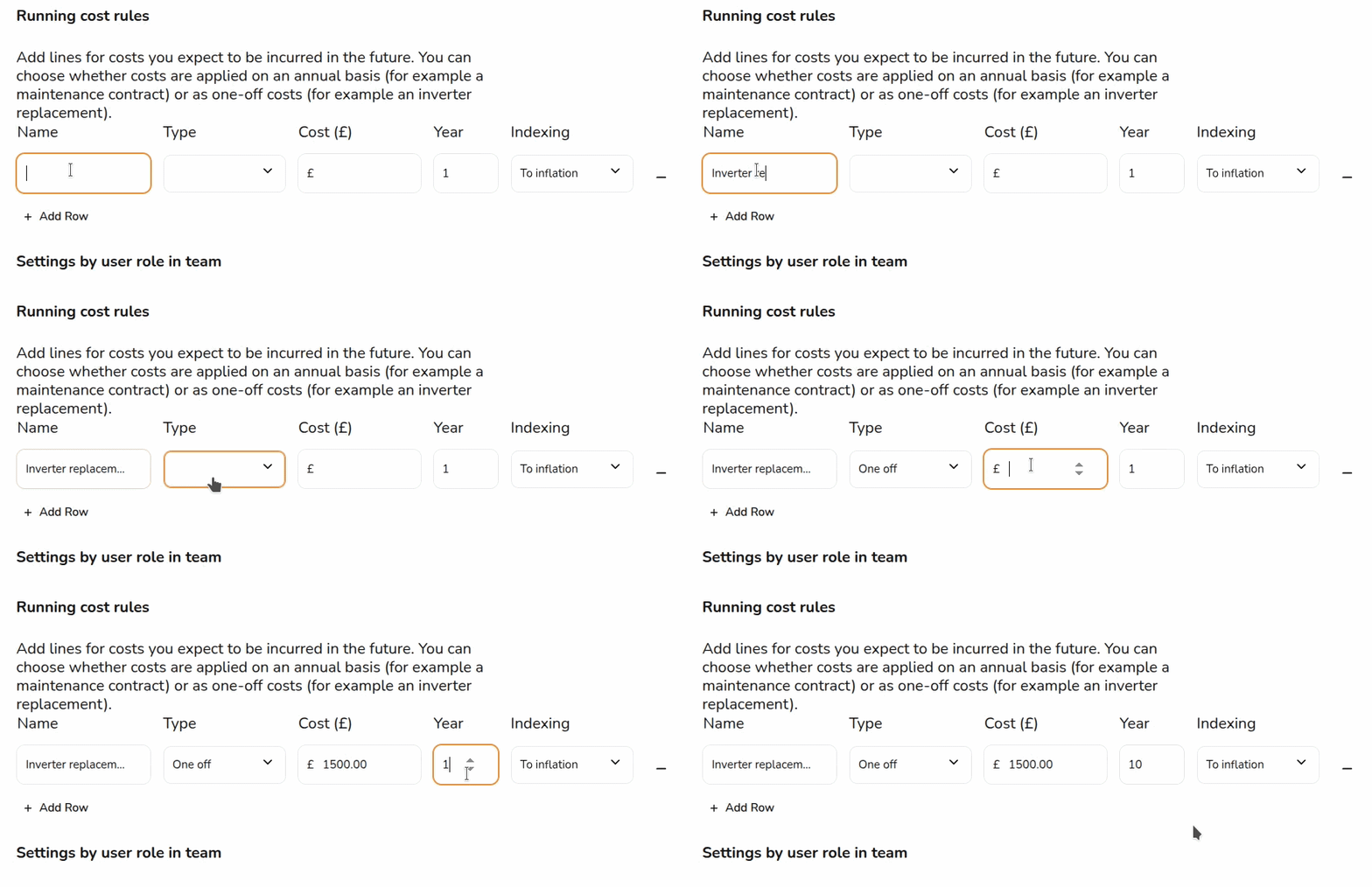
Tip: The prices you input here are not set in stone, you can save time by inputting a default and edit the price on a per-project basis.
Pro: Settings by user role in team
As a Pro user, you have the additional option of limiting the financial information available on a project for certain users in the team.
Simply toggle on who you would like the setting to apply to based on their user role:
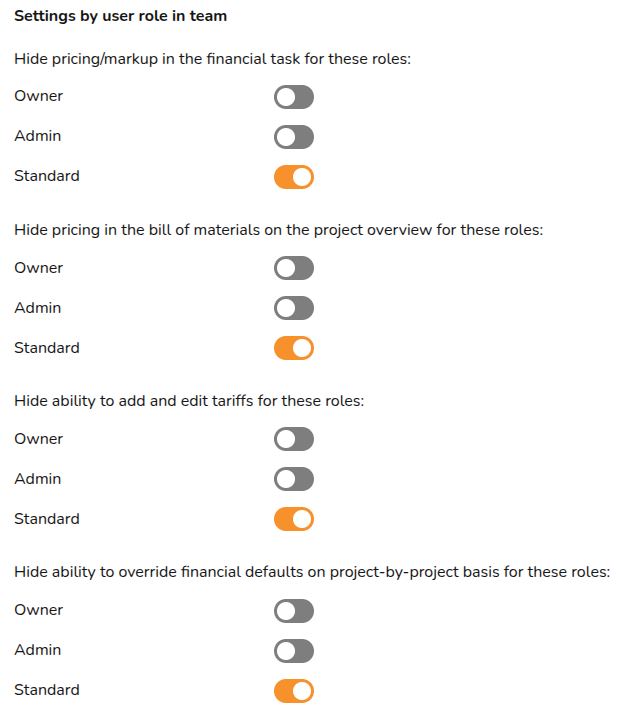
Learn more: User roles and team management.
Payment options
Here you can create finance options that will show on your projects – set up the reserve interest, payment options and payment providers.
This is also where you can apply for accounts with Easy PV's finance partners.
Learn more:
Want to know more?
Contact Support: If you've got further questions, get in touch with our support team at help@easy-pv.co.uk (UK) or help@easy-pv.ie (IE). If you are experiencing a bug, to help us look into your issue faster, please include the email address of your account, the name of the project and screenshots of any unexpected behaviour.
Setting up your Automatic Pricing Calculator
This guide applies to the easy-pv.co.uk and easy-pv.ie versions of Easy PV. The information provided here may not be accurate for easy-pv.com.
With Easy PV you can configure pricing rules to automatically calculate project prices. Rather than having to amend and change your service costs on each project, you can spend time setting up your pricing rules so the automatic pricing calculator will do it for you.
Pricing settings can be accessed via My Account > Preferences > Financial > Change pricing settings or if you are part of a Pro team, the owner/admin can do this via Pro Account settings > Financial > Change pricing settings.
To turn off automatic pricing click on the use pricing calculator toggle. You can also switch between automatic pricing and manual pricing on a per-project basis via the financial task.
Configuring for your project
You can set material pricing based on the cost of materials plus a markup (best for complex pricing depending on the number of panels, roof dimensions, travel distance, etc.) or based on custom lookup tables (ideal for simpler pricing using only a few panels/inverters combinations).
On top of the cost of materials, you can set up additional charges for the delivery and installation. The installation cost can be further specified with costs for scaffolding, electrical, roof type, and travel to the site.
-
Choose if you use a markup or lookup table for calculating the cost of materials.
-
Tick the box for each additional cost you want to include in your pricing (information on configuring each of these is below).
-
Choose the format in which you want to display the price of goods in the quote.
Lookup tables or markup
Option 1: Lookup tables
When you have chosen lookup tables on the first price settings page, before clicking next you can also choose to use a markup-based pricing for any designs that don’t match one of the lookup tables you have entered.
When you click Next, you can then create your lookup tables for different combinations of solar panels, inverters and batteries. Different costs can be specified within each combination for different numbers of panels.
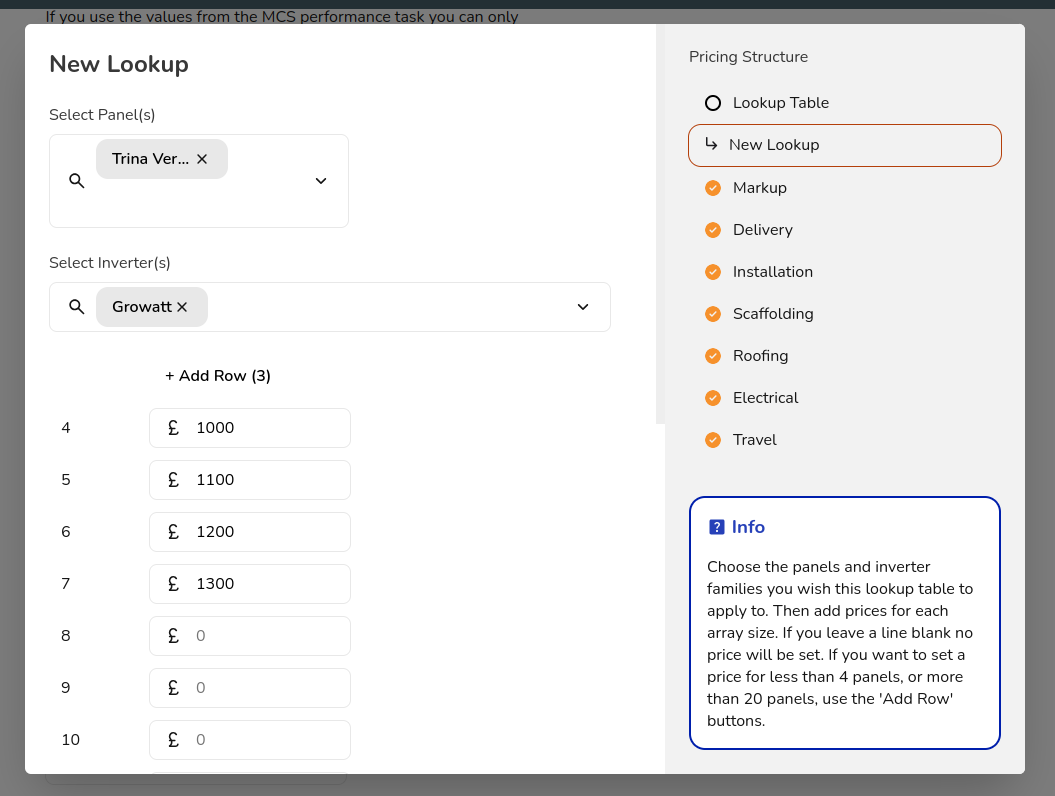
Lookup tables are most useful if you install just a few different system combinations (i.e always use Trina with Growatt). If you need more than a few lookup tables, it’s probably more efficient to use the ‘markup’ method.
Option 2: Cost of materials plus a markup
When Markup has been chosen on the first pop up screen, clicking Next will bring you through to the following page where you can input levels of markup for different sizes of projects.
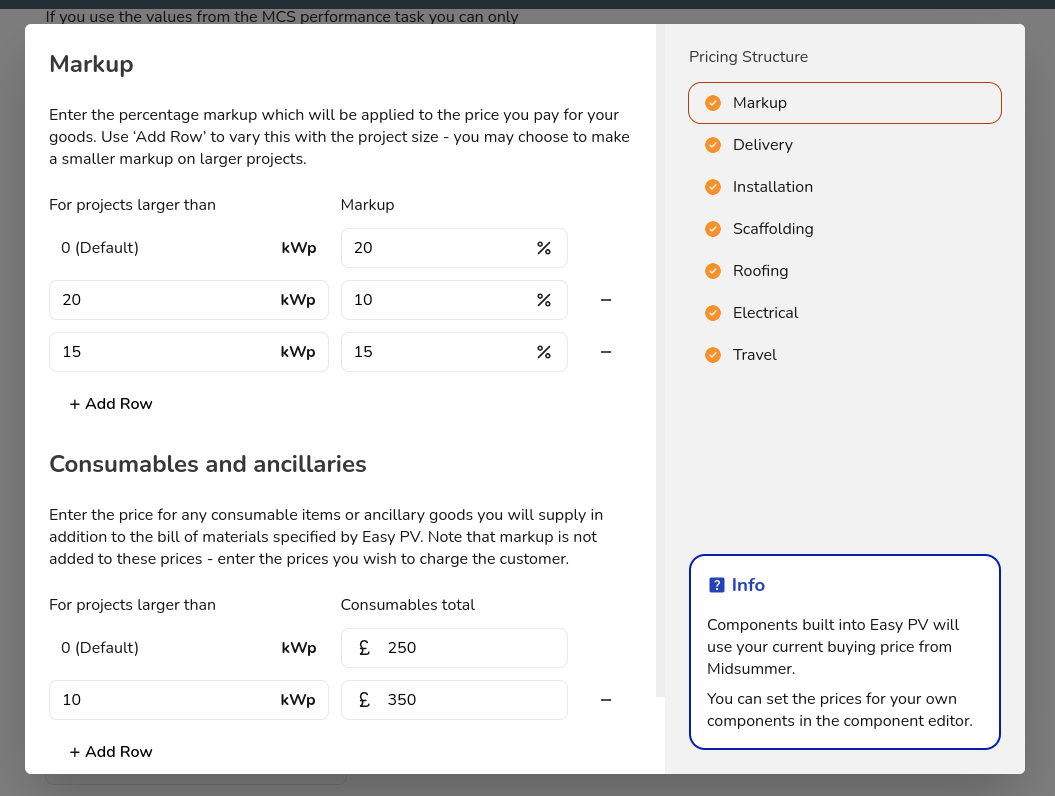
You will also notice a section for Consumables and ancillaries. This includes items not included with the PV kit such as zip ties. Throughout this calculator, you will be able to click +Add Row to create rules and changes to your costs depending on project size or travel distance.
Configure required costs
Delivery
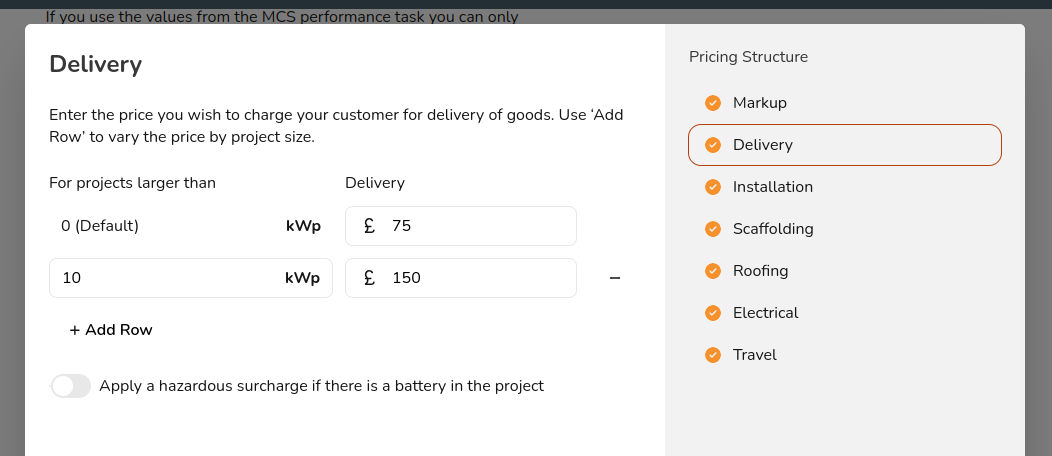
You can determine an appropriate default delivery cost and hazardous surcharge fee (when a battery is added to a project) for various project sizes.
Installation
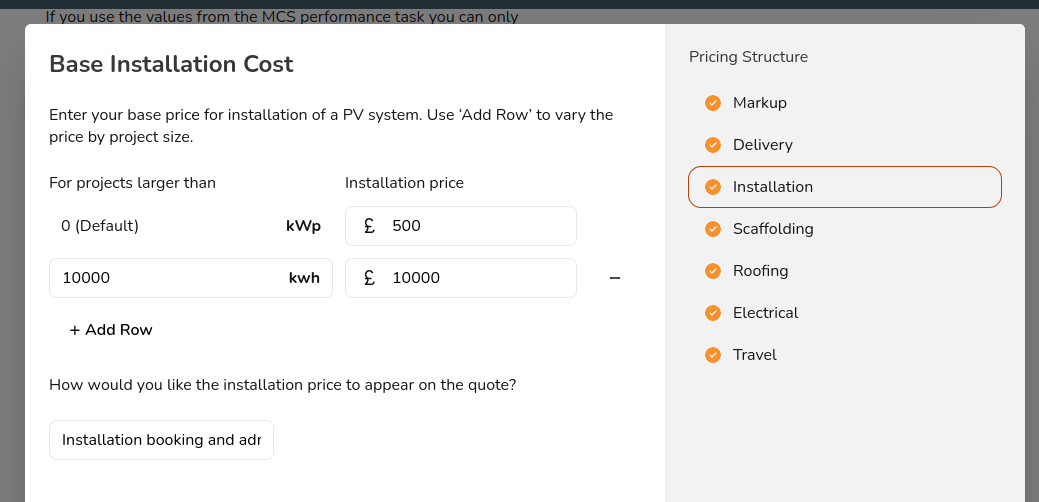
Here you can add a base installation cost which may cover all of your services (scaffolding, electrical, etc.) or you can set those up separately. You can also choose what text is displayed on the quote for this line item.
Configure optional costs
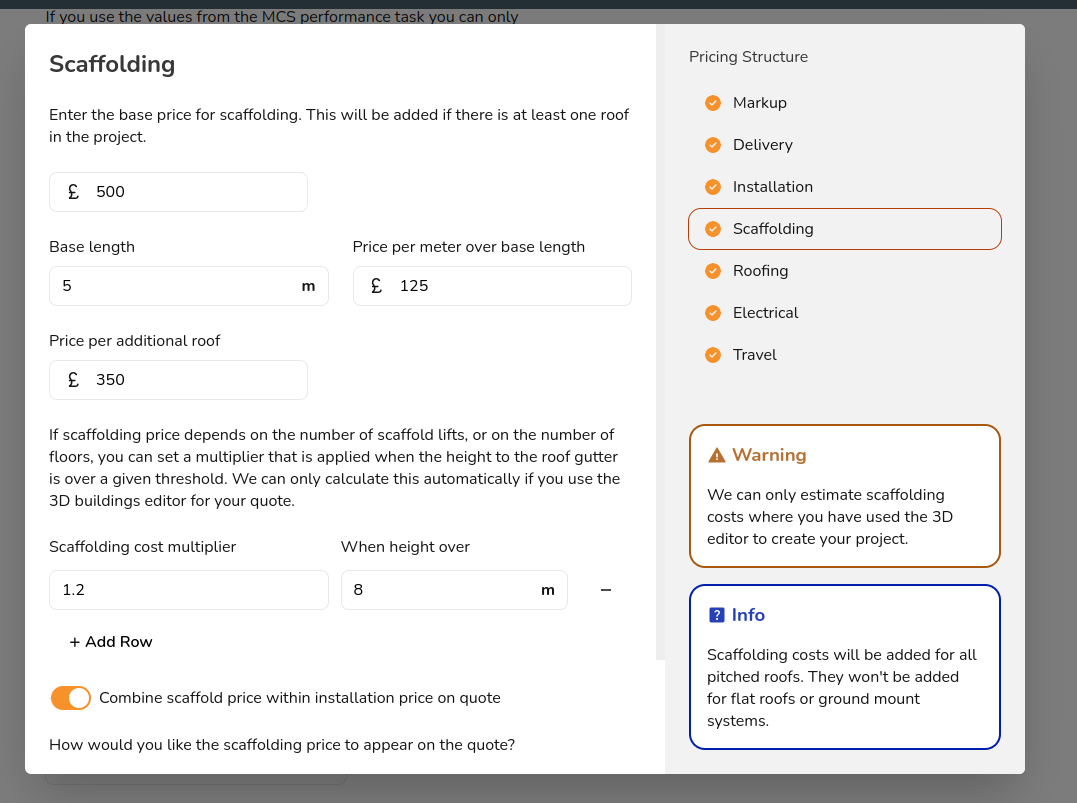
Scaffolding
In this section, you can set a base scaffolding fee and an extra cost for each additional roof. You can also set parameters for max length and height and have an additional charge or multiplier if those parameters are exceeded.
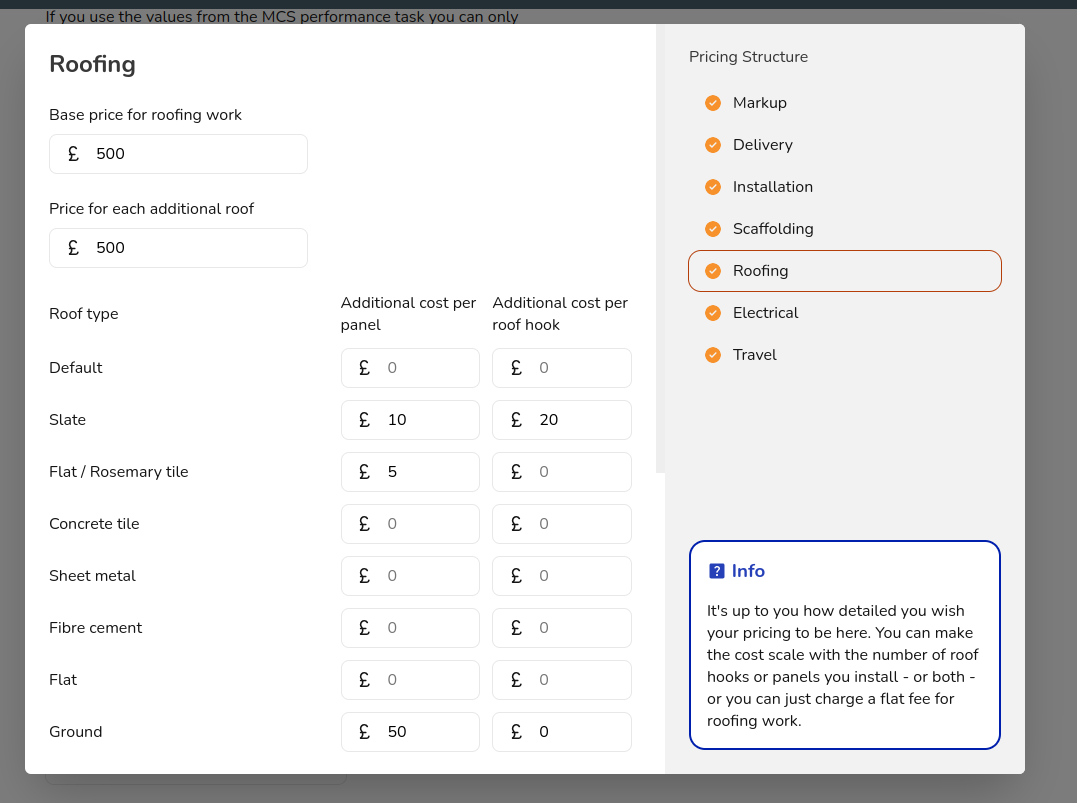
Roofing
For roofing , you can add a base cost and fee for each additional roof. You can set additional charge per solar panel depending on the roof type. Finally, you can add a cost for per each extra such as in-roof panel, optimiser, etc.
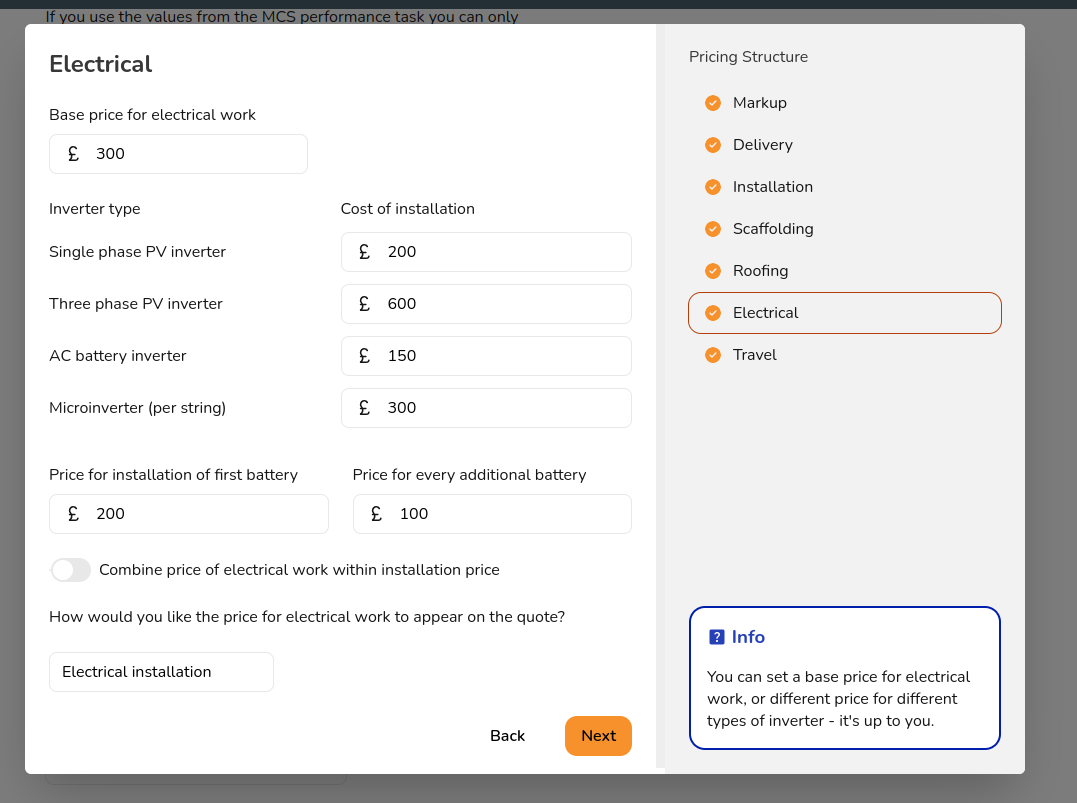
Electrical
Similarly, you can add a base electrical cost, additional fees for the installation of different inverters, and a cost for the installation of a battery.
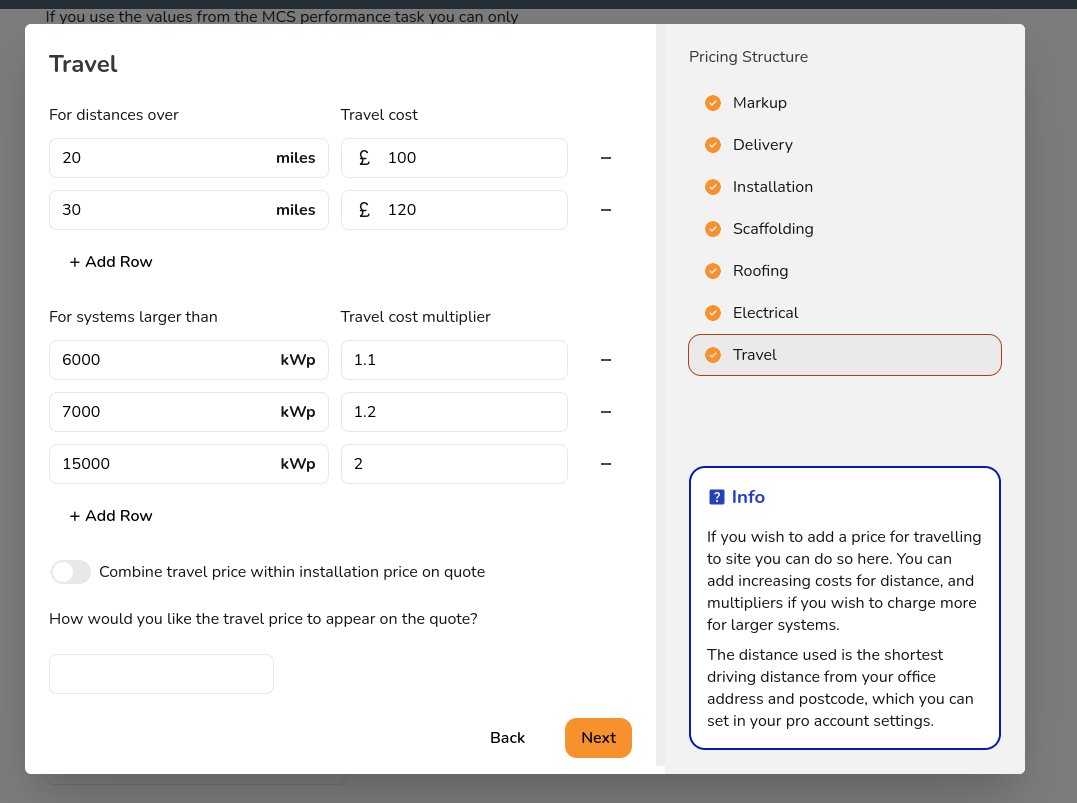
Travel
You can add costs for travel to site based on the distance (which Easy PV automatically calculates if you have input the project location and your company location!). You can also set up a travel cost multiplier for larger systems.
Configure other costs
If there are costs you want to include on every project that you can't factor into any of the above sections then you can do so by adding a new accessory custom component.
- Create a new accessory, name it with whatever additional service you want to include
- Do not fill in the 'price' box
- If you would like the item or service to be included on all projects, then select the second option 'Include by default' in the rules. If you do not want to include by default you will be able to select it on a per-project basis in the electrical task.
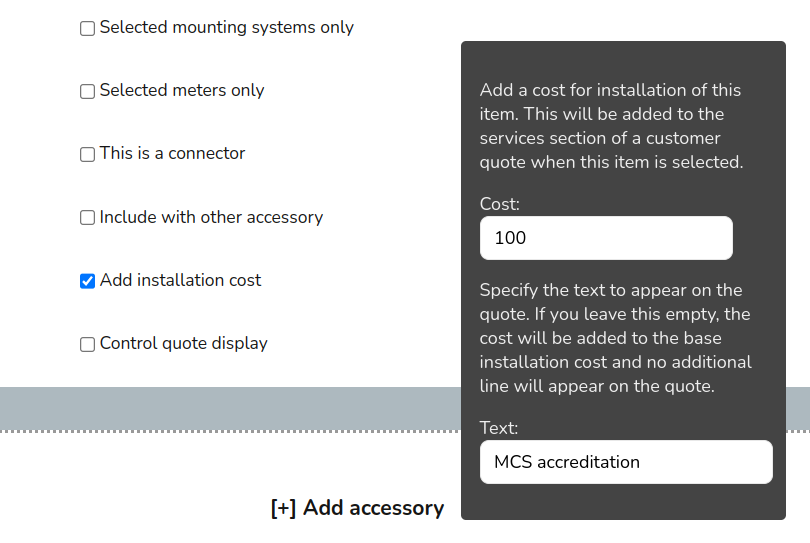
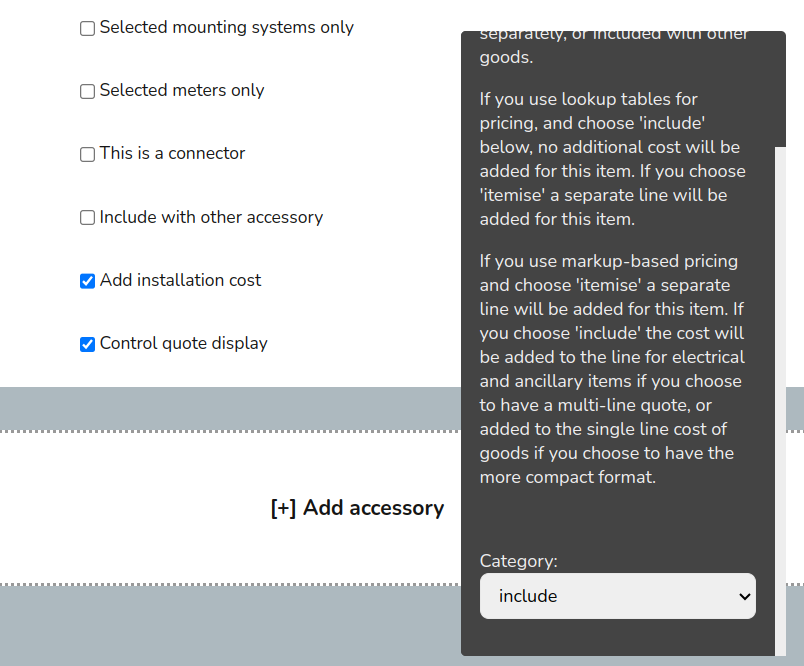
- Then scroll to bottom of 'rules' and check the following options:
- Add installation cost - this is where you fill in the price and name of the item or service

-
Control quote display - this is where you can decide how it will display on the quote

- Add installation cost - this is where you fill in the price and name of the item or service
- You can also have a look at the other rules available on accessories and decide whether you would like to include or not include the item (for example, only include with specific inverters).
Performance task preferences
The Performance task can be streamlined by configuring your settings in My account > Preferences > Performance or Pro Account Settings > Performance. Here you have the option to configure whether you want panel allocation and the generation of sunpath diagrams and shading factors to be automated.
Panel allocation
Choose between:
- Automatically allocate panels: use auto-stringing to automatically make a string plan without any input needed from you.
- Suggest allocation: use auto-stringing to make a string plan which it will suggest for you to accept or edit manually.
- Manually allocate panels: manually construct your string plan, with the option to use auto-stringing when you do so.
Sunpaths
With 3D and Magic design mode, Easy PV can automatically calculate any shading losses.
Here you can choose whether you want Easy PV to automatically calculate shading based on the terrain and 3D buildings or whether you want this to be excluded so you can set the shading manually.
Self-consumption and performance
Choose which method you'd like to use to calculate the total annual generation of the system.
Warning: Changing the performance mode used with affect all projects.
Choose from:
- easy-pv.co.ukMCS: This is based on the method detailed in Appendix B of MIS 3002: The Solar PV Standard (Installation) and will only work for UK postcodes.
- NREL: This method is based on NREL's PVWatts calculator, this is an international method that works for any location.
- PVGIS: This is another international option that is based on PVGIS data so will work for any location.
If selecting the MCS method, you can also choose whether you want to:
- Set default values for MCS self consumption: this will let you set default values which will be used by default for each of the inputs required for the MCS consumption calculations.
- Manually enter MCS self consumption: if you select this option you will need to set the inputs required for the MCS calculations on every project.
Still Need Help?
Contact Support: If you've got further questions, get in touch with our support team at help@easy-pv.co.uk (UK) or help@easy-pv.ie (IE). If you are experiencing a bug, to help us look into your issue faster, please include the email address of your account, the name of the project and screenshots of any unexpected behaviour.
Whole-system Design
Learn about Whole-system Design: what it is, how to set it up, and what it can do for your solar PV system design workflow.
Whole-system Design
easy-pv.co.uk
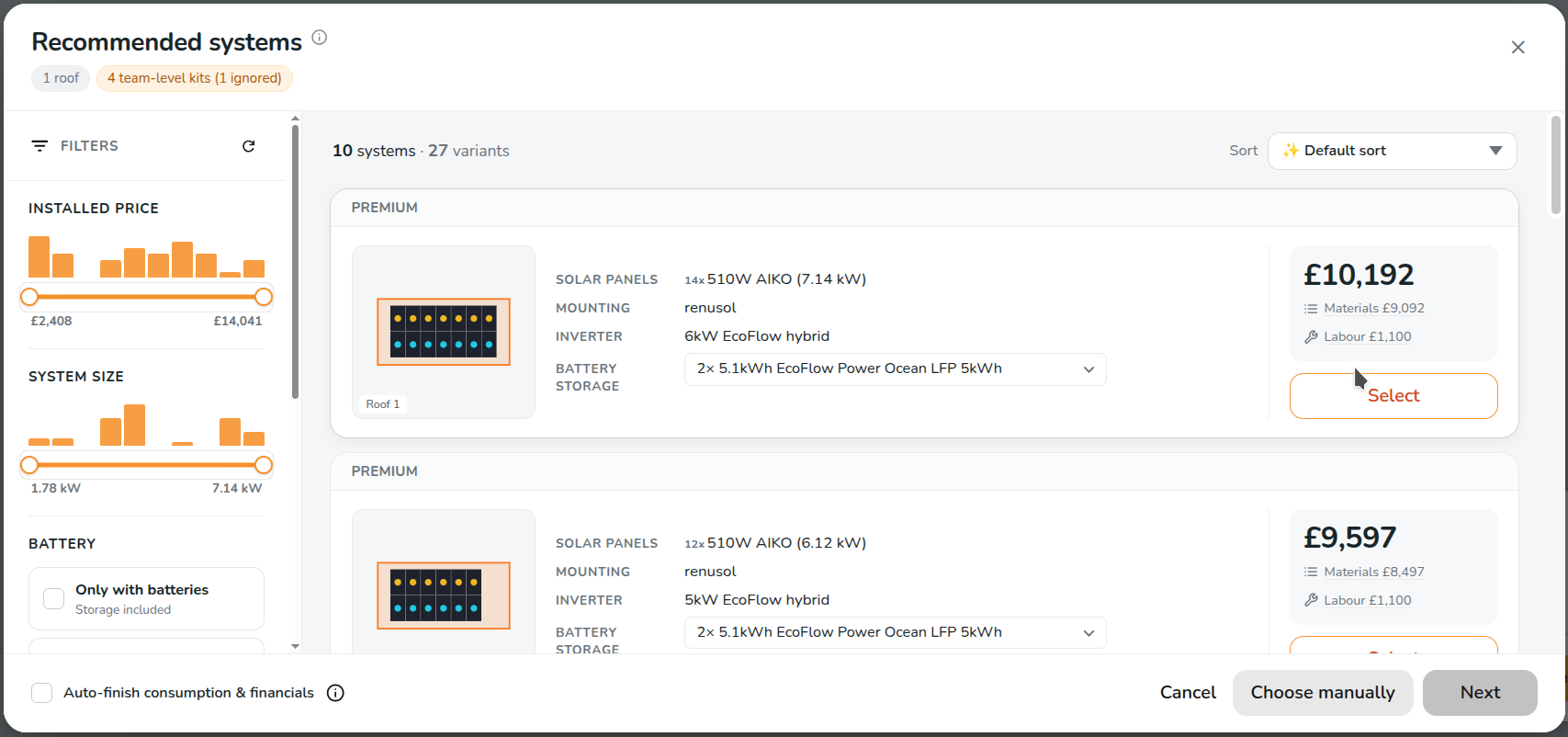
Whole-system design suggests complete solar systems for a project -panels, mounting, inverter and battery -worked out, costed and ready to apply. Instead of completing the panel, inverter, consumption and financial tasks by hand, you pick a system from a shortlist and Easy PV fills the project in for you.
Viewing the Whole-system Design kit suggestions
There are two ways to view the kit suggestions generated by the Whole-system Design (WSD) feature.
- Automatically. Create a project and draw or import your roofs. Once there's roof data, the Recommended systems window opens on its own - for example when you finish the roof task and click Next.

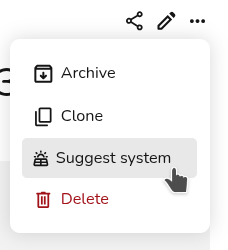
- Whenever you want them. On the project overview, open the three-dots menu and choose Suggest system. This is always available on a solar project, even if you've turned the automatic suggestions off.

If you don't see either, jump to Why am I not getting any suggestions?
Choosing a system
Choosing a system couldn't be easier. Each card shows you:
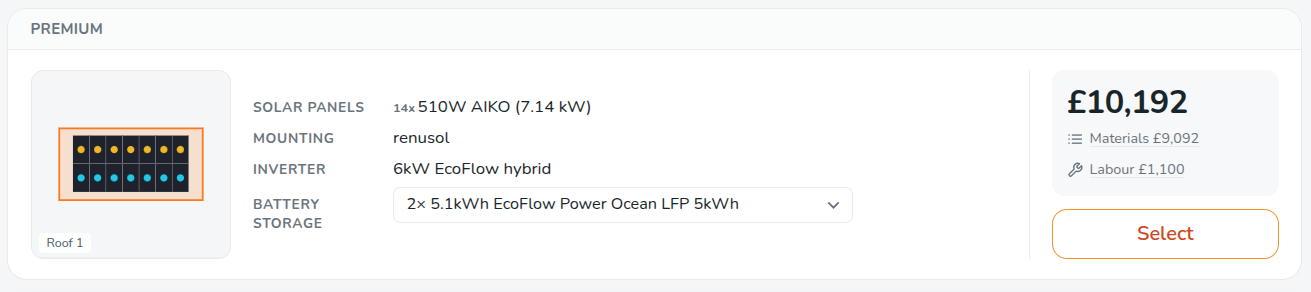
- install size and panel count
- the inverter, and the battery if there is one
- Materials - the equipment cost. Click it to see every priced line that makes up the total
- Installed - the total installed price
Filtering your options
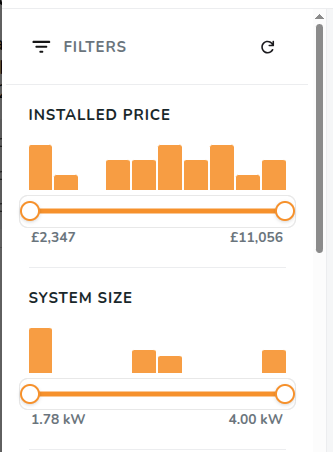
Open Filters to limit the list by:
- Price and Install size - drag orange the sliders to adjust the price range

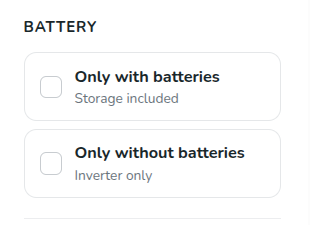
- Battery storage - all systems, only with storage, or only without

- Kit combinations - tick the kits you want to see systems from

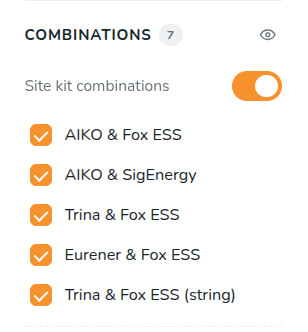
Kit combinations that couldn't produce a system for this project are shown greyed out, with the reason underneath - usually that a part is out of stock or has no price.
Sort defaults to Magic Sort, which mixes strong all-rounders, higher-output systems and cheaper options so the top of the list gives you a spread rather than five variations of the same thing. You can switch to a standard sorting option - price, install size, panel quantity or battery storage, ascending or descending - at any time.
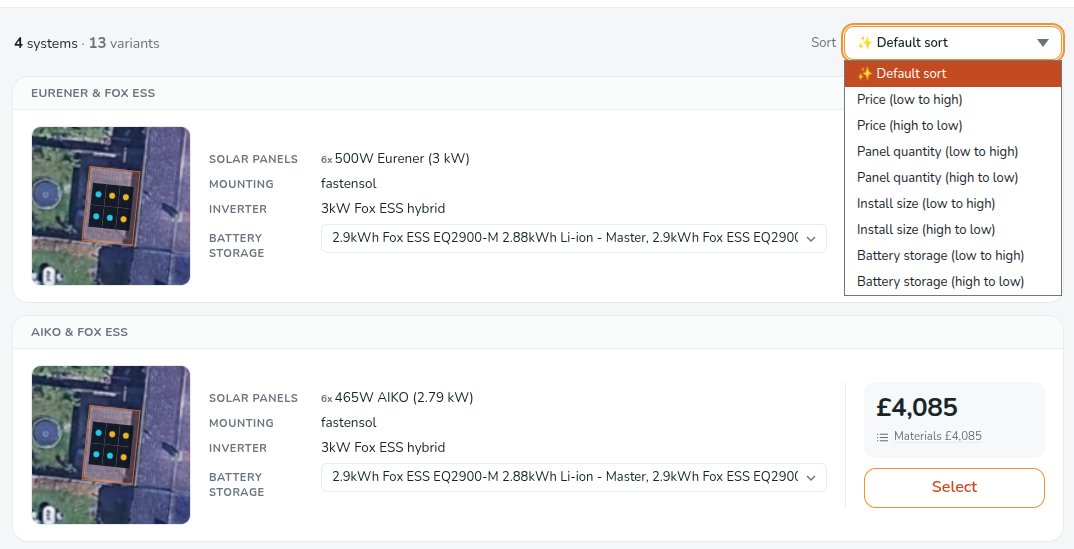
Swapping parts without starting again
Where a suggestion comes in more than one configuration, the Inverter and Battery lines on the card become drop downs. Change either one and the card switches to that version, keeping the rest of the system as close to what you were looking at as possible.
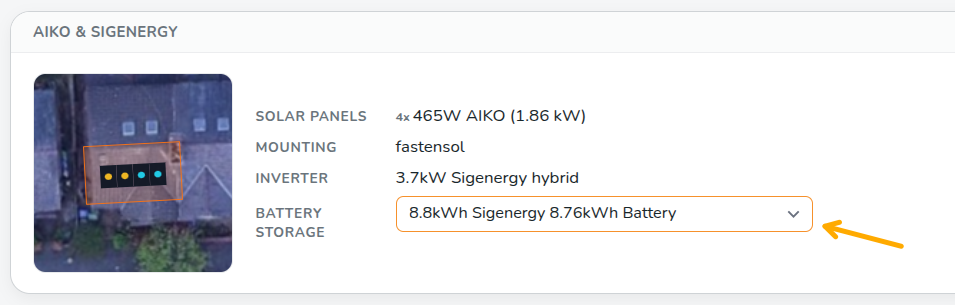
Checking the Financial assumptions
The financial estimates are priced against an import tariff, an export rate, and an annual consumption figure. The assumptions chip in the window tells you which figures are being used, flags any that are missing, and lets you change them there and then. The estimates re-price against whatever you set.
Click Edit to open the Consumption task and change the assumptions.

Systems with a Smug-compatible inverter are badged. If you're set up for Smug battery optimisation and the project is on a time-of-use tariff, the estimates account for it.
Choosing which roofs to use
By default, suggestions are built for the three best-rated roofs on the project. To change that, use Select roofs (or Choose different roofs).
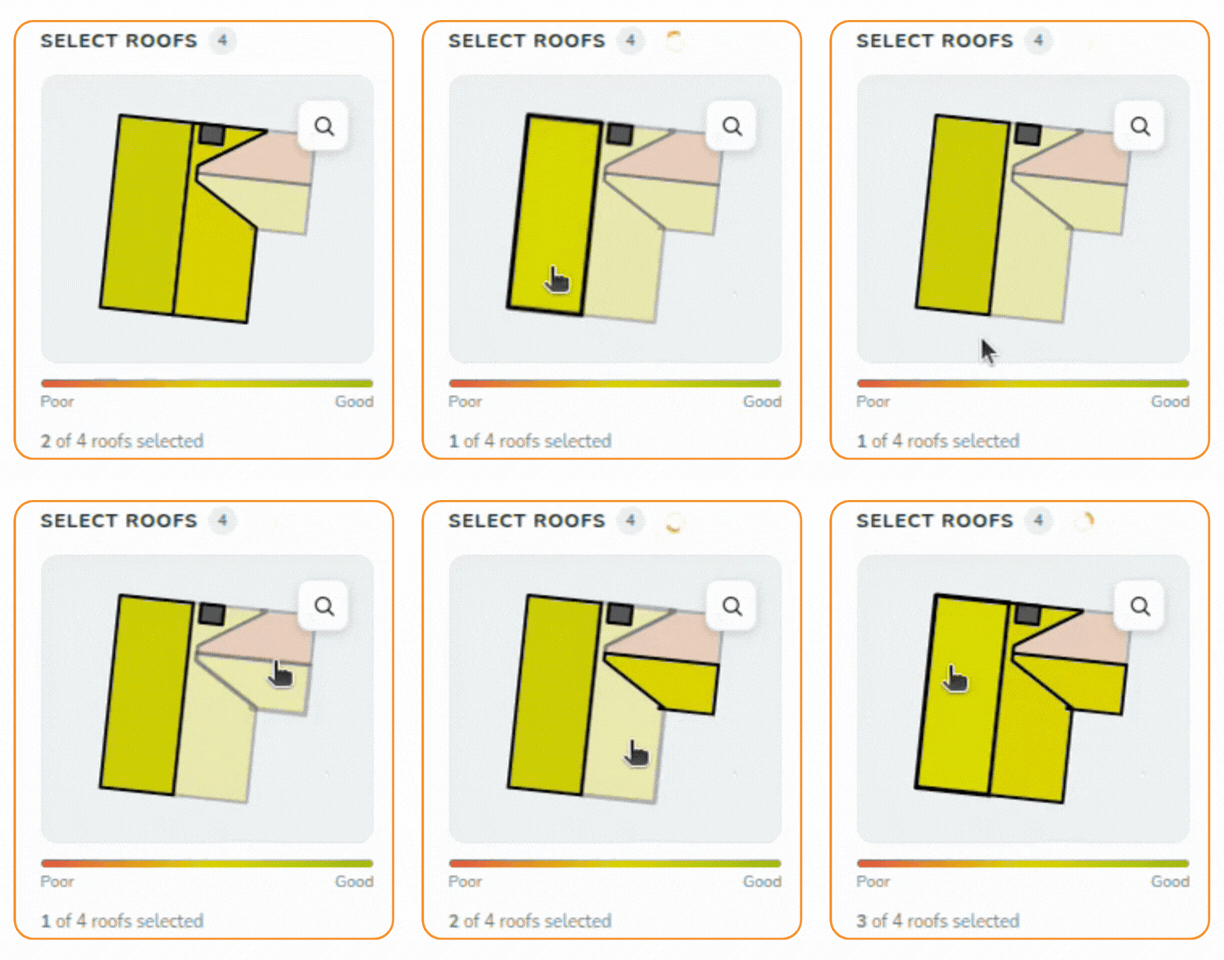
By default, suggestions are built for the three best-rated roofs on the project. To change that, use Select roofs (or Choose different roofs).
- On 3D and magic-mode projects you get a small bird's-eye view of the building. Tap a roof to include or exclude it.
- Roofs are shaded by how much they'd generate, and there's a magnifier for tight spots.
- On quick-roof and roof-outline projects you get a simple list of tick boxes.
Confirm your choice and the estimates regenerate for just those roofs.
Applying a system
Select a card and click the Next button at the bottom. Easy PV then:
- applies the panels, mounting, inverter and battery to the project, and
- takes you to the project overview with the system in place.
From there it's an ordinary project. Every task is still yours to open and change -swap the inverter, restring the array, adjust the mounting, whatever you need.
Auto-finish consumption & financials
Select Auto-finish consumption & financials in the bottom left of the window and Easy PV also completes the Performance, Consumption and Financial tasks in the background, using standard assumptions, so the project is ready for the customer proposal without you touching them.
Stay on the overview while it finishes - if you navigate away mid-way it stops, and those tasks stay for you to complete yourself.
Un-tick it and only the equipment is applied - Consumption and Financial tasks are yours to fill in separately.
Where the suggestions come from
Every suggestion is built from a kit combination: a panel, a mounting system per roof type, an inverter group, and optionally batteries and optimisers. Nothing outside your kit combinations is ever suggested.
Free accounts use the kit combinations set at site level, which we put together and keep up to date. You can't edit these, but you don't have to set anything up either.
Pro accounts:
These use their team's own kit combinations. Your admins build them under Kit combinations, found in Pro Account Settings > Design.
For Pro admins: the quality of the suggestions is the quality of your kit combinations. Cover the full range of jobs you do, from small domestic through to your larger commercial installs, and keep them current as your buying changes. A team with two kits gets two flavours of suggestion; a team with a well-spread set gets a comprehensive shortlist.
Turning it on and off
There are two relevant settings for turning the Whole-system Design suggestions on and off. These are found in slightly different places depending on whether you have a free or Pro account. Either way, they only appear once there's at least one kit combination available to you.
Suggest a whole-system design when creating a project controls whether the Recommended systems window opens on its own, and Auto-finish consumption & financials by default sets how that tick box starts out in the window.
On a free account
Everything is in one place: My Account > Preferences > Design.
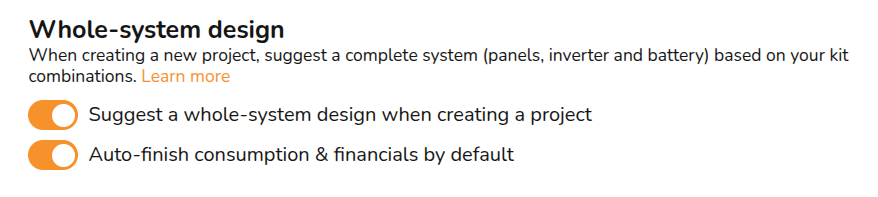
Suggest a whole-system design when creating a project: De-select this and the window stops opening by itself. The three-dots Suggest system option stays, so you can still ask for suggestions whenever you want them.
Auto-finish consumption & financials by default: Sets how the tick box in the window starts out. You can always (de-)select it for a single project.
Free accounts can't edit the kit combinations your suggestions are built from. Those are the ones we maintain at site level - so these two switches are the full extent of what's configurable on a free account. If you want suggestions built from your own equipment and prices, consider upgrading to Pro.
On a Pro account
Pro has the same two settings, at two levels.
Your own settings: My Account > Preferences > Design
These settings determine how Whole-system Design applies to your personal Easy PV account. Every Pro user has these, admin or not.
Your team's settings: Pro Account Settings > Design (team admins only)
The same two settings, applied to everyone in the team. Use these to set how Whole-system Design behaves across the team by default, then individual installers can adjust their own as above.
Pro admins also control the input the suggestions are built from, under Kit combinations in the same Design section. That's the setting that actually determines the kit combinations themselves: the two switches above only decide when the window appears.
Site-wide settings (site administrators)
If you administer a whole Easy PV site, there's one more level at Site Settings > Whole-system design:
- Availability - who on the site gets Whole-system Design at all:
- Off for everyone - nobody on the site sees it.
- Invite people to try it - installers are asked once whether they'd like to take part, and can opt out again later. Only those who accept see it. Useful for trialling it with willing teams before switching it on across the board.
- On for everyone - everyone sees it, unless their team or they themselves have switched it off.
- Defaults - set the default for the auto-finish Consumption and Financials tasks here.
While a site is set to Invite people to try it, teams and individual installers get an extra Take part in the whole-system design trial switch in their own Design settings, so they can join or leave without waiting to be asked again.
Which setting wins
For the window opening automatically: any "off" wins.
If the site, the team or the installer has switched it off, the window won't open by itself. That's deliberate - a team admin can't force it onto someone who's turned it off for themselves, and an installer can't turn it back on if their admin has switched it off for the team.
On a free account this only ever comes down to your own switch, unless we've turned the feature off site-wide.
The manual three-dots Suggest system option is unaffected by all of this. As long as the project is solar and there's a usable kit combination, you can always ask for suggestions.
For auto-finish: the most specific setting wins.
Your own setting beats your team's, which beats the site's, and a single project can override all three. It's only ever a default - whatever it's set to, you can change the tick box in the window every time.
Whole-system Design: FAQs
❓Why am I not getting any suggestions?
- There may be no roof data yet. Return to the Buildings task, re-draw or scan the roofs first and retry.
- It's switched off somewhere: check My Account > Preferences > Design, then your team's Design settings. If you are part of a Pro team, contact your admin.
- Your site settings are on Invite people to try it and you declined previously. You can join from the same Preferences page.
❓'Suggest System' isn't showing in the three-dots menu
- Your site settings are on Invite people to try it and you declined previously. You can join from the My Account > Preferences page.
❓The window opens but there are no systems in it.
- No kit combinations enabled for Easy PV. A kit combination has to be enabled and available to Easy PV to be used here. Pro admins: check them under Pro Account Settings > Design > Kit combinations.
- Parts with no price, or out of stock. Kits are skipped when a panel, inverter or battery has no price or no available stock. Greyed-out kits in the filter list tell you which and why.
- Nothing fits the roofs. With very small or awkward roofs, no kit in your set may produce a workable system. Try including more roofs.
- A pricing warning at the top of the window. If your team prices from a lookup table that can't price these systems, you'll see a warning above the cards. That needs fixing in your pricing settings before suggestions can be costed.
❓The figures on a card don't match the project after I apply it.
- Suggestions are generated against your team or account's default tariffs and financial settings. If the project carries its own tariff, the applied project re-prices against that, so some figures will shift.
- Use the assumptions chip before you apply if you want the estimates to reflect a specific tariff.
Good to know
- Suggestions never change a project on their own. Nothing is applied until you click Use system.
- Applying a system replaces the equipment currently on the project, so if you've already done the panel and inverter tasks by hand, that work is overwritten. Nothing else about the project is touched.
- You can reopen the suggestions and apply a different system as many times as you like.