
Choosing a design mode
When you first create a project you will get the choice of the which design mode you would like to use. In Easy PV there are four options, each with particular applications.options:
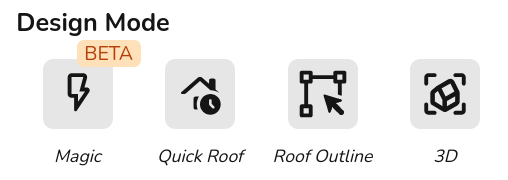
Watch the same property be designed in each design mode:
3D
- Create 3D property model by designing the roof from a satellite image and dimensions.
- Model obstructions and nearby buildings or trees that may cast shade on the roofs you're working on to get accurate shade analysis and improve the accuracy of the performance calculations.
Get started using 3D design mode.
Magic BETA
- Create an automatic 3D design, it works out the height and pitch of buildings and identifies any obstructions.
- Three free magic designs per day for standard users and unlimited for pro.
Roof outline
- Create 2D roof model by outlining the roof from a satellite image and adjust the dimensions in the roofs task.
- Uses satellite map imagery (so you will need to zoom into the map or fill in the address before selecting) so you can accurately model the roof based on the actual size of the property.
Quick Roof
- Create 2D roof using dimensions, pitch, orientation and tile type, can also spec ground mount systems.
- Does not use satellite imagery so a good option if satellite map it out of date, you're working on a new build property or if the satellite image is too blurry.