
Pro: Survey and installation record tasks
This guide applies to pro versions of Easy PV. Read more about what you gain with pro.
The survey task allows the surveyor to enter all information required to plan out the installation in one location. Surveyors can answer thepre-set questionsquestions, upload and annotate images and add additional comments. Information is pulled through from the survey to a scaffolding request form whichand youpresented canin alsoa accessPDF fromreport. the Forms drop-down.
The installation record works in many of the same ways as the survey task, it instead allows you to similarly keep a goodconsistent record of your installinstalls should any issues arise in the future.
Completing the Survey and Installation record
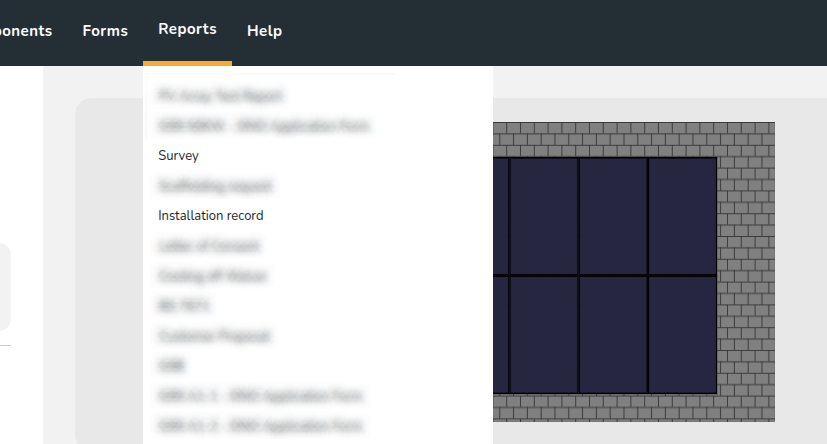
InThe bothSurvey formsand youInstallation record tasks can uploadbe imagesfound andfrom applythe imageTasks annotations.drop-down Amenu PDFor reporton the left-hand side of the surveyproject andoverview installationpage. record can be generated from the reports drop-down in the main navigation.
Accessing and filling out the survey and installation record
From any project, click the Tasks option in the main navigation menu, then select Surveys or Installation record.
Filling in survey and installation record
Both forms are divided into sections that can be viewed and navigated between using the right-hand menu.
|
|
|
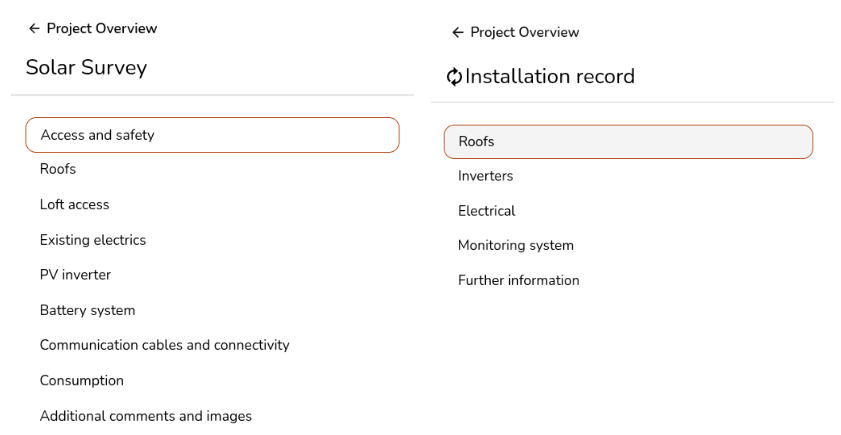
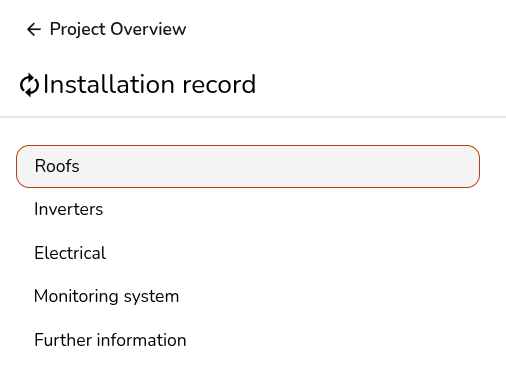
On the left, for each section you'll see each question to answer:
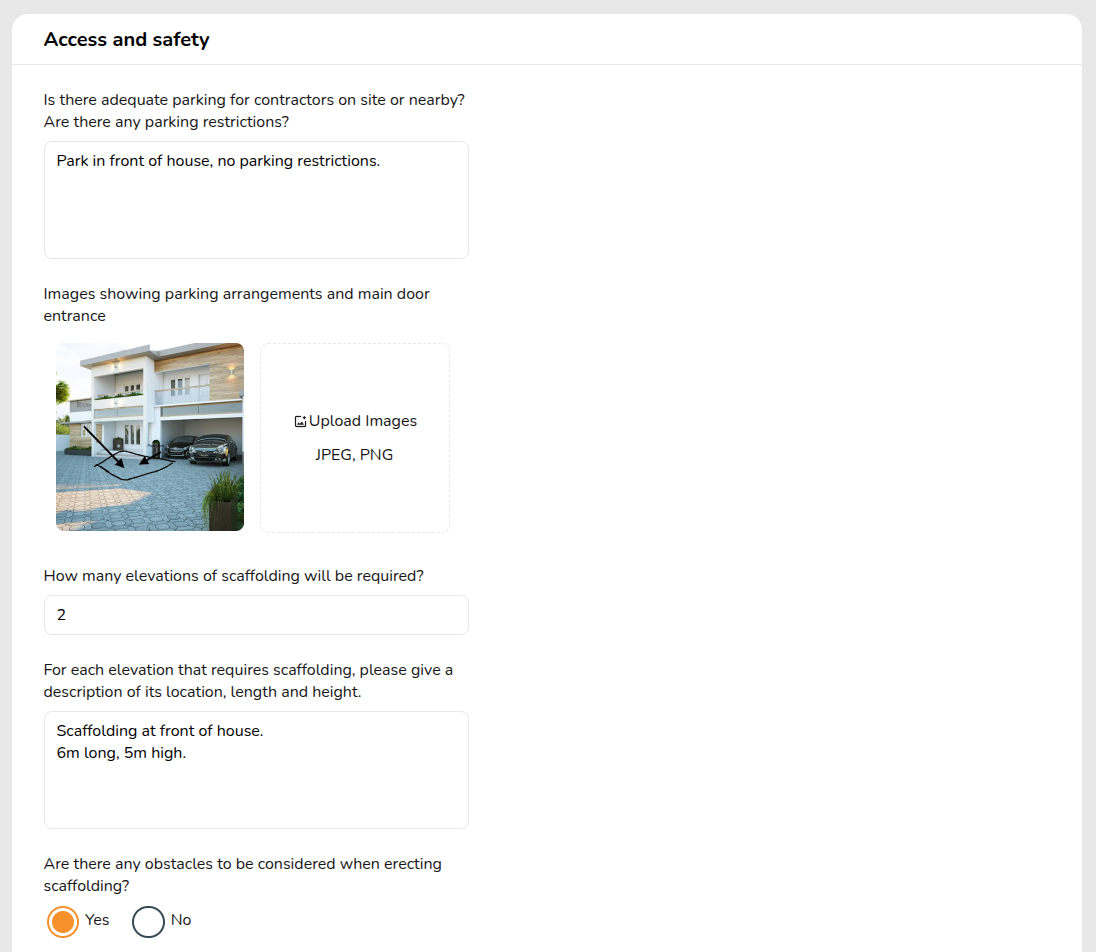
If you think an important question is missing from the survey or installation records, get in touch at help@easy-pv.co.uk.
Uploading and annotating an image
There are various places throughout the survey and installation record where pictures can be uploaded and annotated. Click on the the Upload Images box and it will bring up the option to upload a picture from your files. If you are on a mobile or tablet device it will give you the option to take a photo. You can repeat this step to add multiple images.
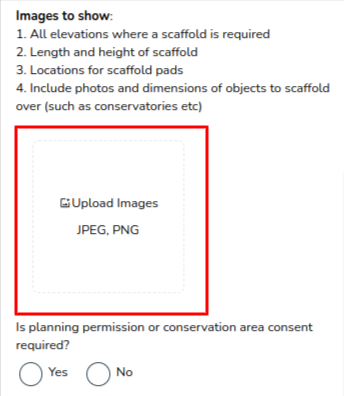
Note thatWarning: HEIC files (usually from mobile devices) are not supported at this time. If your phone, tablet, or camera is set to save pictures in this file format, please change this to save .jpg files in settings.
Once the file has been uploaded, you can click on the pictureimage to bring up the annotation options.
|
|

The green bar at the left indicates which tool you are currently using.
Accessing your survey andor installation record as a PDF report
After the form is complete, the report can be found in the Reports drop-down. down menu.
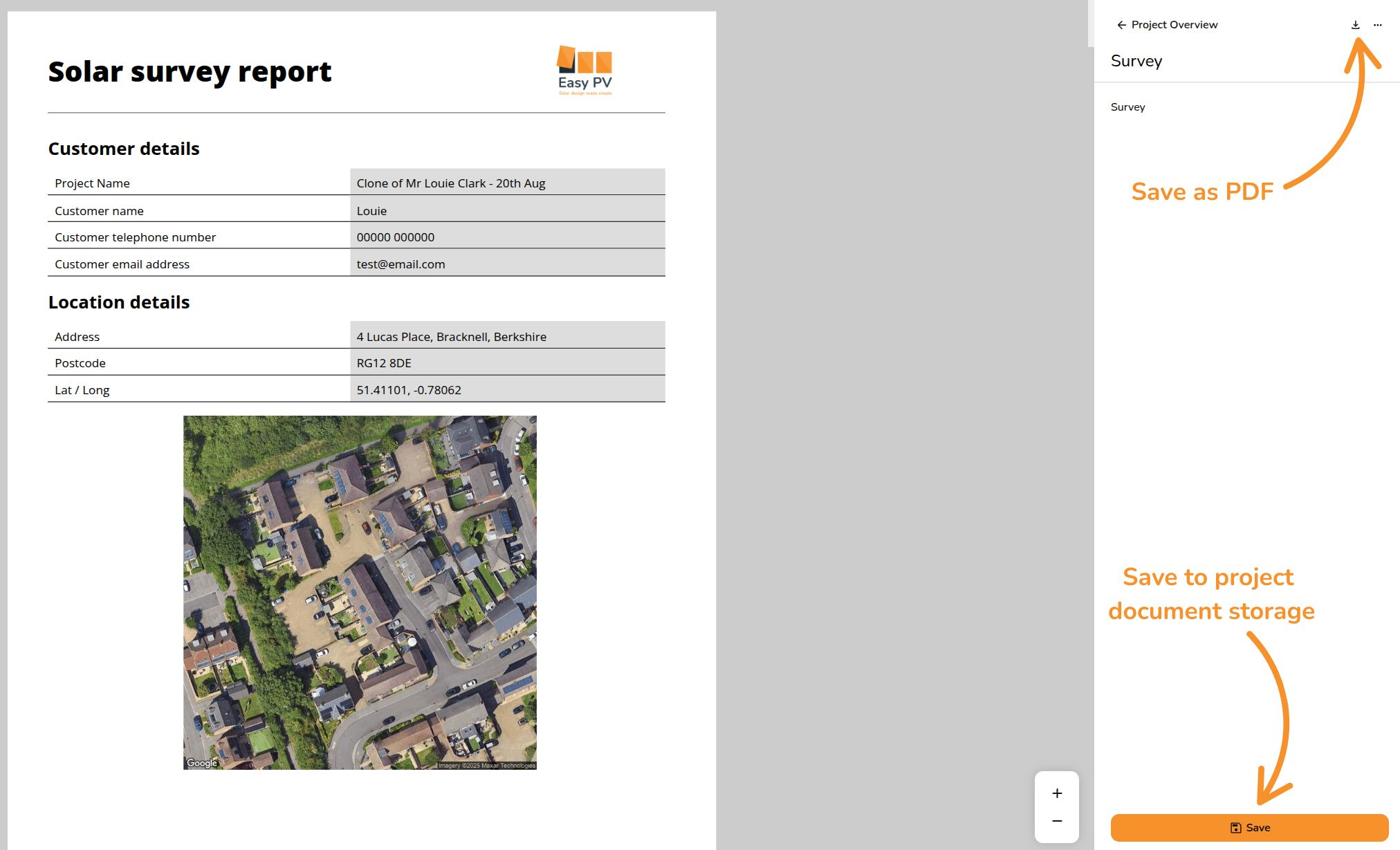
You can then scroll through the document with all your inputs, save as a PDF or save to your project's document storage storage.
Want to know more?
Contact Support: If you've got further questions, get in touch with our support team at help@easy-pv.co.uk (UK) or help@easy-pv.ie (IE). If you are experiencing a bug, to help us look into your issue faster, please include the email address of your account, the name of the project and screenshots of any unexpected behaviour.