
Pro: Emailing
This guide applies to the pro versions of Easy PV
With pro, you have the option to send emails without needing to leave Easy PV.
Sending emails in Easy PV
Emails can be sent from the templates in the project overview or from within individual documents.
If you'd like to send a document for e-signing, these must be sent from within individual documents.
Emails from the project overview
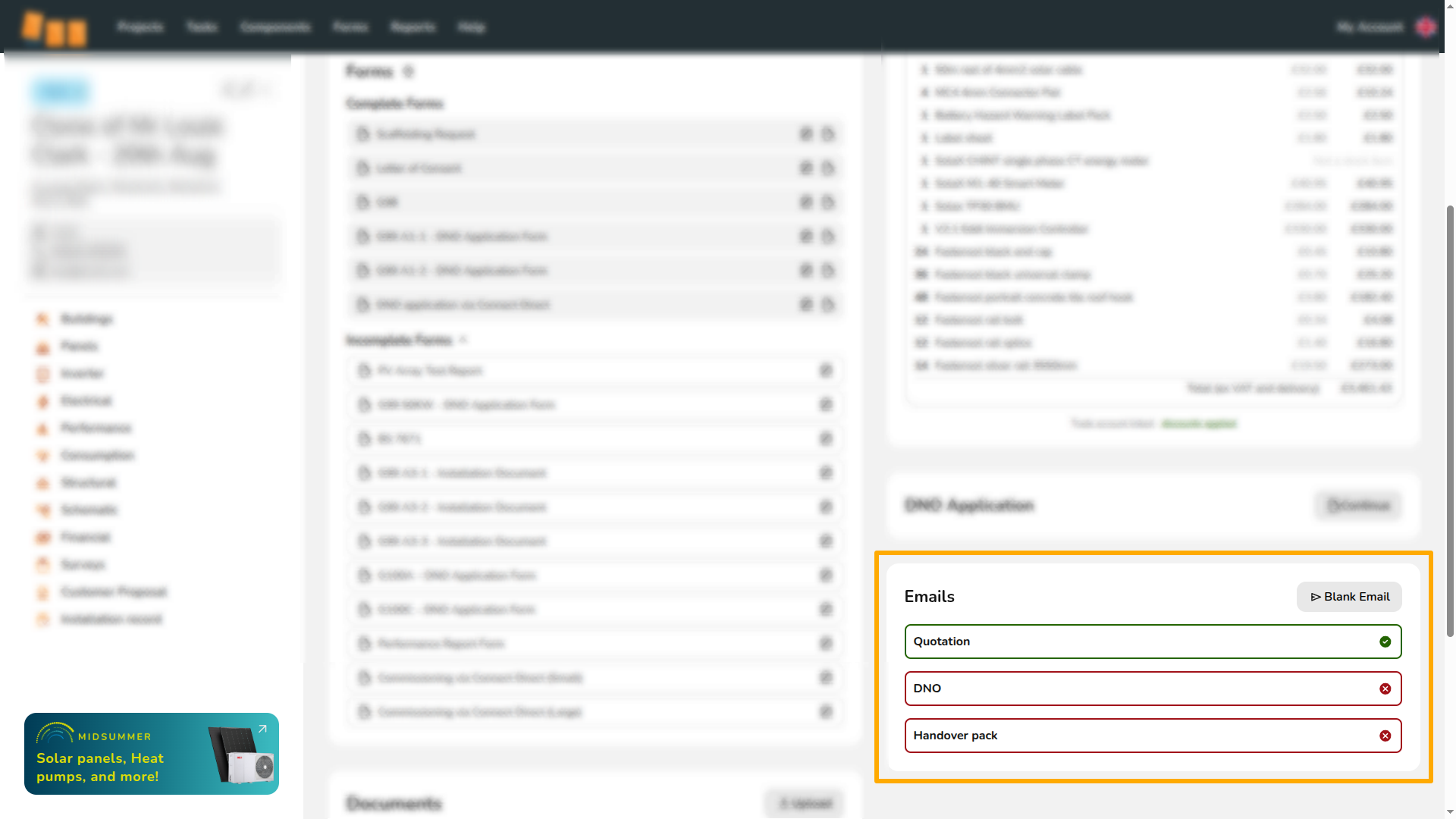
You can access the email management section via the project overview. Here you can keep track of emails that have been sent. Emails that have not yet been sent will be outlined in red with a cross. Once you have sent an email, it will be outlined in green with a tick.
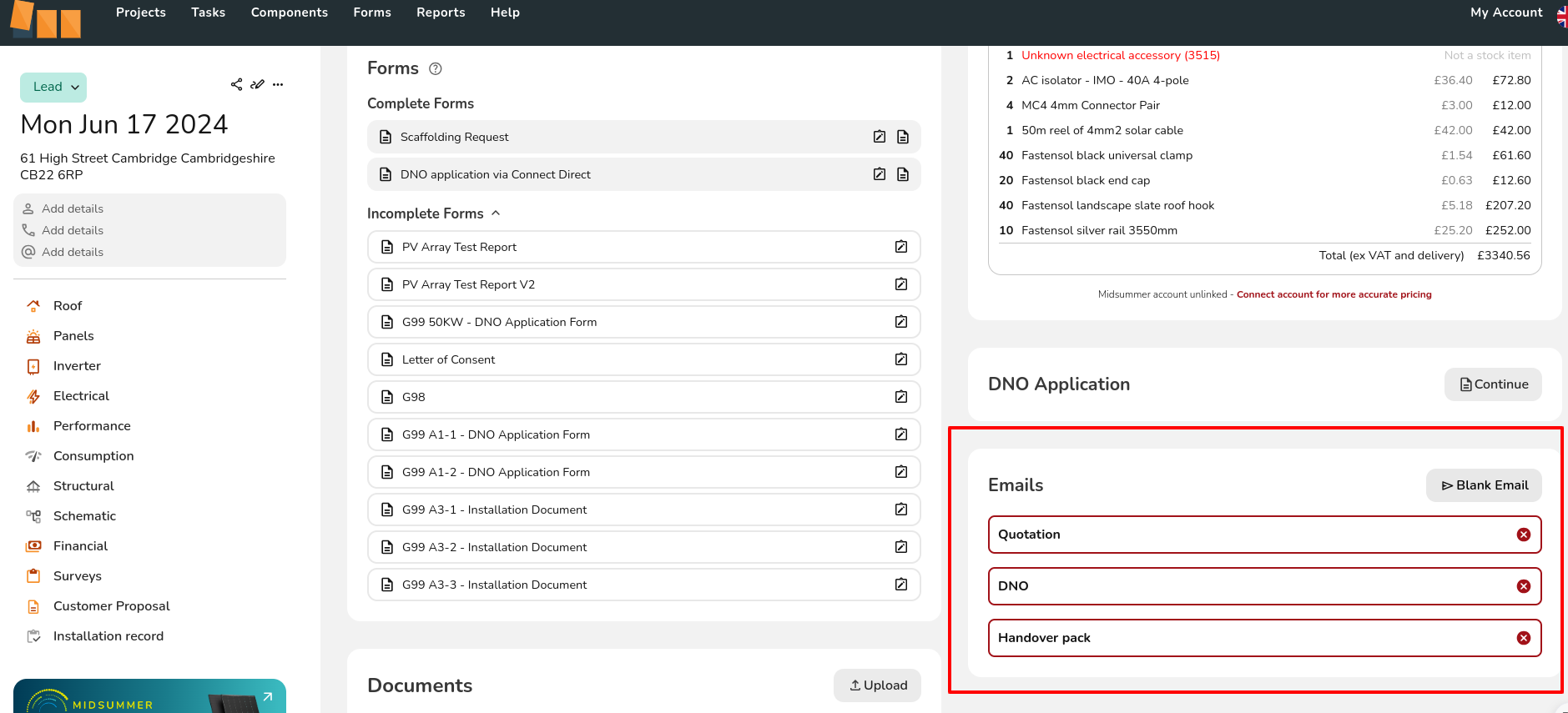
Ifsend youemails wouldfrom this section just click on the one you'd like emails to send fromor your'blank emailemail' and domain, rather than no-reply@easy-pv.co.uk, then follow the steps outlinedbelow.
Emails for e-signing
Documents that can be sent for e-signing will display this in the document form:

When you generate the PDF, you will then see the option in the bottom left to send the e-signing link as an email:
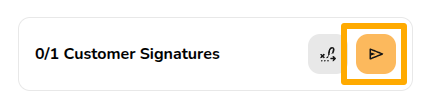
Read here. for more information on e-signing.
Editing and sending an email 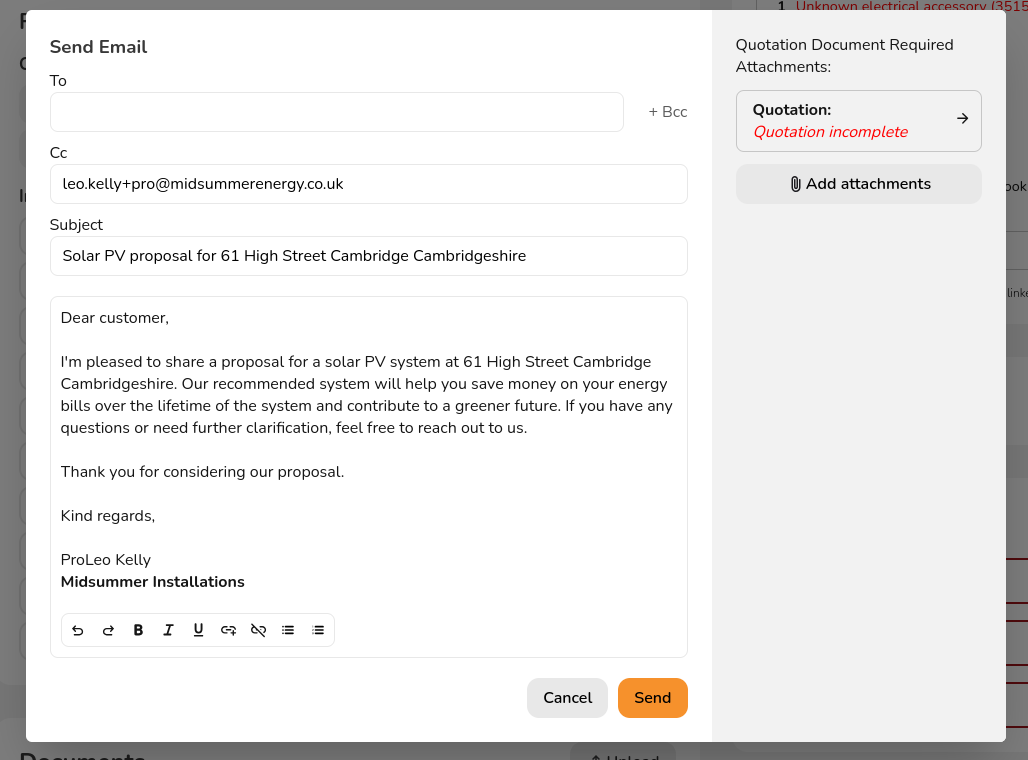
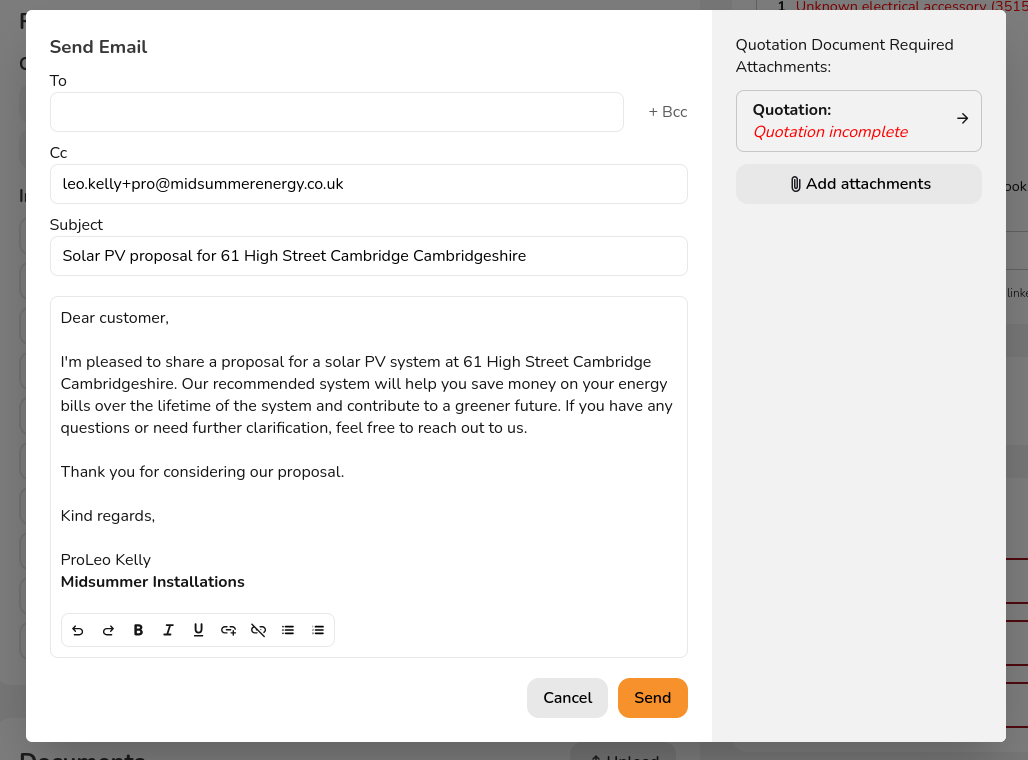
UsingWhen you select one of the Quotationoptions emaildetailed as an example, when you click on the Quotation email optionabove, it will open an email window,window like the one shown above.below. TheIf you have filled in the customer’customer's email addressin the project details, this will automatically be filled (if it has been added to the project). Your email will populate in the ‘Cc’'To' field.
The quotation will be automatically attached to the email if it was saved to the file management section.section. You can add other attachmentsattachments, amend any of the text and then click Send when you are ready to send.
AddingAfter additionalyou attachments
have Yousent canthe addemail, additionalyou fileswill tosee on the left of the email by clicking Add attachments. Please note you will only be able to upload files you previously uploaded/saved to the filedate managementand sectiontime orthat componentit managementwas section.sent with a green tick.
Important: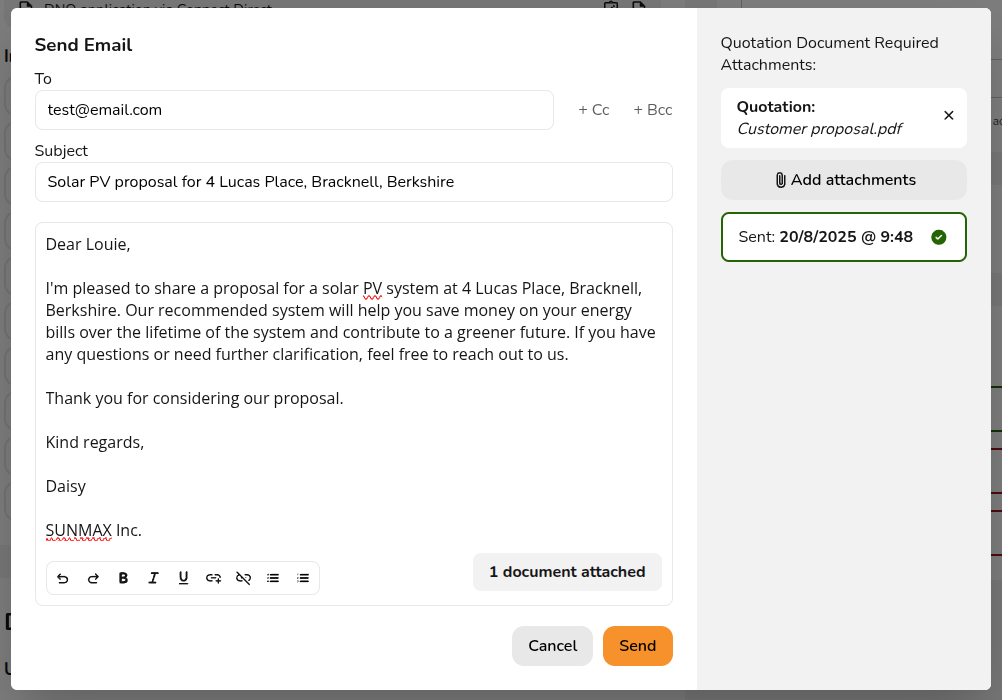
Sending thatemails iffrom youyour domain
By default, emails in Easy PV will send thefrom quotea no reply address but these can be set up to the customer via this method, it will be sent as a PDF attachment. Follow the instructions here to send documentsfrom foryour e-signing.email address.