Pro: E-signing
This guide applies to pro versions of Easy PV
The e-signing functionality makes it quick and easy to get important documents signed by your team or customer. Several reports have e-signing capabilities including the customer proposal, G98, G99 A1-1, G99 A1-2, and PV Array Test.
E-signing a document
In Easy PV you will have the option to send documents for e-signing via email or to e-sign within the document.
Send a document for e-signing by email
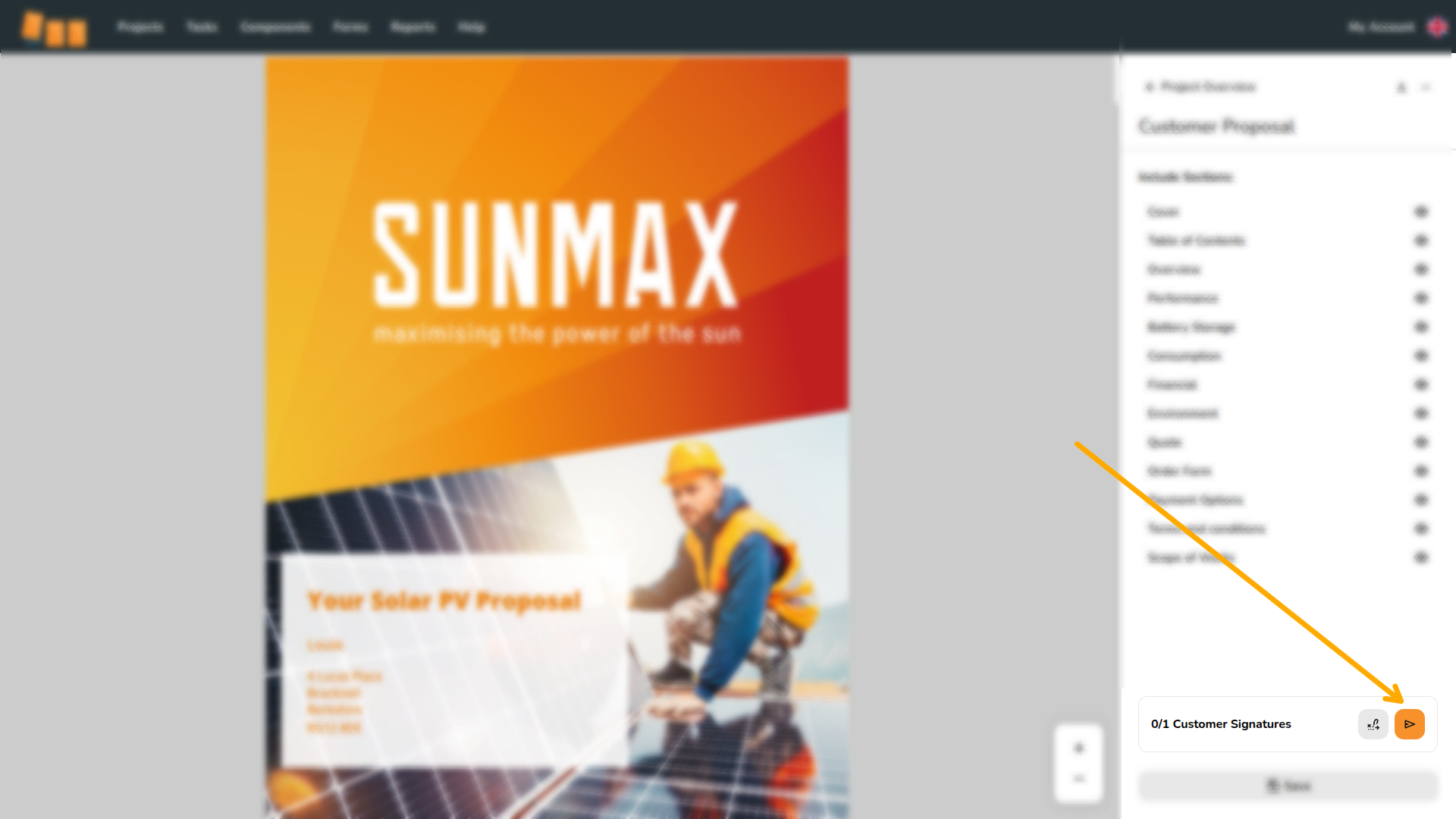
This will open an email menu that contains a link for signing the send-for-signing modal.document. You can edit the email as you’drequired, likeadding any additional attachments, and then click Send.
The recipient will receive the email which will include a link for them to review and sign the document. Once they have signed the document, you will receive an email notifying you that the document has been signed.
SigningE-signing within a document
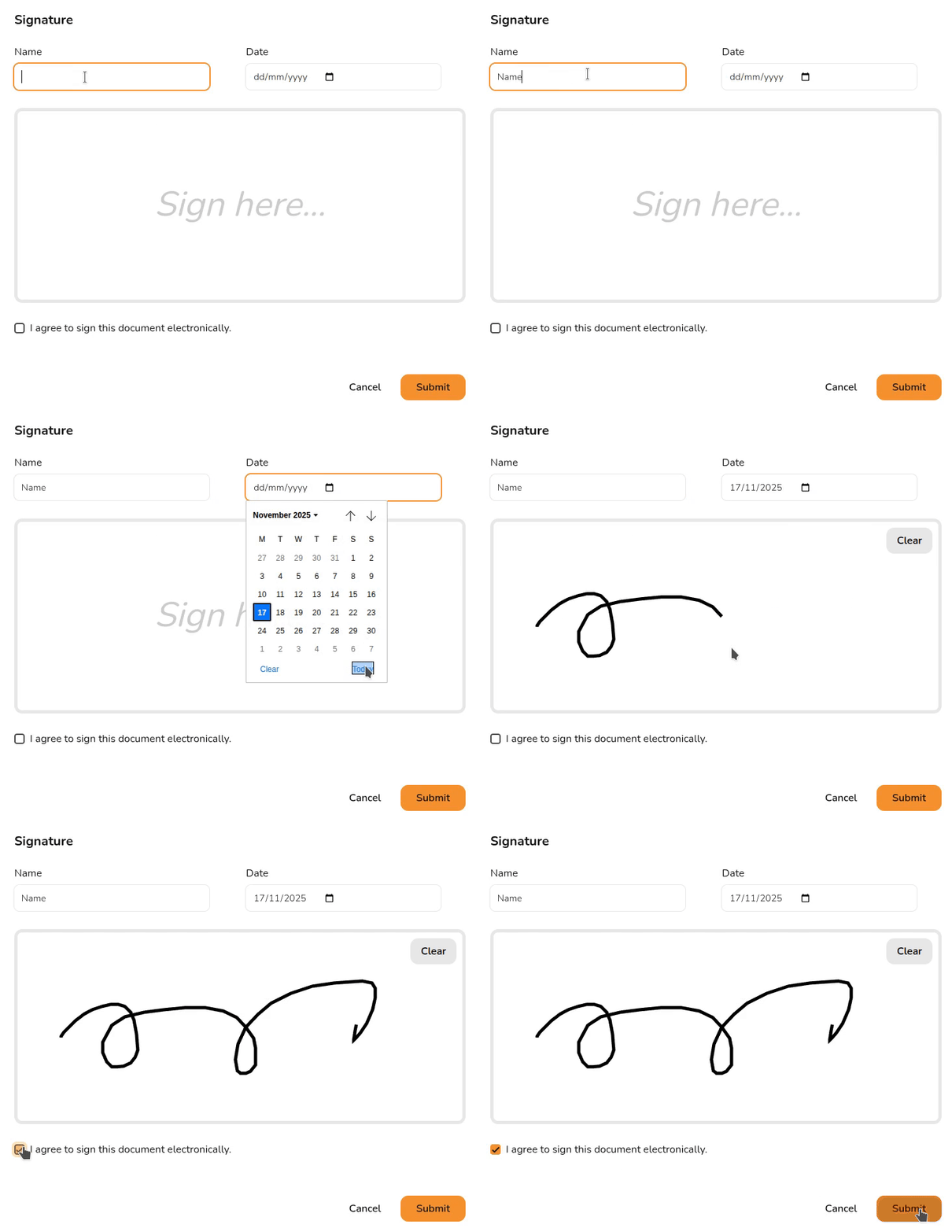
WhenYou viewingalso a document that requires e-signing,have the customeroption (orto youre-sign teamfrom members) can clickwithin the signaturedocuments. field and then enter their name,Select the date,icon andoutlined their signature. They must tick the boxbelow to indicatenavigate they agreedirectly to the contentsnext ofe-signing location:
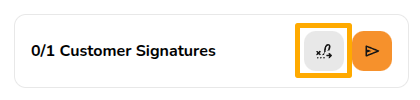
Then click where it says sign and e-sign the document.
View a signed document
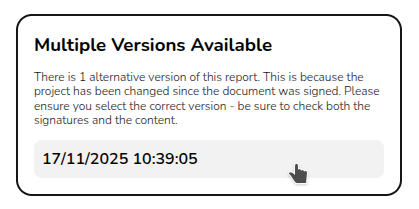
To view the signed version of the document, navigate to the document via the reports drop-down in the main navigation. TheOn the right side bar it will then say Multiple versions available with a date below it, the signed version of the document can be loaded by selecting the date version you want to view.view: