
Pro: Document Management
With Easy PV Pro's document management options, all project files – surveys, proposals, reports, customer documents – can be stored in one place, with no need for a separate QMS system. This allows you to keep track of everything you need for a project in one place. Documents uploaded here can also be attached to any emails sent within the Easy PV.
The document management section can be found at the bottom left of the project overview.
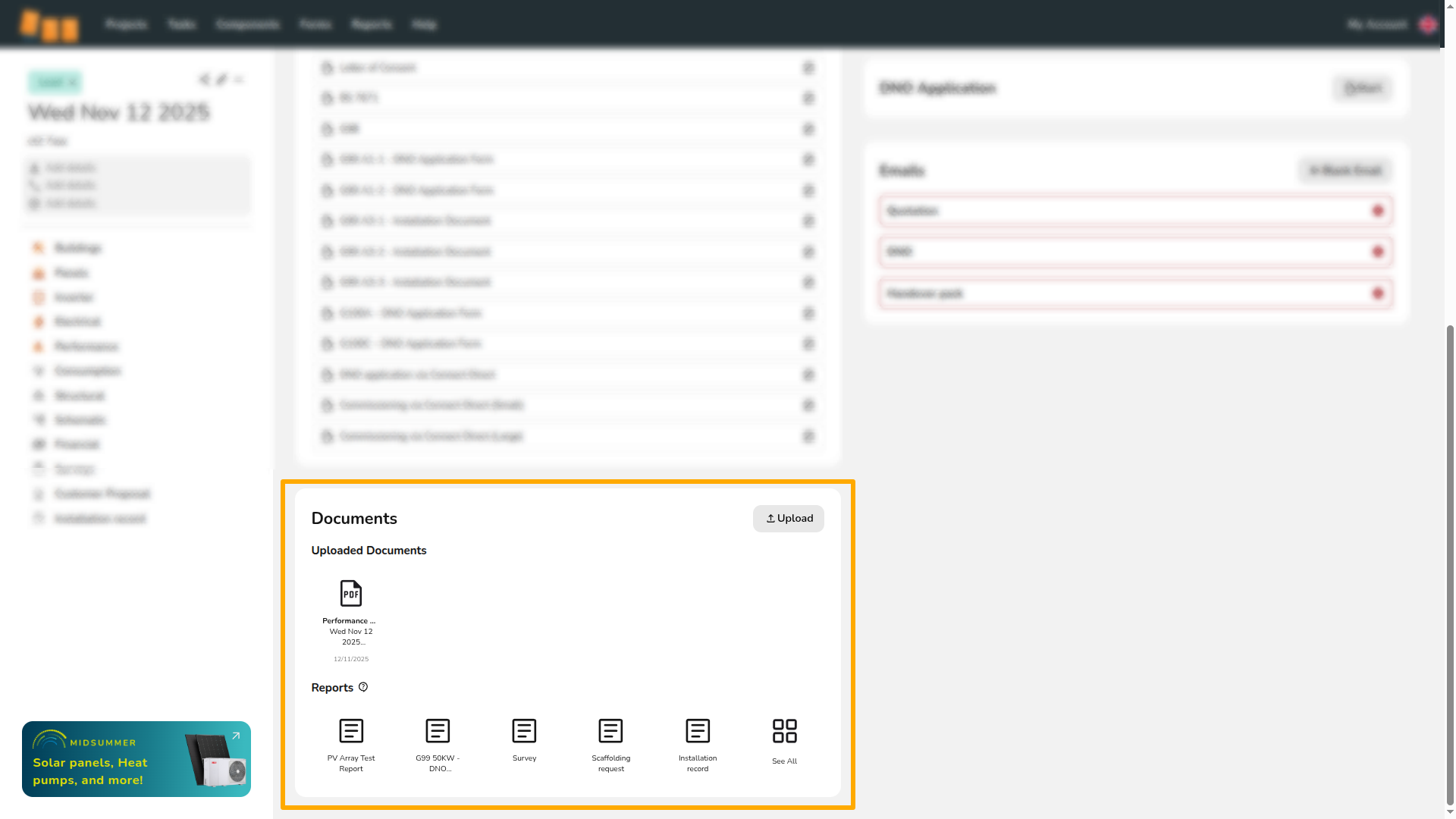
Uploading files to the document manager
Files can be saved directly from a project or uploaded from your device. These can also be sent in emails through Easy PV. If you have team files you'd like accessible on all projects when sending emails, you can upload these to your team uploads.
Saving an Easy PV report to the document manager
When previewing any report in Easy PV, you will see a menu on the right-hand sidesidebar withthere awill savebe an orange Save button at the bottom.bottom. This will save the file to the document manager.
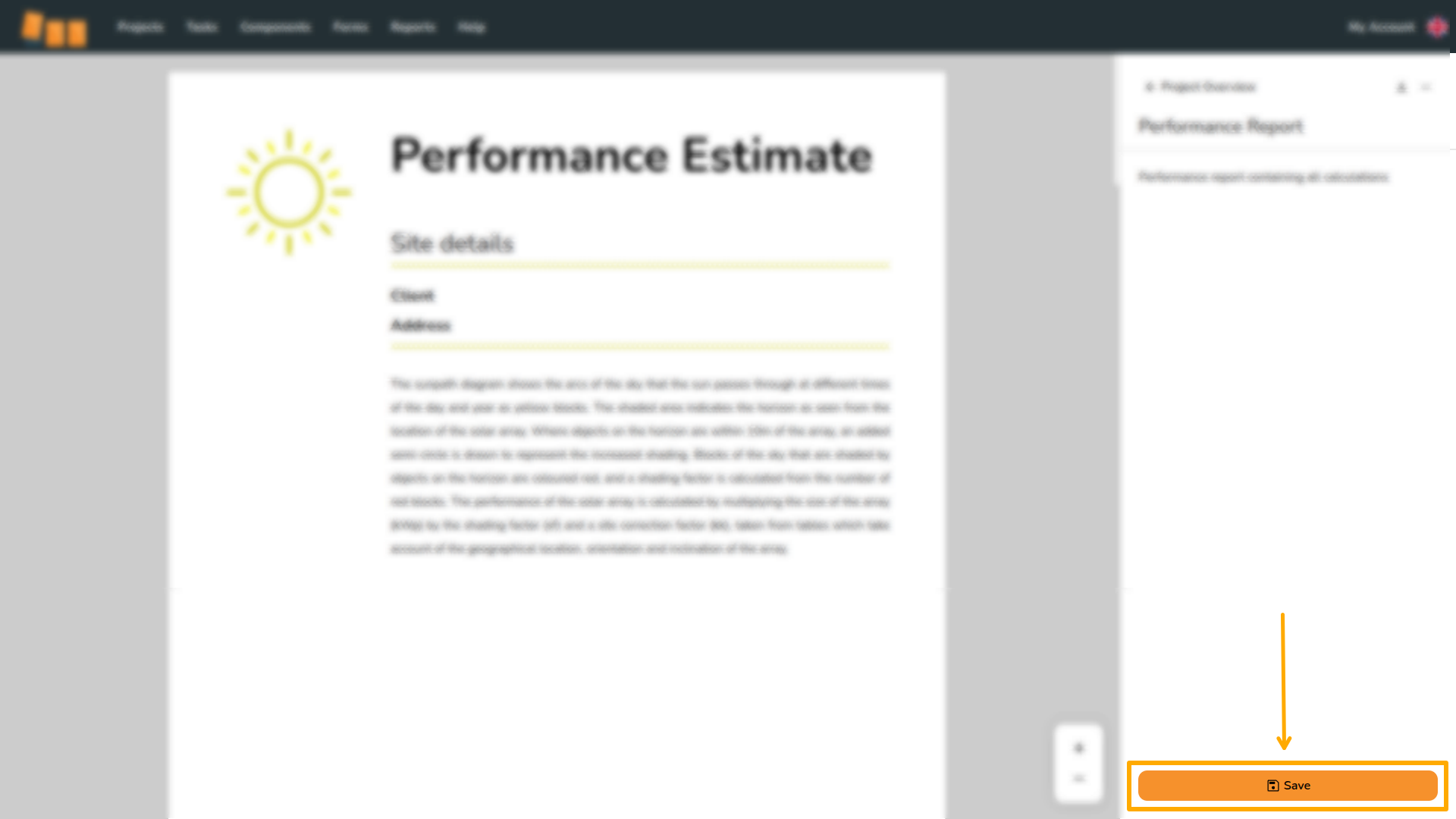
Note: If you make changes to a document, you will need to re-save it for the updates to appear in the document manager. When re-saving a document, the Save button will be grey and saving will override previously saved version.
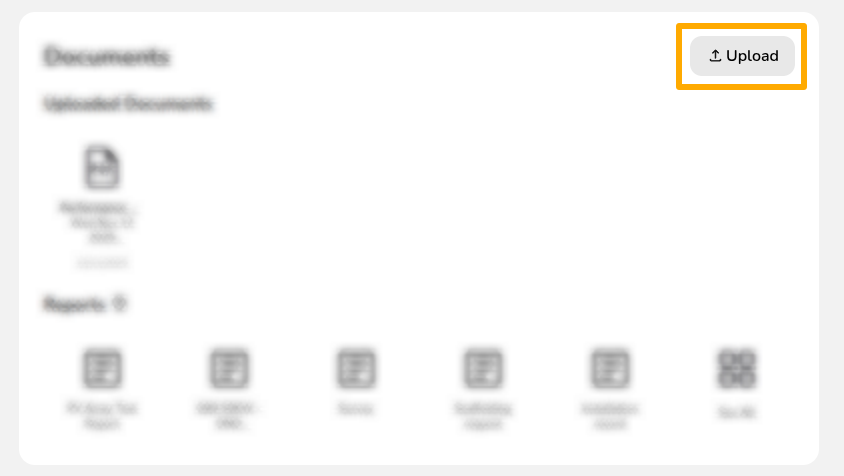
Upload a document from your device
To upload a document from your device, click theUpload Upload button. Then use the Upload File button to find the document you wish to upload.
Options on saved files
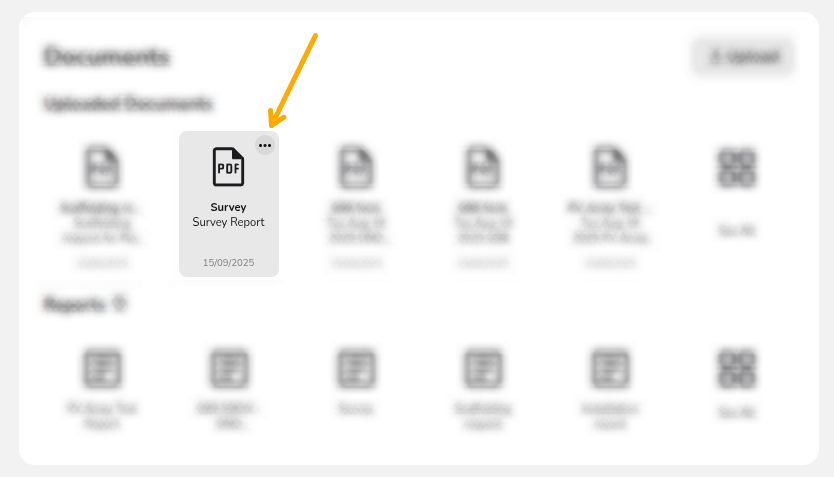
To edit the details on any saved files, click the ⋯ three dots.
You will then see the following options:
 Rename
TheChange the name of the file. Note that the file name will display if it's sent in any emails in EasyPV. You can change the name of a file by clickingRename Reassign
Each file you upload has a type, this is used when sending emails in Easy PV.To reassign this type, click the three dots and selectReassign Download
If you’d like to downloadDownload any of the files you’ve added to yourproject,projectclicktotheyourDownloadbuttondevice Delete
To delete a document, clickDelete.This will delete the saved version of the document from the file management section of your project


Want to know more?
Contact Support: If you've got further questions, get in touch with our support team at help@easy-pv.co.uk (UK) or help@easy-pv.ie (IE). If you are experiencing a bug, to help us look into your issue faster, please include the email address of your account, the name of the project and screenshots of any unexpected behaviour.