
Pro: Document Management
This guide applies to the pro versions of Easy PV
The document management section can be found at the bottom left of the project overview. It allows you to keep track of all the documents you need for a project in one place. Documents uploaded here can also be attached to any emails sent within the software.
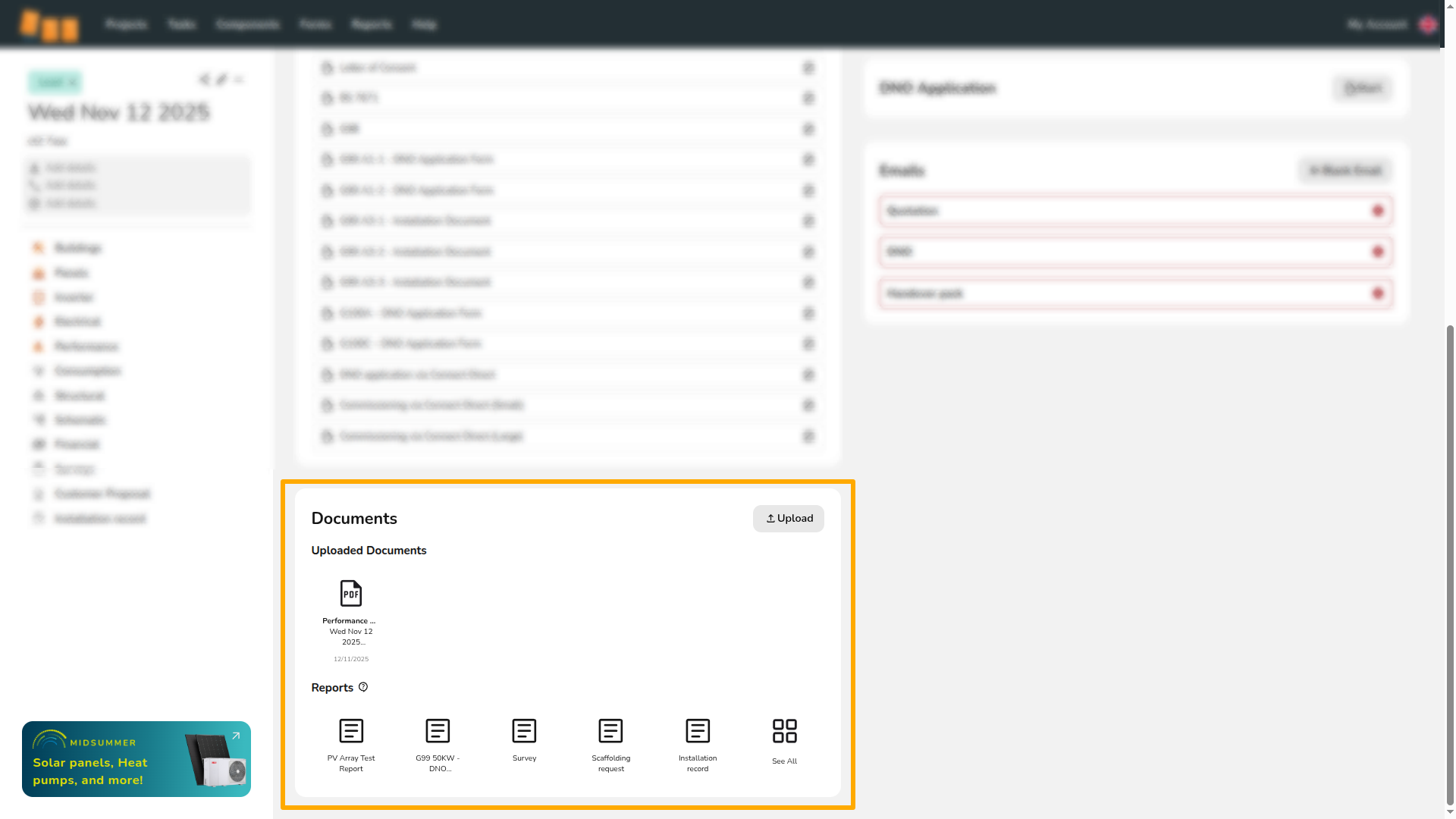
Uploading files to the document manager
Files can be saved directly from thea project or uploaded from your device. These can also be sent in emails through Easy PV. If you have team files you'd like accessible on all projects when sending emails, you can upload these to your team uploads.
Saving an Easy PV report to the document manager
When previewing any report in Easy PV, you will see a menu on the right-hand side with a save button at the bottom. This will save the file to the document manager.
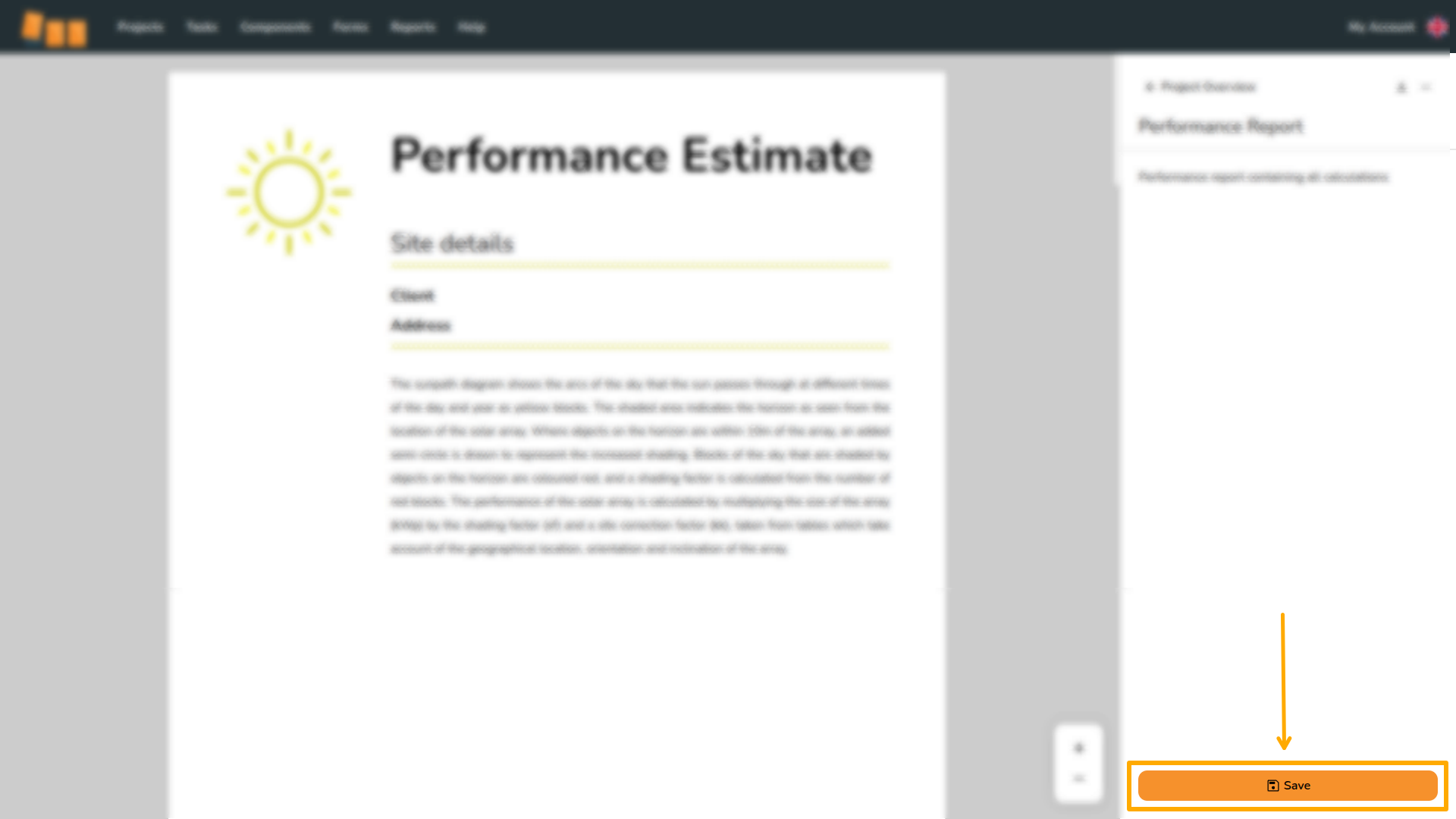
If you make changes to thea document, you will need to re-save thisit for itthe updates to updateappear in the document manager.
Upload a document from your device
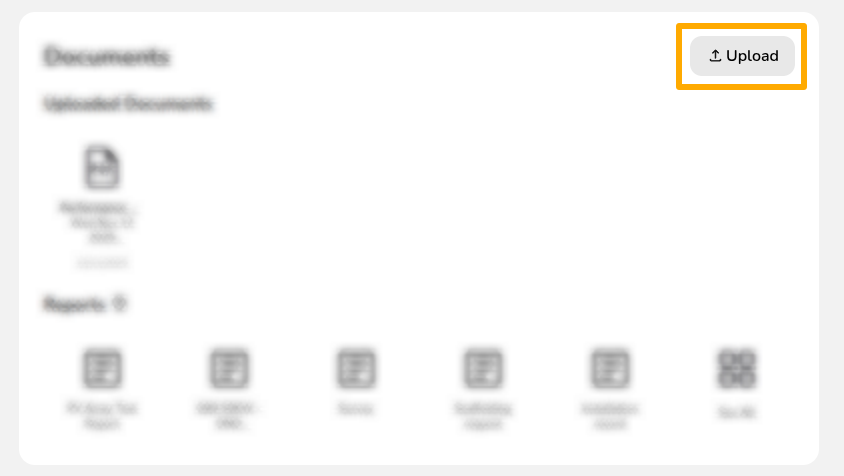
To upload a document from your device, click the Upload button. Then use the Upload File button to find the document you wish to upload.
Options on saved files
To edit the details on any saved files, click the three dots
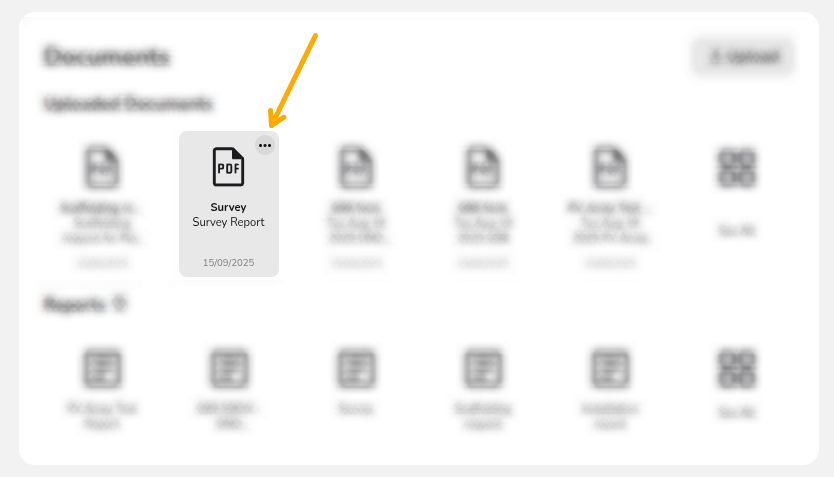
You will then see the following options:
 |
Rename The file name will display if it's sent in any emails in Easy PV. You can change the name of a file by clicking Rename. |
 |
Reassign Each file you upload has a type, this is used when sending emails in Easy PV. To reassign this type, click the three dots and select Reassign. |
 |
Download If you’d like to download any of the files you’ve added to your project, click the Download button. |
 |
Delete To delete a document, click Delete. This will delete the saved version of the document from the file management section of your project. |