
Pro: E-signing
The e-signing functionality makes it quick and easy to get important documents signed by your team or customer.
E-signing a document
In Easy PV you will have the options to send documents for e-signing via email or to e-sign within the document. It is also possible to send interactive online proposals for e-signing by email or by copying the link to clipboard.
Find out more about interactive online proposals and sharing with your customer here.
Send a document for e-signing via email
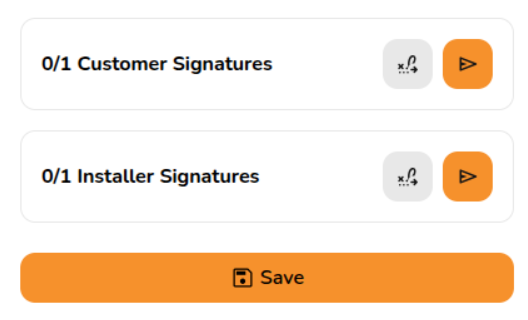
For the customer proposal, click the share with customer button in the bottom right hand corner. You will need to tick the Email from Easy PV option and toggle on the Ask them to e-sign option as well as the PDF proposal option (and/or online proposal). Click confirm.
For all other documents, just click the  icon in the bottom right hand corner.
This will open an email menu that contains a link for signing the document. Don't worry if the link doesn't work until the email is sent. You can edit the email as required - adding any additional attachments, recipients and text - then click Send.
The recipient will receive the email which will include a link for them to review and sign the document. Once they have signed the document, you will receive an email notifying you that the document has been signed.
Learn more about Sending emails.
E-signing within a document
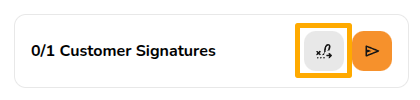
You also have the option to e-sign from within the documents. Click the signature  icon to navigate directly to the next e-signing location:
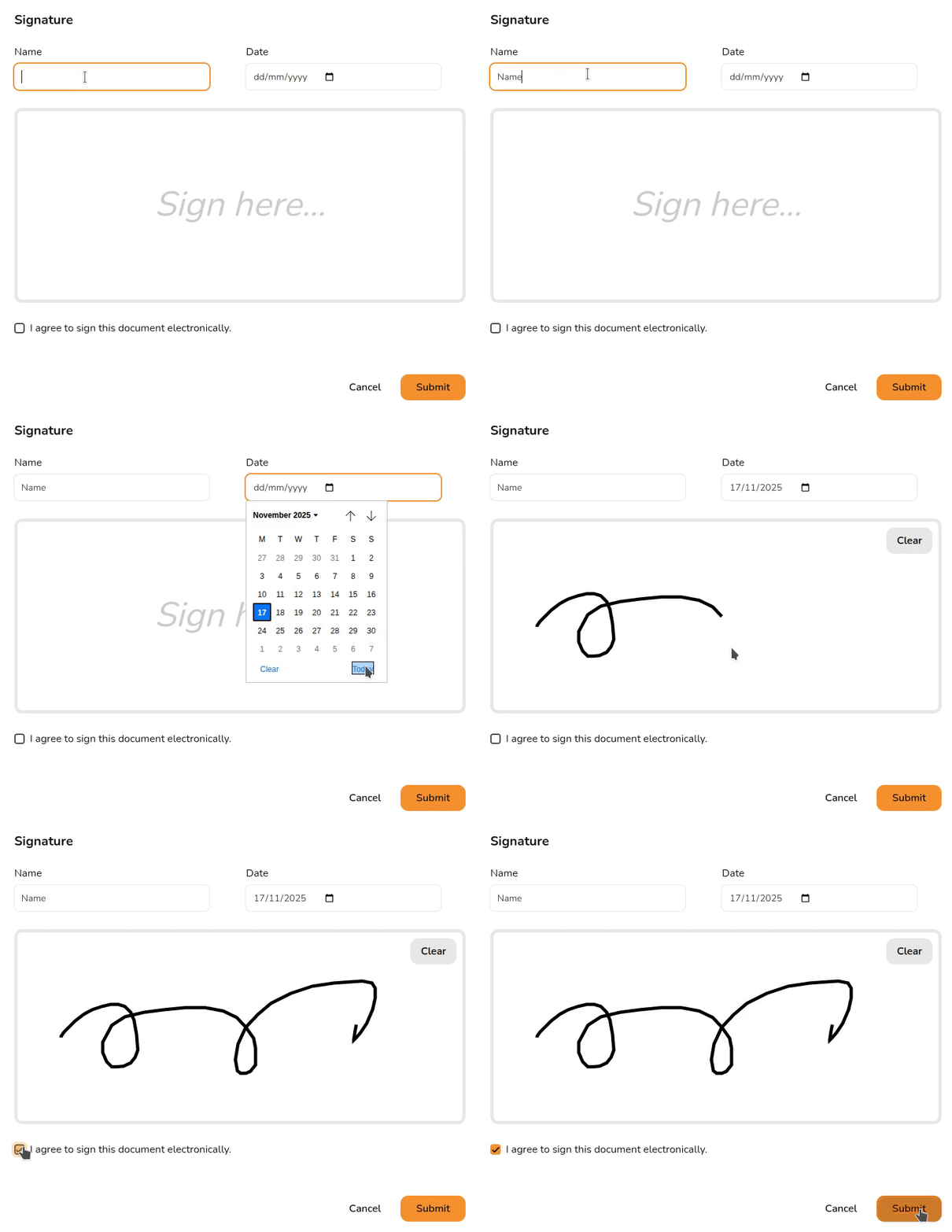
Then click Sign and e-sign the document.
View a signed document
To view the signed version of the document, navigate to the document via the reports drop-down in the main navigation. On the right side bar it will then say Multiple versions available with a date below it, the signed version of the document can be loaded by selecting the date version you want to view:
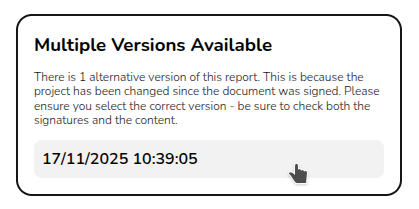
If you're sending a document to a customer and an installer to sign, make sure to send them both the same version.
Want to know more?
Contact Support: If you've got further questions, get in touch with our support team at help@easy-pv.co.uk (UK) or help@easy-pv.ie (IE). If you are experiencing a bug, to help us look into your issue faster, please include the email address of your account, the name of the project and screenshots of any unexpected behaviour.