# Pro: E-signing
The e-signing functionality makes it quick and easy to get important documents signed by your team or customer.
---
## E-signing a document
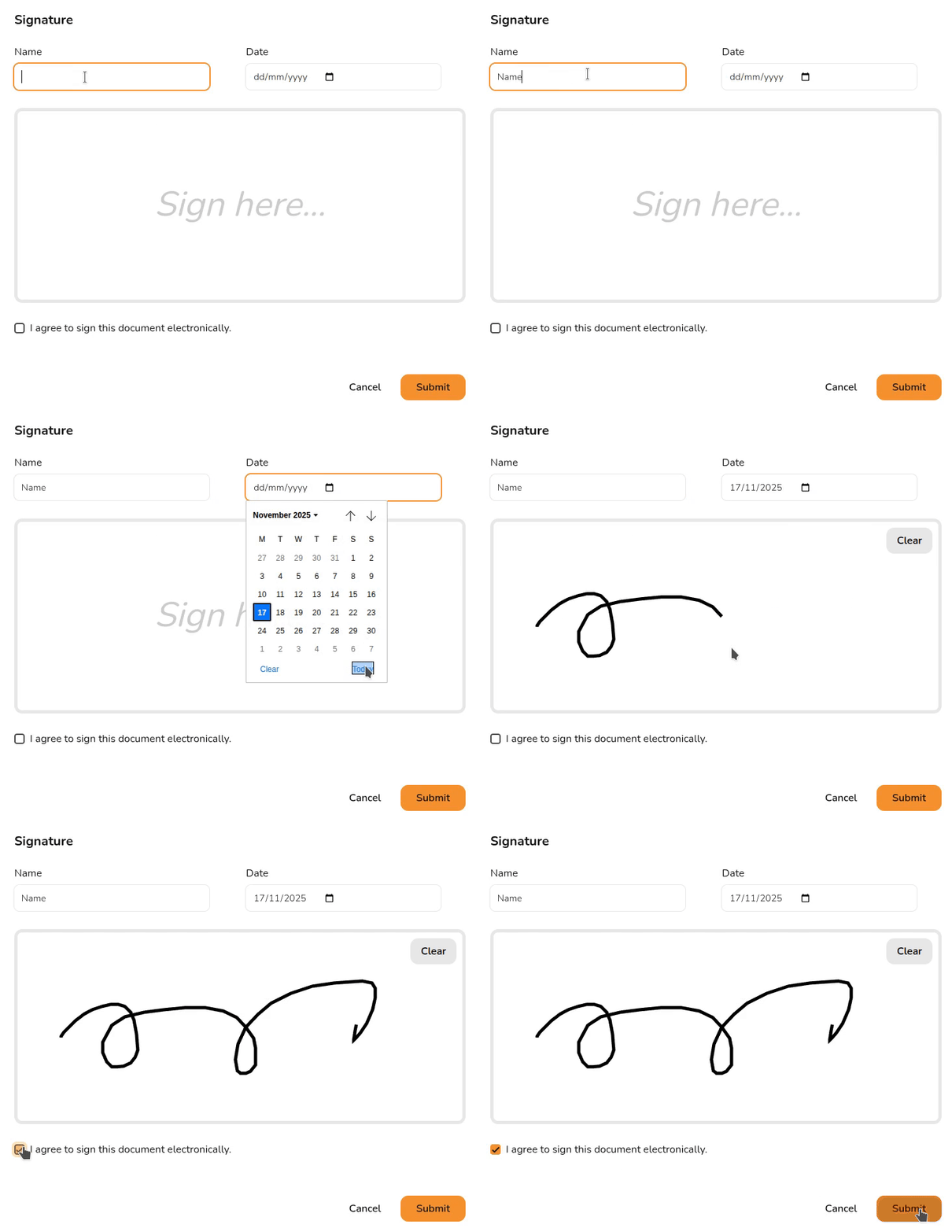
In Easy PV you will have the options to send documents for e-signing via email or to e-sign within the document. It is also possible to send interactive online proposals for e-signing by email or by copying the link to clipboard.
Find out more about interactive online proposals and sharing with your customer [here](https://help.easy-pv.co.uk/books/getting-started-with-pro/page/pro-online-proposal "Pro: Online Proposal").
[](https://help.easy-pv.co.uk/uploads/images/gallery/2025-11/Mjnsx3p8O9DpHaVD-simplescreenrecorder-2025-11-17-10-38-53-ezgif-com-video-to-gif-converter.gif)
## Send a document for e-signing via email
Navigate to the report you want to send for signing via the **Reports drop-down** in the main site navigation. You can also find the customer proposal by navigating to the Customer Proposal task and find other forms in the Project Overview.
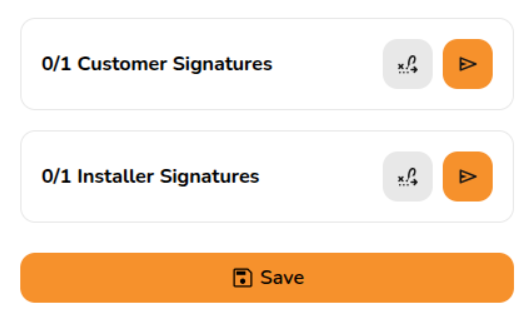
For the customer proposal, click the **share with customer** button in the bottom right hand corner. You will need to tick the **Email from Easy PV** option and toggle on the **Ask them to e-sign** option as well as the **PDF proposal** option (and/or online proposal). Click **confirm**.
For all other documents, just **click the [](https://help.easy-pv.co.uk/uploads/images/gallery/2026-07/c2PQdZ01weXTRwNK-image.png) icon** in the bottom right hand corner.
[](https://help.easy-pv.co.uk/uploads/images/gallery/2026-10/NpV92UeEtmPSblvI-image.png)
This will open an email menu that contains a link for signing the document. Don't worry if the link doesn't work until the email is sent. You can [edit the email as required](https://help.easy-pv.co.uk/books/reports-documents-and-emails/page/pro-sending-emails-from-easy-pv#bkmrk-editing-and-sending-) - adding any additional attachments, recipients and text - then click `Send`.
The recipient will receive the email which will include a link for them to review and sign the document. Once they have signed the document, you will receive an email notifying you that the document has been signed.
Learn more about [Sending emails](https://help.easy-pv.co.uk/books/reports-documents-and-emails/page/pro-sending-emails-from-easy-pv "Pro: Sending emails from Easy PV").
## E-signing within a document
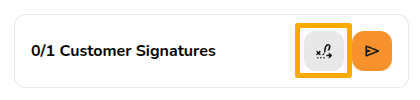
You also have the option to e-sign from within the documents. Click the signature [](https://help.easy-pv.co.uk/uploads/images/gallery/2026-07/IGBUiCDCnUmqYeDT-image.png) icon to navigate directly to the next e-signing location:
[](https://help.easy-pv.co.uk/uploads/images/gallery/2025-11/46rQVE7jliCYGSQi-image.png)
Then click `Sign` and e-sign the document.
---
## **View a signed document**
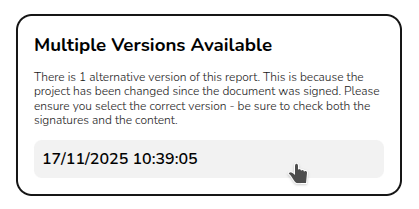
To view the signed version of the document, **navigate to the document via the reports drop-down** in the main navigation. On the right side bar it will then say **Multiple versions available** with a date below it, the signed version of the document can be loaded by selecting the date version you want to view:
[](https://help.easy-pv.co.uk/uploads/images/gallery/2025-11/mKOlCJ5Cp5r3zy35-image.png)
If you're sending a document to a customer and an installer to sign, make sure to send them both the same **version**.
---
## Want to know more?
- **Related FAQs:** Check out our [Pro FAQs](https://help.easy-pv.co.uk/books/faqs/chapter/pro "Pro") for answers to common questions
- **Further guides**: Take a look at [Emailing](https://help.easy-pv.co.uk/books/reports-documents-and-emails/page/pro-sending-emails-from-easy-pv "Pro: Sending emails from Easy PV"), [Document management](https://help.easy-pv.co.uk/books/reports-documents-and-emails/page/pro-document-management "Pro: Document Management") or [Email settings](https://help.easy-pv.co.uk/books/getting-started-with-pro/page/pro-email-credentials)
- **Live training**: [Book onto a live demo session](https://cal.com/easy-pv/pro-training) to see this feature in action
**Contact Support:** If you've got further questions, get in touch with our support team at **help@easy-pv.co.uk** (UK) or **help@easy-pv.ie** (IE). *If you are experiencing a bug, to help us look into your issue faster, please include the email address of your account, the name of the project and screenshots of any unexpected behaviour.*