Performance and consumption
Performance task
The performance task uses the system data, location and shading information to estimate the annual generation of the system.
This output is then used in self-consumption calculations to estimate the self-consumption and grid independence. These values are then used to estimate the financial benefits of the system.
Getting started with the Performance task
You can access the Performance task via the Tasks drop-down menu or from the task list on the left of the project overview page.
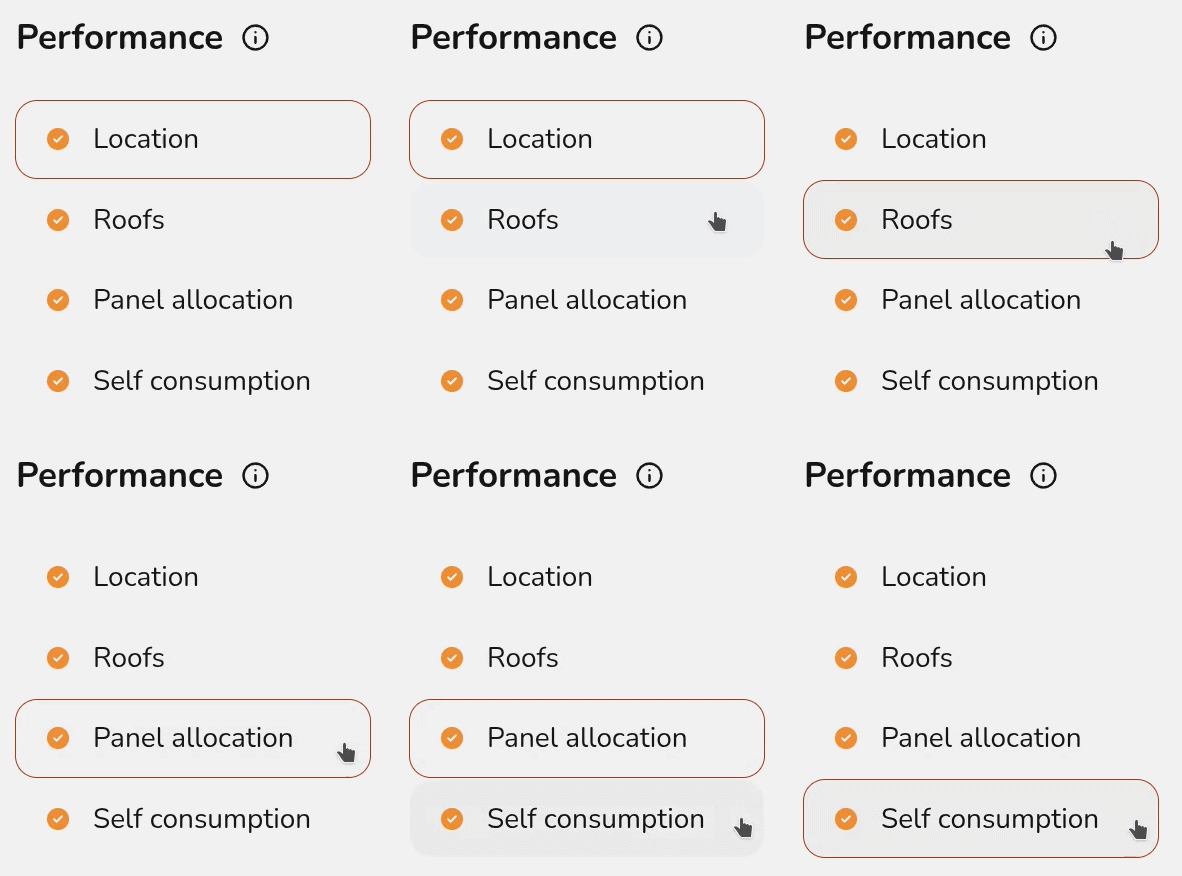
When you first open the Performance task, you'll be shown a popup that lets you configure the settings you want to use.
Select Edit inputs in the top right to re-open this menu and update your inputs.
Performance inputs
Expand each section below for more details on each setting.
Location
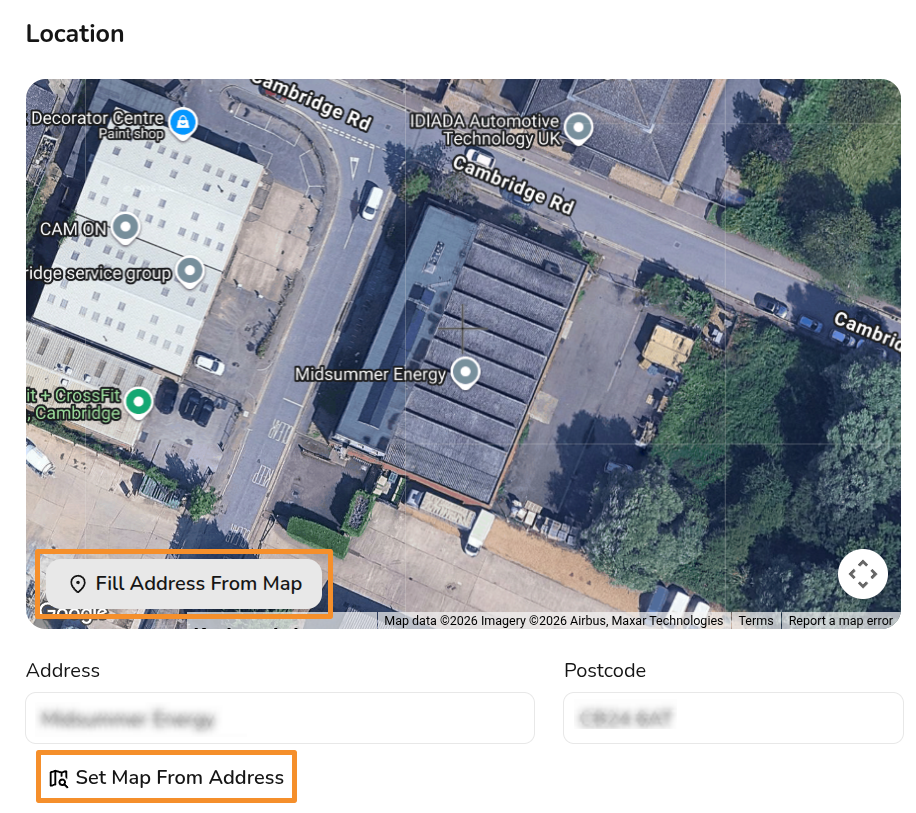
This section may show as ticked and completed already if this information can be pulled from the start of the project. A postcode is necessary for performance calculations, since where in the world the system is located determines how much sunlight it will get. If there is no postcode for the location of your system, choose the nearest one you can find.
Choose from:
Fill address from map: Zoom in on the map to find the correct location, then click here to fill in the addressSet map from address: Fill in the address and then set the map. Navigating to the next section will set the map automatically.
Roofs
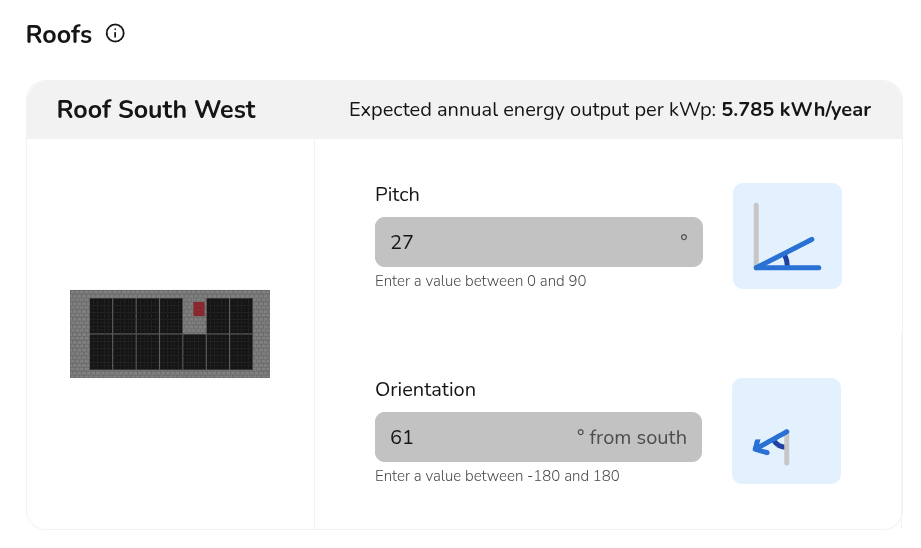
This section may show as ticked and completed already if the pitch and orientation can be populated from earlier in the project. If you are creating a flat roof system or using quick roof mode, you may need to input pitch and orientation if it hasn't already been filled in. These values, together with the location, are used to determine the output of the system.
Pitch and orientation will be greyed out if you are designing in 3D or Roof outline. These values can be edited in the Buildings or Roofs tasks respectively.
Panel allocation
This section will depend on how you have configured your settings and the system you are designing.
- If you have selected for your panels to be automatically allocated, then panel allocation will show as completed
- If you have selected suggest allocation then here you can choose to edit the allocation or select
Nextto accept the allocation and close the window. - If you have manual allocation selected then you will need to allocate the panels here. In some situations, auto-stringing is not possible and manual allocation will also be required.
Read more: How to Manually Allocate Panels.
Self-consumption calculation (optional)
easy-pv.co.uk
A self-consumption model is available for all users in the Consumption Task. For UK users, this can be provided in addition to the MCS calculation, which is completed here in the Performance task.
This process follows MCS guidelines defined in MCS 032 to predict self-consumption of the generated PV electricity. UK companies installing under MCS will need to provide this calculation when it can be used.
- Annual electricity consumption of the property
- The lookup tables for this calculation only permit values between 1500kWh and 6000kWh. Use the consumption task for more detailed consumption calculations or for values that fall outside this range.
- For the most accurate results use a value from past electricity bills. Where possible, consumption data should be taken before the installation of electric heating / hot water or electric vehicle charging.
- Occupancy archetype
- Properties that are occupied during the day will typically consume more PV-generated electricity directly. Properties that are empty during the day may benefit more from battery storage that can store PV-generated electricity for later use.
- Proportion of battery used for ancillary services such as backup power or arbitrage
- If there is a battery on the project, this question will appear. If the entire battery capacity will be used to increase self-consumption, this value should be 0%.
- The lookup tables for this calculation only support a usable capacity of less than 15.1kWh, in this case use the consumption task for more detailed consumption calculations.
- Is additional self-consumption anticipated?
- The MCS calculation does not account for consumption arising from "non-typical domestic loads" such as electric space heating, swimming pools, heat pumps, electricity power diverters, electric water heating and electric vehicles.
- You can enter any value here, but the calculation assumes that a maximum of 95% of the generated electricity is available for self-consumption so the value in the results table will be capped to the remaining available generation capacity.
Read more: Differences between MCS and Easy PV self-consumption.
Click Done when all inputs have been completed.
Note: designing in 3D and configuring your settings to automate panel allocation and sunpath diagram calculations will streamline much of this task.
Navigating the Performance task
The right-hand sidebar contains options to switch between the Sunpaths and the Performance results:
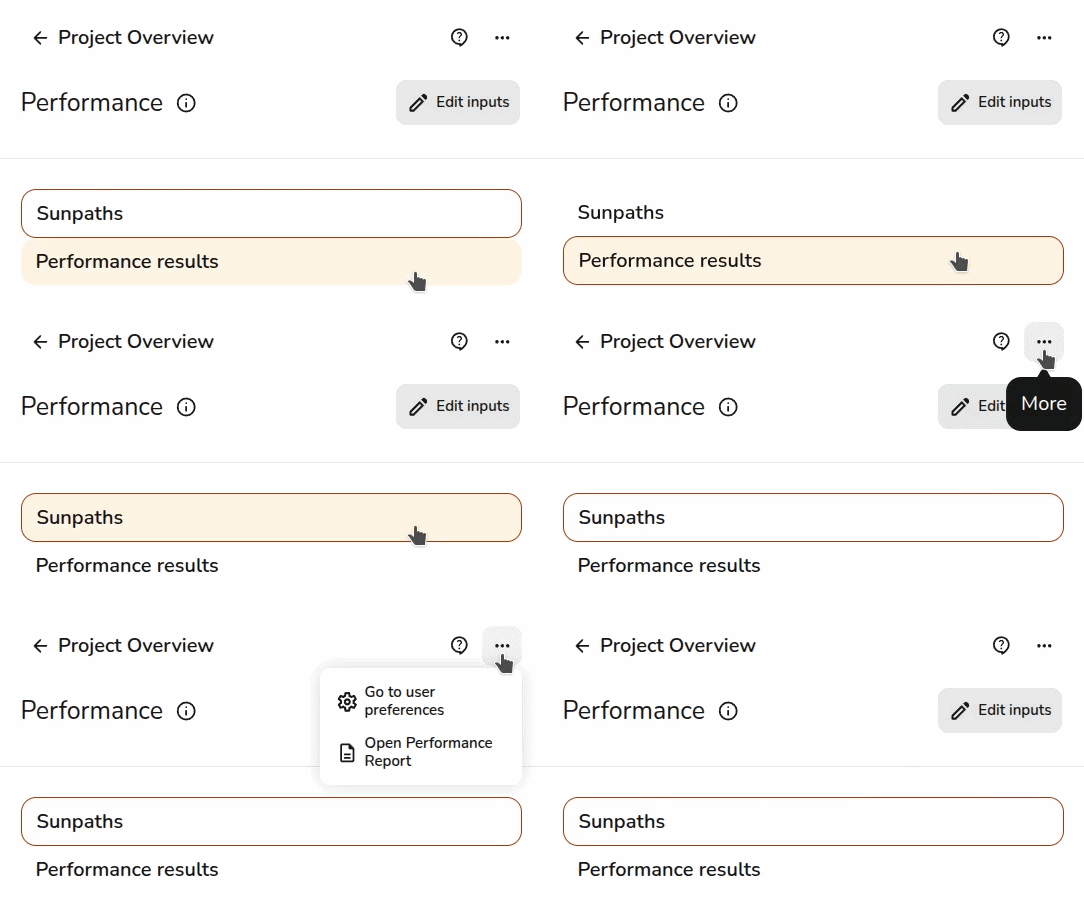
As well as the following:

Click to update the location, pitch and orientation of the roofs and panel allocation- Open help page
Go directly to this help page if you're ever having trouble - Three-dot menu:
- Go to user preferences
Adjust which performance dataset is used, sunpath and panel allocation automation, and MCS self-consumption defaults - Open performance report
See MCS performance table with sections A, B, C and D (if MCS self-consumption completed and selected in Financial task)
- Go to user preferences
Sunpaths
At this stage, you need to model any shading that may affect the output of the panels. A sunpath diagram is a map of the sun's position in the sky throughout the year and any objects that cast shade onto the array. This is converted into a shading factor that adjusts the estimated panel output.
Automating with 3D
If designing in 3D or Magic mode, the shading can be calculated automatically. If you would like to manually edit the sunpaths then toggle off Auto calculate sunpaths.
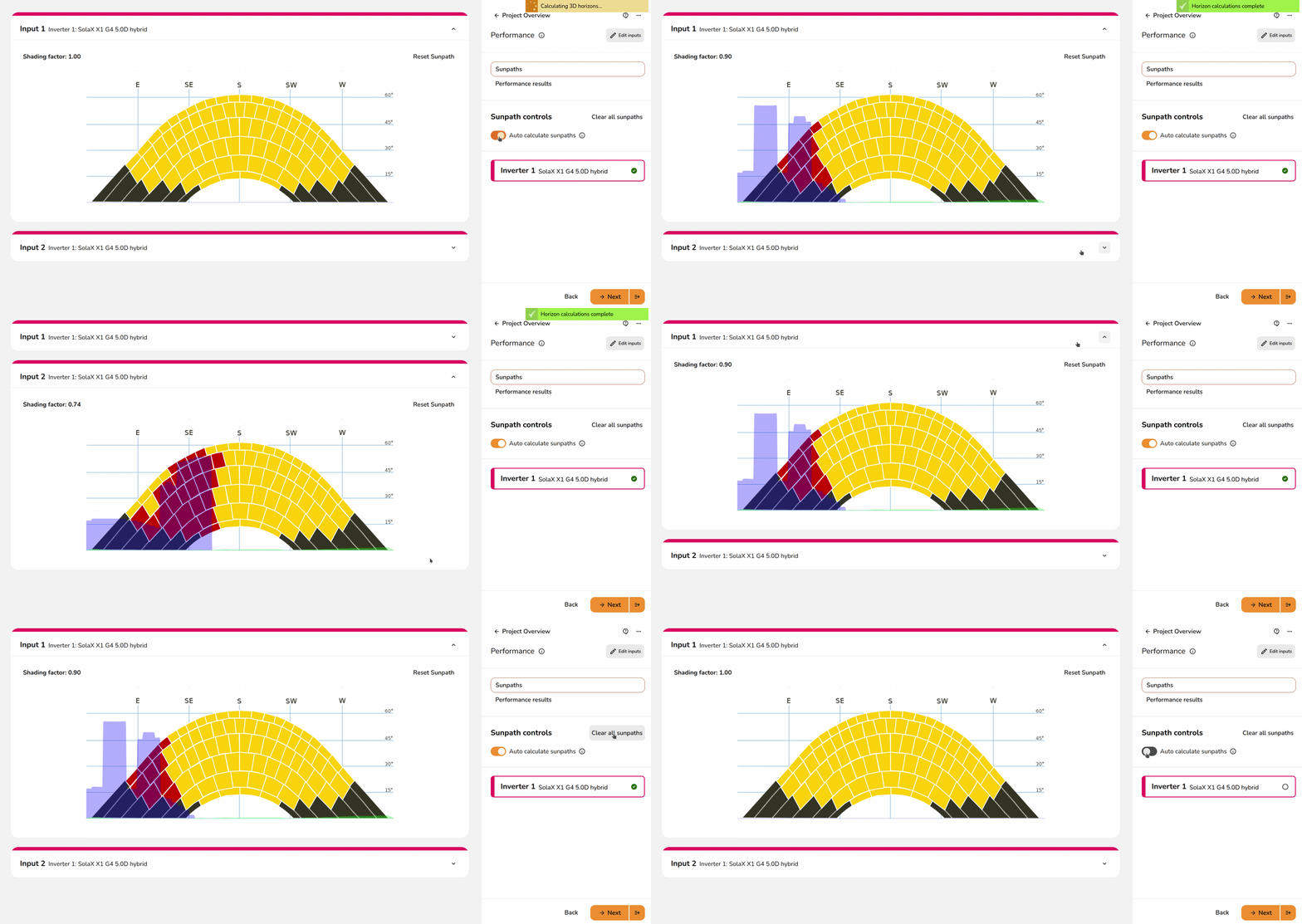
Note: You will need to make sure you have modelled any surrounding trees or buildings in the Buildings task for the shade to be calculated automatically.
Read more: Differences between design modes.
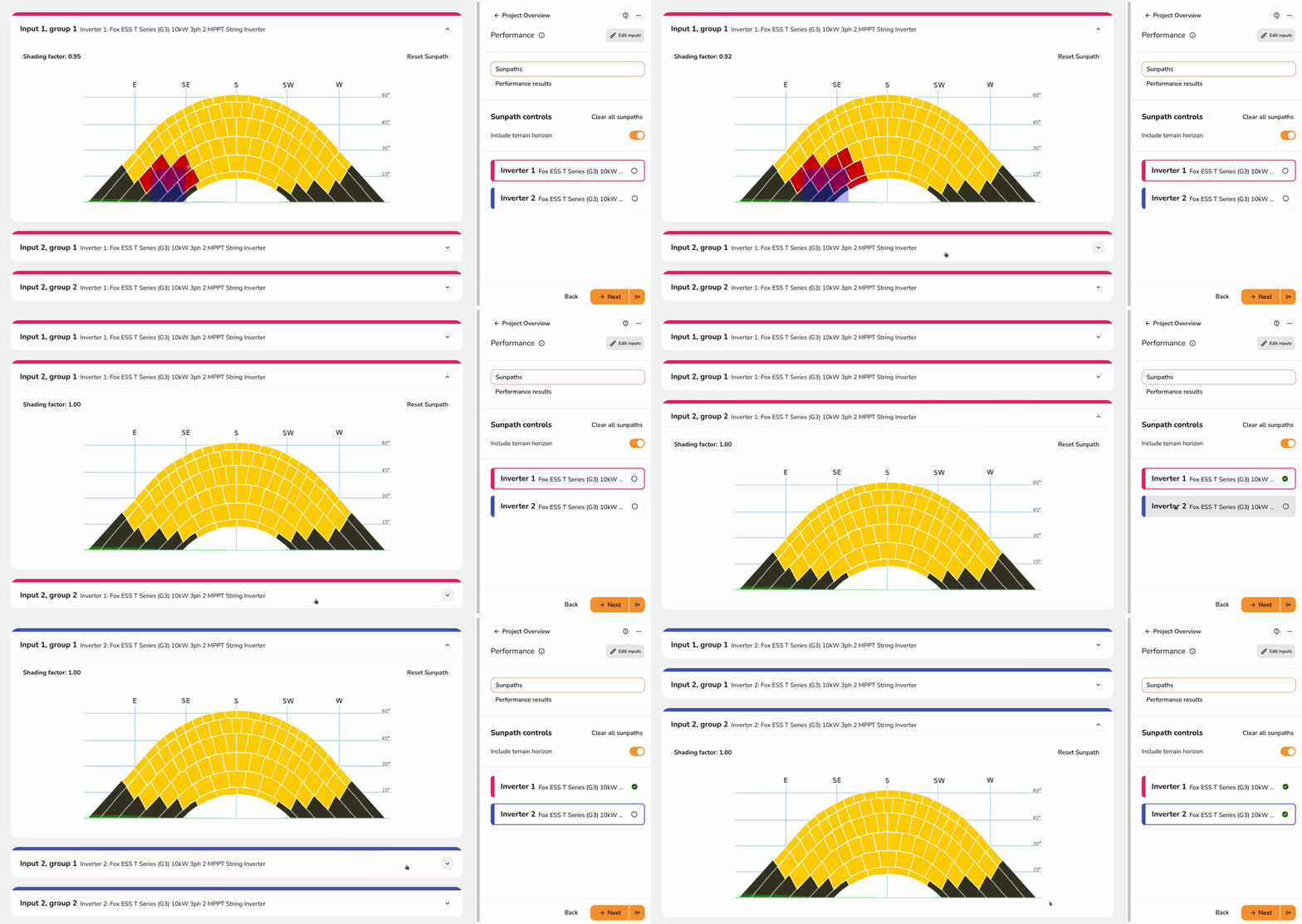
Manually editing sunpaths
If designing in 2D, you will need to manually create the sunpath diagrams. Click between the groups to expand each diagram and click and drag on the diagram to model any shade.
Performance results
The results shown depend on the selected performance calculation method. The method can be edited in your user or pro account performance settings.
Expand the sections below for information on each calculation method.
MCS performance and self-consumption results
easy-pv.co.uk
When using the MCS calculation method, the performance estimate is based on MCS 032.
A. Installation data
This section details the installed capacity, orientation of the system, inclination of the system and the location.
B. Calculations
Using the installation data and the shading factor, an estimated annual output is calculated. To adjust the shading factor, navigate to the Sunpaths tab.
C. Estimated PV self-consumption – PV only
The estimated self-consumption for the system with PV only is taken from the MCS lookup tables, depending on the values above and those input in the task.
D. Estimated PV self-consumption – with EESS
The estimated self-consumption for the system with PV and battery storage is taken from the MCS lookup tables. This section will not show if there is no battery storage, navigate to the inverter task to include battery storage.
E. Additional benefits from PV and EESS
If additional consumption is anticipated or some of the battery capacity is reserved for ancillary services, that will be detailed here. This section will not show if that is not the case, to edit those inputs select Edit inputs in the top right and select the Self-consumption tab.
NREL performance results
easy-pv.ieeasy-pv.co.uk
Section A details the installed capacity, orientation of the system, inclination of the system and the location. These inputs can be adjusted by clicking the pen icon in the top right.
In section B, the data in section A is used to estimate the output per kWp for the unshaded array using the NREL's PVWatts calculator. The percentage of output lost from shade is then subtracted from this value. This is then multiplied by the kWp of the input to calculate the estimated generation per input. To adjust the percentage lost, navigate to the sunpaths tab.
Still Need Help?
Contact Support: If you've got further questions, get in touch with our support team at help@easy-pv.co.uk (UK) or help@easy-pv.ie (IE). If you are experiencing a bug, to help us look into your issue faster, please include the email address of your account, the name of the project and screenshots of any unexpected behaviour.
Manual panel allocation
Panels can be manually allocated in the Performance task. Whether a project requires manual allocation depends on it's complexity, it's size and whether the system is optimised. After a system has been automatically allocated, you may also wish to make edits to the string arrangement.
Manual panel allocation
To open up the manual panel allocation, follow these steps:
- Open the Performance task
- Click
Edit inputsin the top right - Select the
Panel allocationtab - Then click
Edit allocationorAllocate panelsin the bottom left
The steps to manually allocate panels panels is slightly different depending on whether the panels are optimised or not. All panels connected to an input must be within a certain pitch and orientation threshold and panels incompatible with the selected string will not be selectable. In this case the panels may need to be optimised or the stringing arrangement in the Inverter task adjusted.
Non-optimised systems
- Select inverter input and the roof you'd like to allocate from the list on the left
- Click or drag over panels to allocate them to an inverter input
- Repeat steps 1-2 on the next inverter input or roof until all panels are allocated. All inputs will be in green and a tick will show at the top of the page
- Below all your inverters and roofs, you can then click
Nextto continue with the Performance task
Optimised systems
Were optimisers are required (panels are on the same string but different pitch or orientation) Easy PV will not let you allocate them on the same string. You must instead sub-divide the string into shading groups. These steps are outlined below:
- Select inverter input and the roof you'd like to allocate from the list on the left
- Click or drag over panels to allocate them to an inverter input
- If you are allocating panels to the same MPPT on a different roof click
Add group +to sub-divide the input into shading groups and then select the roof and allocate the panels - Repeat step 3 on the next inverter input, shading group or roof until all panels are allocated. All inputs will be in green and a tick will show at the top of the page
- Below all your inverters and roofs, you can then click
Nextto continue with the Performance task
Tip: If you are including optimisers to mitigate the impact of shading, you do not need to put each individual panel into a shading group. To best model the output of the system, group panels that will get similar levels of shade.
❓FAQ: Why has the generation not changed after adding optimisers?
Adding optimisers in the inverter task will not automatically change the generation. The generation is a product of the kWp of the inverter, the kk value (which itself is based on the pitch, orientation and location of the panels) and the shading factor.
If panels remain grouped the same, their shading factors and kk value will not change. With optimisers, you can put panels in separate shading groups. This allows Easy PV to factor in differences in the kk value and shading factor for the panels in each group on a single string. Without shading groups the generation will not change because the kk value and shading factor will be the same on the whole string, as it would be without optimsers.
Other options
-
Use the
 icon to reset the allocation on the inverter or individual inverter inputs
 - Below where it says
Next, you also have the option to clickAuto-string. This will not be available for all systems

Still Need Help?
Contact Support: If you've got further questions, get in touch with our support team at help@easy-pv.co.uk (UK) or help@easy-pv.ie (IE). If you are experiencing a bug, to help us look into your issue faster, please include the email address of your account, the name of the project and screenshots of any unexpected behaviour.
Getting started with the Consumption task
The Consumption task projects financial savings by simulating solar generation against property consumption on a minute-by-minute basis over a full year to model energy flow between appliances, batteries, and the grid. With no limits on system size and options to use client's uploaded meter data, it's a fast and accurate way to estimate self-consumption and grid independence.
Configuring the Consumption task
When the Consumption Task opens, a menu will appear where you can configure the settings for calculating the system’s generation and consumption. Use the left-hand navigation to choose the settings you want to edit.

If you'd like to change these values at a later stage, click Edit in the top right or edit specific options directly from the right-hand sidebar.

Consumption inputs
Expand each section below for more details on each setting.
Annual consumption
In this section you are configuring how energy is consumed in the property across the year. This consists of the annual consumption figure (kWh) and how the consumption is distributed across the year (the consumption profile). You can select from the following options to set the annual consumption:

Annual usage
If you know the annual consumption in kWh (for example from an electricity bill) you can enter it here in the annual usage field.
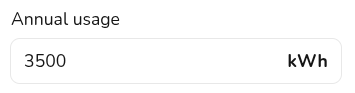
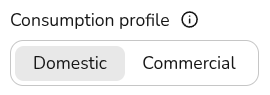
When you use this option you can choose from a variety of domestic and commercial consumption profiles, the consumption profile determines how the energy is used within a week and throughout the year.
Meter data
If the property has a smart meter you can upload half-hourly data to get a more accurate projection. The file must be in a particular format for Easy PV to use it:
- The data should ideally span at least a year (but if it contains a minimum of 6 months our algorithm will automatically attempt to fill in gaps where they are detected).
- The file must have a .csv file extension. If your data is in another file type you can export it as csv from Excel, Google Sheets, Libreoffice or any other spreadsheet editor.
- If you are getting an error when trying to upload the data, you can also download our sample spreadsheet here and change your data into this format.
Not sure
If you don't know the electricity consumption in the property and it's domestic, you can use typical values for the size of property provided here.

These options will assume a domestic consumption profile.
Tariffs
Here you should select the tariffs used in the Easy PV calculation. It is important to set suitable tariffs so the financial calculations for this project are accurate, particularly if you plan to configure forced charging or discharging of a battery. By default, we'll calculate the financial benefits using your default tariffs which you can specify in your financial settings.
You can select from the drop down you can create and select a new tariff by selecting + New import/export tariff.
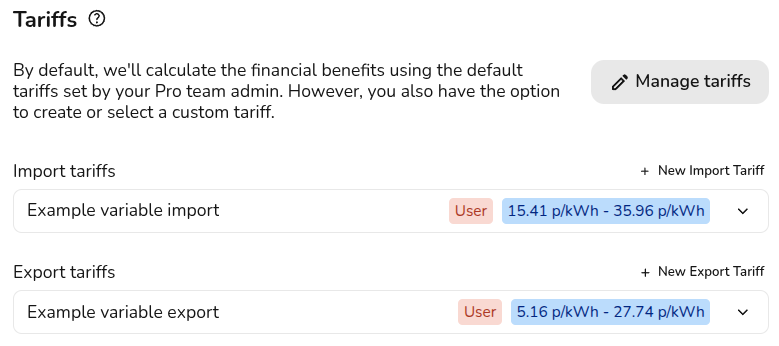
If the tariffs you've selected are different to the ones the customer is currently on, then you can select their current tariff for more accurate financial benefit calculations. This is used to calculate how much they will save on their current bills. The tariffs input above will be used for any future calculations.

Warning: This only sets the tariffs for the Easy PV self-consumption calculation. If you'd like to use the MCS method you will need to set your tariffs in the Financial task.
Learn more:
+ Energy management
In this section you can optionally model export limitation and forced charging and discharging of batteries. Read more about setting these up below.
Export limiting
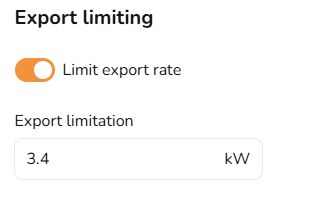
In this section you can limit the export rate if this is required by the DNO. Export limitation restricts the amount of solar power sent to the grid, preventing it from exceeding a set threshold. This is used to comply with grid regulations, prevent overloading, and encourage self-consumption. Any excess energy beyond the limit is curtailed.
Switch the toggle on and then input the annual export limit in kW.
Battery management
In this section you can set the periods where the battery will force charge and discharge to and from the grid. Switch on the toggle and then input the times and days you want the battery to charge and discharge.
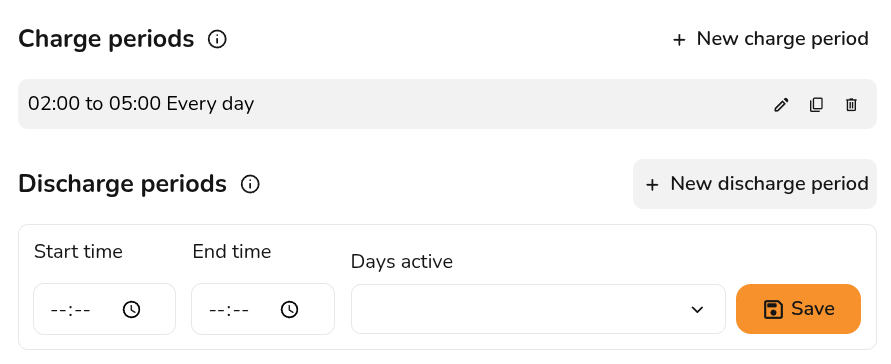
Warning: The discharge period is for discharging to the grid. Easy PV will still model when the battery will be charged and discharged based on solar production and consumption. These charge and discharge periods are to override the Easy PV model.
When you have finished configuring these inputs, click Done on the Energy Management tab.
Navigating the Consumption task
Once the task has been configured, you'll be able to view the full insights. The right-hand sidebar on the page includes options to help you navigate through the different sections of insights.

Below on the right-hand side you will see the following:
- Annual Generation: This pulls through from the Performance task.
- Annual Consumption: This is based on your input when opening the task. Click the pencil open the Annual consumption tab directly.
- Battery Management: If showing battery optimisation, this will show you the percentage improvement and cost benefit of the configured optimisation. If you are not seeing the expected benefits, make sure you have the right tariffs and charging periods configured.
- Tariffs: This shows the tariffs you have selected on the project. Click
Edit project tariffsto open the Tariffs tab directly.
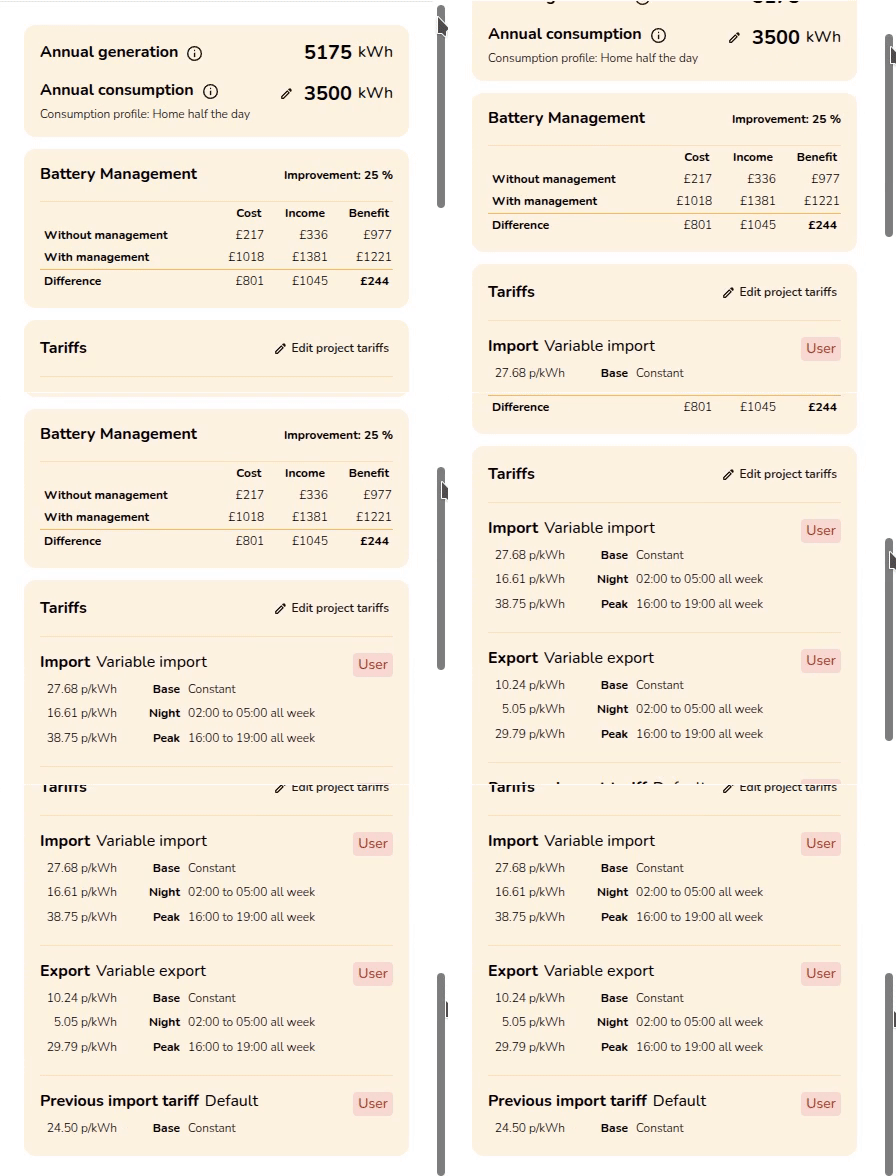
In the top right corner, you'll have the following options:

Update the annual consumption, tariffs and energy management settings Download data
Download generation and consumption profiles to import into other software Help page
Open this page directly
Understanding Consumption task data
Once you have configured the Consumption task inputs and submitted them, you can explore the calculated information.
The left-hand side shows the full results of the Consumption task calculations with interactive graphs and detailed insights. For each section, the top graph gives you the annual figures in kWh and the bottom graph gives daily figures in kW.
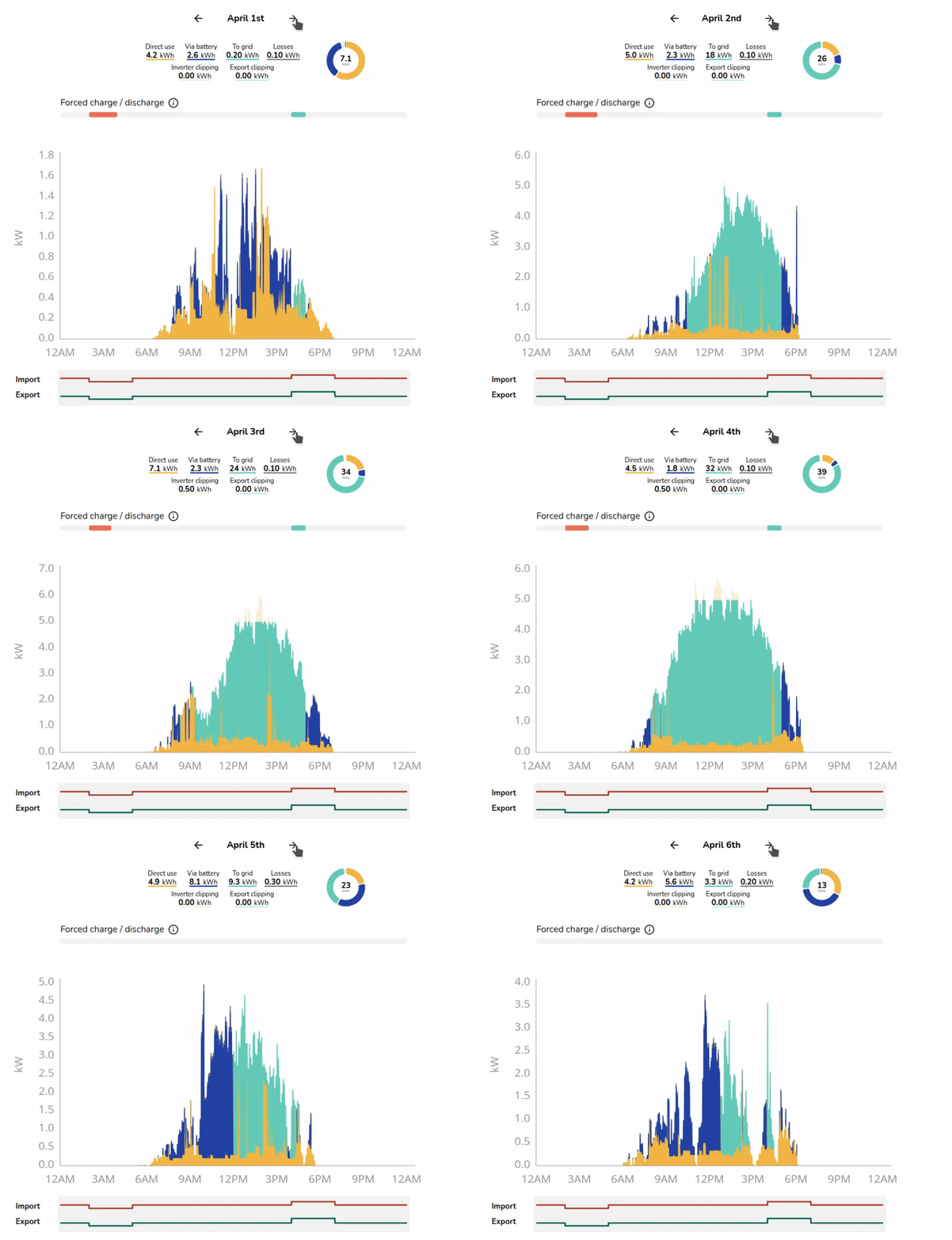
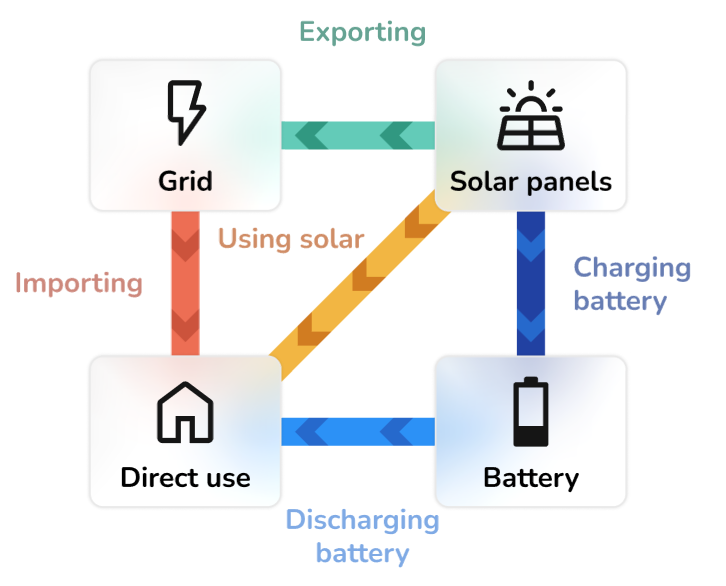
All graphs use the following key to help you understand the generated data:
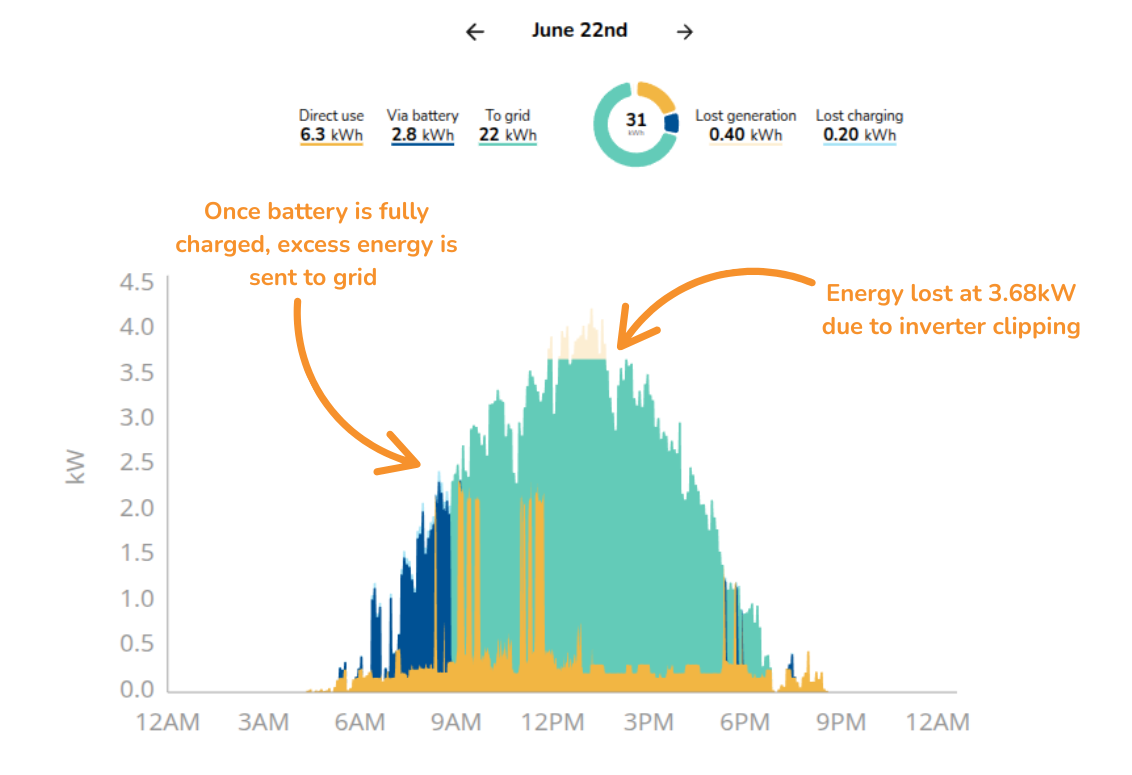
Generation
- This shows the estimated annual generation of the system and whether the generated energy is used directly in the house, used to charge the battery or exported to the grid.
- It will also display the amount of energy lost through inverter clipping, export clipping and charging if applicable.
- Bottom graph can help understand export rates and the impact of export or inverter clipping, with figures given in kW.

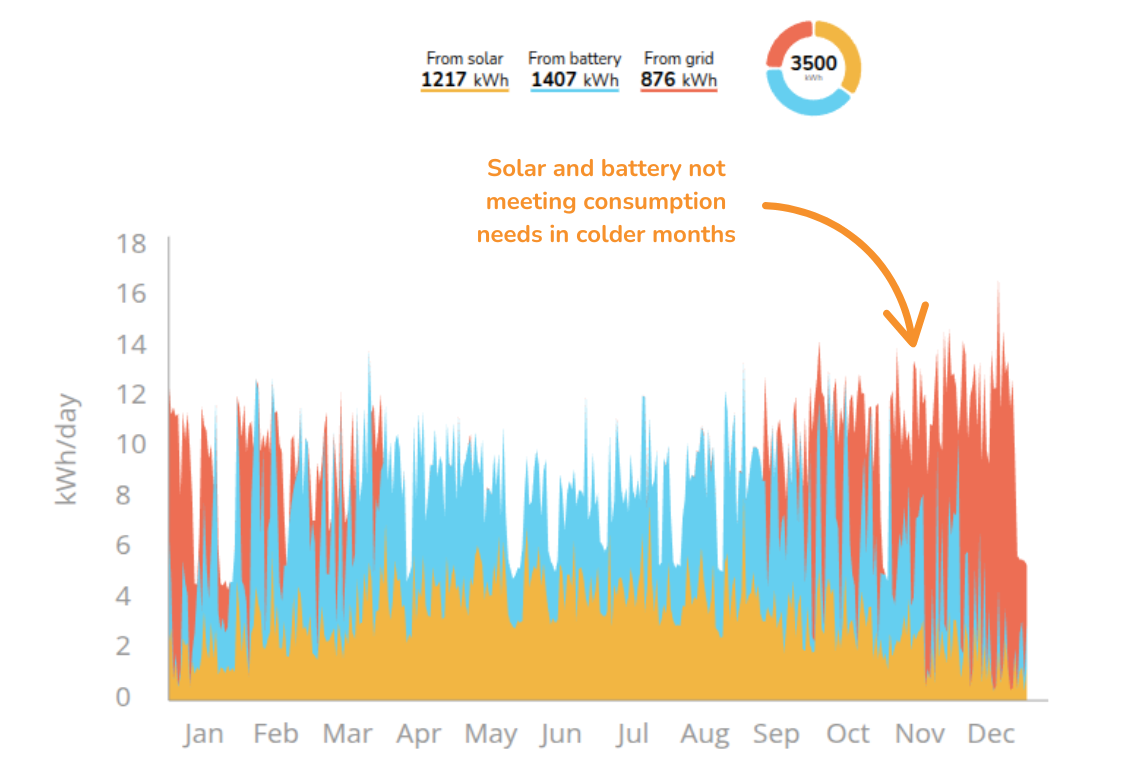
Consumption
- This shows the total annual energy consumption of the property across the year based on the selected consumption profile.
- It shows how much energy is expected to be supplied directly from the solar array, via the battery or imported from the grid.
- Top graph useful to see how consumption is distributed across the year and how this consumption is being met.

Import and export
- This shows the likely flow of energy to and from the grid over the course of a year.
- It's likely that there will be more energy exported during summer when the solar array is generating more energy, and more energy will be imported from the grid during winter months.
Financial benefits
- This shows the money spent and earned on electricity flowing to and from the grid over the course of a year based on selected tariffs.
- It allows you to see the total money earned from export payments versus the money spent on imports, and how it would compare to having no solar installed.
Warning: If you would like to use the Easy PV self-consumption calculations as the basis for your financial projections in the customer proposal, make sure it is selected in the Financial task.
Battery utilisation
- This helps you understand the modelled utilisation of the battery over the course of the year based on the amount of the the available battery capacity that is actually charged and discharged each day.
- Utilisation of over 100% is possible at times where a battery is charged and discharged more than once during a day.
Note: If you have low battery utilisation you may want to reduce the size of the batteries or model forced charging of the batteries on an overnight tariff.
Consumption task: FAQs
❓ How does the Consumption task estimate self-consumption?
Easy PV simulates generation, consumption and battery usage across a full year to estimate how much solar energy is used on site. The self-consumption is the proportion of electricity generated that is consumed on the property (directly or via a battery).
To determine how much is used in the property, we use the total generation figure from the Performance task and model this across the year using a PVGIS generation profile. This is then compared against the chosen consumption profile. Easy PV looks minute-by-minute over the course of the year at how much energy is generated and consumed and, if present, how charged the battery is. It then models how the energy would be diverted accordingly. For example, if solar power is being generated and the profile shows they are consuming energy at that time, then this energy will be diverted to consumption. If they are not consuming at that time then it will be used to charge a battery (where present) or discharged to the grid. This factors in forced charge and discharge times, battery specs and export limits. We can then determine how much is used directly, used to charge the battery or sent to the grid.
❓ What is the difference between the MCS and Easy PV self-consumption calculations?
There are a few differences between the Easy PV and MCS self-consumption calculations:
| easy-pv.co.uk MCS | Easy PV | |
| Easy PV task |
Completed at the end of Performance task, select |
Completed in Consumption task, select |
| System size and consumption |
Strict limits:
|
No limits on system size or consumption. Any consumption, generation or battery capacity |
| Consumption profile | Domestic profiles only: home all day, home half the day and out all day |
Domestic or commercial consumption profiles. Plus the option to upload half-hourly data from customer |
| Method | Determines self-consumption based on look-up tables specified in MGD 003, using annual generation and consumption totals | Models how generation is distributed using PVGIS data, then calculates usage minute-by-minute across the entire year. |
| Additional options | Limited since it only compares annual figures and cannot factor in real-time changes. | Minute-by-minute calculation means export limits, inverter clipping, variable tariffs and forced charging/discharging of batteries are factored into calculations |
❓ Why are my tariffs not pulling through to the proposal?
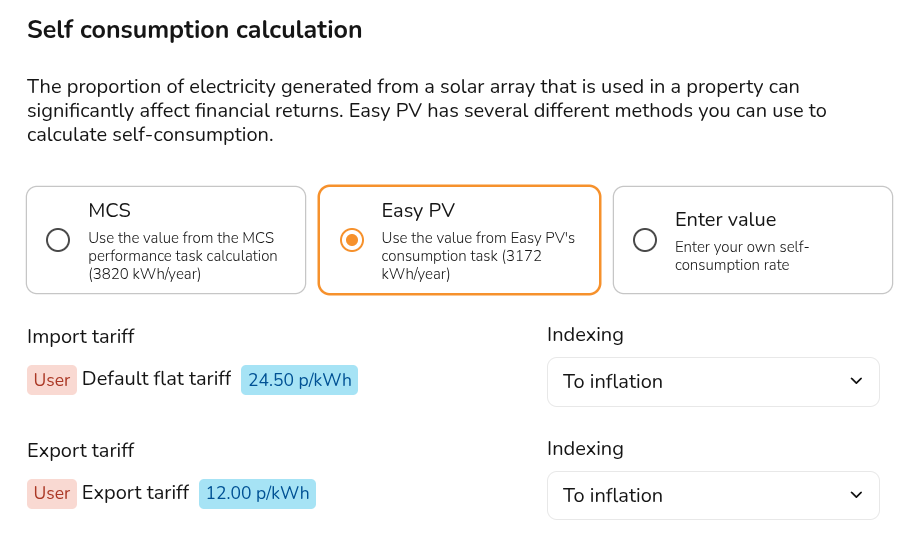
If the tariffs in the proposal do not match the ones you've set up, it's likely you're using the wrong self-consumption method, as these use separate tariffs.
To fix this, follow these steps:
- Navigate to the Financial task
- Select Financial inputs in the top right
- Under self-consumption, you can see the method selected and which tariffs are being used. Make sure you have both the right tariffs and method selected there:

- Save and exit
Still Need Help?
Contact Support: If you've got further questions, get in touch with our support team at help@easy-pv.co.uk (UK) or help@easy-pv.ie (IE). If you are experiencing a bug, to help us look into your issue faster, please include the email address of your account, the name of the project and screenshots of any unexpected behaviour.