Using the Financial task
Completing the Easy PV Financial task is an important part of designing and selling a PV system. The task has two main areas of focus:
- Create an accurate quotation to give to the customer. Fully cost the materials and services, set the relevant tax, apply any grants or discounts and configure how you want the quote to be presented.
- Generate estimated financial projections for the installed system over time. Include loans, running costs and other custom saving, set up payment schedules and configure tariffs to estimate when the system will break even.
Getting started with the Financial task
You can access the Financial task via the 'Tasks' drop-down menu or from the task list to the left on the project overview page.
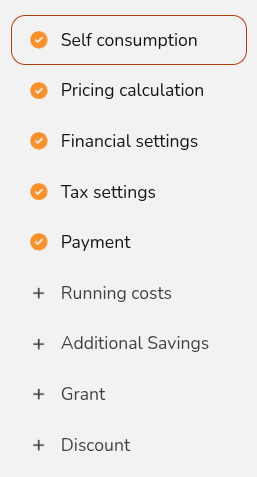
When the Financial task first opens, you'll be shown a popup that lets you configure the settings you want to use for the quote and projections. It will open on 'Self-consumption' and then you can use the right hand navigation to choose the settings you want to edit:
Tip: If you have set defaults via your account preferences, these will be automatically applied here.
If you'd like to change these values at a later stage, click Financial inputs in the top right or edit specific options directly from the right-hand sidebar.

Financial task inputs
Expand each section below for more details on each setting.
Self consumption
The proportion of electricity generated from a solar array that is used in a property can significantly affect financial returns. Easy PV has multiple methods you can use to calculate self-consumption and grid independence which you can select from.
In this section, you are selecting the self-consumption method for the project and choosing the tariffs. Each self-consumption methods has associated tariffs. Beside where the tariff is selected, you can also set the tariff inflation indexing.
These are the available methods to choose from:
- easy-pv.co.ukMCS: This can only be used with flat tariffs, can be used for projects with consumption between 1500-6000kWh, generation below 6000kWh and usable batter capacity below 15.1kWh
- Easy PV: This can be used for a project of any size and can be used with variable tariffs. This is calculated in the Consumption task
- Custom percentage: Input a self-consumption fraction directly. This will not model the impacts of a battery and is just calculated based on the total estimated annual generation
Warning: When using a custom percentage the Battery Storage section in the Customer Proposal will not generate. If you would like this to generate, select the MCS or Easy PV self-consumption.
Learn more:
Pricing calculation
Here you can select which pricing calculation to use, with the option of selecting between the following:
- Manual pricing: set a default markup on goods and input service costs on each project
- Automatic pricing: set a default markup on goods and automatically configure service costs for each project. Service costs will be calculated according to rules that you set
Learn more: How to set up your automatic pricing calculator
Financial settings
See how these settings impact the financial projection. You can set default values for this section in your account or pro financial settings or adjust them on a project by project basis.
-
Projection term: the number of years you wish to make financial projections. This should be approximately the expected lifespan of the equipment
- Inflation rate: this is the inflation rate for your financial projection
Note: This base inflation rate will be applied to all costs and savings, you can set a different inflation rate for tariffs in the
Self-consumptiontab. -
Panel degradation rate: panels gradually reduce in output as they degrade over time. Set the rate at which the output of the panels decreases each year
-
Discount rate: a discount rate is a means of determining the current value of something (like income or savings from a PV system) that you'll receive in the future. Set this to 0 if you would like no mention of discount rate in the proposal
Learn more: Understanding the Financial projection.
Tax settings
Configure the following:
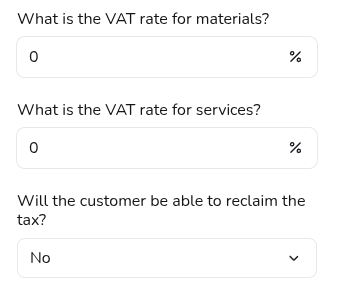
- VAT rate for materials: this will apply to all costs included in the goods section.
- VAT rate for services: this will apply to all costs included in the services section.
- Whether the customer can reclaim VAT: selecting that the tax can be reclaimed will mean VAT is excluded from the loan total (if applicable) and the cost on the front of the proposal, but not the cost used in the financial projection.
Learn more: Set up default values for this section in financial settings.
Payment
In this section you can configure how the customer will pay for the system, with the option to either pay in full or with finance. Any discounts or grants are configured in later sections but will be automatically factored in.
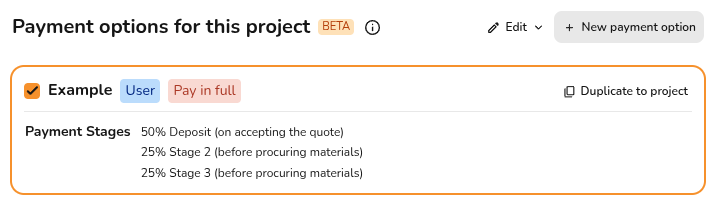
- Select from your preset payment options for this project or create new ones. You can set default values for this section in your financial settings.
- If you'd like to amend an existing one for this project, you can just duplicate to project and edit any details or navigate to your financial settings by click
Editoption at the top to edit the default option.
Learn more: Setting up payment options.
Note: A pay in full option is required on all projects, even if the customer intends to pay with finance.
+ Running costs
Add rows for costs you expect to be incurred in the future. You can choose whether costs are applied on an annual basis (for example a maintenance contract) or as one-off costs (for example an inverter replacement).

Learn more: Default running costs can be set up in your financial preferences.
+ Additional savings
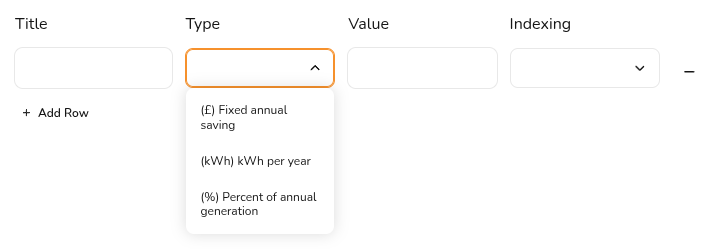
Add rows for additional savings, such as from immersion diversion systems or from night charging from batteries.
Set the name for the saving, what the saving is (this can be in terms of £, kWh per year or a % of annual generation) and how it should scale with inflation.
Learn more: Default savings can be set up in your financial preferences.
+ Grant
If the project is eligible for a grant that will pay for some or all of the cost of the system, you can add it here.
Set the description, the value and whether this is claimed before or after the installation.

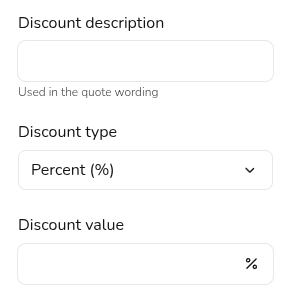
+ Discount
If you want to apply a discount to your quote to reduce the cost for your customer, you can do so here. Input a description and choose the type of discount you want to apply. This can be a fixed discount or a percentage of the total cost.
When you have finished updating the settings, click Save & Exit. This will then allow you to view and modify the quotation and view the projection.
Learn more: Set up Automatic pricing rules and configure Financial defaults to speed up this part of the task.
Navigating the Financial task
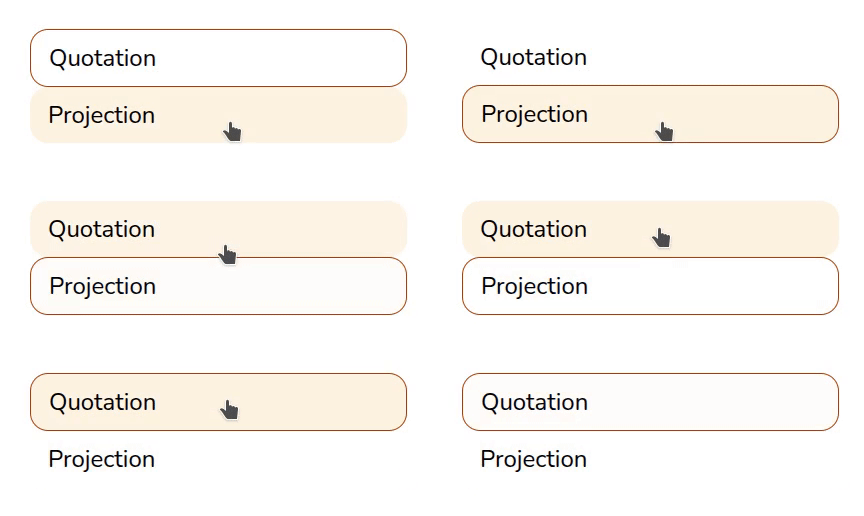
The right hand sidebar contains options to switch between the quotation and the projection view:
You also have the following actions in the top right corner:

Click to edit the financial settings used in the projection Open help page
Go directly to this help page if you're ever having trouble Refresh pricing
Recalculate cost of goods, services or both reflect any changes you've made to the project via other tasks Export quotation as a CSV
Customise the CSV file that will be downloaded. Line items will be based on the quotation in Financial Task Auto-pricing settings
Adjust settings used in automatic pricing calculator directly from the Financial task Go to user preferences
Edit defaults used in Financial task


Quotation view
In the quotations view, you can view and edit the quotation under the following headings:
- Goods: Here you can see the full kit list and + add or - delete any rows. To the right is the option to display or hide the markup and edit the quote view
- Services: If using automatic pricing, you will see your service totals and can then make any adjustment. If not using automatic pricing, you can add your services costs here
- Total: Below, you will be able to see the total cost of the system for the customer, including any grants or discounts applied via the financial settings you've applied to the project
Warning: Changes made to the components in the project will not automatically refresh here. Click the refresh icon in the top right to recalculate any costs.
Projection view
At the top of this page you will see the annual generation, payback period, internal rate of return and net present value. A positive net present value is a good indication that the project is financially worthwhile. You will also see the following details about the projection:
- Income and savings: This graph shows the projected income from the system over the project lifetime in payments for generated and exported electricity, along with electricity savings
- Running costs and loan: If a running cost is included or finance option is selected, then these will show up in these graphs
- Bottom line: This graph will then indicate the cumulative costs and benefits of the system. When these two lines intersect is when the system benefits become equal to the cumulative costs, after this time the customer is projected to gain from their solar system
- Payment options: On the right-hand side you can view and the payment options on this project. Switch between them to see the impact they have on the financials for this project
Learn more: For more details on the financial projection and how you can improve it, see Understanding the Financial Projection.
Still Need Help?
Contact Support: If you've got further questions, get in touch with our support team at help@easy-pv.co.uk (UK) or help@easy-pv.ie (IE). If you are experiencing a bug, to help us look into your issue faster, please include the email address of your account, the name of the project and screenshots of any unexpected behaviour