
FinMatch finance option in Easy PV
Setting up with FinMatch in Easy PV
Step 1: Sign up for FinMatch here
You can apply through Easy PV to FinMatch to offer finance through Easy PV. FinMatch offers access to finance plans from multiple lenders. FCA Assist helps installers get authorised quickly and efficiently.
FinMatch Finance Assistant enables your customers to click from an Easy PV quote and apply for finance instantly.
If you are in a Pro team, only team owners can apply via Pro account settings.
Step 2: Approval from FinMatch
Once approved, we will link your FinMatch account with your Easy PV account.
Step 3: Configure in Easy PV
In your financial settings, you can configure your FinMatch settings:
- Standard users: My account > Preferences > Financial. Scroll down to Providers.
- Pro users: Pro Account Settings > Financial. Scroll down to Providers.
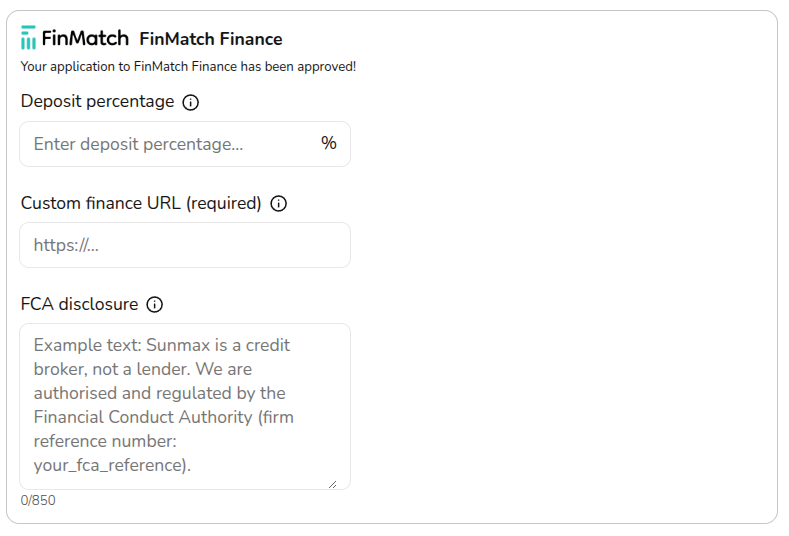
Deposit percentage
Enter the percentage of the total system cost that the customer must pay as a deposit. This amount will not be included in the financed total.
This amount can be edited on a per project basis.
Custom finance URL
Enter the full URL of the finance page on your website (for example: https://www.yoursite.co.uk/finance). This link will be shared with FinMatch.
A custom link to the FinMatch Finance Assistant will then be generated for each FinMatch finance option included in a customer proposal. Read more about this below.
FCA disclosure
Enter the customised text of your required FCA Disclosure which will be displayed on each finance option generated through FinMatch that is included in the customer proposal.
Example disclosure text
[Your Company Name] is a credit broker, not a lender. We are authorised and regulated by the Financial Conduct Authority (FCA) (firm reference number: XXXXXX). We do not provide financial advice but offer credit products from a carefully selected panel of lenders, all of whom are authorised and regulated by the FCA. We do not charge customers a fee or earn a commission for our credit broking services. Details of our regulated credit products are explained on our website. Credit is subject to age, status and affordability. Borrowing more than you can afford or paying late may affect your financial status and ability to obtain credit. You are not obliged to use the lender we suggest. You are free at any time to explore and secure financing independently, and it is possible that you may find a better offer elsewhere.
Note: there is an 850 character limit on this disclosure text.
Using FinMatch finance options in a project
Step 4: Enable FinMatch in a project
Navigate to Financial task > Financial inputs > Payment options. You will then see FinMatch as a finance option alongside any other payment options you have configured.
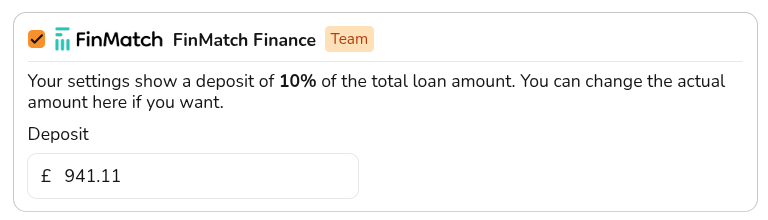
Tick the FinMatch Finance option and (optionally) edit the deposit amount. Some finance options will have a minimum deposit value so this may be overridden.
Select Save & Exit in the bottom right or navigate to the next section in the menu on the left.
On the Projection tab, you can navigate between the available finance options from FinMatch on the right-hand sidebar to see the payback for each option.
Step 5: Generate proposal
In the customer proposal, the Payment Options pages that detail finance options generated through FinMatch will include a “Learn More” link. When clicked, this link will direct the customer to a finance details page on your website. This link can be accessed from an e-signing link or from a saved PDF.