FinMatch finance option in Easy PV
Setting up with FinMatch in Easy PV
1. Sign up for FinMatch here
2. Approval from FinMatch
Once approved we will link your FinMatch API key with your Easy PV account how do we know which account to link it to? the form?
3. Configure in Easy PV
In your user or pro account financial settings you can further configure your FinMatch settings:
- Standard users: My account > Preferences > Financial. Scroll down to Providers.
- Pro users: Pro Account Settings > Financial. Scroll down to Providers.
Deposit percentage
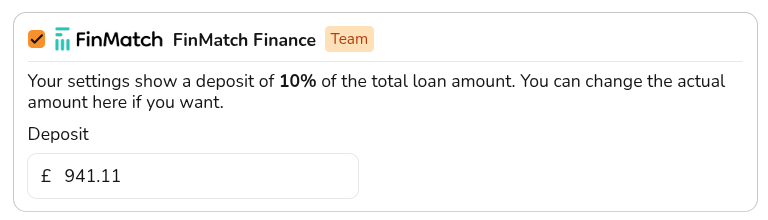
Enter the percentage of the total system cost that the customer must pay as a deposit, which will not be included in the financed amount.
This amount can be edited on a per project basis.
Custom finance URL
Enter the full URL of the finance page on your website (for example: https://www.yoursite.co.uk/finance). This link will be shared with FinMatch and the FinMatch Finance Assistant will be embedded into this page.
FCA disclosure
Using FinMatch finance options in a project
Select in Financial task > Financial inputs >