Warm Homes loans in Customer Proposals (WIP)
easy-pv.co.uk
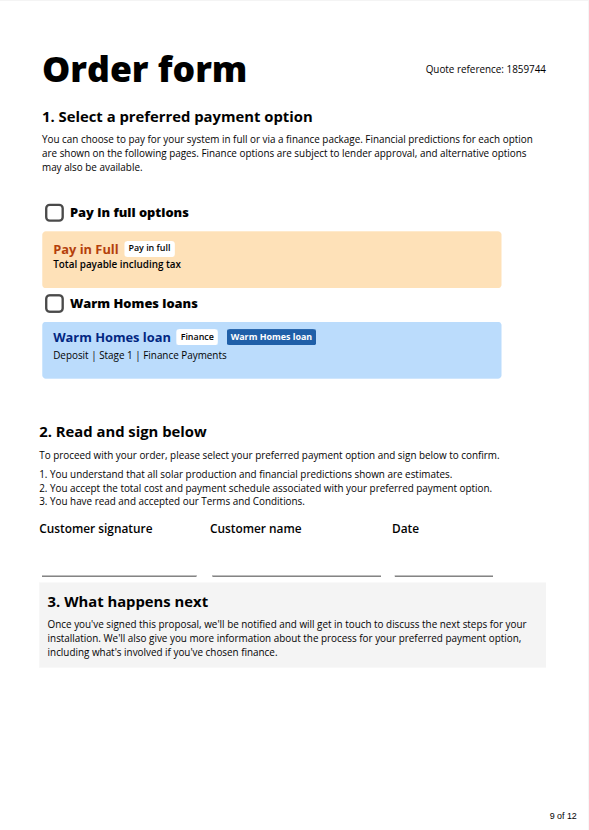
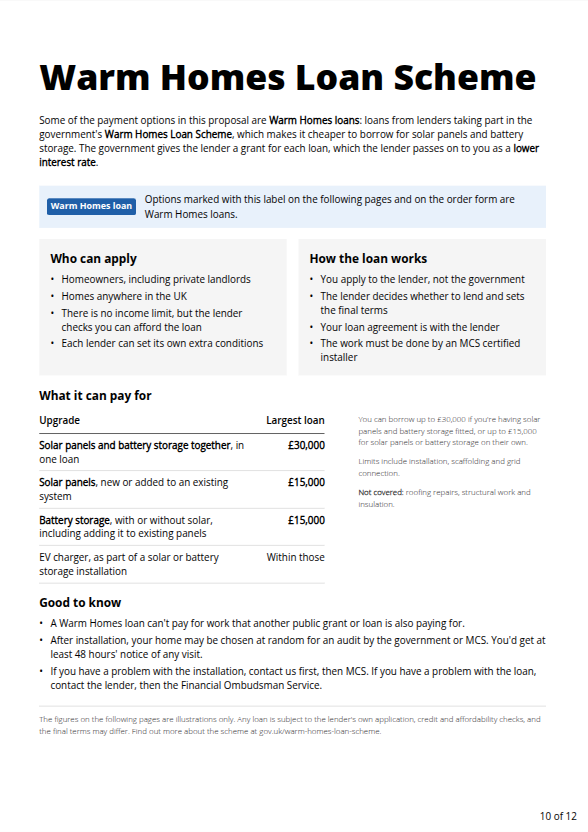
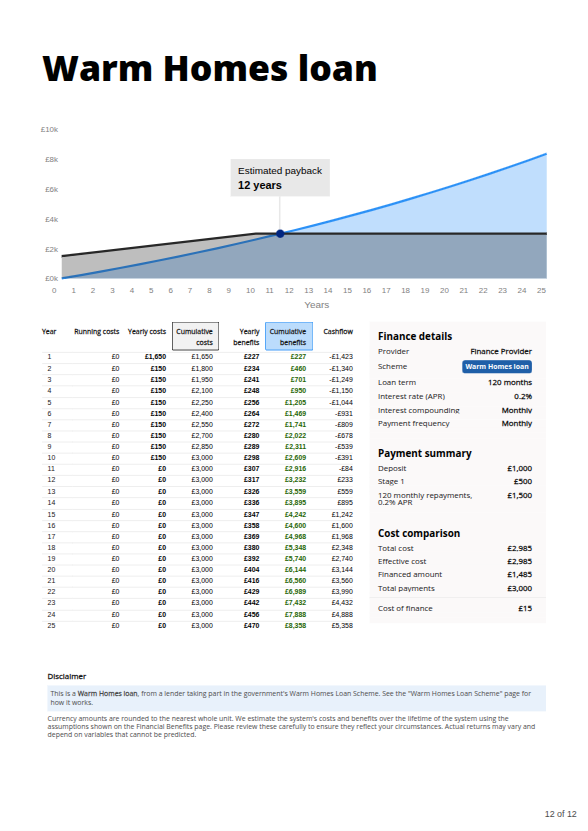
Easy PV supports the Warm Homes Loan Scheme (WHLS). You can mark a finance payment option as a Warm Homes loan to add a page to your proposal, explaining the scheme.
How to configureset up a Warm Homes loan
SeeTo hereset toup learna howWarm Homes loan in Easy PV, you will need to create a payment option.
Standard users: you can find your financial defaults in My Account > Preferences > Financialoption.
ProNew users:payment youoptions can findbe created within projects through the financial task on the Payment tab or by navigating to your financial defaults in Pro account settings > Financial. IfJust youclick are a member of a Pro team, this will be set by your team admin in the Pro account financial settings.
Click + New payment option
1. Overview
Name: InputEnter the name you'd like to appear on the proposal for this payment option.
Scope: Theloan option willand onlyset appearthe ifscope for where you'rell creatingbe aable to select it. Select the payment optiontype from within a project. Select whether you'd like this option to appear for just this project or to be available on future projects. If you are in a pro team, you will also see the option to make it available for you team.
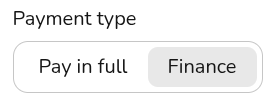
Payment type: Selectas Finance.
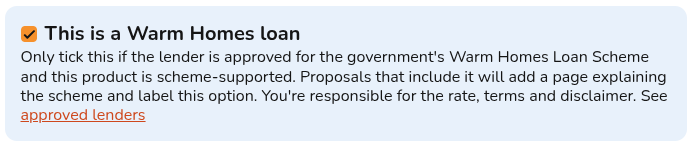
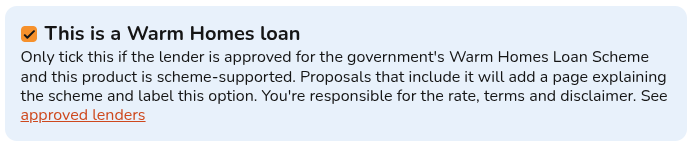
Tick the box to indicate that this lender is aparticipating Warmin Homesthe loan.WHLS.
Default checkbox: This option will only appear if your scope is set to User or Team. If you check this box, this payment option will be selected on all future projects.
2. Payment stages
In this sectionsection, you can configure the payment stages for the quote.
Payment format: set whether you'd like payments to be defined as percentages or as constant values.
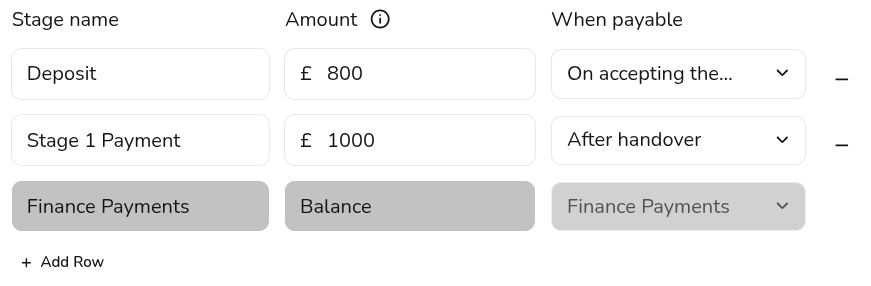
Payment stages: add rows to define additional payment stages, set the name of the stage to appear on the quote, the amount (% or £) and when the stage will be payable. The final (or only) stage will be from 'Finance Payments'. If the cost of the system is more than the loan amount, you'll need to add rows to define additional payment stages.
3. Finance
HereUse youthis cansection configureto theselect details of theyour finance payments.provider and set up payment details, such as repayment terms and interest rates.
FinanceLearn provider:how Thisto is the organisation or lender that providesconfigure finance or a lease for a project. Select from the drop down menu from your preset finance providers or select + New provider. When creating a new provider you will need to input the name of the provider, the scope (if you're creating within a project) and an optional description.
Repayment: set the repayment term, the repayment frequency and the repayment type. For most domestic installations, the repayment type will be fixed.
Interest: set the loan interest rate and whether you want the interest to compound monthly or annually. details
4. Disclaimer (Optional)
SetHere whetheryou you'dcan likechoose to include a custom disclaimer -text thisthat will appear next to the financial calculations for this payment option.
WithinThe Customer Proposal
To add a projectloan option Into a projectproject, yougo canto selectthe Financial task and tick it in the payment methodsoptions you'dsection.
like
toOnce make available to the customer. You can create a new payment method forenabled, your currentCustomer projectProposal (orwill anyinclude future project by setting the scope to User or Team) by clicking the + New Payment Option. Update your existing methods in your settings with the Edit option at the top.
In the Proposal
Once enabled on a project, the Warm Homes Loan tag will automatically displaydisplayed next to the payment option on the Customer Proposal. Additionally, the proposal will featureand a
dedicated informational page withoutlining details onof the Warm Homes Loan Scheme.
There
will
Into a projectproject, yougo canto selectthe Financial task and tick it in the payment methodsoptions you'dsection.
+ New Payment OptionEditIn the Proposal
Once enabled on a project, the Warm Homes Loan tag will automatically displaydisplayed next to the payment option on the Customer Proposal. Additionally, the proposal will featureand a
Still anNeed additionalHelp? disclaimer/ Want to know more?
Contact Support: If you've got further questions, get in touch with our support team at help@easy-pv.co.uk (UK). If you are experiencing a Probug, userto andhelp haveus setlook custom styling forinto your Proposal,issue faster, please include the pagesemail willaddress followof your account, the colour scheme you have set.
add more detailed instructions, put 3 imagesname of theadditional pages in the proposalproject andhint that more is coming (phoenix integration/ sign up now)In your financial settings, create a new financepayment optionand tick the box indicatingthat the lender is participating in the Warm Homes Loan Scheme.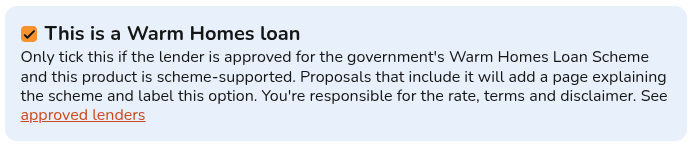
Enable the finance option on your project in theFinancial taskby ticking it in the listscreenshots ofpaymentanyoptions.unexpectedOnce enabled on a project, the "Warm Homes Loan" tag will automatically display next to the payment option on the Customer Proposal. Additionally, the proposal will feature a dedicated informational page with details on the Warm Homes Loan Scheme.behaviour.