
Custom AC isolators, DC isolators and meters
In Easy PV you can add custom AC isolators, DC isolators and meters. Each of these will be available to select in the electrical task.
To add a custom metercomponent in Easy PV navigate to My Components > Meters on the left-side menu or Components > Edit Meters from the top drop down menu.menu and select the type of component you would like to add.
Creating a metercomponent
Click the orange + New meter[component type] button to create a meter.component. You will need the datasheet from the manufacturer so that you can input the correct technical specifications of your meter.product. This is a list of product information requiredrequired:
General
Here you can enter product information that will appear when you go to addselect athe customcomponent meter:in your project.
| Product info | Description | |
|
Name |
Name shown across Easy PV. Usually the manufacturer and model.
|
| Manufacturer |
Company that makes this
|
|
| Model Number |
Manufacturer's model or part number.
|
|
| Price |
Price of the
|
|
| Description |
Notes shown when selecting this
|
|
| Product Image |
⚠️ You must save your component before you can add a product image. |
Electrical
Here you can enter the technical specifications of the product. The details required will be different depending on the type of component.
| Technical info | Description | |
| AC Isolators |
||
|
Max Current |
Maximum continuous current in amps (A). |
|
|
Type |
3-Pole for single phase, 4-Pole for three phase.
|
|
|
|
||
|
Type |
2-Pole switches one string. 4-Pole can switch two strings in parallel.
|
|
| Current/voltage rating pairs |
Current in amps (A), Voltage in Volts (V).
Click + Add row to enter another pair. |
|
| Meters | ||
|
Max Current |
Maximum continuous current in amps (A).
|
|
|
| Type |
Single-phase or three-phase supply.
|
|
Hybrid |
Tick if compatible with hybrid inverters.
|
|
Admin
Set optional controls here.
|
|
|
|
Wholesale ID |
Optional: For products supplied by Midsummer, put the product ID here. |
|
Component priority |
Optional: Decides which component is recommended or listed first. A higher number wins. Blank or 0 is the lowest priority. |
|
Owner |
⚠️ This will be set to 'My account' when you create a new component.
You can share or change ownership after you save, if you want others on your team to have access to it. |
Click Create to save the component. Once you have added a metercomponent successfully, you’ll be able to select it in the list of meters when creating a new project in the Electrical task.
Editing a Metercomponent
 Edit button in the top-right corner. This will allow you to modify the product details and set some additional information:
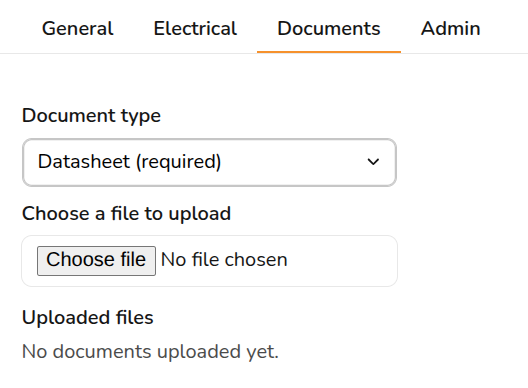
Go to the Documents tab to upload files such as data sheets, MCS certificates, installation guides, warranties, maintenance records, user guides, or ENA certificates for the component.
Select the Document type from the dropdown and choose a file from your computer to upload.
Go to the Admin tab and select an Owner from the dropdown. This controls who in your organisation has the rights to see or edit this specific meter:component:
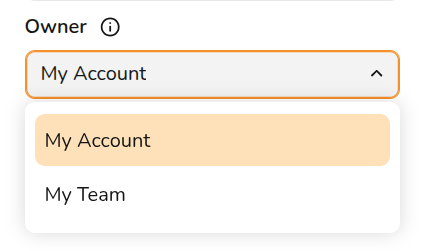
- My account: Only you can see and edit the
meter.component. - My team: Everyone on your team can see the
meter.component. Only team owners and admins can edit it.
Filters

The component list can get quite large now that it displays both the global Midsummer database and your custom library in one unified view. You can apply filters to sort your workspace:
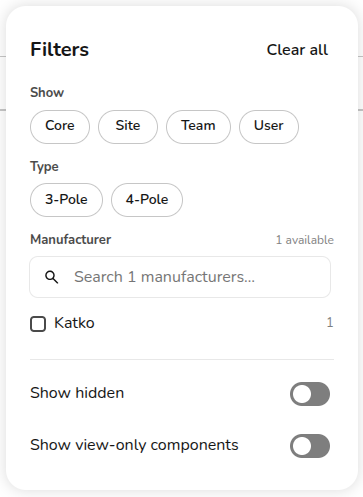
- Filter by Owner: Narrow your list down to see only components belonging to a specific ownership group (
Everyone,Site,Team, orYou). - Filter by Type: Sort your list by component specifications.
- Filter by Manufacturer: Group components together by the specific company that manufactured them.
- Show Hidden: Tick this box to reveal components that you or your team have previously hidden.
- Show View-Only Components: Toggle this option to view components that you have access to use in your designs, but do not have permission to edit (such as centrally managed Core components).
- Clear All: Click this button at any time to reset all search queries, checkboxes, and filters back to the default view.
FAQs
❓Why isn’t my metercustom component showing up as an option in my project?
-
If you can see a meter inside your Component Editor but it doesn’t appear as an option when you are working on an active project design, it is failing one of these four rules:
The phases don't match:A 3-phase meter will not show up if your project has a single-phase supply design.The current rating is too low:The meter'sMax Current (A)must be equal to or greater than the project's main site fuse rating.- It
lacks hybridisn't compatibility: If your project designusesisn'tacompatiblehybridwithinverter,this specific product, you won't see it as an option. Check themeterspecificationsmustyou havetheHybridbox tickedset initsthesettings.'Electrical' tab for your component. - It has been hidden: Hiding a meter removes it from your dashboard view and completely disables it from the Electrical task selection. Check for hidden components by clicking Filter and toggle on 'Show hidden'.
Still Need Help? / Want to know more?