**Note**: If you make changes to a document, you will need to re-save it for the updates to appear in the document manager. When re-saving a document, the **`Save`** button will be grey and saving will override previously saved version.
### Upload a document from your device To upload a document from your device, click `Upload` . Then use the `Upload File` button to find the document you wish to upload. [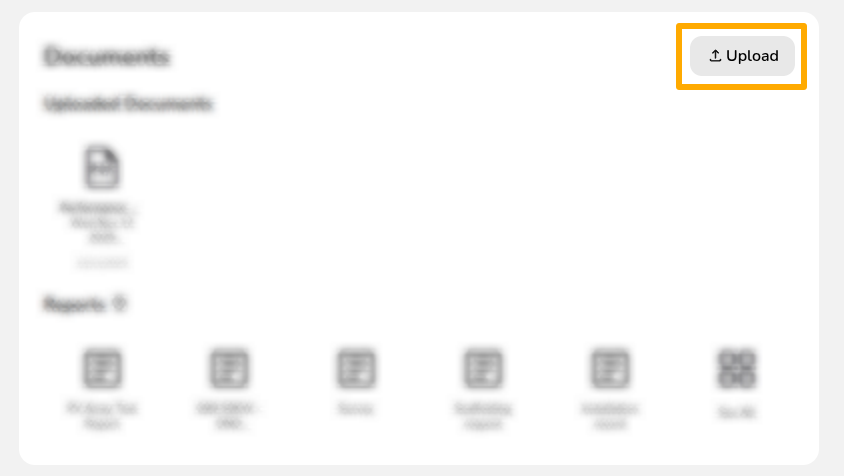](https://help.easy-pv.co.uk/uploads/images/gallery/2025-11/knSK0fQwA4cIcavX-image.png) --- ## Options on saved files [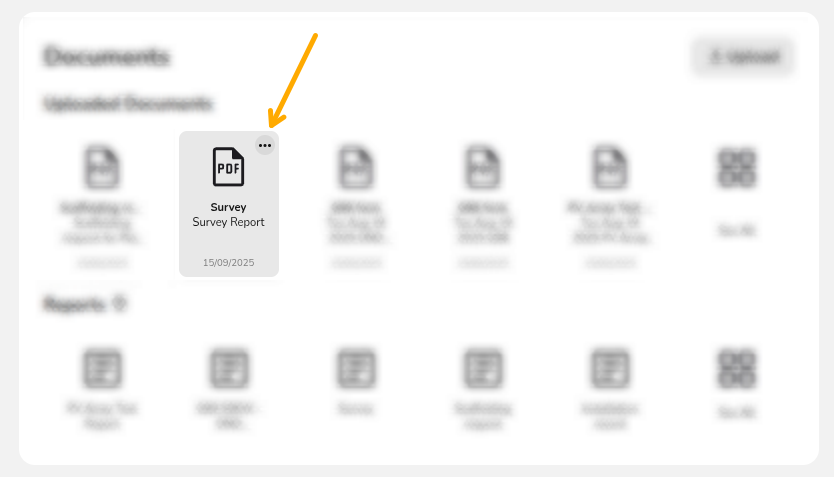](https://help.easy-pv.co.uk/uploads/images/gallery/2025-11/FhQcfz1hWcLSZmjx-image.png) To edit the details on any saved files, click the **⋯ three dots**. You will then see the following options: - **[](https://help.easy-pv.co.uk/uploads/images/gallery/2025-11/6M6gz1NJneGPPmZb-edit.jpg) Rename** Change the name of the file. Note that the file name will display if it's sent in any emails in Easy PV - **[](https://help.easy-pv.co.uk/uploads/images/gallery/2025-11/Tq74w8GDZVKo8Md8-switch.jpg)Reassign** Each file you upload has a type, this is used when [sending emails in Easy PV](https://help.easy-pv.co.uk/books/reports-documents-and-emails/page/emailing "Emailing") - **[](https://help.easy-pv.co.uk/uploads/images/gallery/2025-11/wmZ0JHkpTpkgZIgN-download.jpg)Download** Download any of the files you’ve added to your project to your device - [](https://help.easy-pv.co.uk/uploads/images/gallery/2025-11/4qYOMQwLrGzZWDr4-delete-red.jpg)**Delete** This will delete the saved version of the document from the file management section of your project --- ## Want to know more? - **Articles**: [Help your team work more efficiently](https://help.easy-pv.co.uk/books/news-and-updates/page/easy-pv-pro-help-your-team-work-more-efficiently) - **Further guides**: Take a look at our [E-signing](https://help.easy-pv.co.uk/books/reports-documents-and-emails/page/pro-e-signing) or [Emailing](https://help.easy-pv.co.uk/books/reports-documents-and-emails/page/pro-sending-emails-from-easy-pv) guides - **Live training:** [Book onto a live demo session](https://cal.com/easy-pv/pro-training) to see this feature in action **Contact Support:** If you've got further questions, get in touch with our support team at **help@easy-pv.co.uk** (UK) or **help@easy-pv.ie** (IE). *If you are experiencing a bug, to help us look into your issue faster, please include the email address of your account, the name of the project and screenshots of any unexpected behaviour.*