# Editing and creating tariffs

This guide covers how you can manage and create tariffs in Easy PV. Setting tariffs is an essential part of ensuring the financial benefits can be calculated as accurately as possible for your customer.

Tariffs can be created, viewed and edited in the [consumption task](https://help.easy-pv.co.uk/books/performance-and-consumption/page/getting-started-with-the-consumption-task) or the [financial task](https://help.easy-pv.co.uk/books/financial-task/page/using-the-financial-task). You can also set up user level default tariffs in your [account financial settings](https://help.easy-pv.co.uk/books/getting-started-f2k/page/setting-financial-defaults) or if you are a member of a Pro team, this will be set by a Pro team admin in Pro account financial settings.

---

<iframe allowfullscreen="allowfullscreen" height="466" src="https://www.youtube.com/embed/df7chLORbdI" style="width: 831px; height: 466px;" width="831"></iframe>

---

### **Creating a new tariff** 

#### 1. Set the name of tariff 

This name will appear in the quote wording.

#### 2. Set the scope of tariff 

Set when you want to be able to use this tariff - just this project, in all projects or accessible to all team members if you're in a pro team.

<p class="callout info">Once the scope of the tariff has been set, this cannot be edited. </p>

<details id="bkmrk-what-is-the-scope-of"><summary>What is the scope of tariff for?</summary>

<table border="1" id="bkmrk-project-level%C2%A0-these" style="border-collapse: collapse; border-width: 1px; background-color: rgb(255, 255, 255); border-color: rgb(255, 255, 255); width: 100%; height: 297.375px;"><colgroup><col style="width: 18.1481%;"></col><col style="width: 81.7284%;"></col></colgroup><tbody><tr style="height: 92.125px;"><td style="border-color: rgb(255, 255, 255); height: 92.125px;">[![3ZJep4o57WlI8CiG-image.png](https://help.easy-pv.co.uk/uploads/images/gallery/2024-11/scaled-1680-/rBB2QTITYptBPMEG-3zjep4o57wli8cig-image.png)](https://help.easy-pv.co.uk/uploads/images/gallery/2024-11/rBB2QTITYptBPMEG-3zjep4o57wli8cig-image.png)  
</td><td style="border-color: rgb(255, 255, 255); height: 92.125px;">**Project level**

- These will only be viewable on the specific projects it's created for.
- A good option if you frequently change the tariffs on each project.

</td></tr><tr style="height: 110.125px;"><td style="border-color: rgb(255, 255, 255); height: 110.125px;">[![oNwWQq5jZD57nWBc-9jswwkzmuujz06d2-image.png](https://help.easy-pv.co.uk/uploads/images/gallery/2024-11/scaled-1680-/pBS0DRFcyNRTQBsK-onwwqq5jzd57nwbc-9jswwkzmuujz06d2-image.png)](https://help.easy-pv.co.uk/uploads/images/gallery/2024-11/pBS0DRFcyNRTQBsK-onwwqq5jzd57nwbc-9jswwkzmuujz06d2-image.png)  
</td><td style="border-color: rgb(255, 255, 255); height: 110.125px;">**User level**

- These can be used for any projects and set as a default in your financial settings.
- A good option if you aren't sure what tariffs your customer is on so want to use standard values.
- Tariffs will not be shared within shared projects if they are user level.

</td></tr><tr style="height: 95.125px;"><td style="border-color: rgb(255, 255, 255); height: 95.125px;">[![iz2Ic6bpeqc93Qnu-image.png](https://help.easy-pv.co.uk/uploads/images/gallery/2024-11/scaled-1680-/2DejbFWVXpfr2tZj-iz2ic6bpeqc93qnu-image.png)](https://help.easy-pv.co.uk/uploads/images/gallery/2024-11/2DejbFWVXpfr2tZj-iz2ic6bpeqc93qnu-image.png)  
</td><td style="border-color: rgb(255, 255, 255); height: 95.125px;">**Team level**

- If you are a member of a Pro Team, you will be able to create Team level tariffs.
- These will work much like the User level tariffs but will show for all members of your team.

</td></tr></tbody></table>

</details>#### 3. Input the price bands

**Flat tariff:** Input a value for the base rate and select save.   
**Variable tariff**: Input each different tariff rate. The first band you enter will be used as the base rate - any time period that doesn't have a price band applied will be priced at this rate.

<p class="callout warning">If you're using £, ensure you're putting this in in p. This value should be greater than 1 (so 15, not 0.15).</p>

#### 4. Set tariff periods (if using variable tariff) 

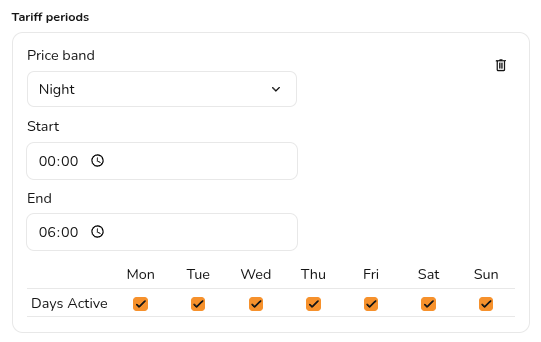
In the **tariffs period** section you will be able to select the different price bands and indicate when they apply. For some tariffs different rates might apply at the weekend, you can select the days for which the tariff period applies.

[![image.png](https://help.easy-pv.co.uk/uploads/images/gallery/2025-10/scaled-1680-/zVgpvBdVuaecGgjE-image.png)](https://help.easy-pv.co.uk/uploads/images/gallery/2025-10/zVgpvBdVuaecGgjE-image.png)
---

### Editing existing tariffs 

You can view and edit your tariffs from within projects (in [Financial](https://help.easy-pv.co.uk/books/financial-task/page/using-the-financial-task "Using the financial task") &gt; Self consumption or [Consumption](https://help.easy-pv.co.uk/books/performance-and-consumption/page/getting-started-with-the-consumption-task "Consumption task") &gt; Tariffs) or within your account settings.

<p class="callout info">Selecting tariffs in the Consumption task will only apply to the Easy PV self-consumption calculation. Select this in the Financial task if you'd like this to apply. </p>

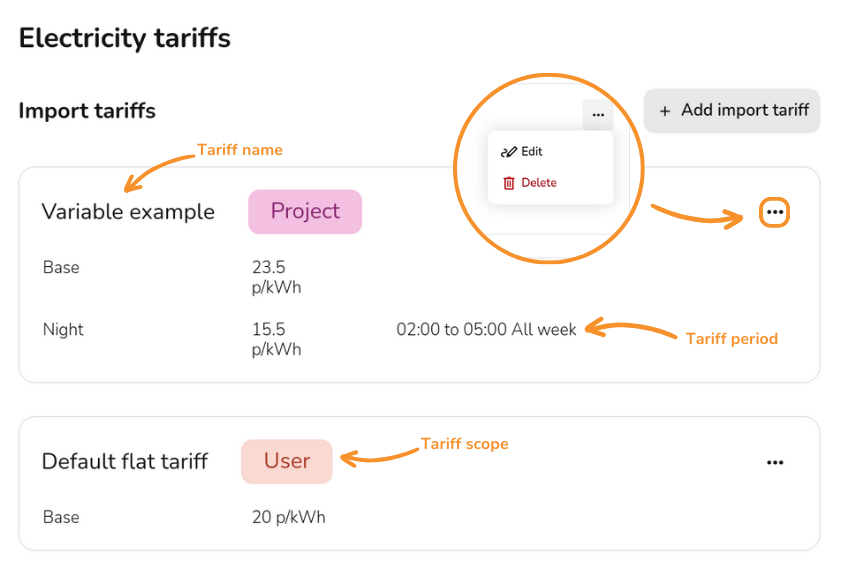
When you editing tariffs, you will see the following options:

[![Subheading.png](https://help.easy-pv.co.uk/uploads/images/gallery/2024-11/scaled-1680-/gnOxHho01igwyllL-subheading.png)](https://help.easy-pv.co.uk/uploads/images/gallery/2024-11/gnOxHho01igwyllL-subheading.png)
<p class="callout warning">When editing tariffs you can change any of the details, except the tariff scope, but note that any changes you make will affect previous projects that use these tariffs. </p>