Electrical task
This is the final stage of the kit builder and is where you specify isolators, cables, meters and any other kit needed in the system. Most components are pre-selected automatically based on your panel and inverter choices. You can review and adjust them as needed.
DC Isolators
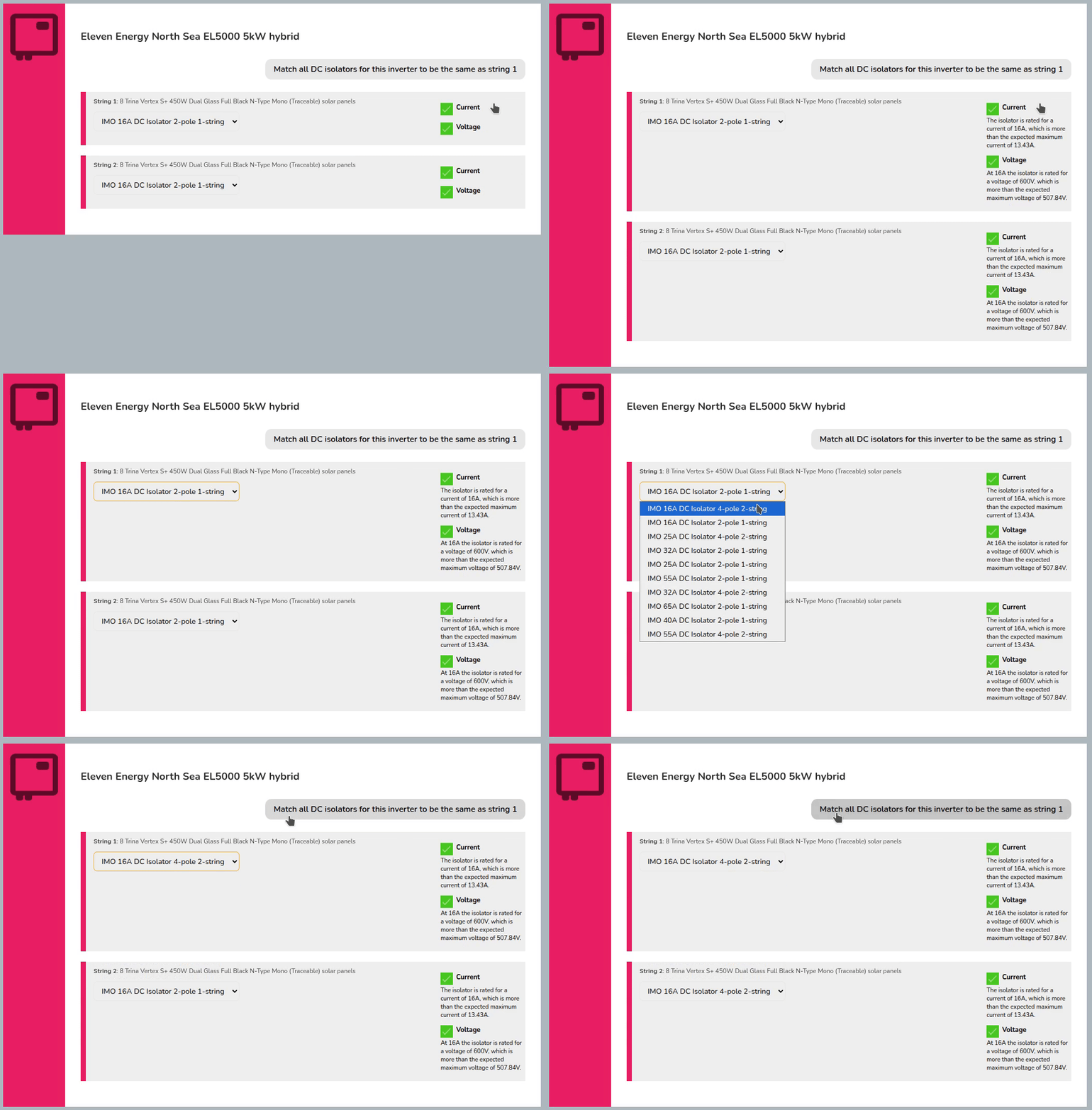
Choose a DC isolator for each inverter input.
- Click on the Current and Voltage sections to view full details.
- Click
Match all DC isolators...to bulk edit DC isolators for that inverter.
Once selected, you can click Next: Cables.
DC cable and connectors
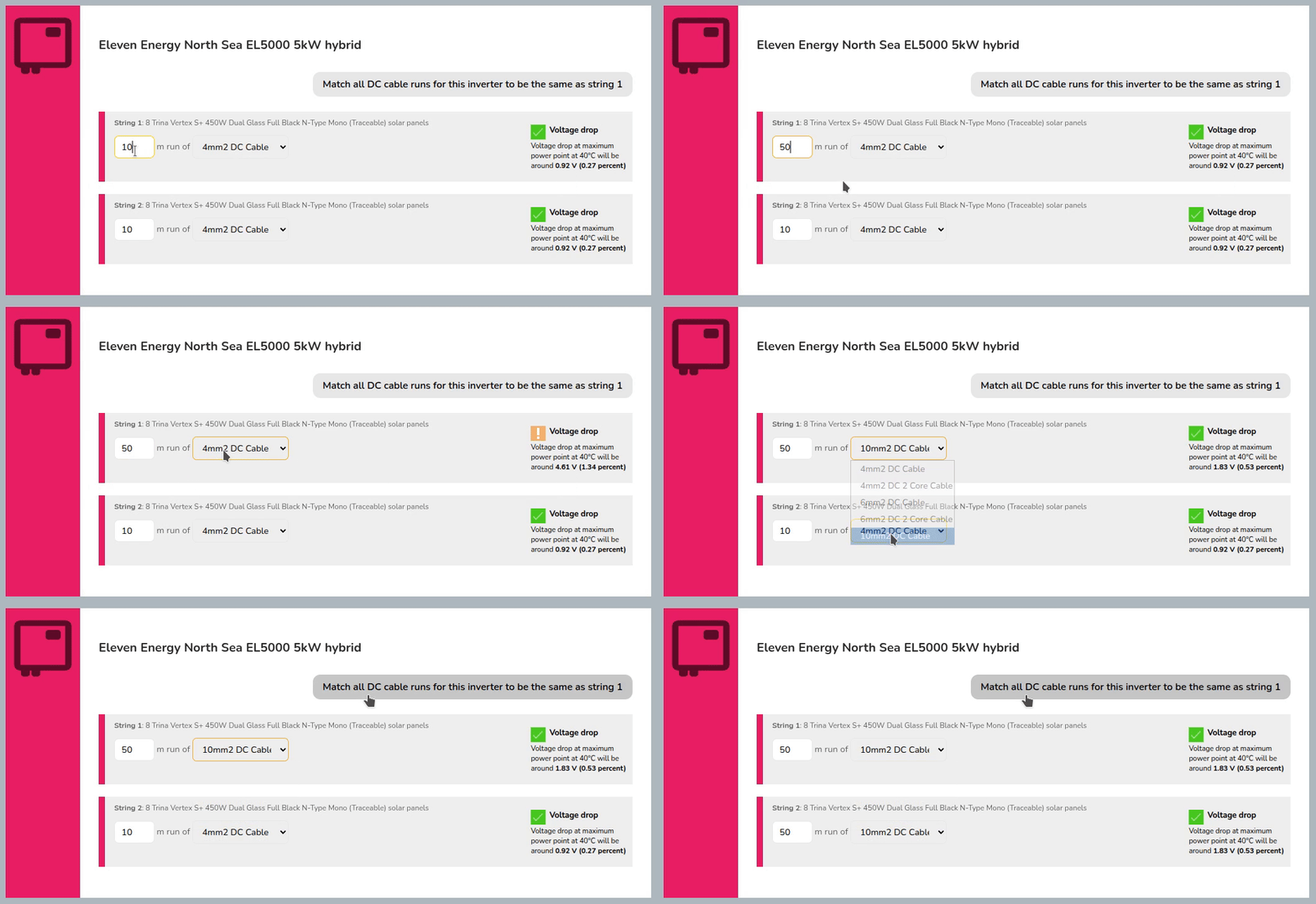
Specify the length of run and cable cross section of the DC cable to check voltage drop.
- Enter the DC cable run lengths and select the size.
- Use
Match all DC cable runs...button to bulk edit cable size and lengths for that inverter.
If you're not looking to add Solshare, at this point click Next: AC Isolators.
SolShare
Then:
- Select which inverters you wish to be paired with SolShare
- Select how many connections the SolShare will be supplying
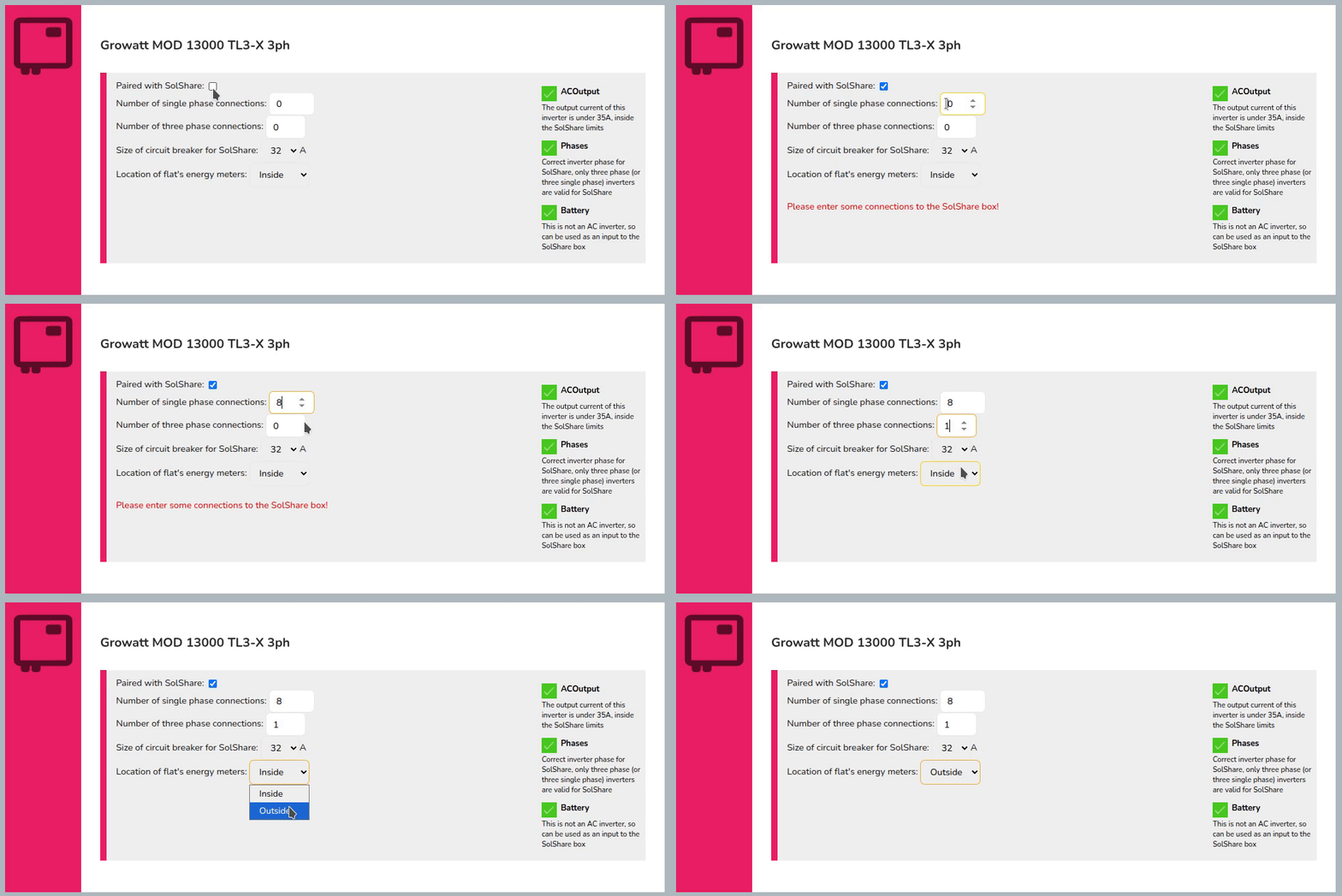
If the selected inverter is not compatible with Solshare, you will not be able to add one. For guidance on designing a SolShare system, chat to your Midsummer account handler. SolShare requires a minimum of 6x single-phase or 2x three-phase connections. The site must have a multi-service distribution board (MSDB) supplied by 1x incoming supply to enable SolShare system to work. Read more about Solshare here.
AC Isolators
Specify an appropriate AC isolator for each inverter in your project, and check that it has an appropriate current rating.
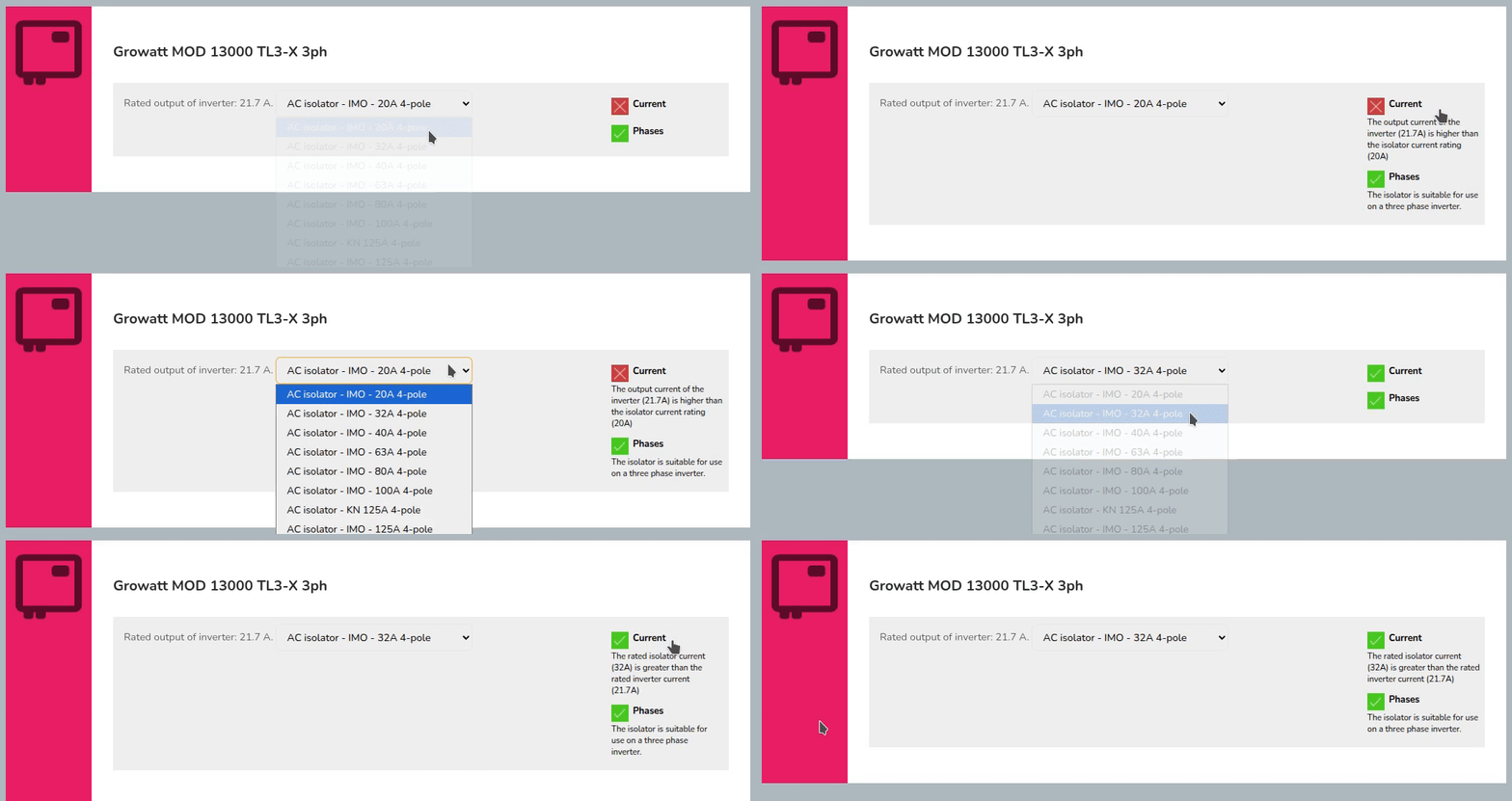
Once selected, you can then click Next: Meters.
Meter
In this section, you'll be able to select from compatible generation meters.
If no meters supplied by Midsummer are compatible, you will only have the option to select No meter thanks. You can also add a custom meter.
Then click Next: Extras.
Extras
Add monitoring, immersion controllers, battery storage and accessories to your project.
Any extras required for components you've already added to the system will be selected automatically. Increase the count of any other extras you'd like included in the project.
A Smug Bug will be added automatically in the 'Extras' if you have Smug smart battery optimisation toggled on by default, and if you have selected a compatible inverter. 
To finish of the electrical task, click Next: overview. This will take you to the project overview where you can either click Add to Cart on the Midsummer basket or continue with the Performance task.
Still Need Help?
Contact Support: If you've got further questions, get in touch with our support team at help@easy-pv.co.uk (UK) or help@easy-pv.ie (IE). If you are experiencing a bug, to help us look into your issue faster, please include the email address of your account, the name of the project and screenshots of any unexpected behaviour.