Creating quotes and placing orders
Account Set Up
Step 1: Log in
Step 2: Link your account to Easy PV (optional)
If you use Midsummer's free design software (Easy PV), link your Easy PV account to your Midsummer portal account via your Easy PV account settings. This allows full kit lists from your PV designs to be pushed straight into your wholesale basket.
Building Quotes
There are three primary ways to create quotes;
-
Method A (Via Easy PV Software): Create a system design on Easy PV. Click the button above the bill of materials to add kit to your basket.

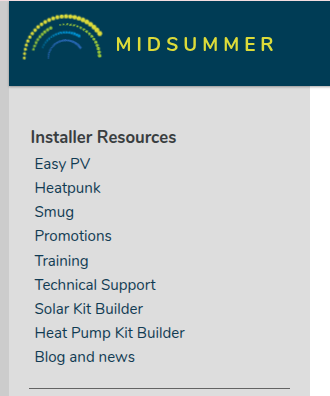
- Method B (Using the Solar Kit Builder): Use the solar kit building (located in the 'installer resources' on the left hand side of the website. This will automatically create an accurate bill of materials for you based off of the roof type and proposed panel layout.

Open your cart. Check live stock availability. If an item is out of stock, a red warning banner will display the expected inbound availability date.
Instead of checking out immediately, select Save Cart as Quote. Add a project reference name (e.g., Job Ref / Client Name). Your quote is now generated and saved under your account dashboard for 30 days. You can download it as a PDF or CSV.
Turning a Quote into an Order
Go to My Account > Saved Quotes. Locate your quote and click Load into Cart. You can adjust quantities or add/remove items if necessary.
Enter your internal project reference or Purchase Order (PO) Number in the designated field. Ensure the prices on your internal PO match the prices shown on Midsummer's portal confirmation.
Review your final summary.