# Speedy PV V.2
If you would like to try out our new, more advanced version of Speedy PV. Follow the steps in this guide.
# Speedy PV V2.
#### Enabling the tool in Pro Account Settings
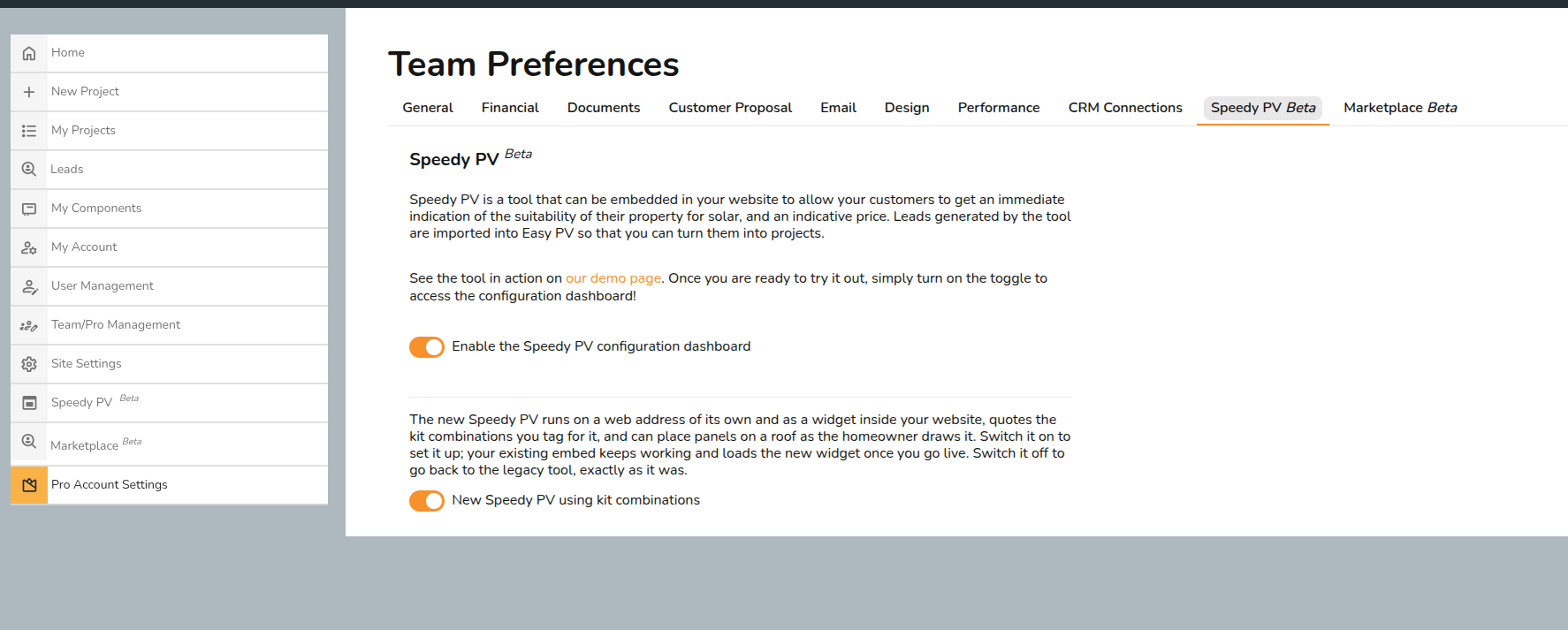
To configure Speedy PV, navigate to **Pro Account Settings** and go to the **Speedy PV Beta** tab. Then enable the Speedy PV configuration dashboard. If you would like to try out the new version please enable 'New Speedy PV using kit combinations'
[](https://help.easy-pv.co.uk/uploads/images/gallery/2026-10/H3stjVXnQ9mQMsJT-image.png)
#### Setting up website domain
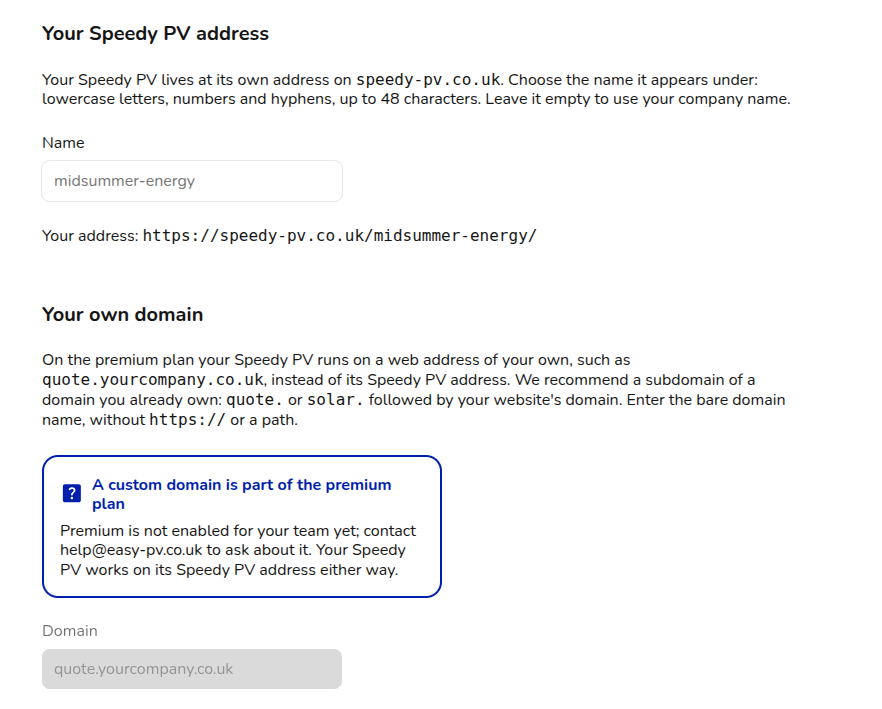
You can choose to have it linked to a site managed by Speedy PV or you can run it on a website of your own (premium plan feature).
[](https://help.easy-pv.co.uk/uploads/images/gallery/2026-10/bqcI4G6fAD9iJao0-image.png)
#### Contact details
On the contacts tab, put in the details for people to use when they need to contact you for more information. These will usually be your main office or sales phone number and email address.
#### Branding
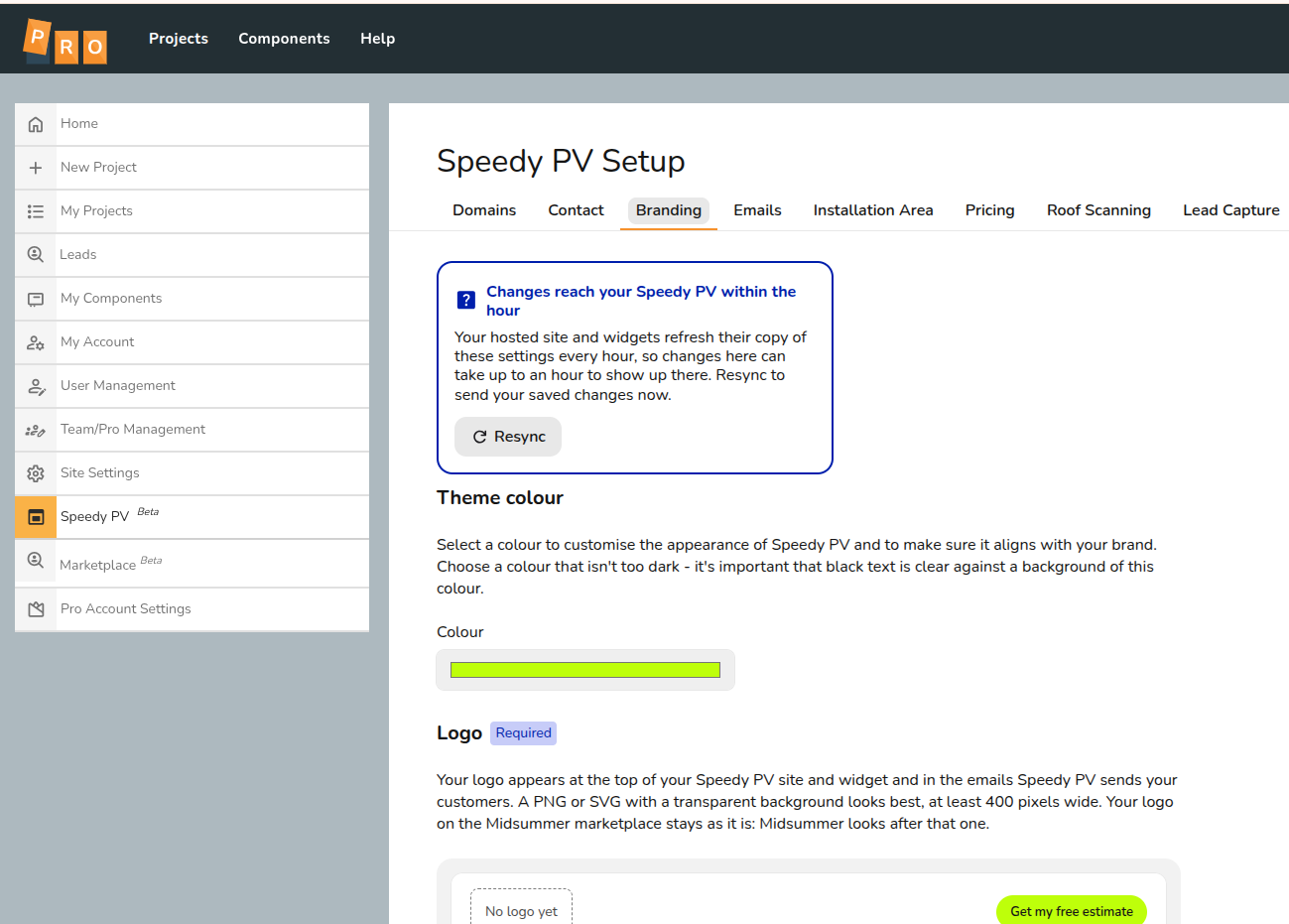
On the branding tab, you can set the theme colour to use for the iconography colour scheme and any buttons in the tool.
You will also need to add your logo
[](https://help.easy-pv.co.uk/uploads/images/gallery/2026-10/kZr2yIS74UFx0Sqy-image.png)
#### Emails
On the emails tab you can add an email signature that will appear at the bottom of the emails that are sent by the system.
You will need to configure SMTP email credentials for one of your email addresses so emails will be sent from that address instead of a no reply at EasyPV email address. **If you use Microsoft 365 or Gmail you can connect your email via the OAuth2.0 method.**
You can also add in other email addresses to copy in on the emails that are sent so that could be an email for your sales team or another generic mailbox.
#### Pricing settings
To use Speedy PV, you must set up automatic pricing rules, so the correct estimates can appear for your project. If automatic pricing is already set up then nothing needs to be changed here.
If automatic pricing is not already set up then you can follow these steps on our [guide](https://help.easy-pv.co.uk/books/getting-started-f2k/page/setting-up-your-automatic-pricing-calculator "Setting up your Automatic Pricing Calculator").
#### Lead Capture
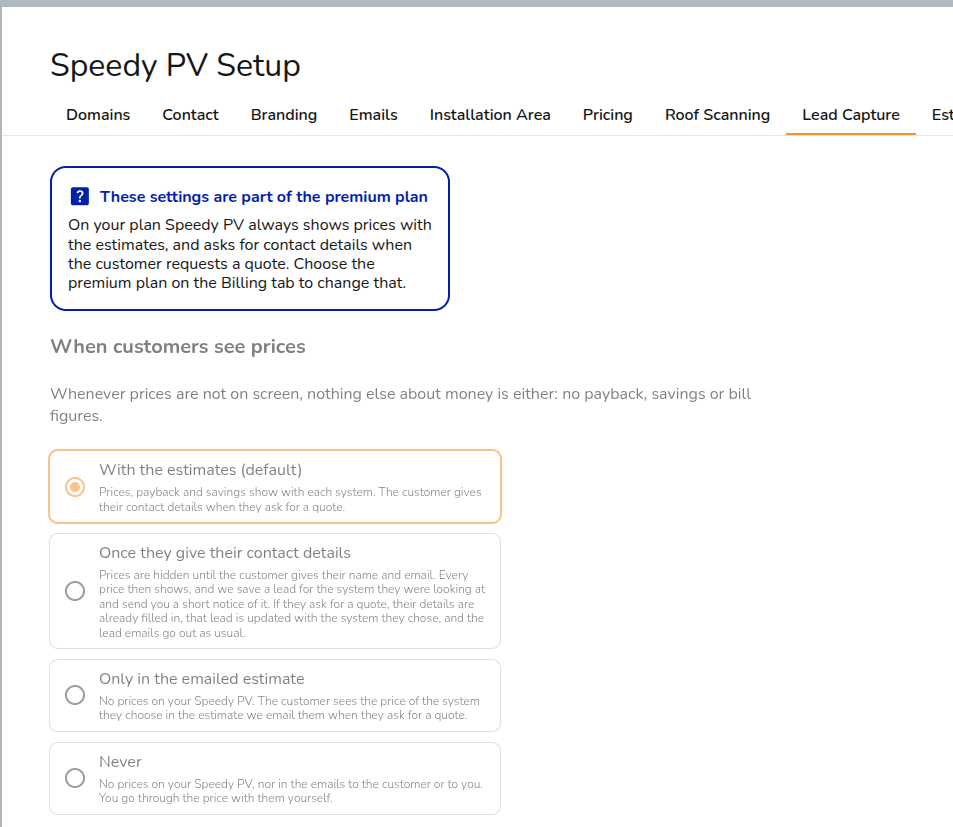
You can choose when to collect the customers details whether it is before or after they see estimates or you can hide pricing completely. These settings are part of the premium plan.
[](https://help.easy-pv.co.uk/uploads/images/gallery/2026-10/tktBoCyXAuQUJb5r-image.png)
Estimate configuration/ Kit combinations
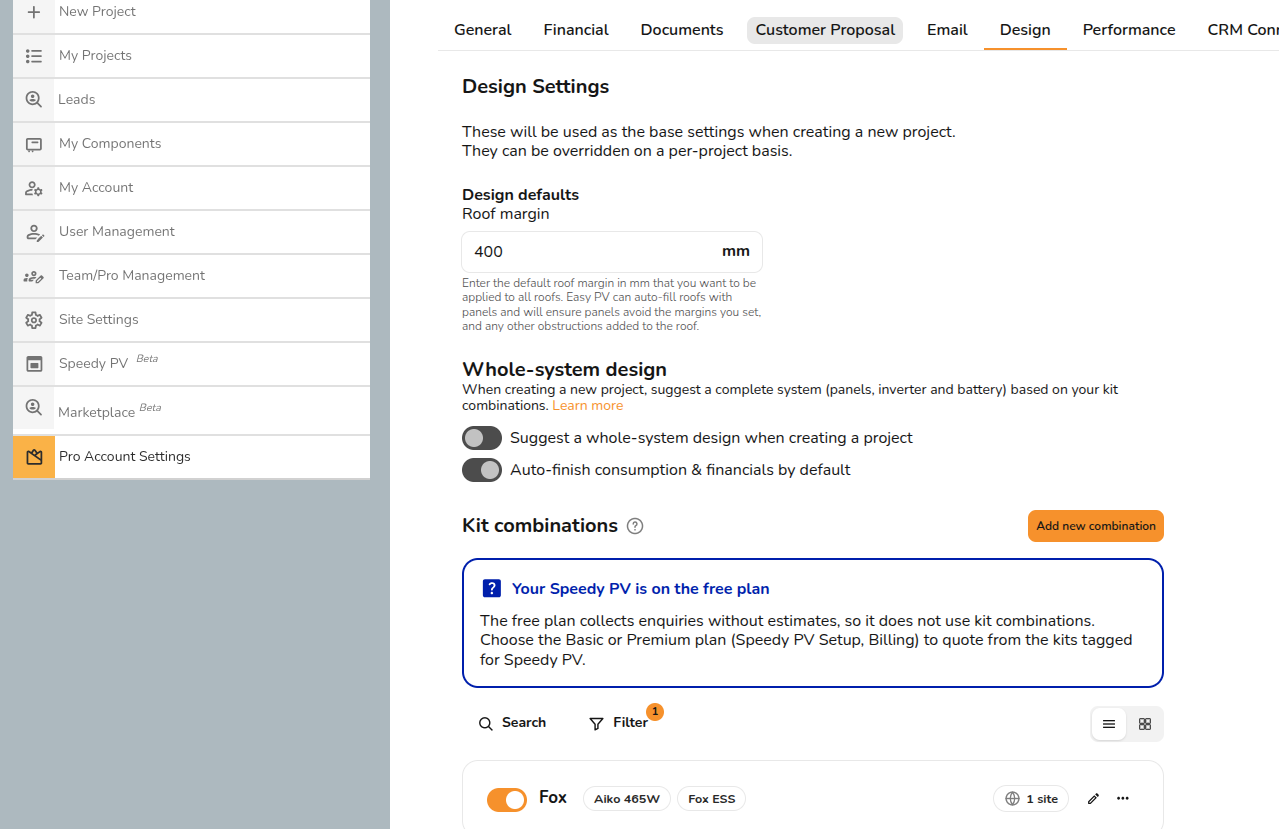
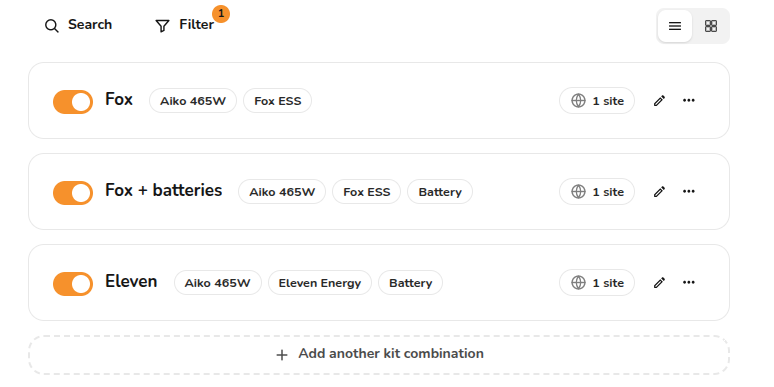
The free plan collects enquiries without estimates, so it does not quote your kit combinations. On the Premium plan, your Speedy PV offers a homeowner one system for each kit combination. Switch this on to head each system with its kit combination's name, so a homeowner with a brand in mind can find it straight away. Names are shown exactly as they are written on your Kit Combinations page, so check they read well to a customer first.
You will need to set up your kit combinations under 'Pro Account Settings' > 'Design'
[](https://help.easy-pv.co.uk/uploads/images/gallery/2026-10/CMIEgydt34L6gvww-image.png)
[](https://help.easy-pv.co.uk/uploads/images/gallery/2026-10/WljqDzoulBTMoaMB-image.png)
We recommend having a few combinations with and without batteries.
#### Terms
On the terms tab, read through the specific terms for Speedy PV and once you're happy, click I accept the terms of use.
#### Billing
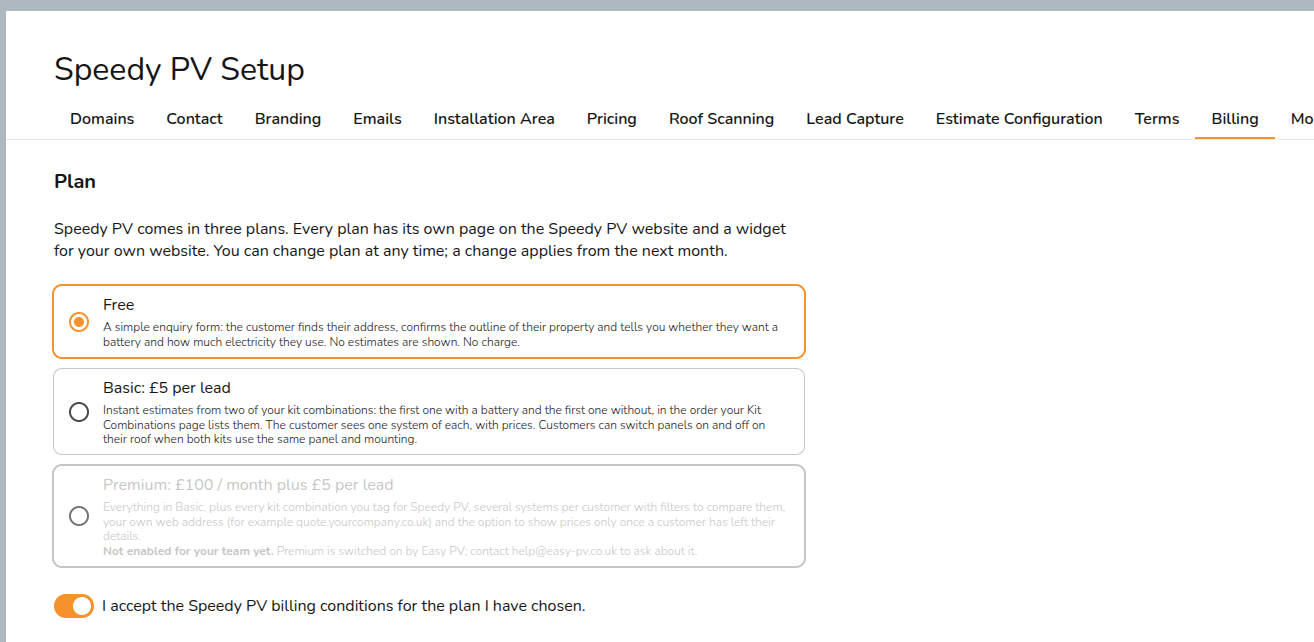
On the billing tab you will need to select and accept the billing conditions.
Speedy PV V2 is available for free (enquiry form) but there is also basic and premium versions available for added detail and customisations
[](https://help.easy-pv.co.uk/uploads/images/gallery/2026-10/kMdb7DuI1V5Ioihi-image.png)
#### Test page
Once the previous sections have been completed, you can play around with a test page. This has the option of testing with the desktop or mobile version.
#### Go Live
On the ‘Go Live’ tab, you will be able to see the following checklist:
[](https://help.easy-pv.co.uk/uploads/images/gallery/2024-09/OEYKWaJE9p7h36c4-4.png)
If any required sections are not completed, go back and fix any errors. Once all required fields are checked and you are happy with everything, you can then embed the tool into your website by following the instructions in this article: [Embedding Speedy PV into your Website](https://help.easy-pv.co.uk/books/speedy-pv/page/embedding-speedy-pv-into-your-website).
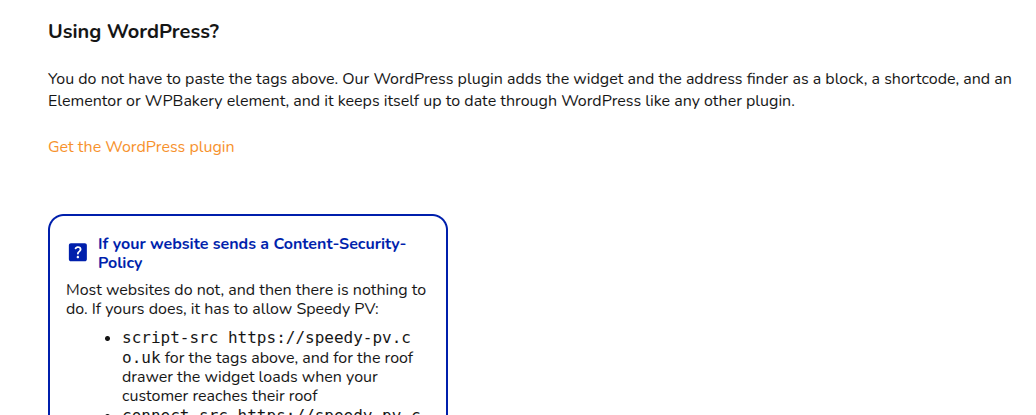
We also have a new WordPress PlugIn located on the 'Preview' page.
[](https://help.easy-pv.co.uk/uploads/images/gallery/2026-10/pZ7DUU2ETuMf1pSS-image.png)
Once that's all done, you can then start using the tool in your website! If you have any questions, please contact our support team at .