# Pro: Team Management
Team management allows you to have control over who is on your Easy PV Pro Team and the permissions they have.
---
## **Managing your team**
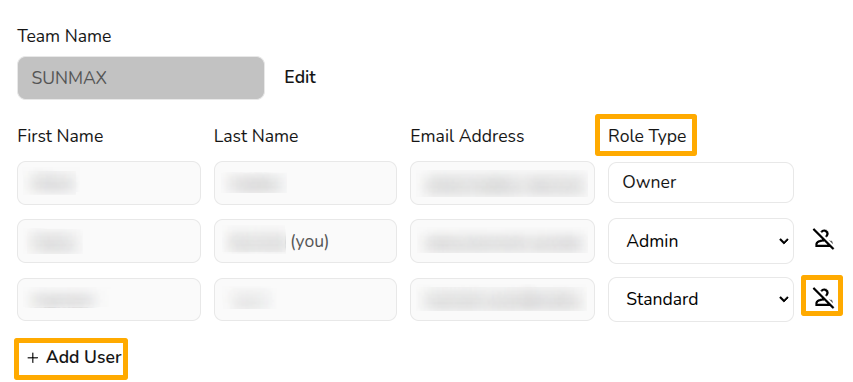
You can manage your team settings in **Pro Account Settings** > **General**. The team owner and any users with the admin role type can add and remove users, as well as change their role type.
[](https://help.easy-pv.co.uk/uploads/images/gallery/2025-06/BdFWQbtSKIRukoSE-image.png)
### Role types
With Easy PV pro, different members of the team can have different levels of access. The roles available are:
- **Admin**: role includes the ability to view and manage Pro team settings
- **Owner**: this is the user who set up the pro team and this role cannot be selected or changed. They have same permissions as admin but cannot be removed from the team, so make sure this is under an email address you can access even if the owner was to leave the company
- **Standard**: can access all pro features within projects, but cannot view or edit the pro account settings
### Adding or removing users
To **add users**, click `+ Add user` to the bottom left of the existing team members. Then input the individual’s name and email address (they do not need an existing Easy PV account), choose the user’s role (this role can be changed at anytime) and click `Save`.
A pop-up will then appear with details about the payment for the additional user. The fee for the additional members will be pro rata until the next billing date.
[](https://help.easy-pv.co.uk/uploads/images/gallery/2025-06/7zEOhz2bvy1LQhKP-image.png)
To **remove a user**, click the [](https://help.easy-pv.co.uk/uploads/images/gallery/2026-07/uLo7QNW94kloelqt-image.png) icon beside their details. This will disable their account and remove them from the subscription. The owner account cannot be removed so ensure it is under a company email address.
### Editing users
User names or email addresses cannot be edited here. This can only be done while logged into the relevant account. If you've made a typo when adding a new user to your team and cannot access the account, get in touch with the [support team](mailto:help@easy-pv.co.uk).
---
## Still Need Help?
- **Related FAQs:** Check out our [Pro FAQs](https://help.easy-pv.co.uk/books/faqs/chapter/pro "Pro")
- **Related guides**: Take a look at [Setting Up Your Pro Account](https://help.easy-pv.co.uk/books/getting-started-with-pro/page/setting-up-your-easy-pv-pro-account) or [Sharing Projects and Components](https://help.easy-pv.co.uk/books/getting-started-with-pro/page/pro-share-projects-and-components)
- **Demo session:** [Book onto a demo session](https://cal.com/easy-pv/pro-training) to see this feature in action
**Contact Support:** If this guide didn't resolve your issue, get in touch with our support team at **help@easy-pv.co.uk** (UK) or **help@easy-pv.ie** (IE).