Pro: Share projects and components
With Easy PV Pro you're able to collaborate with your team by sharing projects and components. See below how you can configure your sharing settings.
Understanding sharing options
You will have the following options when sharing projects and components in Easy PV:
- View: Users will be able to view projects or use the component, but not edit it.
- Edit: Users will be able to view and make changes to the project or component.
- Manage: Users will be able view, edit and permanently delete the project or component, transfer ownership of the project and change or remove other users or team's access to the project or component
Note: the Owner of a project will get email notifications when a document from that project is e-signed. The owner will also have Manage permission by default.
Default sharing
Each user in a Pro team can configure default sharing settings for the projects and components they create. Navigate to My account > Preferences > General and then Default sharing.
In this section, simply select which sharing permissions you would like to be granted automatically when creating a project or component.

Note: This will only apply to new projects and components. If you would like to share old projects or components, see below for instructions on manual sharing.
Manual sharing
If you would not like projects or components to share by default, you also have the option to share individual projects or components manually. You will also have the option to transfer ownership to another user when sharing manually.
Sharing a project
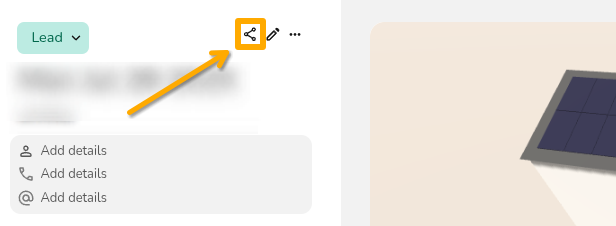
- From your project list on the My Projects page - click the
 share icon on the project you want to share
- From the project overview page of a specific project - click the share icon in the top left of the project.


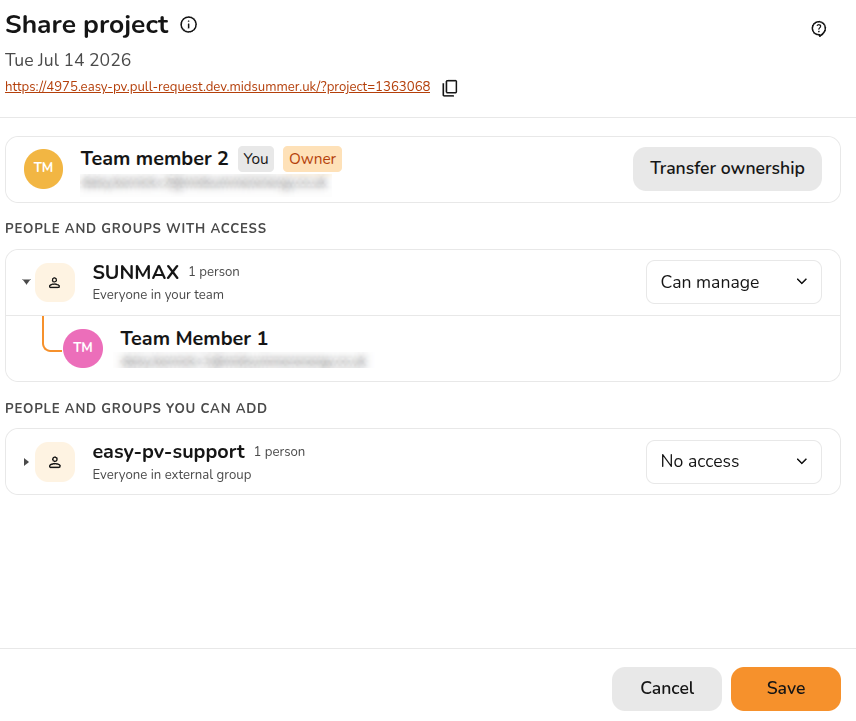
Once you have chosen the project you want to share, you can view who has access to a project and edit their permissions.
- Select permissions: Select from the drop downs which permissions you'd like given on the project
- Change owner: If you are the owner of a project or have manage permissions, you will see the option to
Transfer ownership. Click this to view the list of users you can transfer to and select the new owner. - Share link: Click the copy icon to give someone a direct link to view the project. They will need to also have the right sharing access
- Save: Click
Saveto confirm any changes
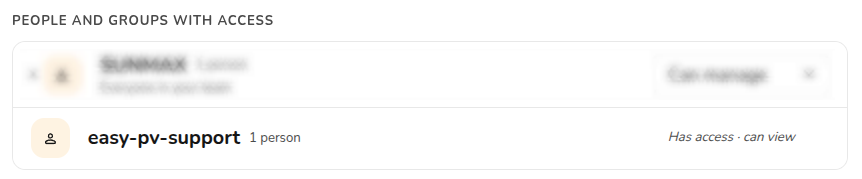
If you are not the owner of a project or do not have manage permissions, you will not be able to configure the sharing on a project:

If a user with manage permissions has shared on a project, you will see them in the list of 'People and groups with access':
Sharing a component
If you are using custom components in Easy PV, you'll be able to share any components where you have Manage permissions. Hover over the Components option in the main site navigation and then select the component type to find the component you want to share.
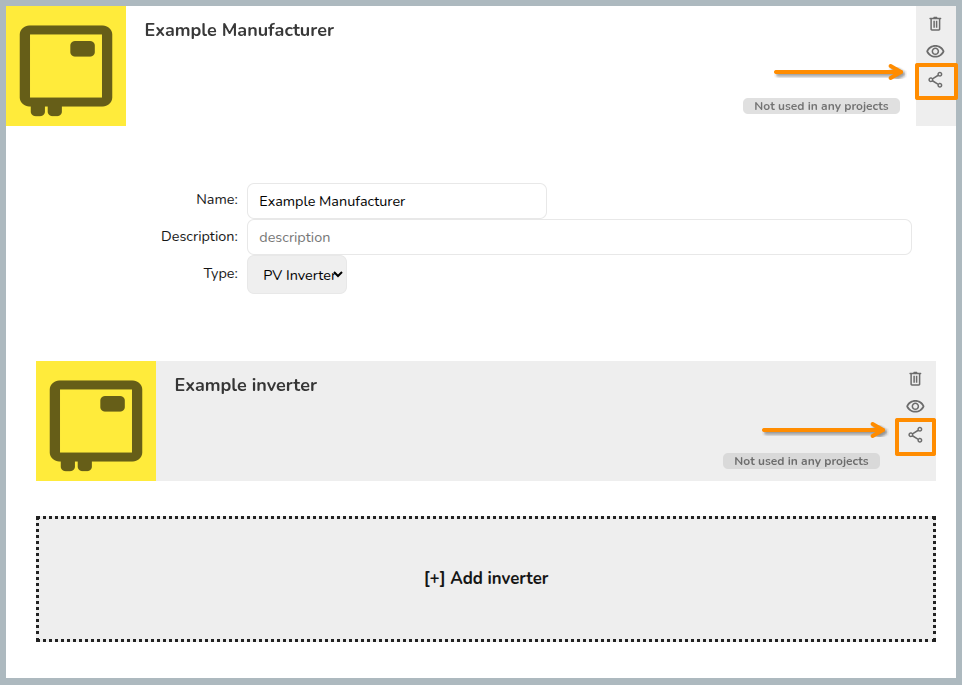
Click the  share icon to configure sharing for the component. As with projects, you can then view who has access to the component and choose which permissions to give.
Warning: For custom inverters and solar panels, you need to share both the manufacturer group and the individual component.
Viewing projects shared with you
To view projects shared with you, make sure this option is selected in the project list page:
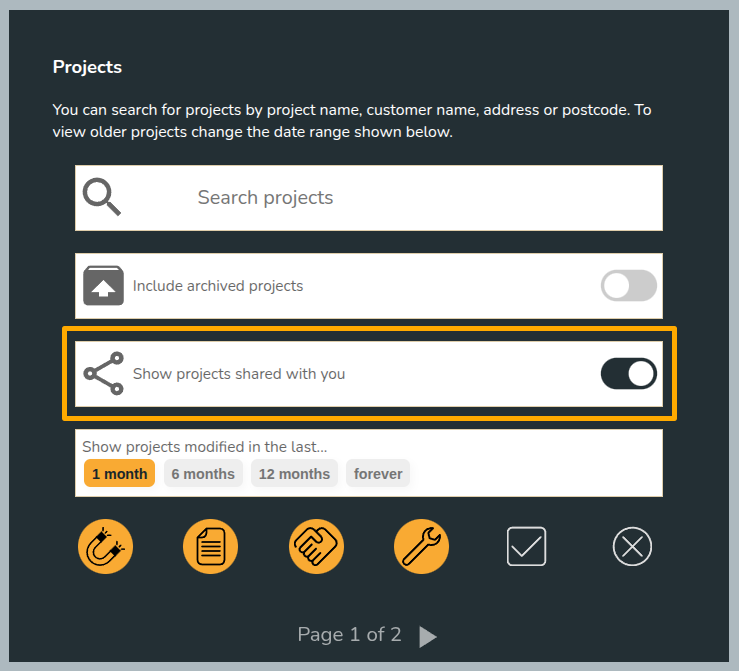
Projects owned by others will say Owned by [name] in the top right corner of the project:

Still Need Help?
Contact Support: If you require additional assistance, feel free to get in touch with our support team at help@easy-pv.co.uk (UK) or help@easy-pv.ie (IE). If you are experiencing a bug, to help us look into your issue faster, please include the email address of your account, the name of the project and screenshots of any unexpected behaviour.