# Pro: Compliance Dashboard
easy-pv.co.uk*This guide applies to Easy PV UK.*
---
The Compliance Dashboard is a centralised hub designed for Pro users to view, manage, and track document completion statuses across all projects. It ensures your work aligns with specific compliance schemes and adapts to your team's custom requirements.
## Configure your compliance settings
#### Team settings
You can customise your team's requirements, depending on your compliance scheme. Here you can choose which documents are required and what should be included in your handover pack. This will apply to all new projects that are created by members of your team. You can override this for individual projects.
1. Navigate to **Pro Account Settings** > **Compliance**.
2. Select which documents are required for compliance, and which should be included in the handover pack. You will see all of the standard documents that are available within Easy PV and you can also add your own in needed.
#### Project settings
You may want to tailor your requirements for a particular project. To set compliance requirements on an individual project:
1. Open your chosen project
2. Click the **⋯ three dots** next to 'Documents and Compliance'.
3. Select **Settings** to customise the specific required documents for this particular project.
## Dashboard
Select Compliance Dashboard from the main menu on the left-hand side of your homepage.
[](https://help.easy-pv.co.uk/uploads/images/gallery/2026-11/O1cFaNU0SW5G7jGc-image.png)
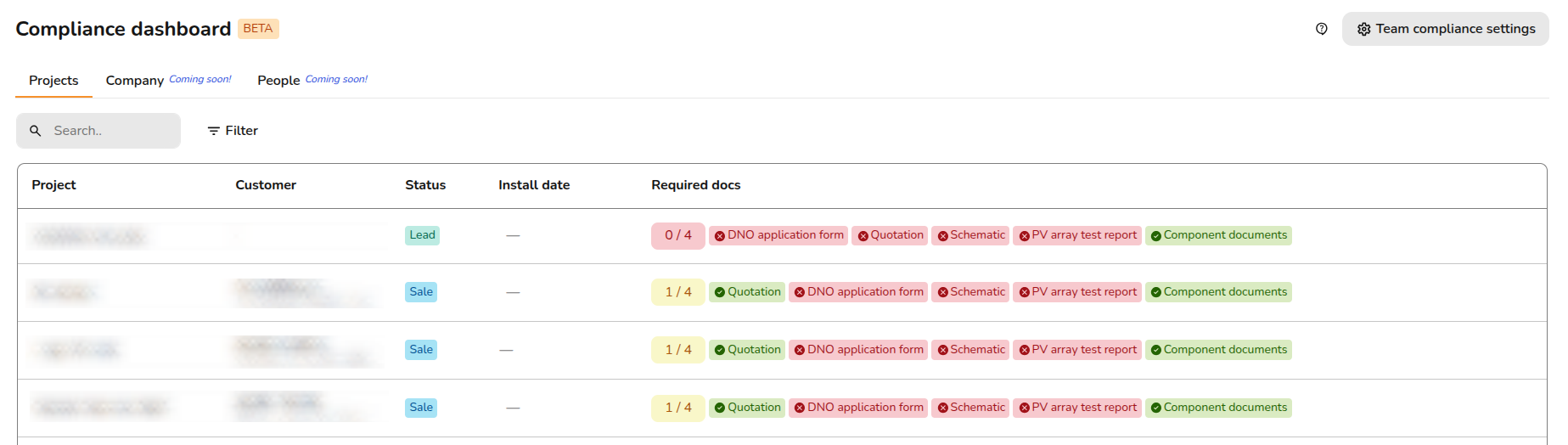
Here you can track all your projects at a glance to see which items are completed or outstanding.
[](https://help.easy-pv.co.uk/uploads/images/gallery/2026-11/y6rhUS13N3KzNHVV-image.png)
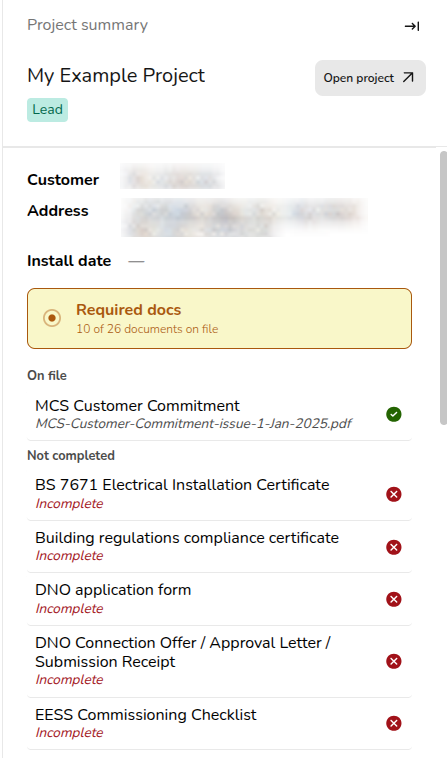
Click on any project to reveal a **sidebar** where, you can instantly manage, view, or update the documents associated with that project.
[](https://help.easy-pv.co.uk/uploads/images/gallery/2026-11/Ub1W2hKT3ALGdRLk-image.png)
## Handover Pack
When you are ready to send the handover pack, from within a project:
1. Click the **⋯ three dots** next to 'Documents and Compliance'.
2. Select **Handover pack**. Here you will be able to review all the handover documents.
3. Hit '**Generate share link**' to create a custom link to share with your customer. They can click this link to access and download all the documents in the handover pack.
This feature is currently in **Beta** and will evolve as we make improvements. We would love to hear your thoughts. Please share your feedback with our support team to help shape these updates!
---
## Still Need Help? / Want to know more?
- **Related FAQs:** Check out our [Pro FAQs](https://help.easy-pv.co.uk/books/faqs/chapter/pro "Pro") for answers to common questions
- **Related guides**: Take a look at [Setting Up Your Pro Account](https://help.easy-pv.co.uk/books/getting-started-with-pro/page/setting-up-your-easy-pv-pro-account)
- **Live Training**: [Book onto a live demo session](https://cal.com/easy-pv/pro-training) which covers all the features that you get with Pro
**Contact Support:** If you've got further questions, get in touch with our support team at **help@easy-pv.co.uk** (UK) or **help@easy-pv.ie** (IE). *If you are experiencing a bug, to help us look into your issue faster, please include the email address of your account, the name of the project and screenshots of any unexpected behaviour.*