Getting started with Pro
- Introduction to Easy PV Pro
- Setting up your Easy PV Pro account
- Pro: Share projects and components
- Pro: Team Management
- Pro: Company details and subscription settings
- Pro: Email Credentials
- Pro: Customer Proposal Customisation
- Pro: Online Proposal
Introduction to Easy PV Pro
Intended for solar professionals, our Pro tier unlocks team collaboration and access to features that can save you time and impress your customers with a professional journey through their quote and installation. This page summarises the features you gain access to with Easy PV Pro and how they can help your team.
Team collaboration
Team management settings let you configure components, pricing, defaults and permissions for all your users. Everyone works from the same setup, which keeps designs, quotes and documents consistent and reduces rework.
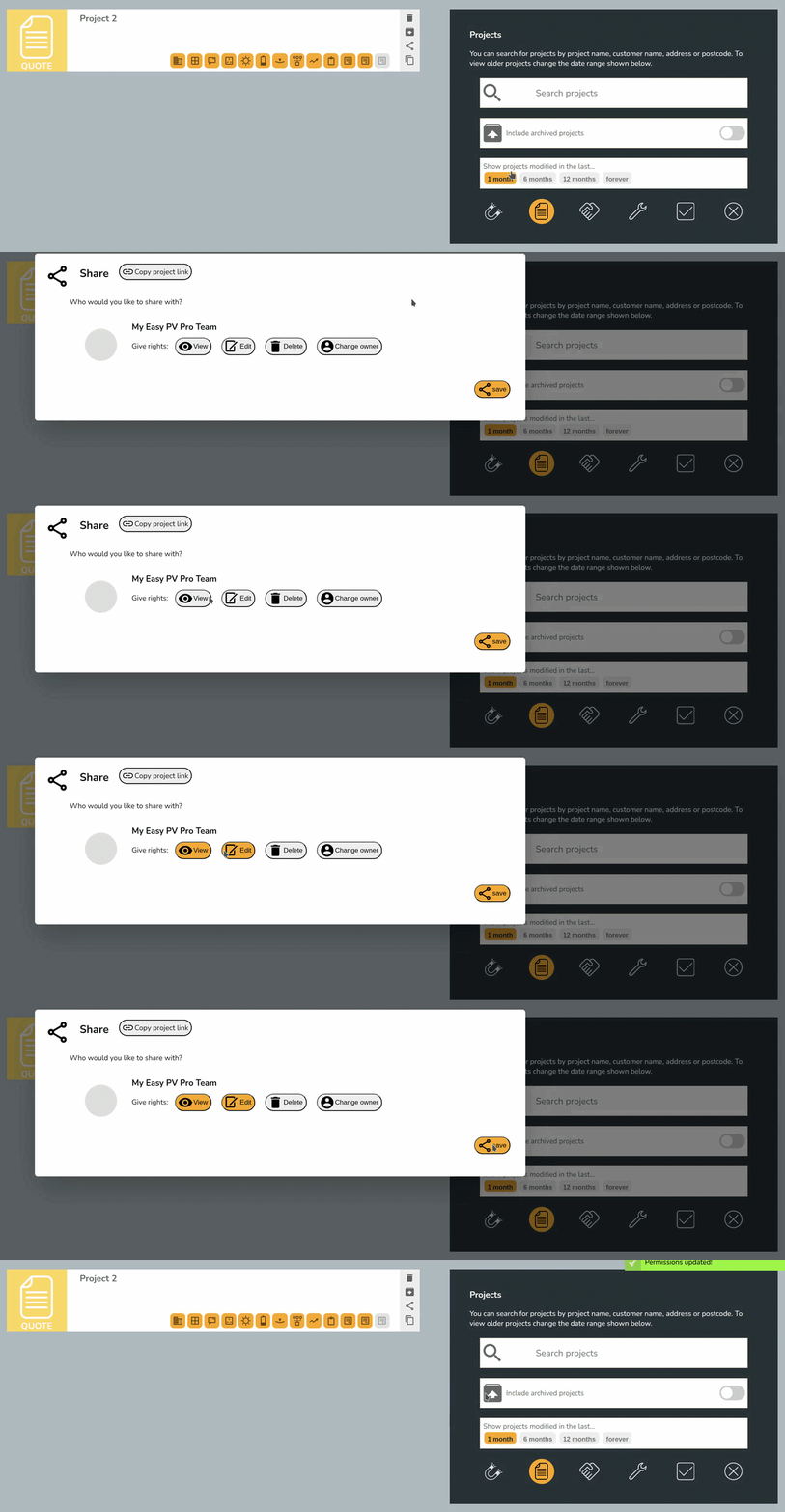
Collaborate on designs with project and component sharing and stay organised with project status tracking so everyone is on the same page.
Learn more:
Integrated survey functionality
Complete a standardised survey directly within the project with the Survey task. Ensures required information and photos are captured consistently and passed cleanly to the design and installation teams.
Create a consistent, auditable photographic record of what was installed in the Installation task. Include how the system was configured and site‑specific notes needed for future maintenance or customer support.
Learn more: How to Use Survey and Installation Record Tasks.
Professional proposals and document management
Store documents in projects
Manage additional documents required for the sale, like letters of consent, scaffolding request forms, etc., using project document storage. All project files – surveys, proposals, reports, customer documents – can be stored in one place, with no need for a separate QMS system.
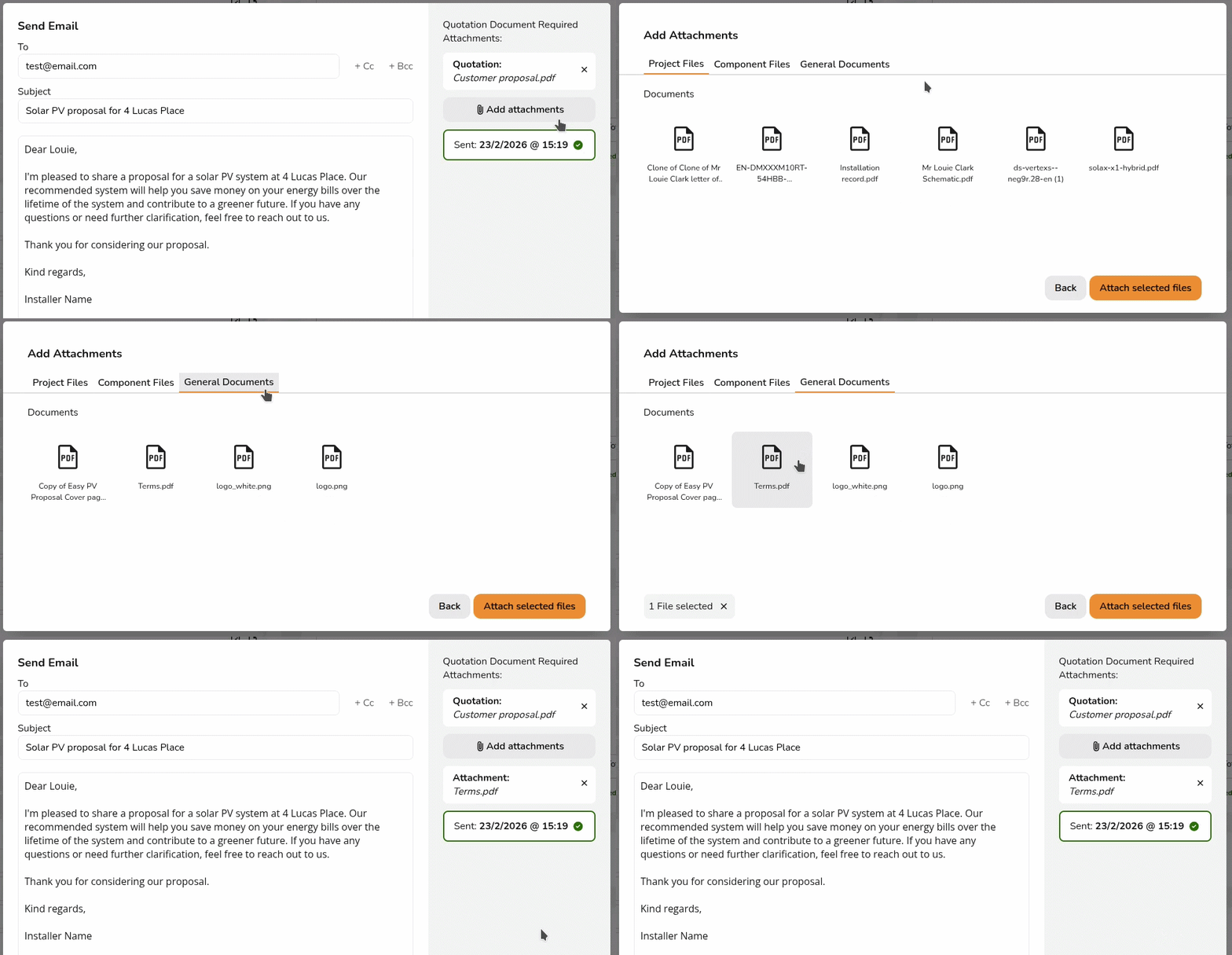
Send emails without leaving Easy PV
These documents can be attached to emails sent through Easy PV using integrated emailing functionality.
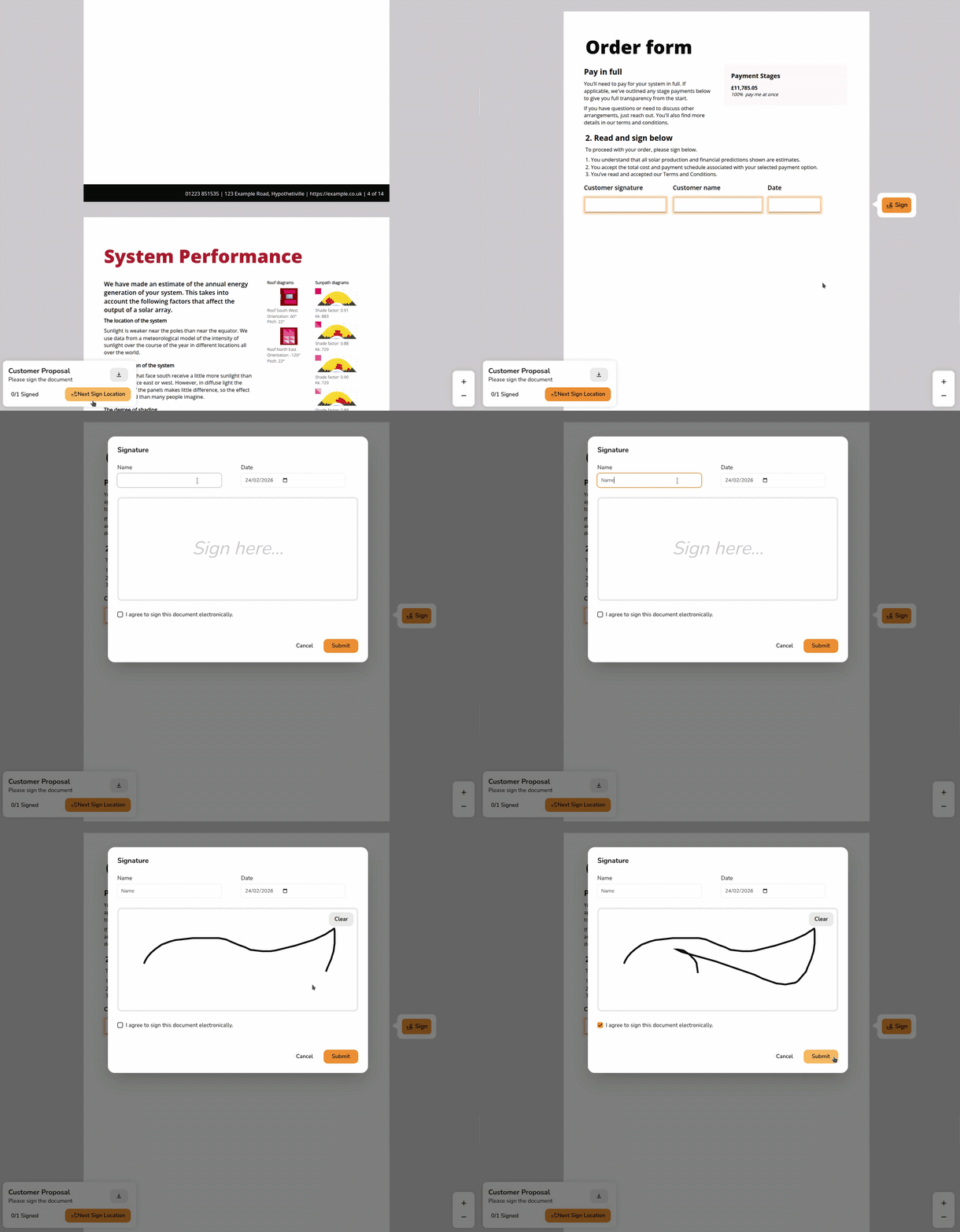
Proposal customisation and e-signing
Give your customers a professional experience with a customised customer proposal. Add a cover page, apply your branding and configure cover letters, terms and more so every proposal is consistent. Send this proposal and any other necessary documents for e-signing directly through Easy PV.
Learn more:
Speed up designs from start to finish
Lead Generation
Generate and qualify leads with Speedy PV. Speedy PV is (a paid add‑on) lets customers design their own system on your website and request a follow-up. Manage leads via Easy PV and convert them to a full project in a single click.
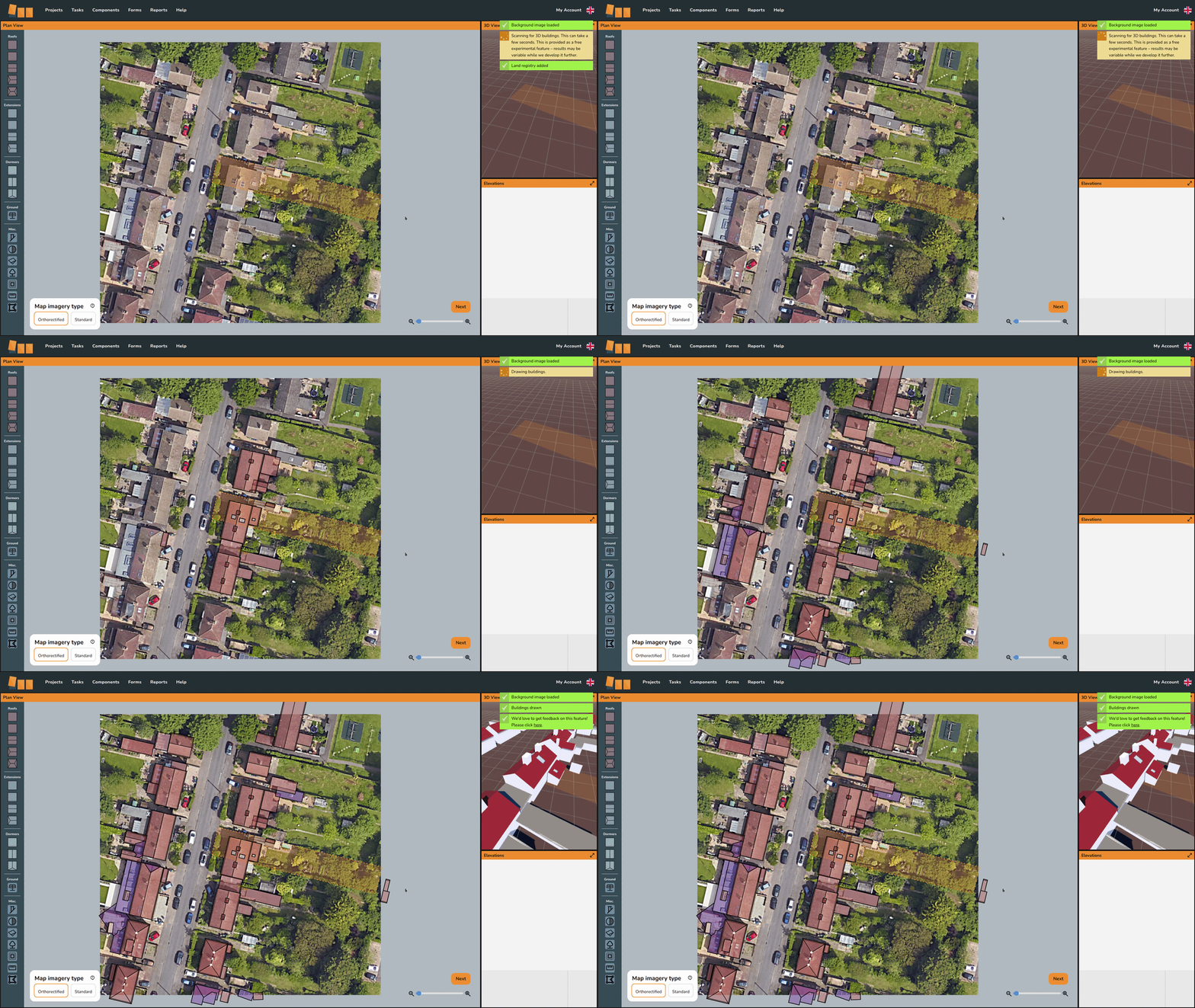
Magic designs
Get unlimited access to Easy PV's magic design mode. Magic designs will automatically generate a 3D model based on aerial data, which can then be adjusted for accuracy.
Faster DNO applications
Speed up DNO applications using our ENA Connect Direct integration. Project and survey information is pre‑populated to reduce manual entry, cut down on mistakes and help ensure applications are submitted correctly the first time. Track the status of your application via emails from the DNO and in the project overview in your Easy PV project.
Learn more:
- Speedy PV: turn curiosity into commitment
- Watch the same property be designed using 3D and magic mode
- How to Send a DNO Application via Connect Direct
Integration with other tools
Connect Easy PV directly with the other systems your business relies on using our open APIs. You can push customer or lead information into Easy PV to create projects automatically and pull project data and documents from Easy PV into your CRM.
Learn more: Open API Documentation.
Interested to know more?
- Related guides: Get started by looking at how to How to Set Up Your Easy PV Pro Account and about How Pro Can Help Your Team Work More Efficiently.
- Live Training: Book onto a live demo session which covers all the features that you get with Pro.
- FAQs: Take a look at our pro FAQs for common questions.
If you have further questions about Pro or are interested in a free trial, get in touch with our support team at help@easy-pv.co.uk (UK) or help@easy-pv.ie (IE).
Setting up your Easy PV Pro account
Upgrading your account
The first step in setting up your Pro team is to upgrade your account!
Make sure you're logged into the account you would like to be the Owner of the Pro team. This Owner account cannot be changed or removed from the team. Other members of the team are added during the upgrade process.
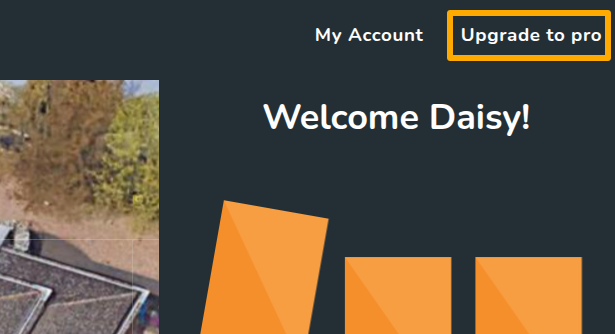
- Click Upgrade to Pro in the top right corner
- Add team members and set their role type
- Connect to Midsummer
- Fill in billing details
- Set up payment
- easy-pv.co.ukPay via GoCardless instant bank payment
- easy-pv.ieSet up Stripe payment
Note: Some banks do not support instant payments so if you're having trouble setting up the payment, please get in touch so we can do this manually.
Note: when you upgrade, you keep your existing account and projects, but just with access to Pro features.
Configure team settings
Correctly setting up your team preferences can help you make the most of Easy PV Pro. Navigate to Pro account settings and click through each tab to set this up. Find further information in each section below.

1. General
If you have multiple users in your team, you can edit team members and what role they have here.
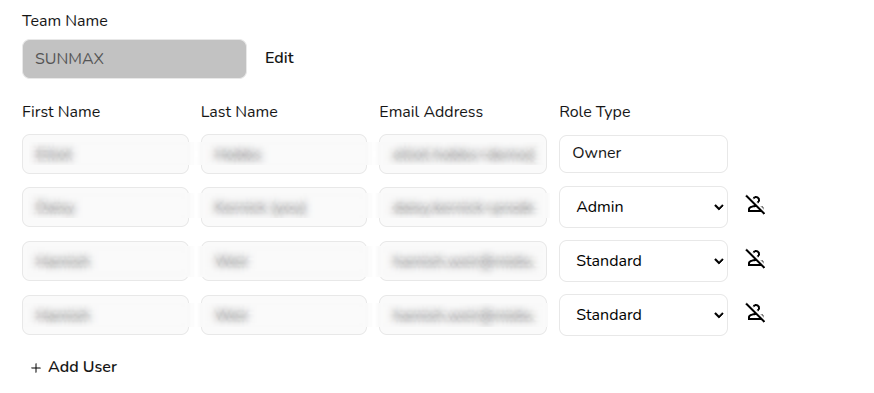
Learn more: Pro team management and user roles.
The details you set under Company Details will be used throughout Easy PV tasks, forms, and reports.
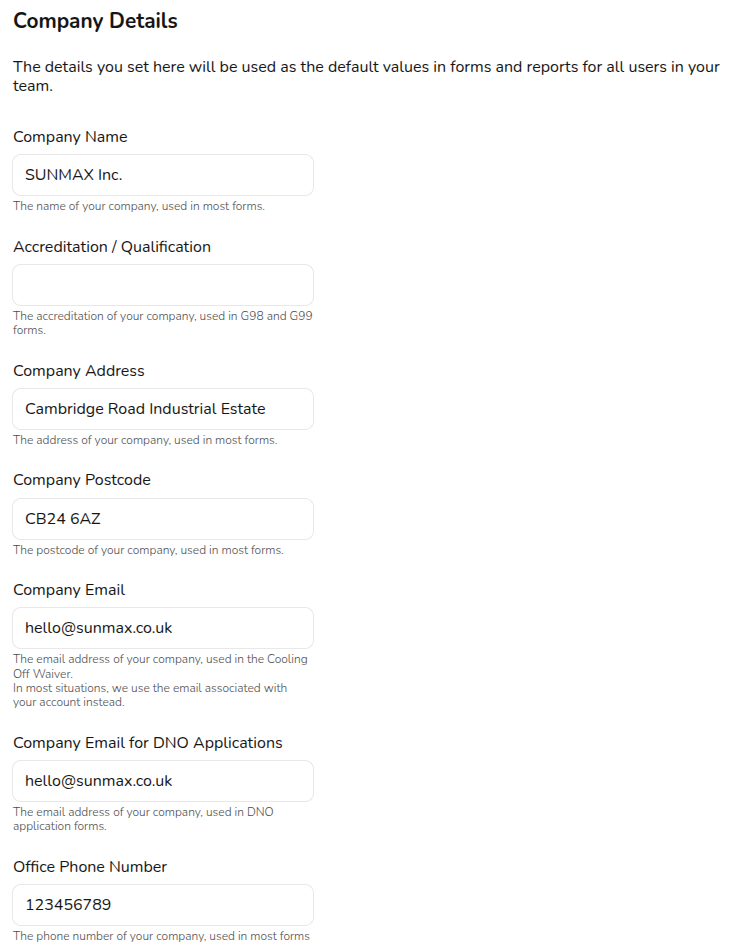
At the bottom of this section you can view and change your subscription status.
2. Configuring financial settings
In the Financial tab you can configure financial defaults for your team. Many of these settings are the same as those available in user settings. Team financial settings override user financial settings and apply consistently across your team's projects.
Learn more: Setting financial defaults.
3. Upload team documents
Any files uploaded to the documents tab will be accessible to any user in the team when sending emails through Easy PV. Upload your terms and conditions, MCS certificate or anything else you would like available for all projects.
4. Set up customised proposal
With Easy PV Pro you have the option to customise the customer proposal to align more with your branding.
Learn more: Setting Up Your Customised Proposal.
5. Configure email credentials
With Easy PV Pro you can send emails to your customer within projects. By setting up your email credentials, it means these emails will send from your domain, rather than from no-reply@easy-pv.co.uk.
Learn more: How to Set Up Email Credentials.
6. Design
Adjust the default roof margin for new projects.
7. Performance
Adjust the defaults used in the performance task.
Learn more: Performance Task Preferences.
8. CRM connections
In this tab you can access your API key to connect with CRMs and job management platforms.
Learn more:
- Existing Integrations
- Developer guidelines for setting up your own integration
9. Speedy PV
If you're interested in setting up Speedy PV, enable the Speedy PV configuration dashboard.
Learn more: Setting up Speedy PV.
Getting start with Pro features in a project
Once you've configured your Pro account settings, you can get started using Pro features within a project.
Project statuses
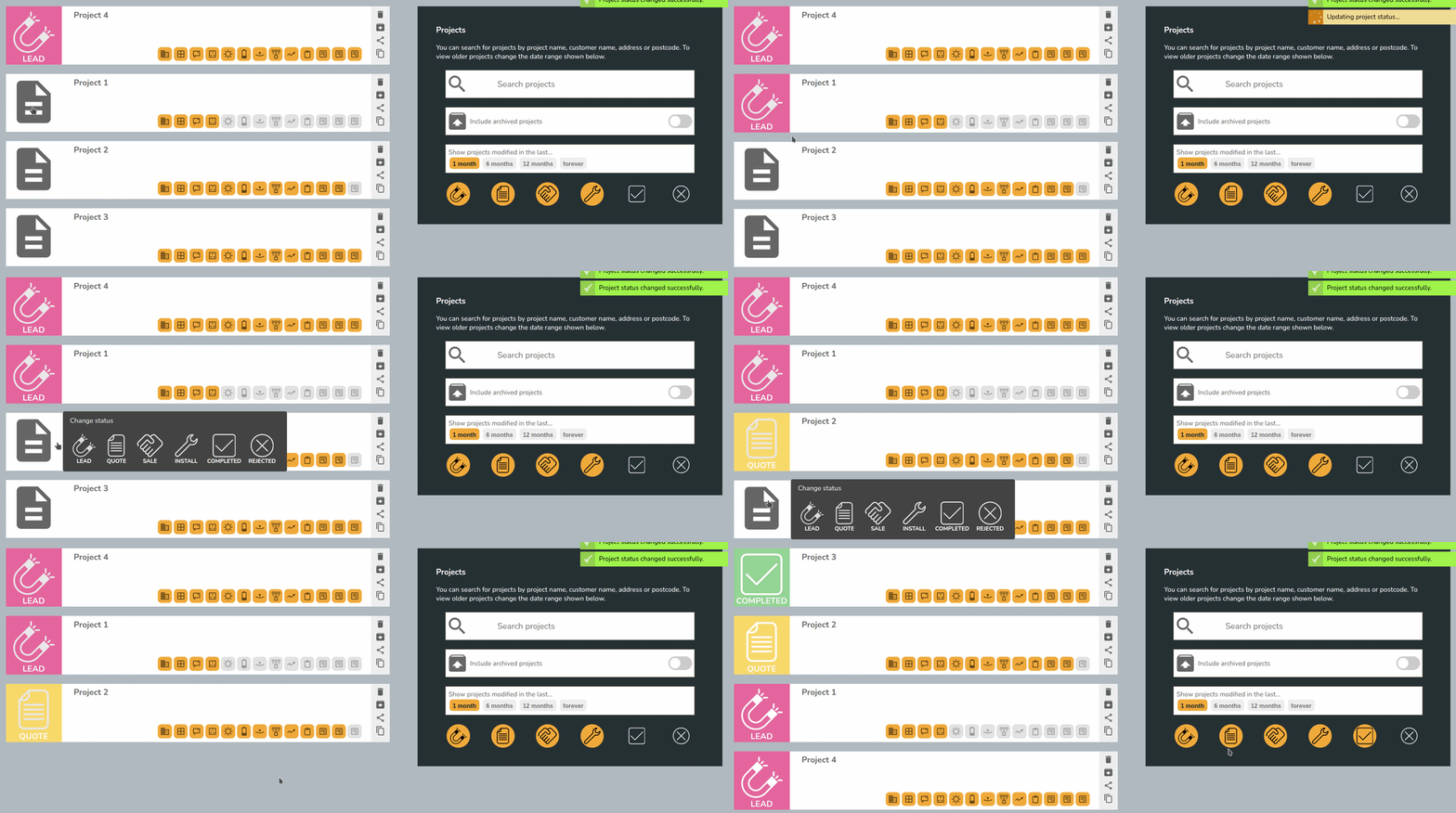
From the project overview, you'll now be able to set the status on your project. Use filters on the right-hand side to view jobs in each stage.
Project and component sharing
If you'd like new projects or components shared by default, navigate to My account > Preferences > General and then Default sharing. Select the permissions you'd like to be given by default on new projects. These settings are account (not team) specific so will only apply to the account you are logged into.

Old projects and components will not be shared with your team by default. Any old projects you'd like shared with your Pro team, you can share manually.
Learn more: Project and Component Sharing.
Using project features
Learn more about the Pro features you can now use in projects:
- E-signing
- Document storage
- Sending emails
- Survey and install records
- DNO applications via Connect Direct
Interested to know more?
Contact Support: If you've got unanswered questions, feel free to get in touch with our support team at help@easy-pv.co.uk (UK) or help@easy-pv.ie (IE).
Pro: Share projects and components
With Easy PV Pro you're able to collaborate with your team by sharing projects and components. See below how you can configure your sharing settings.
Understanding sharing options
You will have the following options when sharing projects and components in Easy PV:
- View: Users will be able to view projects or use the component, but not edit it.
- Edit: Users will be able to view and make changes to the project or component.
- Manage: Users will be able view, edit and permanently delete the project or component, transfer ownership of the project and change or remove other users or team's access to the project or component
Note: the Owner of a project will get email notifications when a document from that project is e-signed. The owner will also have Manage permission by default.
Default sharing
Each user in a Pro team can configure default sharing settings for the projects and components they create. Navigate to My account > Preferences > General and then Default sharing.
In this section, simply select which sharing permissions you would like to be granted automatically when creating a project or component.
Note: This will only apply to new projects and components. If you would like to share old projects or components, see below for instructions on manual sharing.
Manual sharing
If you would not like projects or components to share by default, you also have the option to share individual projects or components manually. You will also have the option to transfer ownership to another user when sharing manually.
Sharing a project
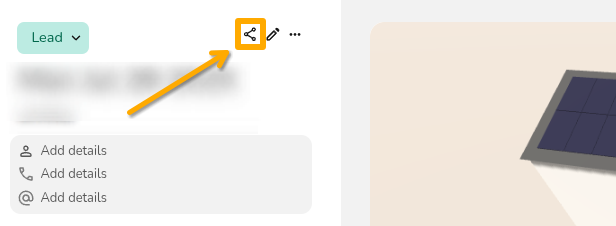
- From your project list on the My Projects page - click the
 share icon on the project you want to share
- From the project overview page of a specific project - click the share icon in the top left of the project.


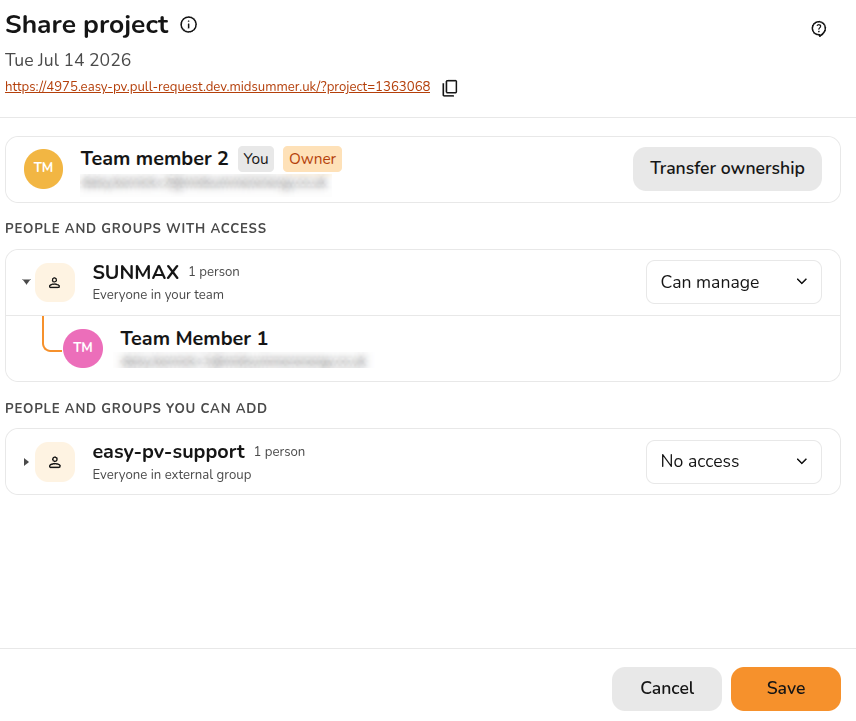
Once you have chosen the project you want to share, you can view who has access to a project and edit their permissions.
- Select permissions: Select from the drop downs which permissions you'd like given on the project
- Change owner: If you are the owner of a project or have manage permissions, you will see the option to
Transfer ownership. Click this to view the list of users you can transfer to and select the new owner. - Share link: Click the copy icon to give someone a direct link to view the project. They will need to also have the right sharing access
- Save: Click
Saveto confirm any changes
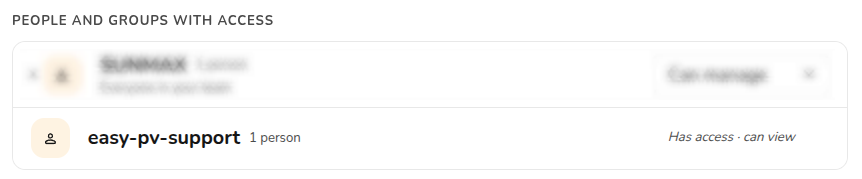
If you are not the owner of a project or do not have manage permissions, you will not be able to configure the sharing on a project:

If a user with manage permissions has shared on a project, you will see them in the list of 'People and groups with access':
Sharing a component
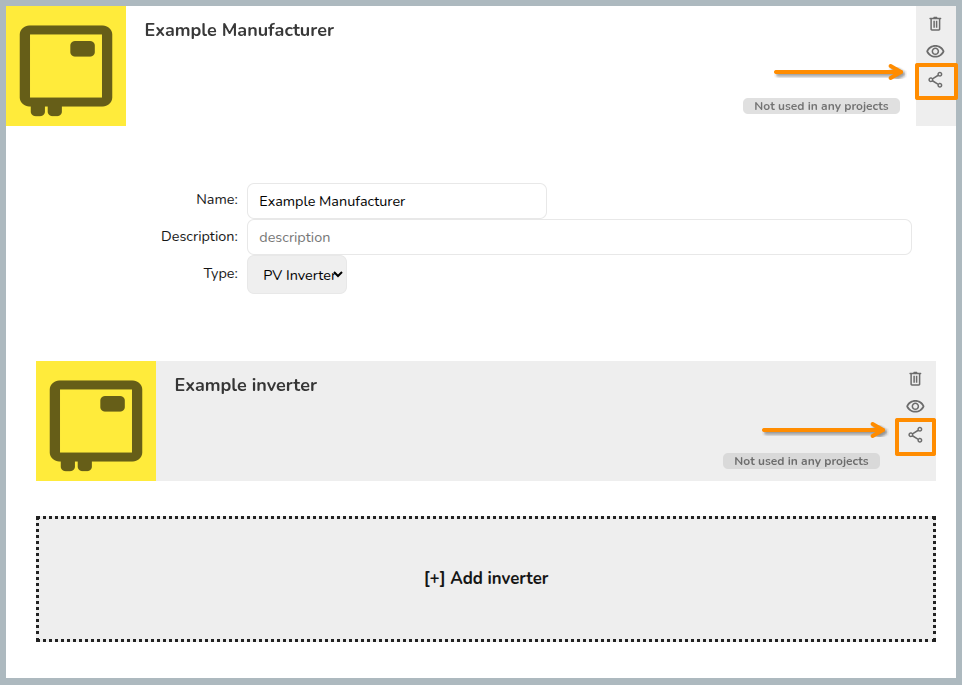
If you are using custom components in Easy PV, you'll be able to share any components where you have Manage permissions. Hover over the Components option in the main site navigation and then select the component type to find the component you want to share.
Click the  share icon to configure sharing for the component. As with projects, you can then view who has access to the component and choose which permissions to give.
Warning: For custom inverters and solar panels, you need to share both the manufacturer group and the individual component.
Viewing projects shared with you
To view projects shared with you, make sure this option is selected in the project list page:
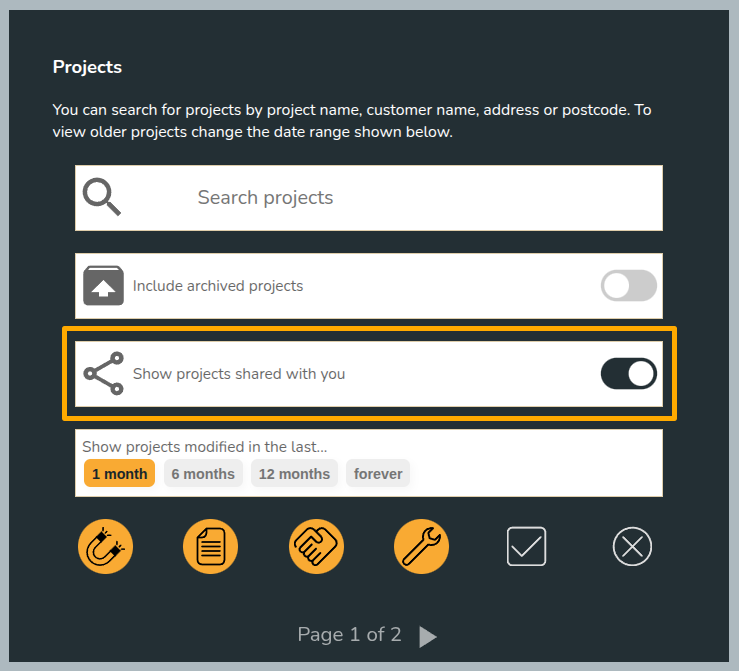
Projects owned by others will say Owned by [name] in the top right corner of the project:

Still Need Help?
Contact Support: If you require additional assistance, feel free to get in touch with our support team at help@easy-pv.co.uk (UK) or help@easy-pv.ie (IE). If you are experiencing a bug, to help us look into your issue faster, please include the email address of your account, the name of the project and screenshots of any unexpected behaviour.
Pro: Team Management
Team management allows you to have control over who is on your Easy PV Pro Team and the permissions they have.
Managing your team
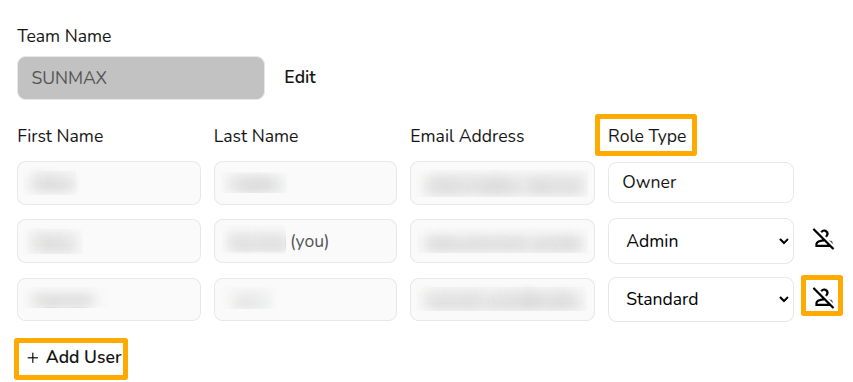
You can manage your team settings in Pro Account Settings > General. The team owner and any users with the admin role type can add and remove users, as well as change their role type.
Role types
With Easy PV pro, different members of the team can have different levels of access. The roles available are:
- Admin: role includes the ability to view and manage Pro team settings
- Owner: this is the user who set up the pro team and this role cannot be selected or changed. They have same permissions as admin but cannot be removed from the team, so make sure this is under an email address you can access even if the owner was to leave the company
- Standard: can access all pro features within projects, but cannot view or edit the pro account settings
Adding or removing users
To add users, click + Add user to the bottom left of the existing team members. Then input the individual’s name and email address (they do not need an existing Easy PV account), choose the user’s role (this role can be changed at anytime) and click Save.
A pop-up will then appear with details about the payment for the additional user. The fee for the additional members will be pro rata until the next billing date.

To remove a user, click the  icon beside their details. This will disable their account and remove them from the subscription. The owner account cannot be removed so ensure it is under a company email address.
Editing users
User names or email addresses cannot be edited here. This can only be done while logged into the relevant account. If you've made a typo when adding a new user to your team and cannot access the account, get in touch with the support team.
Still Need Help?
Contact Support: If this guide didn't resolve your issue, get in touch with our support team at help@easy-pv.co.uk (UK) or help@easy-pv.ie (IE).
Pro: Company details and subscription settings
You can manage your company details and subscription settings in Pro Account Settings > General.
Company details
You can set default information that will be used across all your team’s user accounts. This includes company name, number, accreditation, logo, address, and postcode.
The details you set here will be used where relevant throughout Easy PV tasks, forms, and reports.
Billing information
Here you enter the details we should use for billing your subscription. If you have a separate accounts department, you may wish to use their email address here.
We send out invoices by email every month after your subscription payment has been taken.
Subscription status
At the bottom of this section you will see your subscription status with your next billing date listed.
Updating payment details
easy-pv.co.ukIf you've recently had a failed payment or are coming to the end of a free trial, you'll be able to set up a new direct debit here.
easy-pv.ieTo update your direct debit details, log into your Stripe account.
Cancelling your subscription
In the bottom right, you'll see the option to Cancel Subscription.
This will cancel your subscription and your team’s accounts will switch back to standard on the date your subscription would have renewed. You will still have access to your old projects, but you will not have access to Pro features anymore.
Still Need Help?
Contact Support: If you've got further questions, get in touch with our support team at help@easy-pv.co.uk (UK) or help@easy-pv.ie (IE).
Pro: Email Credentials
With Easy PV pro you can send emails to your customer within projects. By setting up your email credentials it means these emails will send from your domain, rather than from no-reply@easy-pv.co.uk.
To view or edit your email settings navigate to Pro account settings > Email.

Here you can enter email credentials to allow emails to be sent from your own email address, how this is set up will depend on what email provider you are using.
Email configuration
OAuth 2.0 (Gmail or Microsoft 365)
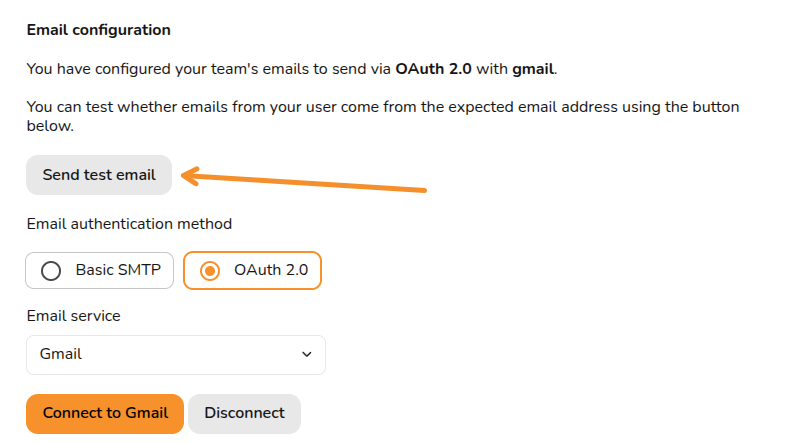
If Gmail or Microsoft 365 is your email provider, then simply select OAuth 2.0, select the relevant option and click Connect, this will direct you to your email where you can approve the connection.
SMTP
If you have a different email provider then you will need to set up using the SMTP option.
What is then required for each field depends on the provider and you will likely be able to find instructions online by searching for your provider and SMTP credentials. Below is some general guidance for each field:
- SMTP Username: These credentials are provided by your email service provider and are used to authenticate your email client. In most cases this is your full email address (e.g. user@provider.com)
- SMTP From Address (optional): This is the email address that recipients see as the sender of the email. In most cases this will be the same as the SMTP username
- SMTP Name (optional): This will appear next to the 'from address'
- SMTP Host: This will vary depending on provider. The format will be something like smtp.provider.com
- SMTP Password: This will usually be an App Password that you need to set up but in some cases it will be your email password
- SMTP Port (optional): By default this will be 587, but in some cases this will need to be changed
Once all required fields are filled in, click Save credentials.
Sending test email
To make sure your settings are working as intended, click Send test email and input an email address.
Still Need Help?
Contact Support: If you've got further questions, get in touch with our support team at help@easy-pv.co.uk (UK) or help@easy-pv.ie (IE). If you are having trouble setting up your credentials, please let us know what provider you are using, a screenshot of the email page with your inputs (do not share your password) and a screenshot of any errors that appear when you try to send emails.
Pro: Customer Proposal Customisation
With Easy PV Pro, you are able to customise the proposal document that you send to your customers. This can help you stand out and align the proposal more with your branding.
What can I customise?
You have the option to:
- Add a custom cover page
- Customise colours to match your brand
- Add an 'About us' section to the contents page
- Configure a branded footer to appear on all pages of the proposal document with your logo and company information
- Add your terms and conditions and the scope of work sections to the proposal
Set up
Navigate to Pro account setting > Proposal. There will also be an Documents section in your Pro account settings where you can manage all the images you upload.

Colours
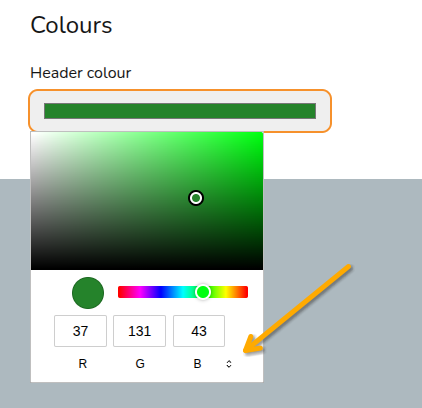
Select the colour you would like headers to appear in the proposal document.
You can precisely match this with your branding colours by typing in directly the RGB, HSL or HEX code, use the arrows to navigate between these options.
Cover page
Select whether you would like to include a custom cover page and whether you would like the customer name and address overlaid on your cover page and what colour you'd like this text to be.
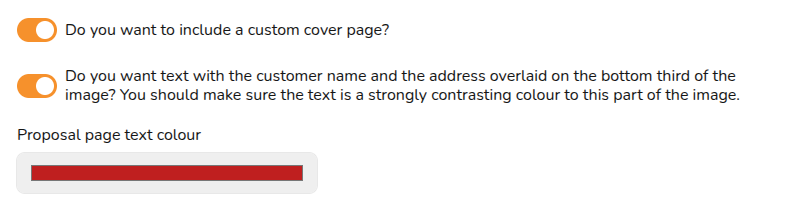
Cover page template: If you don't already have a preferred way of making a cover page, you might find Canva useful. We have created a template with some additional instructions that you can use to create your own cover page design in Canva. When you are finished, click Share > Download > Change the file type to PNG or JPG > Download.
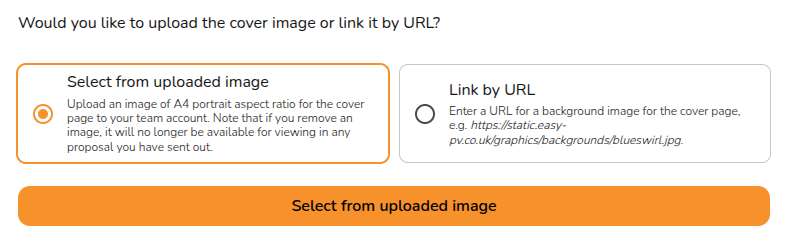
Once you have your custom cover page, either add it in the Uploads tab or in the cover page section click Select from uploaded image > Add images. After uploading you will be able to select your cover page. You also have the option to use an image from a URL.
Footer
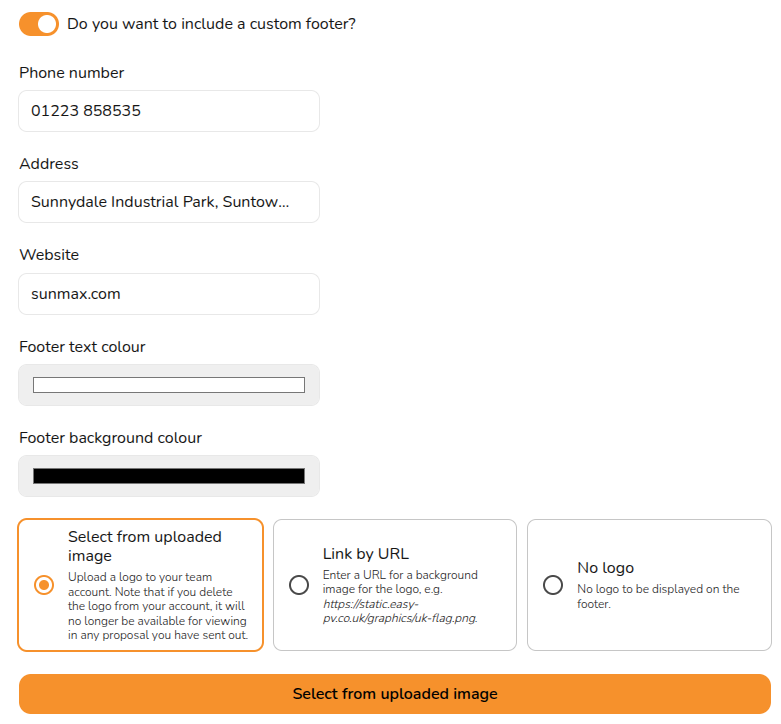
In your custom footer you can input a phone number, address and website. You can also select the footer background and text colour and upload a logo.
Contents page
In this section you can add a custom cover letter with a custom header and contents. This can be overridden on a per-project basis.

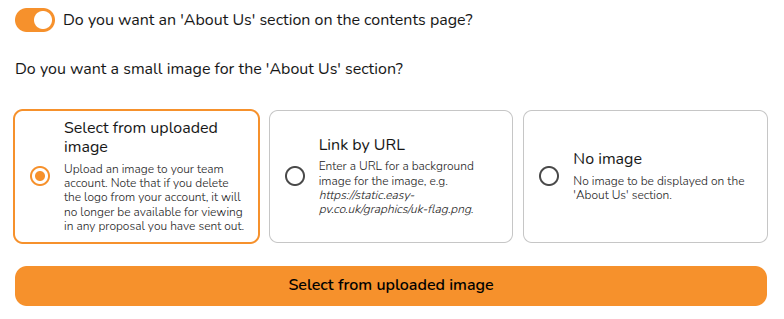
You can also include an 'About us' section with an optional custom image. The 'About us' section should be a short description, make sure it does not overflow onto the next page of the proposal.
Terms and conditions and scope of work
Here you can input your terms and conditions and scope of work. In each case you can use the options at the bottom of the text box to format the text:

Both these options can be overridden on a project by project basis.
Warning: Pasting formatted text from a different text editor will likely lead to formatting issues in a generated proposal.
Note: Changes made to the contents page, terms and conditions and scope of work will not automatically refresh in projects where you've already opened the customer proposal task. Click the refresh icon next to where it says 'Customer proposal' to reset those fields to what you've got in your settings.
Still Need Help?
Contact Support: If you've got further questions, get in touch with our support team at help@easy-pv.co.uk (UK) or help@easy-pv.ie (IE). If you are experiencing a bug, to help us look into your issue faster, please include the email address of your account, the name of the project and screenshots of any unexpected behaviour.
Pro: Online Proposal
Online proposals allow you to send your customers an interactive web link instead of (or alongside) a traditional PDF quote. These proposals are fully responsive, meaning they look great and function perfectly whether your customer is viewing them on a desktop computer or scrolling on a mobile phone.
Previewing the online proposal
You can preview your online proposal by following these steps:
- Open your Project.
- Navigate to the Customer Proposal task.
- Click View & share Customer Proposal.
- Select Preview online proposal.
Sharing the proposal with your customer
- Open your Project.
- Navigate to the Customer Proposal task.
- Click View & share Customer Proposal.
- Select Share with customer.
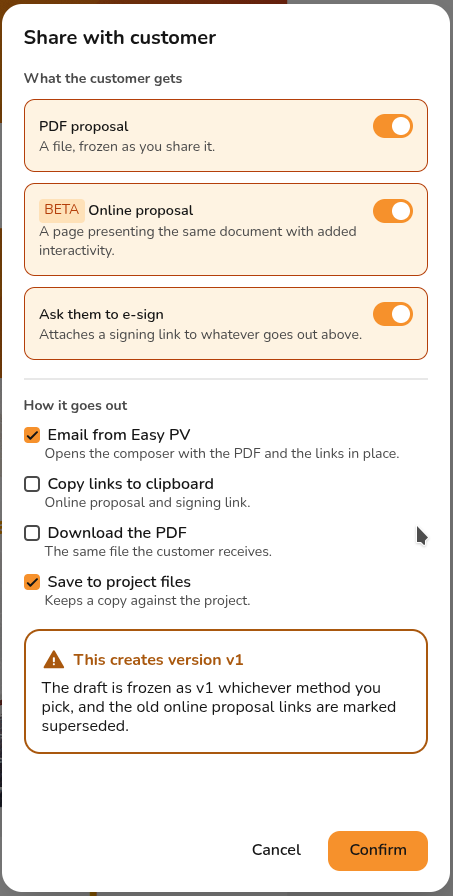
- Use the orange toggles to select what you want to share with the customer. You can choose any combination of PDF proposal, Online proposal and Ask them to e-sign.
- Use the orange ticks to select how you’d like to share these.
- Click Confirm.
- If you have selected the Email from Easy PV option, you will be taken to the Send email page. Please find further guidance here.
- If you have selected the Ask them to e-sign option, the proposal(s) will contain a link to sign the document. The customer only needs to sign once.
- After you share the online proposal, a version 1 will be created. Later you will be able to go back and see Previous versions.
This feature is currently in Beta and will evolve as we make improvements. We would love to hear your thoughts. Please share your feedback with our support team to help shape these updates!