Whole-system Design
Learn about Whole-system Design: what it is, how to set it up, and what it can do for your solar PV system design workflow.
Whole-system Design
easy-pv.co.uk
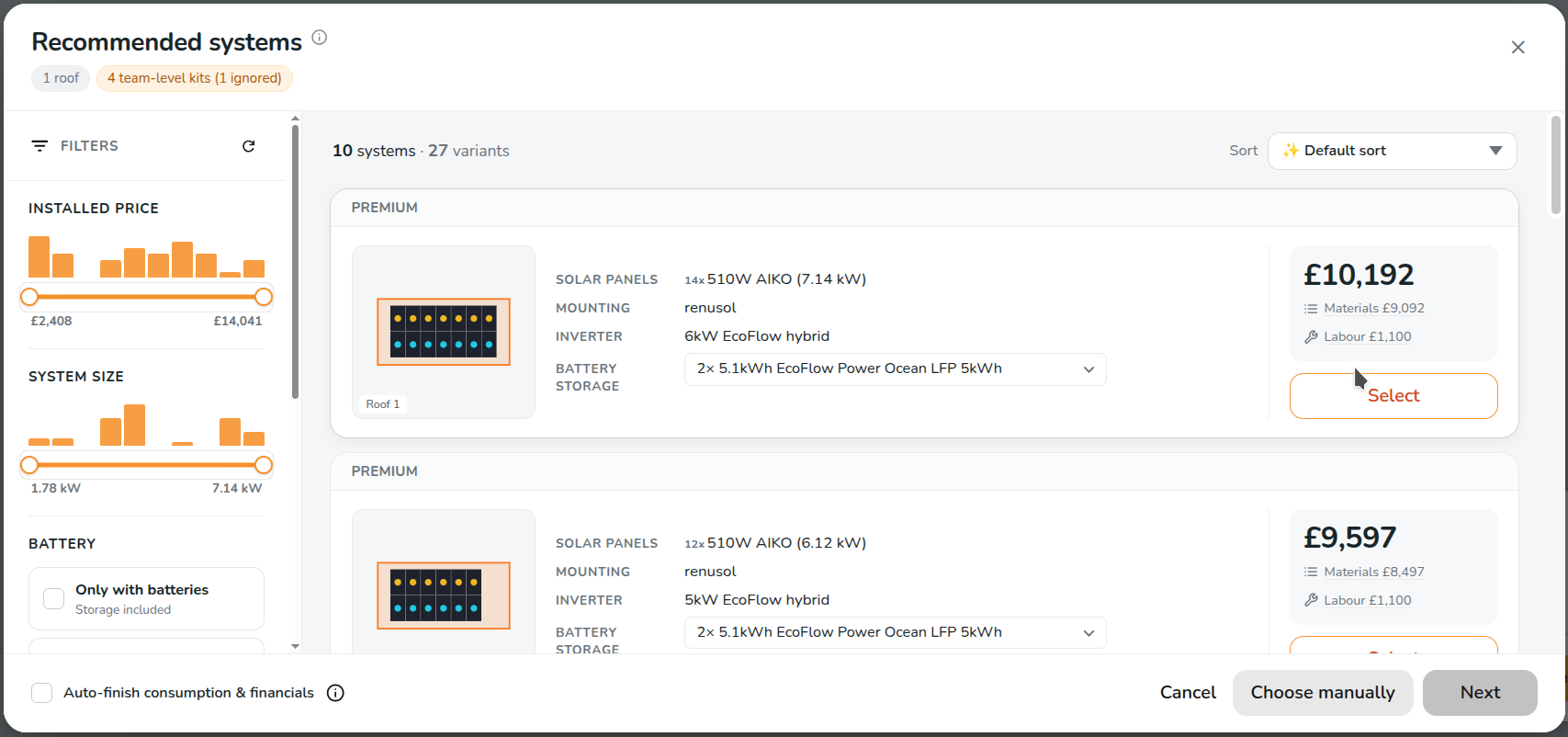
Whole-system design suggests complete solar systems for a project -panels, mounting, inverter and battery -worked out, costed and ready to apply. Instead of completing the panel, inverter, consumption and financial tasks by hand, you pick a system from a shortlist and Easy PV fills the project in for you.
Viewing the Whole-system Design kit suggestions
There are two ways to view the kit suggestions generated by the Whole-system Design (WSD) feature.
- Automatically. Create a project and draw or import your roofs. Once there's roof data, the Recommended systems window opens on its own - for example when you finish the roof task and click Next.

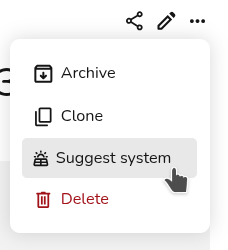
- Whenever you want them. On the project overview, open the three-dots menu and choose Suggest system. This is always available on a solar project, even if you've turned the automatic suggestions off.

If you don't see either, jump to Why am I not getting any suggestions?
Choosing a system
Choosing a system couldn't be easier. Each card shows you:
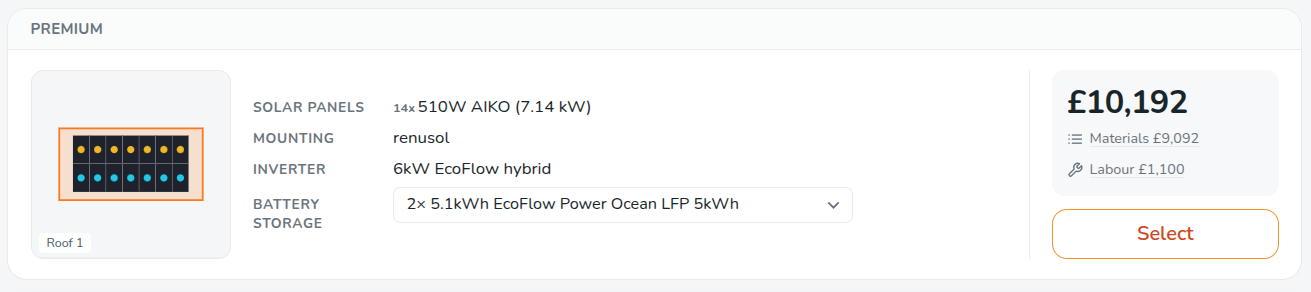
- Install size and panel count
- The inverter(s), and the battery(s) if applicable
- Materials - the equipment cost. Click it to see every priced line that makes up the total
- Installed - the total installed price
Filtering your options
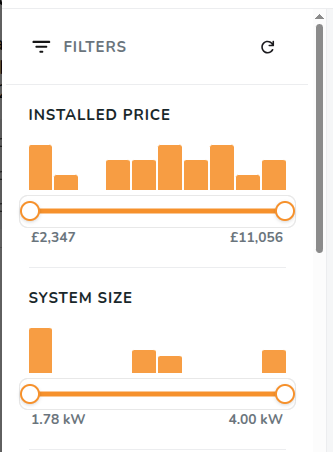
Open Filters to limit the list by:
- Price and Install size - drag orange the sliders to adjust the price range

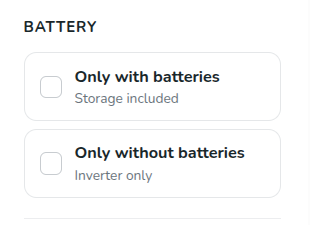
- Battery storage - all systems, only with storage, or only without

- Kit combinations - tick the kits you want to see systems from

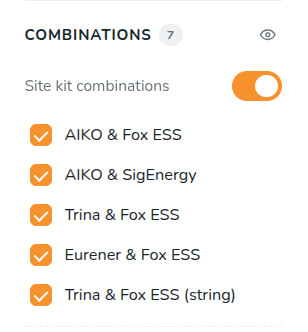
Kit combinations that couldn't produce a system for this project are shown greyed out, with the reason underneath - usually that a part is out of stock or has no price.
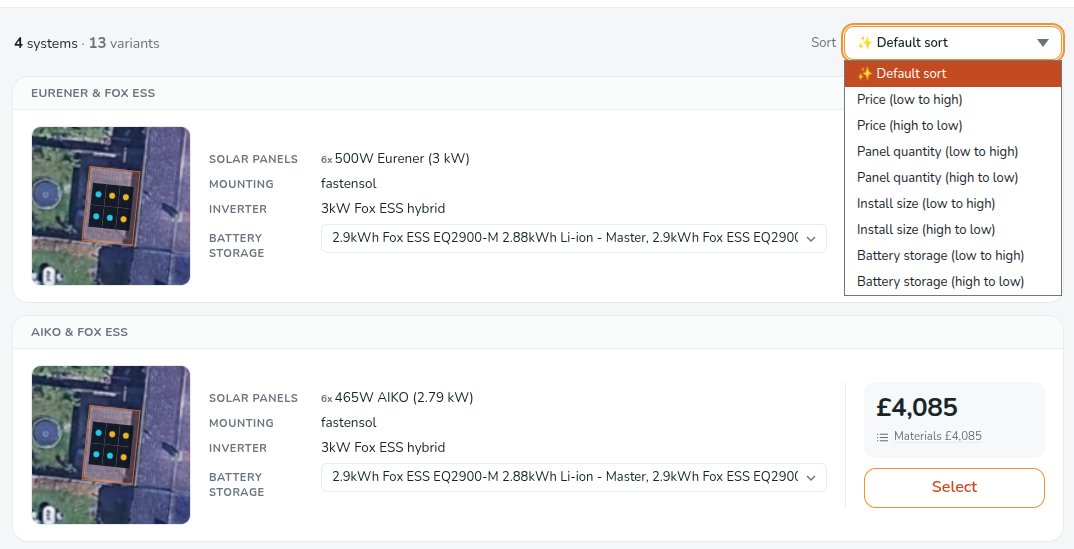
Sort defaults to Magic Sort, which mixes strong all-rounders, higher-output systems and cheaper options so the top of the list gives you a spread rather than five variations of the same thing. You can switch to a standard sorting option - price, install size, panel quantity or battery storage, ascending or descending - at any time.
Swapping parts without starting again
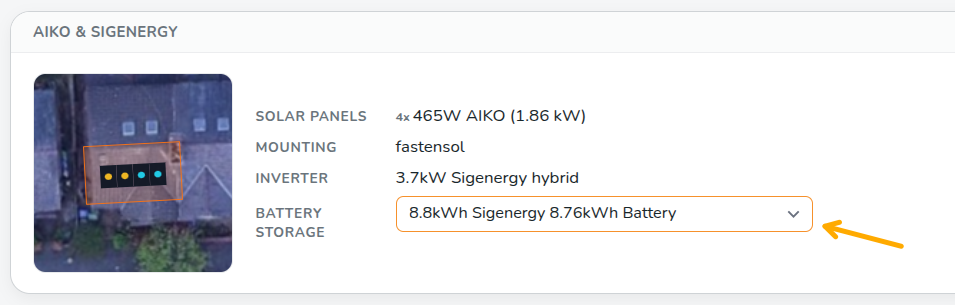
Where a suggestion comes in more than one configuration, the Inverter and Battery lines on the card become drop downs. Change either one and the card switches to that version, keeping the rest of the system as close to what you were looking at as possible.
Checking the Financial assumptions
The financial estimates are priced against an import tariff, an export rate, and an annual consumption figure. The assumptions chip in the window tells you which figures are being used, flags any that are missing, and lets you change them there and then. The estimates re-price against whatever you set.
Click Edit to open the Consumption task and change the assumptions.

Systems with a Smug-compatible inverter are badged. If you're set up for Smug battery optimisation and the project is on a time-of-use tariff, the estimates account for it.
Choosing which roofs to use
By default, suggestions are built for the three best-rated roofs on the project. To change that, use Select roofs (or Choose different roofs).
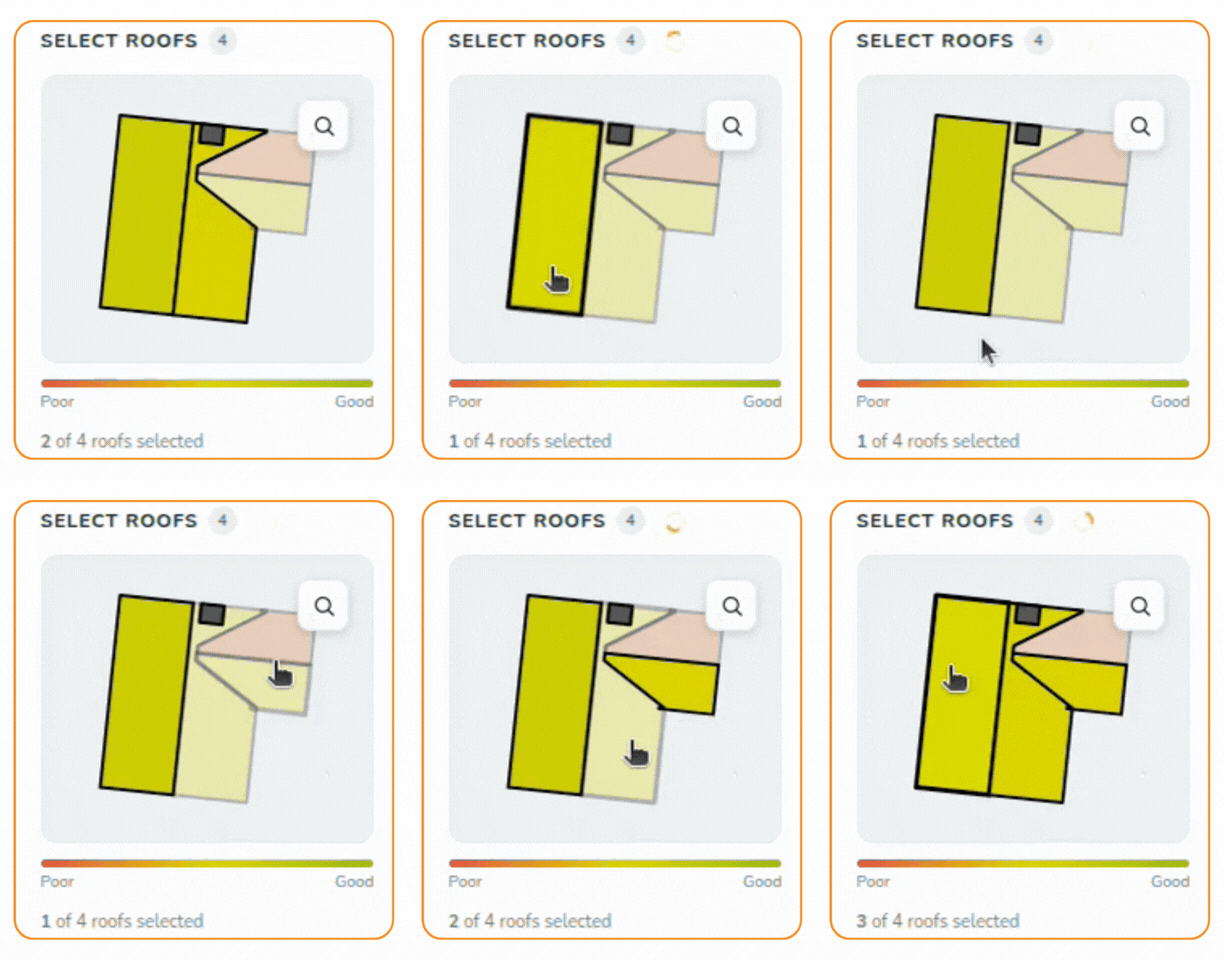
By default, suggestions are built for the three best-rated roofs on the project. To change that, use Select roofs (or Choose different roofs).
- On 3D and magic-mode projects you get a small bird's-eye view of the building. Tap a roof to include or exclude it.
- Roofs are shaded by how much they'd generate, and there's a magnifier for tight spots.
- On quick-roof and roof-outline projects you get a simple list of tick boxes.
Confirm your choice and the estimates regenerate for just those roofs.
Applying a system
Select a card and click the Next button at the bottom. Easy PV then:
- applies the panels, mounting, inverter and battery to the project, and
- takes you to the project overview with the system in place.
From there it's an ordinary project. Every task is still yours to open and change -swap the inverter, restring the array, adjust the mounting, whatever you need.
Auto-finish consumption & financials
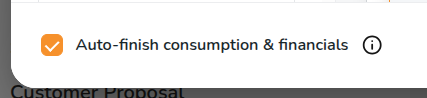
Select Auto-finish consumption & financials in the bottom left of the window and Easy PV also completes the Performance, Consumption and Financial tasks in the background, using standard assumptions, so the project is ready for the customer proposal without you touching them.
Stay on the overview while it finishes - if you navigate away mid-way it stops, and those tasks stay for you to complete yourself.
Un-tick it and only the equipment is applied - Consumption and Financial tasks are yours to fill in separately.
Where the suggestions come from
Every suggestion is built from a kit combination: a panel, a mounting system per roof type, an inverter group, and optionally batteries and optimisers. Nothing outside your kit combinations is ever suggested.
Free accounts use the kit combinations set at site level, which we put together and keep up to date. You can't edit these, but you don't have to set anything up either.
Pro accounts:
These use their team's own kit combinations. Your admins build them under Kit combinations, found in Pro Account Settings > Design.
For Pro admins: the quality of the suggestions is the quality of your kit combinations. Cover the full range of jobs you do, from small domestic through to your larger commercial installs, and keep them current as your buying changes. A team with two kits gets two flavours of suggestion; a team with a well-spread set gets a comprehensive shortlist.
Turning it on and off
There are two relevant settings for turning the Whole-system Design suggestions on and off. These are found in slightly different places depending on whether you have a free or Pro account. Either way, they only appear once there's at least one kit combination available to you.
Suggest a whole-system design when creating a project controls whether the Recommended systems window opens on its own, and Auto-finish consumption & financials by default sets how that tick box starts out in the window.
On a free account
Everything is in one place: My Account > Preferences > Design.
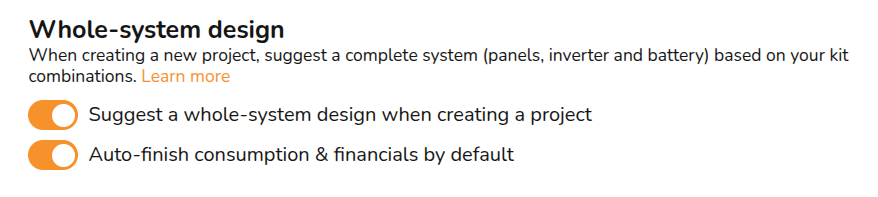
Suggest a whole-system design when creating a project: De-select this and the window stops opening by itself. The three-dots Suggest system option stays, so you can still ask for suggestions whenever you want them.
Auto-finish consumption & financials by default: Sets how the tick box in the window starts out. You can always (de-)select it for a single project.
Free accounts can't edit the kit combinations your suggestions are built from. Those are the ones we maintain at site level - so these two switches are the full extent of what's configurable on a free account. If you want suggestions built from your own equipment and prices, consider upgrading to Pro.
On a Pro account
Pro has the same two settings, at two levels.
Your own settings: My Account > Preferences > Design
These settings determine how Whole-system Design applies to your personal Easy PV account. Every Pro user has these, admin or not.
Your team's settings: Pro Account Settings > Design (team admins only)
The same two settings, applied to everyone in the team. Use these to set how Whole-system Design behaves across the team by default, then individual installers can adjust their own as above.
Pro admins also control the input the suggestions are built from, under Kit combinations in the same Design section. That's the setting that actually determines the kit combinations themselves: the two switches above only decide when the window appears.
Which setting wins
For the window opening automatically: any "off" wins.
If the team or the installer has switched it off, the window won't open by itself. That's deliberate - a team admin can't force it onto someone who's turned it off for themselves, and an installer can't turn it back on if their admin has switched it off for the team.
On a free account this only ever comes down to your own switch.
The manual three-dots Suggest system option is unaffected by all of this. As long as the project is solar and there's a usable kit combination, you can always ask for suggestions.
For auto-finish: the most specific setting wins.
Your own setting beats your team's, and a single project can override both. It's only ever a default - whatever it's set to, you can change the tick box in the window every time.
How to set up your own kit configurations
Pro accounts are able to configure custom kit configurations, built from the kit you choose to spec. Once set up, Whole-system Design will suggest these kits to your whole team.
Until your team has at least one kit combination switched on, there are no suggestions to show. Setting one up takes a few minutes, and only team admins on Easy PV Pro can do it.
What is a kit combination?
A kit combination is the equipment you usually fit together: one panel, a mounting system for each roof type, an inverter group and, optionally, batteries. Easy PV sizes and prices systems from it, using your own components and your own prices.
Create a kit combination
- Go to Pro Account Settings > Design and scroll to Kit combinations.
- Click Add new combination. The form has four tabs. Each tab shows an amber dot until it's complete and a green dot when it's done.
- Basics: give the kit a name you'll recognise, e.g. "Standard 6 kW hybrid". Under Where this combination is used, make sure Easy PV is switched on.
- Solar panel: pick the panel you usually fit - this can be a standard catalogue item or a custom component.
- Mounting: choose a mounting system for each roof type you work on: slate and tile, metal, standing seam, fibre cement, flat and ground mount. Easy PV only suggests systems for roofs whose type has a mounting system.
- Electrical & battery: pick an inverter group. To offer storage, turn on Include a battery with this combination, then choose either Any compatible battery or Only the batteries I choose.
- Click Next to jump to anything still incomplete. When every tab is green, click Save changes.
This kit combination will now be visible in your Whole-system Design suggestions, provided the project is suitable. You can add as many kit combinations as you like.
Manage your kits
- Each kit shows as a card. Use the toggle on the card to switch a kit on or off. Kits that are switched off stay saved but are never suggested.
- Use the card's menu to edit, clone or delete a kit. Cloning is the quickest way to build a battery and a no-battery version of the same kit.
- A card with a red warning has a problem that stops it producing suggestions, such as a part with no price or out of stock. Fix the problem and the kit is used again.
Turn Whole-system Design on
Once you have at least one kit switched on, Whole-system Design works on your next project. Team admins can turn the automatic suggestions on or off for the whole team under Pro Account Settings > Design. Each user can do the same for themselves under My Account > Preferences > Design.
Good to know
- Build a few kits. Two or three kits covering your usual jobs give a better spread of suggestions than one.
- Use prices you trust. Suggestions are costed from your component prices, so a missing or out-of-date price shows up in every quote that uses it.
- Microinverter and optimised-inverter kits aren't supported yet. Kits built on them are greyed out in the suggestions, with the reason underneath.
- Not on Pro? Upgrade to set up your own kits.
Whole-system Design: FAQs
❓Why am I not getting any suggestions?
- There may be no roof data yet. Return to the Buildings task, re-draw or scan the roofs first and retry.
- It's switched off somewhere: check My Account > Preferences > Design, then your team's Design settings. If you are part of a Pro team, contact your admin.
❓The window opens but there are no systems in it.
- No kit combinations enabled for Easy PV. A kit combination has to be enabled and available to Easy PV to be used here. Pro admins: check them under Pro Account Settings > Design > Kit combinations.
- Parts with no price, or out of stock. Kits are skipped when a panel, inverter or battery has no price or no available stock. Greyed-out kits in the filter list tell you which and why.
- Nothing fits the roofs. With very small or awkward roofs, no kit in your set may produce a workable system. Try including more roofs.
- A pricing warning at the top of the window. If your team prices from a lookup table that can't price these systems, you'll see a warning above the cards. That needs fixing in your pricing settings before suggestions can be costed.
❓The figures on a card don't match the project after I apply it.
- Suggestions are generated against your team or account's default tariffs and financial settings. If the project carries its own tariff, the applied project re-prices against that, so some figures will shift.
- Use the assumptions chip before you apply if you want the estimates to reflect a specific tariff.
❓I can't see the panels, inverter, or batteries I want to add to my kit (Pro)
- If you are trying to add a custom panel that isn't in the Midsummer catalogue, you will have to create it as a custom component first.
- Once you've created the component, it will be visible to select in the Kit combinations process.
- Need help creating a custom component? Read this guide here.
Good to know
- Suggestions never change a project on their own. Nothing is applied until you click Use system.
- Applying a system replaces the equipment currently on the project, so if you've already done the panel and inverter tasks by hand, that work is overwritten. Nothing else about the project is touched.
- You can reopen the suggestions and apply a different system as many times as you like.