**Tip**: If you have set defaults via your account preferences, these will be automatically applied here.
If you'd like to change these values at a later stage, click **`Financial inputs`** in the top right or edit specific options directly from the right-hand sidebar. [](https://help.easy-pv.co.uk/uploads/images/gallery/2026-07/6DXX8GiF41jEJPuc-image.png) ### Financial task inputs *Expand each section below for more details on each setting.***Warning**: When using a custom percentage the **Battery Storage** section in the Customer Proposal will not generate. If you would like this to generate, select the MCS or Easy PV self-consumption.
Learn more: - [Differences between the MCS and Easy PV methods](https://help.easy-pv.co.uk/books/faqs/page/what-are-the-differences-between-the-mcs-and-easy-pv-self-consumption-calculations "What are the differences between the MCS and Easy PV self-consumption calculation?") - [Tariffs in Easy PV](https://help.easy-pv.co.uk/books/financial-task/page/editing-and-creating-tariffs)**Note**: This base inflation rate will be applied to all costs and savings, you can set a different inflation rate for tariffs in the `Self-consumption` tab.
- **Panel degradation rate**: panels gradually reduce in output as they degrade over time. Set the rate at which the output of the panels decreases each year - **Discount rate**: a discount rate is a means of determining the current value of something (like income or savings from a PV system) that you'll receive in the future. Set this to 0 if you would like no mention of discount rate in the proposal **Learn more**: [Understanding the Financial projection](https://help.easy-pv.co.uk/books/financial-task/page/understanding-the-financial-projection).**Note**: A pay in full option is required on all projects, even if the customer intends to pay with finance.
**Warning**: Changes made to the components in the project will *not* automatically refresh here. Click the refresh icon in the top right to recalculate any costs.
### Projection view At the top of this page you will see the annual generation, payback period, internal rate of return and net present value. A positive net present value is a good indication that the project is financially worthwhile. You will also see the following details about the projection: - **Income and savings**: This graph shows the projected income from the system over the project lifetime in payments for generated and exported electricity, along with electricity savings - **Running costs and loan**: If a running cost is included or finance option is selected, then these will show up in these graphs - **Bottom line**: This graph will then indicate the cumulative costs and benefits of the system. When these two lines intersect is when the system benefits become equal to the cumulative costs, after this time the customer is projected to gain from their solar system - **Payment options**: On the right-hand side you can view and the payment options on this project. Switch between them to see the impact they have on the financials for this project **Learn more**: For more details on the financial projection and how you can improve it, see **[Understanding the Financial Projection](https://help.easy-pv.co.uk/books/financial-task/page/understanding-the-financial-projection "Understanding the financial projection").** --- ## Still Need Help? - **Related FAQs:** Check out our [Financial task FAQs](https://help.easy-pv.co.uk/books/faqs/chapter/financial-task "Financial task") for answers to common questions - **Related guides**: Take a look at [Setting Up Financial Task Preferences](https://help.easy-pv.co.uk/books/getting-started-f2k/page/setting-financial-defaults "Setting financial defaults") and [Setting up Pricing Calculator](https://help.easy-pv.co.uk/books/getting-started-f2k/page/setting-up-your-automatic-pricing-calculator "Setting up your Automatic Pricing Calculator") - **Live training:** [Book onto a live demo session](https://cal.com/easy-pv/easy-pv-free-training) to see this feature in action **Contact Support:** If you've got further questions, get in touch with our support team at **help@easy-pv.co.uk** (UK) or **help@easy-pv.ie** (IE). *If you are experiencing a bug, to help us look into your issue faster, please include the email address of your account, the name of the project and screenshots of any unexpected behaviour* # Understanding the financial projection The financial projection is determined by the system cost, system output and your [financial settings](https://help.easy-pv.co.uk/books/financial-task/page/using-the-financial-task "Using the Financial task"). Correctly configuring these settings is crucial to getting an accurate financial projection. --- ## Where do I find the financial projection? The financial projection is found in the financial task. Navigate between the quotation and the projection page on the left. Select between payment options to see the impact on the financial projection. [](https://help.easy-pv.co.uk/uploads/images/gallery/2025-11/RqCupc9Edr2L96jG-financialprojection.gif) --- ## Income and savings This section shows the income and savings across the projection period. Income is made up of export payments and savings are made up of electricity savings and any additional savings configured. ### Electricity savings This is how much we project the customer will be able to save now they will not be spending this on their electricity bill and will instead be using energy from the panels or battery. This is calculated using the annual generation and import tariff (using the [customers old tariff](https://help.easy-pv.co.uk/books/performance-and-consumption/page/getting-started-with-the-consumption-task#bkmrk-tariffs%C2%A0) if they are switching tariffs). **Determined by**: import tariff, battery management, degradation rate, inflation rate**Note**: If you have forced battery charging and discharging configured, you may find the electricity savings are negative. Provided the total income and savings is still greater than how much they were previously spending on electricity, this is not a problem. If your electricity savings are negative, we will just show the total benefit in this section.
### Export benefits This is how much we project that the customer will be able to earn from exporting electricity to the grid. **Determined by**: export tariff, battery management, degradation rate, inflation rate ## Additional savings This models any [additional savings](https://help.easy-pv.co.uk/books/financial-task/page/using-the-financial-task#bkmrk-more-information-abo) that aren't factored into the MCS or Easy PV model. **Determined by:** additional savings in financial task, inflation rate ## Loan and running costs The loan and running cost graphs will show any costs that they will incur in the first year and beyond. These will be factored into the total cost of the system across the period and used in the payback calculation. If you have set up a [finance option](https://help.easy-pv.co.uk/books/financial-task/page/payment-options "Configure payment options"), you can select this from the right side bar to see the impact this has on the projection. ## Bottom line This section gives an overall indication of the benefits of the system and whether it is a worthwhile investment for the customer. Below are some key definitions. ### Discount rate**Tip**: Set the discount rate to zero if you would not like it used in the proposal.
A discount rate is a means of determining the current value of something (like income or savings from a PV system) that you'll receive in the future. This is set in your project financial settings.**Payback period coming out longer than you'd expect?** [Read here](https://help.easy-pv.co.uk/books/faqs/page/the-payback-period-is-too-long-how-can-i-fix-this) for things you can do to help with that.
--- ## Still Need Help? - **Related FAQs:** Check out our [Financial task FAQs](https://help.easy-pv.co.uk/books/faqs/chapter/financial-task "Financial task") for answers to common questions - **Related guides**: Take a look at [Setting Up Financial Task Preferences](https://help.easy-pv.co.uk/books/getting-started-f2k/page/setting-financial-defaults "Setting financial defaults") and [Using the Financial task](https://help.easy-pv.co.uk/books/financial-task/page/using-the-financial-task "Using the Financial task") - **Live training:** [Book onto a live demo session](https://cal.com/easy-pv/easy-pv-free-training) **Contact Support:** If you've got further questions, get in touch with our support team at **help@easy-pv.co.uk** (UK) or **help@easy-pv.ie** (IE). # Editing and creating tariffs This guide covers how you can manage and create tariffs in Easy PV. Setting tariffs is an essential part of ensuring the financial benefits can be calculated as accurately as possible for your customer. Tariffs can be created, viewed and edited in the [Consumption task](https://help.easy-pv.co.uk/books/performance-and-consumption/page/getting-started-with-the-consumption-task) or the [Financial task](https://help.easy-pv.co.uk/books/financial-task/page/using-the-financial-task). You can also set up user-level default tariffs in your [account financial settings](https://help.easy-pv.co.uk/books/getting-started-f2k/page/setting-financial-defaults) or if you are a member of a Pro team, this will be set by a Pro team admin in Pro account financial settings. --- ## Overview --- ## **Creating a tariff** Tariffs can be set up in individual projects from the Financial or Consumption task or in User/Team financial preferences. ### Flat or single-rate tariffs Flat tariffs can be used with any self-consumption calculation. #### Step 1. Set the name of the tariff This name will appear in the quote wording. #### Step 2. Set the scope of the tariff Set when you want to be able to use this tariff: - **User-level**: For any of my projects - **Project-level**: Only for this project - **Team-level**: Available to my team**Note**: Once the scope of the tariff has been set, this cannot be edited.
**Warning**: Editing or deleting existing tariffs will affect previous projects that use these tariffs. Hide any tariffs you want unavailable on new projects without affecting existing ones.
--- ## Still Need Help? - **Related FAQs:** Check out our [Financial Task FAQs](https://help.easy-pv.co.uk/books/faqs/chapter/financial-task "Financial task") for answers to common questions - **More guides**: Take a look at [Consumption task](https://help.easy-pv.co.uk/books/performance-and-consumption/page/getting-started-with-the-consumption-task "Getting started with the Consumption task") or [Financial task](https://help.easy-pv.co.uk/books/financial-task/page/using-the-financial-task "Using the Financial task") - **Live training:** [Book onto a live demo session](https://cal.com/easy-pv/easy-pv-free-training) to see this feature in action **Contact Support:** If you've got further questions, get in touch with our support team at **help@easy-pv.co.uk** (UK) or **help@easy-pv.ie** (IE). *If you are experiencing a bug, to help us look into your issue faster, please include the email address of your account, the name of the project and screenshots of any unexpected behaviour.* # Payment options A payment option is a method by which the customer can pay for a project. Payment options can be created, viewed and edited in the the [financial task](https://help.easy-pv.co.uk/books/financial-task/page/using-the-financial-task). You can also set up payments in your [account financial settings](https://help.easy-pv.co.uk/books/getting-started-f2k/page/setting-financial-defaults). If you are a member of a Pro team, this will be set by your team admin in the Pro account financial settings. --- ## Managing payment options #### --- ## Creating a new payment option New payment options can be created within projects through the [financial task](https://help.easy-pv.co.uk/books/financial-task/page/using-the-financial-task "Financial Task") on the **`Payment`** tab or by navigating to your [financial settings](https://help.easy-pv.co.uk/books/getting-started-f2k/page/setting-financial-defaults "Setting financial defaults"). Just click `+ New payment option` and follow the steps outlined below. ### 1. Overview **Name**: Input the name you'd like to appear on the proposal for this payment option. [](https://help.easy-pv.co.uk/uploads/images/gallery/2025-09/yLHWbg5ItCK7nkFa-image.png) **Scope**: The option will only appear if you're creating a payment option from within a project. Select whether you'd like this option to appear for just this project or to be available on future projects. If you are in a pro team, you will also see the option to make it available for you team. [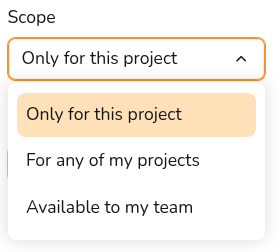](https://help.easy-pv.co.uk/uploads/images/gallery/2025-09/xLyXm3N9wMUK2Gu9-image.png) **Payment type**: Select between `Pay in full` or **`Finance`** depending on what payment option you need. For both options you can set up multiple payment stages and for finance options you can model paying off some or all of the cost of the system with a loan. This can be changed at any point. [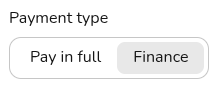](https://help.easy-pv.co.uk/uploads/images/gallery/2025-09/lcGHY8nUoz0VHByT-image.png) **Default checkbox**: This option will only appear if your scope is set to **User** or **Team**. If you check this box, this payment option will be selected on all future projects. **[](https://help.easy-pv.co.uk/uploads/images/gallery/2025-09/fK2MWwHSJWxA4DaP-includebydefault.gif)** ### 2. Payment In this section you can configure the payment stages for the quote. This is optional if you selected Finance as the payment type. **Payment format**: set whether you'd like payments to be defined as percentages or as constant values. [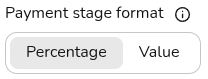](https://help.easy-pv.co.uk/uploads/images/gallery/2025-09/lXjQvHzkmzmZ0EHr-image.png) **Payment stages**: add rows to define additional payment stages, set the name of the stage to appear on the quote, the amount (% or £) and when the stage will be payable. If Finance was selected, the final (or only) stage will be from 'Finance Payments'. [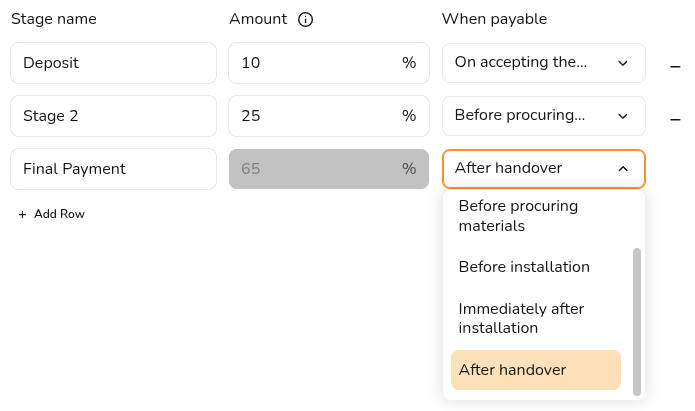](https://help.easy-pv.co.uk/uploads/images/gallery/2025-09/2MovZUcIeGPjBZ3z-image.png) ### 3. Finance Here you can configure the details of the finance payments. This section will not appear if you've selected **`Pay in full`**. **Finance provider**: This is the organisation or lender that provides finance or a lease for a project. Select from the drop down menu from your preset finance providers or select **`+ New provider`**. [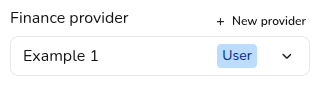](https://help.easy-pv.co.uk/uploads/images/gallery/2025-09/t6vU1vDltDXh53vu-image.png) When creating a new provider you will need to input the name of the provider, the scope (if you're creating within a project) and an optional description. **Repayment**: set the repayment term, the repayment frequency and the repayment type. For most domestic installations, the repayment type will be fixed. [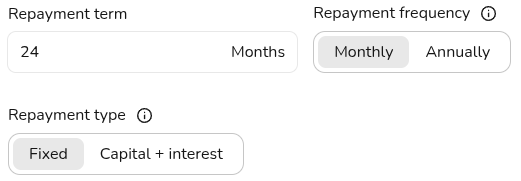](https://help.easy-pv.co.uk/uploads/images/gallery/2025-09/41MKzICAvL7bVJHD-image.png) **Interest**: set the loan interest rate and whether you want the interest to compound monthly or annually. [](https://help.easy-pv.co.uk/uploads/images/gallery/2025-09/nUuyScsOfXSdedGR-image.png) ### 4. Disclaimer Set whether you'd like to include a custom disclaimer - this will appear next to the financial calculations for this payment option. [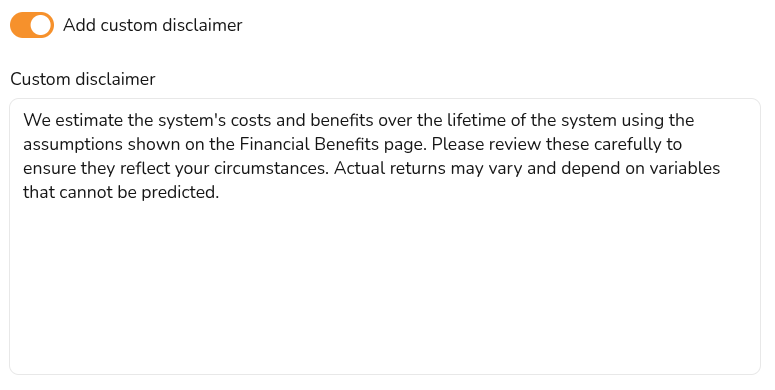](https://help.easy-pv.co.uk/uploads/images/gallery/2025-10/qYsQwnpcAQY5iRrZ-image.png) --- ## **Editing existing payment options** If you would like to edit existing payment options, this can be done within a project or in your financial settings. All details listed above can be edited on your payment options except the scope. To change the scope of a payment option, duplicate the option within a project and set the new scope from the overview tab. ### Financial settings Open your user or team [Financial settings](https://help.easy-pv.co.uk/books/getting-started-f2k/page/setting-financial-defaults "Setting financial defaults") and scroll down to **Payment options and providers**. Here you can see all your payment options and providers and create new ones. On each payment option, you'll have the following options: [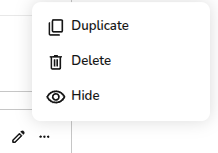](https://help.easy-pv.co.uk/uploads/images/gallery/2026-07/J30YxXsKoojkdYEW-image.png) - [](https://help.easy-pv.co.uk/uploads/images/gallery/2025-11/8gb7pLeezNV2Vyih-6m6gz1njnegppmzb-edit.jpg)**Edit** Click the pencil to edit existing options. - Click the **⋯ three dots** to view the following options: - [](https://help.easy-pv.co.uk/uploads/images/gallery/2025-09/jMO6FxliPQuscMfZ-image.png)**Duplicate** Copy and edit an existing payment option or provider if you need to make small changes to an existing option - [](https://help.easy-pv.co.uk/uploads/images/gallery/2025-09/WphRx5jaJTJCpG57-image.png)**Delete** This will delete the payment option or provider and cannot be undone. Previous projects using these options will be unchanged - [](https://help.easy-pv.co.uk/uploads/images/gallery/2025-09/t3PUjHq7OK1NUMm2-image.png) **Hide** This will no longer show as a payment option or provider but will still show in this menu. It can be un-hidden at anytime from your financial settings ### Within a project In a project you can select the payment methods you'd like to make available to the customer. You can create a new payment method for your current project (or any future project by setting the scope to User or Team) by clicking `+ New Payment Option`. Update your existing methods in your settings with the **`Edit`** option at the top.**Note**: project level payment options can be edited, deleted and duplicated but **user** and **team** level options **cannot be edited or deleted** from within a project. Navigate to your financial settings to edit user or team level payment options or duplicate to make a project level copy.
--- ## Still Need Help? - **Related FAQs:** Check out our [Financial task FAQs](https://help.easy-pv.co.uk/books/faqs/chapter/financial-task "Financial task") for answers to common questions - **Related guides**: Take a look at [Setting Up Financial Task Preferences](https://help.easy-pv.co.uk/books/getting-started-f2k/page/setting-financial-defaults "Setting financial defaults") and [Using the Financial task](https://help.easy-pv.co.uk/books/financial-task/page/using-the-financial-task "Using the Financial task") - **Live training:** [Book onto a live demo session](https://cal.com/easy-pv/easy-pv-free-training) to see this feature in action **Contact Support:** If you've got further questions, get in touch with our support team at **help@easy-pv.co.uk** (UK) or **help@easy-pv.ie** (IE). *If you are experiencing a bug, to help us look into your issue faster, please include the email address of your account, the name of the project and screenshots of any unexpected behaviour* # Finance provider integrations # FinMatch finance option in Easy PV ## Setting up with FinMatch in Easy PV ### Step 1: Sign up for FinMatch You can apply through Easy PV to FinMatch to offer finance through Easy PV. FinMatch offers access to finance plans from multiple lenders. FCA Assist helps installers get authorised quickly and efficiently. **FinMatch Finance Assistant** enables your customers to click from an Easy PV quote and apply for finance instantly. To get started: - Standard users: Go to `My Account` > **`Preferences`** > **`Financial`**. Scroll down to **Providers** and click `Apply now`. - Pro users: Go to **`Pro Account Settings`** > `Financial`. Scroll down to **Providers** and click `Apply now`.If you are in a Pro team, only **[team owners](https://help.easy-pv.co.uk/link/74#bkmrk-add-and-remove-users)** can apply via Pro account settings.
### Step 2: Approval from FinMatch Once approved, we will link your FinMatch account with your Easy PV account. ### Step 3: Configure in Easy PV In your **financial** settings, you can configure your FinMatch settings: - Standard users: `My Account` > **`Preferences`** > **`Financial`**. Scroll down to **Providers**. - Pro users: **`Pro Account Settings`** > `Financial`. Scroll down to **Providers**. [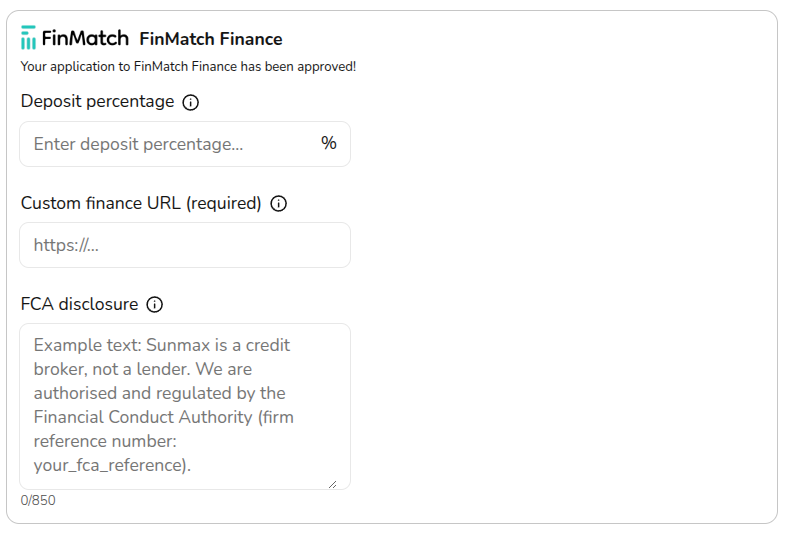](https://help.easy-pv.co.uk/uploads/images/gallery/2026-03/mfqEJHozUmeGNAMo-image.png) #### Deposit percentage Enter the percentage of the total system cost that the customer must pay as a deposit. This amount will not be included in the financed total. This amount can be edited on a per project basis. #### Custom finance URL Enter the full URL of the finance page on your website (for example: **https://www.yoursite.co.uk/finance**). This link will be shared with FinMatch. A custom link to the **FinMatch Finance Assistant** will then be generated for each FinMatch finance option included in a customer proposal. Read more about this in Step 5. #### FCA disclosure Enter the customised text of your required **FCA Disclosure** which will be displayed on each finance option generated through FinMatch that is included in the customer proposal.**Note**: there is an 850 character limit on this disclosure text.
## Using FinMatch finance options in a project ### Step 4: Enable FinMatch in a project Navigate to [Financial task](https://help.easy-pv.co.uk/books/financial-task/page/using-the-financial-task "Using the Financial task") > **`Financial inputs`** > **`Payment options`**. You will then see FinMatch as a finance option alongside any other [payment options](https://help.easy-pv.co.uk/books/financial-task/page/payment-options "Payment options") you have configured. [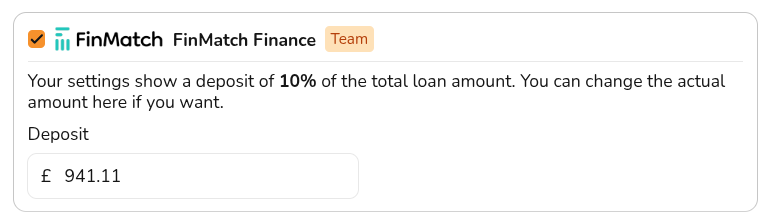](https://help.easy-pv.co.uk/uploads/images/gallery/2026-03/Q5FTx4FJaBrgXEDb-image.png) Tick the **FinMatch Finance** option and (optionally) edit the deposit amount. Some finance options will have a minimum deposit value so this may be overridden. Click **`Save & Exit`** in the bottom right or navigate to the **next section** in the menu on the left. On the **Projection tab**, you can navigate between the available finance options from FinMatch on the right-hand sidebar to see the **payback for each option**. ### Step 5: Generate proposal In the customer proposal, the Payment Options pages that detail finance options generated through FinMatch will include a “Learn More” link. When clicked, this link will direct the customer to a finance details page on your website. This link can be accessed from an **e-signing link** or from a saved **PDF**. --- ## Want to know more? - **Related FAQs:** Check out our [Financial Task FAQs](https://help.easy-pv.co.uk/books/faqs/chapter/financial-task "Financial task") for answers to common questions - **More guides**: Take a look at [Using the Financial task](https://help.easy-pv.co.uk/books/financial-task/page/using-the-financial-task "Using the Financial task") - **Live training:** [Book onto a live demo session](https://cal.com/easy-pv/easy-pv-free-training) to see this feature in action **Contact Support:** If you've got further questions, get in touch with our support team at **help@easy-pv.co.uk** (UK) or **help@easy-pv.ie** (IE).