- Standard users: Go to `My Account` > **`Preferences`** > **`Financial`**. Scroll down to **Providers** and click `Apply now`.
- Pro users: Go to **`Pro Account Settings`** > `Financial`. Scroll down to **Providers** and click `Apply now`.
If you are in a Pro team, only **[team owners](https://help.easy-pv.co.uk/link/74#bkmrk-add-and-remove-users)** can apply via Pro account settings.
### Step 2: Approval from Phoenix Once approved, we will link your Phoenix trader account with your Easy PV account. [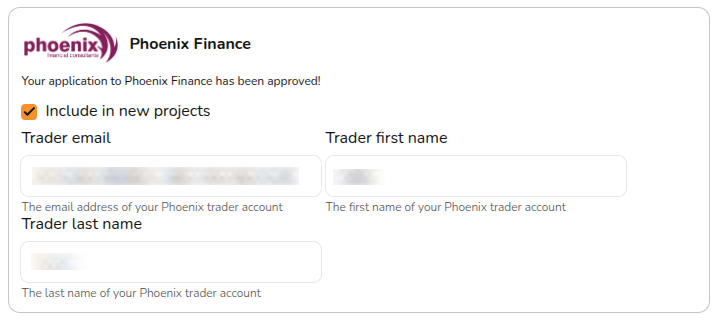](https://help.easy-pv.co.uk/uploads/images/gallery/2026-10/VFya8W1GV6xatwSk-image.png) ## Using Phoenix finance options in a project ### Step 3: Enable Phoenix in a project Navigate to [Financial task](https://help.easy-pv.co.uk/books/financial-task-customer-proposal/page/using-the-financial-task "Using the Financial task") > **`Financial inputs`** > **`Payment options`**. You will then see Phoenix as a finance option alongside any other [payment options](https://help.easy-pv.co.uk/books/financial-task-customer-proposal/page/payment-options "Payment options") you have configured. [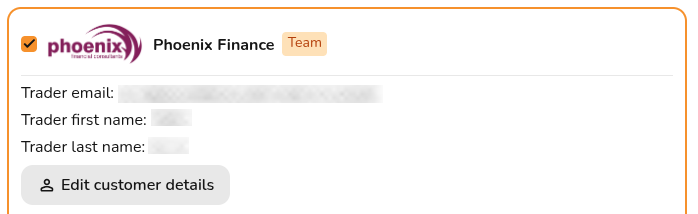](https://help.easy-pv.co.uk/uploads/images/gallery/2026-10/gJhpN9LtHIyY8nrU-image.png) Tick the **Phoenix Finance** option. Here you will have the option to enter some additional details: [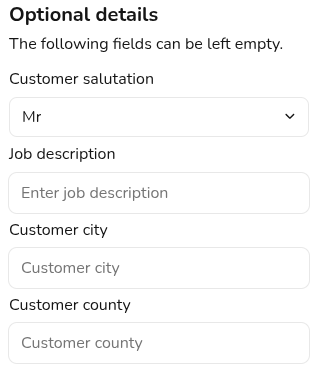](https://help.easy-pv.co.uk/uploads/images/gallery/2026-10/wL289LVMWF8D5tmm-image.png) Click **`Save & Exit`** in the bottom right or navigate to the **next section** in the menu on the left. On the **Projection tab**, you can navigate between the available finance options from Phoenix on the right-hand sidebar to see the **payback for each option**. ### Step 4: Generate proposal When you are ready to send the Customer Proposal, click this message to generate a Phoenix quote. This will create a quote in your Phoenix account and send a copy of the Customer Proposal to Phoenix. [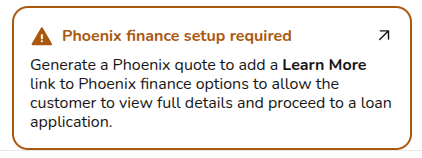](https://help.easy-pv.co.uk/uploads/images/gallery/2026-10/mOROu5441dVYqNai-image.png) The customer will be notified about the Phoenix quote by email and SMS. It will also add a **Learn More** link to each Phoenix finance option in the Customer Proposal, allowing the customer to view full details and proceed to a loan application. If you update the project, you can resend the quote. This action creates a new Phoenix quote and re-notifies the customer. [](https://help.easy-pv.co.uk/uploads/images/gallery/2026-10/qf0VlwLJYVh1VnJP-image.png)