# Offer finance with Phoenix

Our direct Easy PV integration with Phoenix lets you offer finance to your customers without leaving Easy PV. Once your Phoenix account is linked, you can add Phoenix finance options to any project and show customers the payback for each one. When you generate the Customer Proposal, Easy PV also creates a quote in your Phoenix account and the customer is notified by email and SMS, with a link in their proposal to view the full details and apply.

> **Abo[![PhoenixLogo-inv.png](https://help.easy-pv.co.uk/uploads/images/gallery/2026-11/scaled-1680-/4Pk4x4BzkOX7HYNl-phoenixlogo-inv.png)](https://help.easy-pv.co.uk/uploads/images/gallery/2026-11/4Pk4x4BzkOX7HYNl-phoenixlogo-inv.png)ut Phoenix:** Phoenix Financial Consultants is an FCA-authorised credit broker, not a lender. It connects your customers with lenders that can fund their installation, and handles the finance application on their behalf.

## Setting up Phoenix in Easy PV

### Step 1: Sign up for Phoenix

You can apply to Phoenix to offer finance through Easy PV. To get started:

<div class="page-content clearfix" component="page-display" id="bkmrk-standard-users%3A-go-t" option:page-display:page-id="219"><div dir="auto">- Standard users: Go to `<strong>My</strong> <strong>Account</strong>` &gt; **`Preferences`** &gt; **`Financial`**. Scroll down to **Providers** and click `<strong>Apply now</strong>`.
- Pro users: Go to **`Pro Account Settings`** &gt; `<strong>Financial</strong>`. Scroll down to **Providers** and click `<strong>Apply now</strong>`.

</div></div><p class="callout info">If you are in a Pro team, only **[team owners](https://help.easy-pv.co.uk/link/74#bkmrk-add-and-remove-users)** can apply via Pro account settings. </p>

### Step 2: Approval from Phoenix

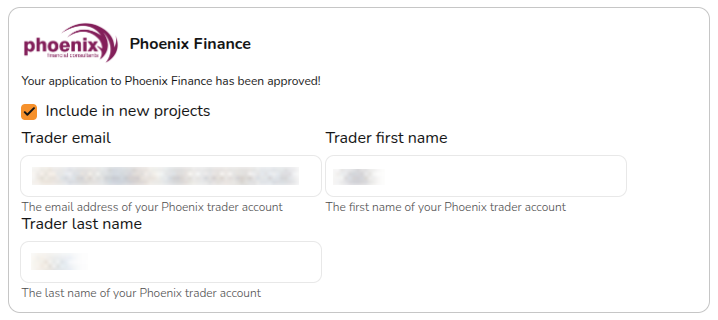
Once approved, we will link your Phoenix trader account with your Easy PV account.

[![image.png](https://help.easy-pv.co.uk/uploads/images/gallery/2026-10/scaled-1680-/VFya8W1GV6xatwSk-image.png)](https://help.easy-pv.co.uk/uploads/images/gallery/2026-10/VFya8W1GV6xatwSk-image.png)
## Using Phoenix finance options in a project 

### Step 3: Enable Phoenix in a project 

Navigate to [Financial task](https://help.easy-pv.co.uk/books/financial-task-customer-proposal/page/using-the-financial-task "Using the Financial task") &gt; **`Financial inputs`** &gt; **`Payment options`**. You will then see Phoenix as a finance option alongside any other [payment options](https://help.easy-pv.co.uk/books/financial-task-customer-proposal/page/payment-options "Payment options") you have configured.

[![image.png](https://help.easy-pv.co.uk/uploads/images/gallery/2026-10/scaled-1680-/gJhpN9LtHIyY8nrU-image.png)](https://help.easy-pv.co.uk/uploads/images/gallery/2026-10/gJhpN9LtHIyY8nrU-image.png)
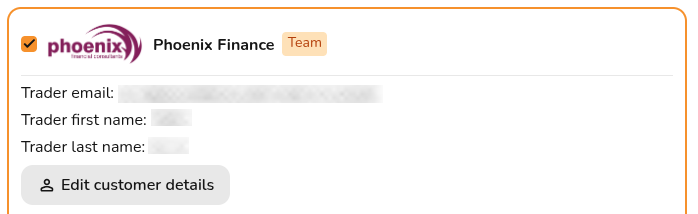
Tick the **Phoenix Finance** option. Here you will have the option to enter some additional details:

[![image.png](https://help.easy-pv.co.uk/uploads/images/gallery/2026-10/scaled-1680-/wL289LVMWF8D5tmm-image.png)](https://help.easy-pv.co.uk/uploads/images/gallery/2026-10/wL289LVMWF8D5tmm-image.png)
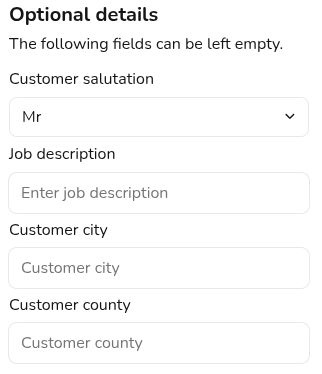
Click **`Save & Exit`** in the bottom right or navigate to the **next section** in the menu on the left.

On the **Projection tab**, you can navigate between the available finance options from Phoenix on the right-hand sidebar to see the **payback for each option**.

### Step 4: Generate proposal 

When you are ready to send the Customer Proposal, click this message to generate a Phoenix quote. This will create a quote in your Phoenix account and send a copy of the Customer Proposal to Phoenix.

[![image.png](https://help.easy-pv.co.uk/uploads/images/gallery/2026-10/scaled-1680-/mOROu5441dVYqNai-image.png)](https://help.easy-pv.co.uk/uploads/images/gallery/2026-10/mOROu5441dVYqNai-image.png)
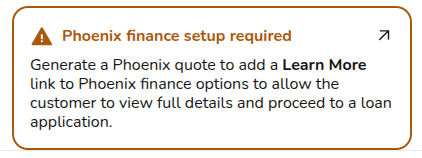
The customer will be notified about the Phoenix quote by email and SMS. It will also add a **Learn More** link to each Phoenix finance option in the Customer Proposal, allowing the customer to view full details and proceed to a loan application.

If you update the project, you can resend the quote. This action creates a new Phoenix quote and re-notifies the customer.

[![image.png](https://help.easy-pv.co.uk/uploads/images/gallery/2026-10/scaled-1680-/qf0VlwLJYVh1VnJP-image.png)](https://help.easy-pv.co.uk/uploads/images/gallery/2026-10/qf0VlwLJYVh1VnJP-image.png)

<div class="page-content clearfix" component="page-display" id="bkmrk--5" option:page-display:page-id="219"><div dir="auto">---

</div></div>## Want to know more?

<div class="page-content clearfix" component="page-display" id="bkmrk-related-faqs%3A-check-" option:page-display:page-id="219"><div dir="auto">- **Related FAQs:** Check out our [Financial Task FAQs](https://help.easy-pv.co.uk/books/faqs/chapter/financial-task "Financial task") for answers to common questions
- **More guides**: Take a look at [Using the Financial task](https://help.easy-pv.co.uk/books/financial-task-customer-proposal/page/using-the-financial-task "Using the Financial task")
- **Live training:** [Book onto a live demo session](https://cal.com/easy-pv/easy-pv-free-training) to see this feature in action

</div></div>**Contact Support:** If you've got further questions, get in touch with our support team at **help@easy-pv.co.uk** (UK) or **help@easy-pv.ie** (IE).