# FAQs

# General


# Can I pay Easy PV to design a project for me?

No, this is not a service we offer at Easy PV. If you’re struggling to use the software, you can always come to one or more of our [free](https://cal.com/easy-pv) training sessions!

If you're **uncertain on what kit to use**, have a chat with your [Midsummer](https://midsummerwholesale.co.uk/) account handler and they will be able to assist. You can sign up to a Midsummer account [here](https://midsummerwholesale.co.uk/register).

If you're **having trouble with a 3D design**, we recommend booking onto our [3D training session ](https://cal.com/easy-pv/introduction-to-3d-design-in-easy-pv)where we can run through any complex designs with you.

# How do I link my Midsummer Account to pull over my trade prices?

To link your Midsummer wholesale account, please follow this [guide](https://help.easy-pv.co.uk/books/getting-started-f2k/page/connecting-to-midsummer).

If you do not yet have a Midsummer wholesale account, you can sign up [here](https://midsummerwholesale.co.uk/register).

# Can I do a retrofit project in Easy PV?

Yes, to create a quote for a retrofit project:

1. Recreate the existing system in Easy PV with the new additions.
2. Remove all existing components or set their price to £0 in the [Financial task](https://help.easy-pv.co.uk/books/financial-task/page/using-the-financial-task "Financial Task").

If you need to create custom components to recreate the existing system, you can use our detailed [component guide](https://help.easy-pv.co.uk/books/creating-components/chapter/create-and-manage-your-own-components "Create and manage your own components").

# Can I do commercial or industrial designs in Easy PV?

Yes, you can use Easy PV for both commercial and domestic projects. Some features that will help with the accuracy and speed of commercial designs include:

- Automatic panel stringing
- Choice of a range of <span class="il">commercial</span> consumption profiles or upload your customer's meter data directly.
- Support for setting export limits and viewing inverter and export clipping in charts.

More details on these features can be found in our [Performance](https://help.easy-pv.co.uk/books/performance-and-consumption/page/performance-task "Performance task") and [Consumption](https://help.easy-pv.co.uk/books/performance-and-consumption/page/getting-started-with-the-consumption-task "Consumption task") task guides.

# Can I do a battery-only project?

At the moment, this is not yet a supported feature. However, if you would like to quote a battery only project in the format then you can create a project that has only the quote by following these steps:

1. Create quick roof project
2. Skip through roof task (no need to change anything)
3. Open financial task and fill in quote
4. Generate proposal

This proposal will contain only the quote.

# What's happened to the international site?

<p class="callout warning">As of **September 2025**, the Easy PV International site (easy-pv.com) will not be available. We’re working on a full upgrade of the International site, and we expect it to be back online within a few months. We’ll notify users as soon as it’s live.</p>

##### Why is the site not available?

Over the past few years, our UK and Irish versions of Easy PV have seen major upgrades – introducing features like Pro accounts, faster performance, and tools such as automated roof scanning and Speedy PV lead generation. These improvements have made them significantly more powerful and reliable.

Unfortunately, the International site has fallen behind and is built on older infrastructure that’s increasingly difficult to maintain. Rather than patching it, we’ve decided to rebuild it properly so it can offer the same high-quality experience as our other platforms.

As a result of this, the Easy PV International site (easy-pv.com) will no longer be available from September 2025. We’re working on a full upgrade of the International site, and we expect it to be back online within a few months. We’ll notify users as soon as it’s live.

##### Can I still use Easy PV in the meantime?

You’re welcome to create a free account and use either the [UK](http://easy-pv.co.uk/) or [Irish](http://easy-pv.ie/) sites. Both function reasonably well for international users, although some features may not work (like roof scanning) and some of the calculated generation and consumption data may not be accurate for use outside the UK and Ireland.

##### I have important project data stored in my Easy PV account, can you help me access this?

Please reach out to our support team and we'll try and help get you access to relevant data and/or documents from your projects.

##### Need more help?

If you have any other questions or need assistance, feel free to contact us at <help@easy-pv.co.uk>.

# How do I do a hard refresh of my browser?

Sometimes your browser may store old versions of the Easy PV code and this can cause issues. A **hard refresh** clears your browser cache for a specific page, which forces it to load the most recent version of that page. This could include new scripts, styles or features. Here's how you can clear your cache through a hard refresh on any browser:

#### Google Chrome

- Load any page on the Easy PV site and make sure you are logged in
- Windows users: hold down **Ctrl** and then press **F5** on your keyboard (alternatively hold down **Ctrl + Shift** and press **R** on your keyboard)
- Mac users: hold down **Cmd** and **Shift** and then press **R** on your keyboard

#### Firefox

- Load any page on the Easy PV site and make sure you are logged in
- For Windows users: hold down **Ctrl** and then press **F5** on your keyboard
- Mac users: hold down **? Cmd** and **? Shift** and then press **R** on your keyboard

#### Safari (Mac)

- Load any page on the Easy PV site and make sure you are logged in
- Go to Safari &gt; Empty Cache, or hit **Opt** + **Cmd** + **E**
- To refresh, click the refresh button on the address bar or press **Cmd** + **R**

#### Microsoft Edge/Internet Explorer (Windows)

- Load any page on the Easy PV site and make sure you are logged in
- Hold down **Ctrl** and then press **F5** on your keyboard (alternatively hold down **Ctrl + Shift** and press **R** on your keyboard)

<p class="callout warning">Important: Clicking the "Refresh" icon on your browser address bar is **not** a hard refresh.</p>

# Pro


# What additional features do I get with Pro?

Easy PV Pro has loads of extra features, these include:

1. **Group functionality** which will allow you to share projects and components and manage your team, and set standard company details for the whole team as well as an automatic price calculator.
2. **Organisational and Designing functionality** including:
    
    
    - Unlimited Magic designs,
    - Project sharing and status tracking,
    - Customer proposal customisations,
    - Emailing and doc management,
    - ENA direct connect API for easy, fast DNO applications all within Easy PV,
    - Survey and post-installation tasks,
    - Additional forms a consent waiver, letter of consent form and scaffolding request forms.
3. Access to our lead generation and instant estimate tool **Speedy PV**.

We are also adding new functionality all the time, including most recently Speedy PV, customer proposal customisations and Magic design mode.

##### Ready to get started?

You can upgrade your account to Pro directly within [Easy PV](https://help.easy-pv.co.uk/easy-pv.co.uk) - just login and look for the 'Upgrade to Pro' link and follow the instructions. If you want to learn more or see a demo of the features book yourself onto one of our [FREE online webinars](https://cal.com/easy-pv/pro-training).

# How much does a Pro subscription cost?

Easy PV Pro costs £35 (plus VAT) per user, per month. There is no ongoing commitment and you can cancel at any time. If you cancel your subscription it will will remain active until the end of your current subscription period. Please note, we do not offer refunds on Pro subscriptions.

# Can I get a free trial of Pro?

If you are interested in a free trial please get in touch at [help@easy-pv.co.uk](mailto:help@easy-pv.cp.uk). Please do also [book one of our demo webinars](https://cal.com/easy-pv/pro-training) to see what Pro can do for you!

# My bank is not showing up when trying to upgrade to Pro, what should I do?

If you can't find your bank when you enter it's name, try just typing a few letters of the bank name and wait a moment to see what results come up. Sometimes the name of the bank will be slightly different to what you expect it to be. To see a list of all the banks that GoCardless (our payment partner) supports [click here](https://support.gocardless.com/hc/en-gb/articles/360021349239-Instant-Bank-Pay-FAQs).

If you still can't find your bank please get into contact with us at <help@easy-pv.co.uk> and we’ll get this sorted for you.

# Is there an Easy PV app for the surveys task?

The survey task can be completed from any device with a mobile connection, including mobile phones and tablets. Unfortunately, there is no app available for this at the moment.

# Can I have a custom cover page?

This is available for [Easy PV PRO](https://help.easy-pv.co.uk/books/faqs/page/what-additional-features-do-i-get-with-pro) users. If you are an Easy PV Pro user you can read about how to include a custom cover page and make other customisations to the proposal [here](https://help.easy-pv.co.uk/books/getting-started-with-pro/page/pro-customer-proposal-customisation "Customer Proposal Customisation").

# Can Easy PV Pro be used as a QMS?

No, at the moment Easy PV Pro cannot be used as a QMS. However, we are working towards this functionality with the document management options currently available.

# Does Easy PV have integrations with CRM systems?

Yes, here's the list of CRM companies that have integrations or are working on integrations.

- [Helios](https://www.helioscrm.co.uk) - live integrations with Easy PV and Heatpunk.
- [Payaca ](https://d36ymd04.eu1.hs-sales-engage.com/Ctc/ZW+23284/d36ymD04/Jks2-6qcW69sMD-6lZ3pkV4W0NK72Y1nwW3RP0Xt3hNJs9W1gW_gp1ky8x2VBTk3q4-RZZWVNm7K46NgW0qV9SjcC2xBLT5W7WPnVw5Z-nNtW5t2QLC3zx8MmW1MLFH25qZzzsW6Crgv68R46PSW4HtBjG7_70QjW1x26672hvx7DW4k1y8D3H1FdWV4n6VS6KdhpjW6GRZc94vCJp6W7kMMvt34Y-VcW1PjtsJ2GJcwbW3Y5T0w4B8sBcW7My4Z39fwVc-N4FB82bW9Rygf4GpHhz04) - live integrations with Easy PV and Heatpunk
- [Jumptech](https://d36ymd04.eu1.hs-sales-engage.com/Ctc/ZW+23284/d36ymD04/Jks2-6qcW69sMD-6lZ3pwW7kjKs93Gb22WV30g2C3r7fB4W5S15mJ60CC50W5jVdws5vsrnwW4kmh1t5hXYscW648NlQ4DZ41PW4-JL4R5jhHyTW2kxJ-r2J9_QcW3jqG601rxM5sN2SZ6CrG_DWYW8vmyRz6mFQTBVSWG-C6n_DkbW8Jk3mq6nX6nfMP5sRTJHLg4W7HLdTv5yWQTlW1f6_rf38cRv9W6c8BMM7fzBKNW6Z3tx29csYSgW3SRKTm7CFsXdW236MtT61NzF9f4gvB0n04) - in development
- [Zervio](https://d36ymd04.eu1.hs-sales-engage.com/Ctc/ZW+23284/d36ymD04/Jks2-6qcW69sMD-6lZ3q7W3xsgjw1grX5QW8MmzJX35rv7sW8gzWW25msgfQW7htW0_6bk4SGN8hnVGYz_H5FW7x6GZR8HqlzdVTGPrb6dX8DZW5L_8fn8MvTpRW4RY6yk4_L0plW1HF--v1qxfG9W1Wz1NN2Xr0HnW7ZYWqw8N-GtkN87WMsJm2jJ-VtBZCR5CZYdsW16SWPn6NgxRdW5YMDGy2m77RKVhzZ2v2566VJW6Cg7gC97wnXFVKF2HX4mtltyN66P08Vv0SNLf2wpTpY04) - in development

Some of our customers also set up their own custom integrations with their CRM systems using our Open API if they have the technical skills to do so. In some cases customers have used [zapier.com](https://zapier.com/ "zapier.com") services to connect our APIs with their CRM system's APIs.

Easy PV Pro gives you access to generate an API key to use our Open API. Further information about this can be found in our [developer guidelines](https://help.easy-pv.co.uk/books/developer-guidelines "Developer guidelines").

# Can I get a refund if I don’t like Pro?

If you cancel your subscription it will will remain active until the end of your current subscription period. Please note, we do not offer refunds on Pro subscriptions.

# How do I cancel my Pro subscription?

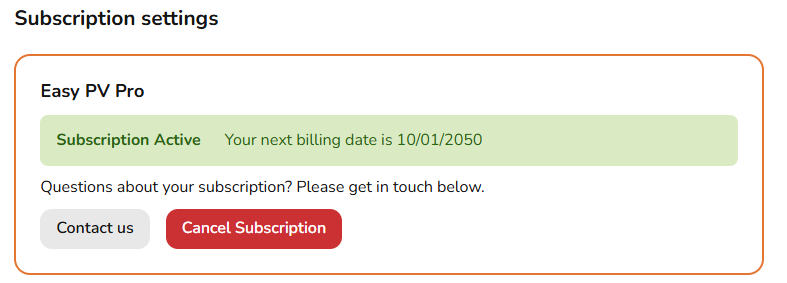
You can cancel your subscription at any point by logging into Easy PV and navigating to **Pro Account Settings &gt; General** then scrolling to the bottom of the page to view your **subscription settings**. Only owners and admins of the Pro team can manage the subscription.

<p class="callout info">If you cancel your subscription it will will remain active until the end of your current subscription period. Please note, we do not offer refunds on Pro subscriptions.</p>

[![image.png](https://help.easy-pv.co.uk/uploads/images/gallery/2025-07/scaled-1680-/P91rPxGzFxOkKC3n-image.png)](https://help.easy-pv.co.uk/uploads/images/gallery/2025-07/P91rPxGzFxOkKC3n-image.png)

# What happens to all my cloud stored documents if I cancel my Pro Subscription?

As per data retention regulations, we will hold your documents according to our data retention policy but they will become unavailable to you. If you wish to keep a record of any documents please do download them and store them as they are generated.

# Can I share projects with other people in my team?

Yes, if you have a Pro Easy PV subscription you can share projects with other members of your Pro team. See this guide for detailed instructions: [Share projects and components](https://help.easy-pv.co.uk/books/pro-videos-and-guides/page/sharing-permissions)

# Can I get my project to share with my team by default?

Yes, you can set this up in **My Account** &gt; **Preferences** by toggling on the sharing permissions you would like to be enabled by default. See this guide for detailed instructions: [Share projects and components](https://help.easy-pv.co.uk/books/pro-videos-and-guides/page/sharing-permissions)

# Emails and e-signing


# Can I edit the required documents and have them be e-signed?

No, you cannot change the required documents in the document manager or have custom documents e-signed but you can upload as many documents as you wish to individual projects.

# Can I change the email templates or add new ones?

The current email templates can only be edited on a case by case basis and new templates cannot be added.

# Can I send emails from my email address rather than an Easy PV address?

By default emails sent from Easy PV will send from a “no reply” email address, with your own email address is CC’ed.

You can configure your email settings in **Pro account settings** &gt; **Emails** so emails will come from your own domain. Read more about that [here](https://help.easy-pv.co.uk/books/getting-started-with-pro/page/pro-email-credentials "Pro: Email Credentials").

# Buildings and roofs


# Which design mode should I use?

Each design mode has benefits depending on the type of project or design you are working on, details on each can be found [here](https://help.easy-pv.co.uk/books/buildings-and-roofs/page/choosing-a-design-mode).

# Does Magic design mode work in my area?

If you notice that Magic scanning isn't working for a customer's property, this is most likely because Google have not performed LIDAR scanning in your area yet. You can check the map on this link to see a rough representation of the areas where this has been done in orange: [https://developers.google.com/maps/documentation/solar/coverage](https://developers.google.com/maps/documentation/solar/coverage).

Magic design mode builds a 3D model of your customer's property, and surrounding buildings for you automatically. It does this by accessing 3D data gathered by Google with LIDAR scanning, stored on their Google Solar API. If you have seen Google Earth recently, you will have noticed this 3D data has also been used to create a 3D map of many cities around the world, as shown in the screenshot below.

[![3D google earth.jpg](https://help.easy-pv.co.uk/uploads/images/gallery/2024-10/scaled-1680-/aIFFsG9HG72lgsnc-3d-google-earth.jpg)](https://help.easy-pv.co.uk/uploads/images/gallery/2024-10/aIFFsG9HG72lgsnc-3d-google-earth.jpg)
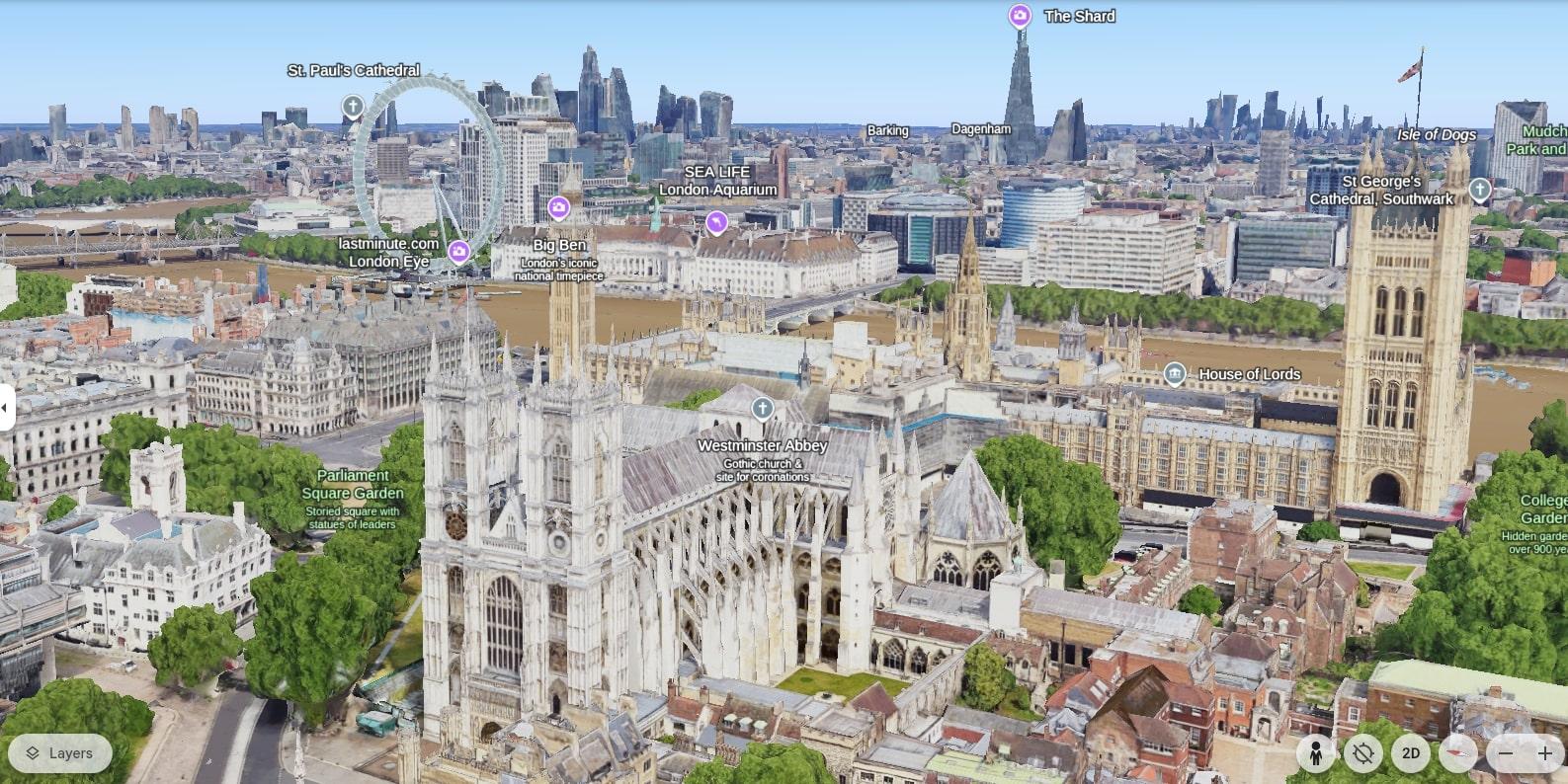
LIDAR scanning is not done by satellites, but rather by aeroplanes, and as such its coverage is much less than the coverage of normal, 2D satellite imagery. Google plans to eventually expand the areas scanned in this way, but so far they have done a pretty good job of scanning the areas where most people live, i.e. urban centres.

<div class="c-message_kit__attachments" id="bkmrk--1"><div class="c-message_attachment" data-qa="message_attachment_default"><div class="c-message_attachment__border">  
</div><div class="c-message_attachment__body">  
</div></div></div>

# Can I upload a CAD file or design PDF to use when doing a design?

At the moment, this is not yet a supported feature. However, our developers are hard at work and constantly adding new features!

# How can I adjust roof measurements in the Roof task?

To see the roof dimensions, click on the corner of the roof.

This will show you the dimensions of the two adjoining sides. You can click on either of these figures to enter a new figure. It’s the same process for checking and adjusting the dimensions of chimneys, vents, etc.

# Can I change the orientation of the panels on a flat roof?

Yes, you can. Horizontal and portrait panels will automatically be angled toward the “bottom” or “gutter line” of the roof whether flat or ground-mounted. In roof outline mode, the “bottom” of the roof is the first side you draw. In quick roof mode and 3D design mode, the “bottom” of the roof is based on how you set the orientation of the roof.

If you want to change the angle of the panels, you’ll need to change the orientation of the roof. For a standard flat roof, the panels will orient towards the yellow circle:

[![image.png](https://help.easy-pv.co.uk/uploads/images/gallery/2024-11/scaled-1680-/4xlBStbt0IM8vKJr-image.png)](https://help.easy-pv.co.uk/uploads/images/gallery/2024-11/4xlBStbt0IM8vKJr-image.png)
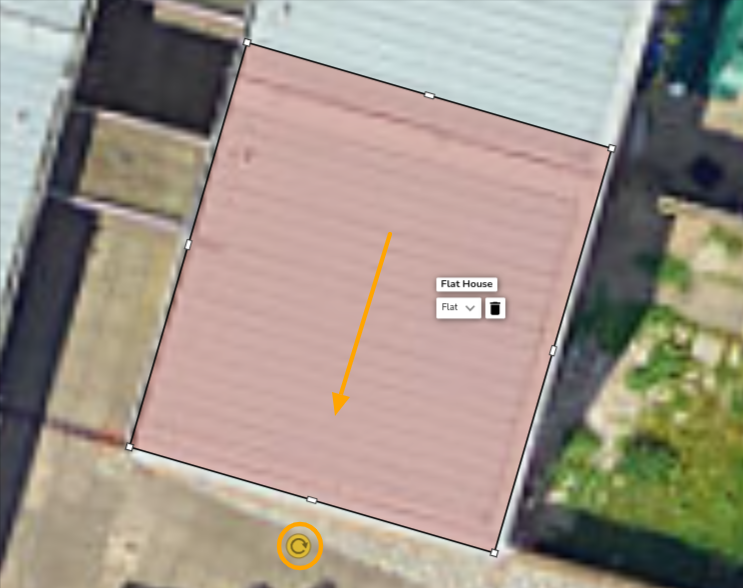
If you want to orient the panels another way on a flat roof you can use the **irregular roof tool** and the following steps:

<p class="callout info">Note that this option is only available when using the [**3D design mode**](https://help.easy-pv.co.uk/books/buildings-and-roofs/page/choosing-a-design-mode "Choosing a design mode") and will also change the direction of any obstructions on the roof. </p>

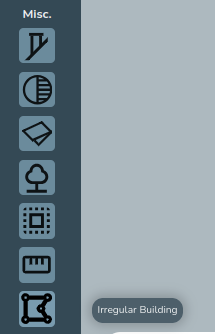
1. Select the 'Irregular building' option in **Misc.**  
    [![Screenshot from 2024-09-30 14-41-25.png](https://help.easy-pv.co.uk/uploads/images/gallery/2024-09/scaled-1680-/6LBObVTtImAGqvtF-screenshot-from-2024-09-30-14-41-25.png)](https://help.easy-pv.co.uk/uploads/images/gallery/2024-09/6LBObVTtImAGqvtF-screenshot-from-2024-09-30-14-41-25.png)
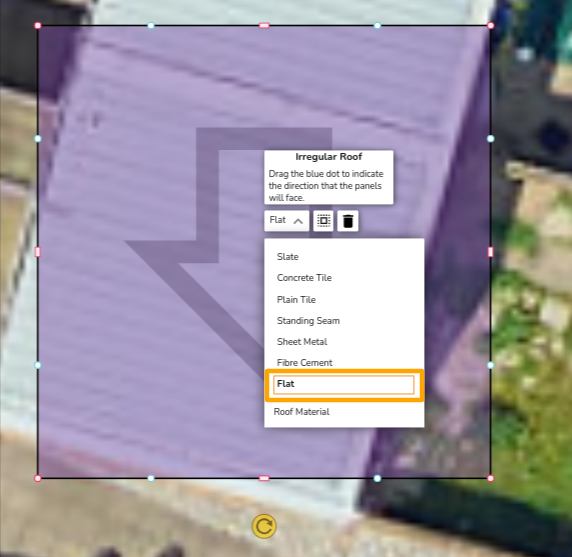
2. Set the roof type to flat by clicking on the roof and selecting from the mini-menu [![image.png](https://help.easy-pv.co.uk/uploads/images/gallery/2024-11/scaled-1680-/NPB9ZtnshqzU13nE-image.png)](https://help.easy-pv.co.uk/uploads/images/gallery/2024-11/NPB9ZtnshqzU13nE-image.png)
    
      
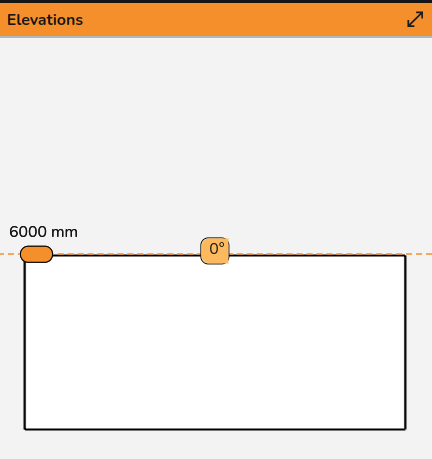
     and the pitch to 0 in the elevations view [![Screenshot from 2024-09-30 14-42-57.png](https://help.easy-pv.co.uk/uploads/images/gallery/2024-09/scaled-1680-/2WrEfbzwQDPJXVnj-screenshot-from-2024-09-30-14-42-57.png)](https://help.easy-pv.co.uk/uploads/images/gallery/2024-09/2WrEfbzwQDPJXVnj-screenshot-from-2024-09-30-14-42-57.png)
3. Size and reshape the roof to the necessary roof - if needed you can fix the angles of the corners by clicking on the corner and selecting the option highlighted in blue below.   
    [![Screenshot from 2024-09-30 14-41-49.png](https://help.easy-pv.co.uk/uploads/images/gallery/2024-09/scaled-1680-/6nZJh9GC8BmptMCd-screenshot-from-2024-09-30-14-41-49.png)](https://help.easy-pv.co.uk/uploads/images/gallery/2024-09/6nZJh9GC8BmptMCd-screenshot-from-2024-09-30-14-41-49.png)
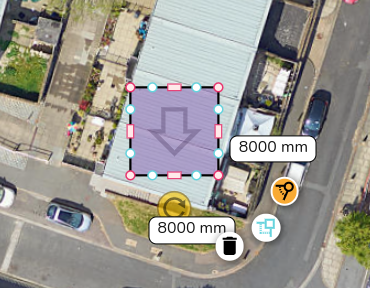
4. Drag the blue dot to direct the arrow, the arrow points in the direction of the panels.
    
    [![image.png](https://help.easy-pv.co.uk/uploads/images/gallery/2024-09/scaled-1680-/1vK4v4N1Yw4oW3Ih-image.png)](https://help.easy-pv.co.uk/uploads/images/gallery/2024-09/1vK4v4N1Yw4oW3Ih-image.png)
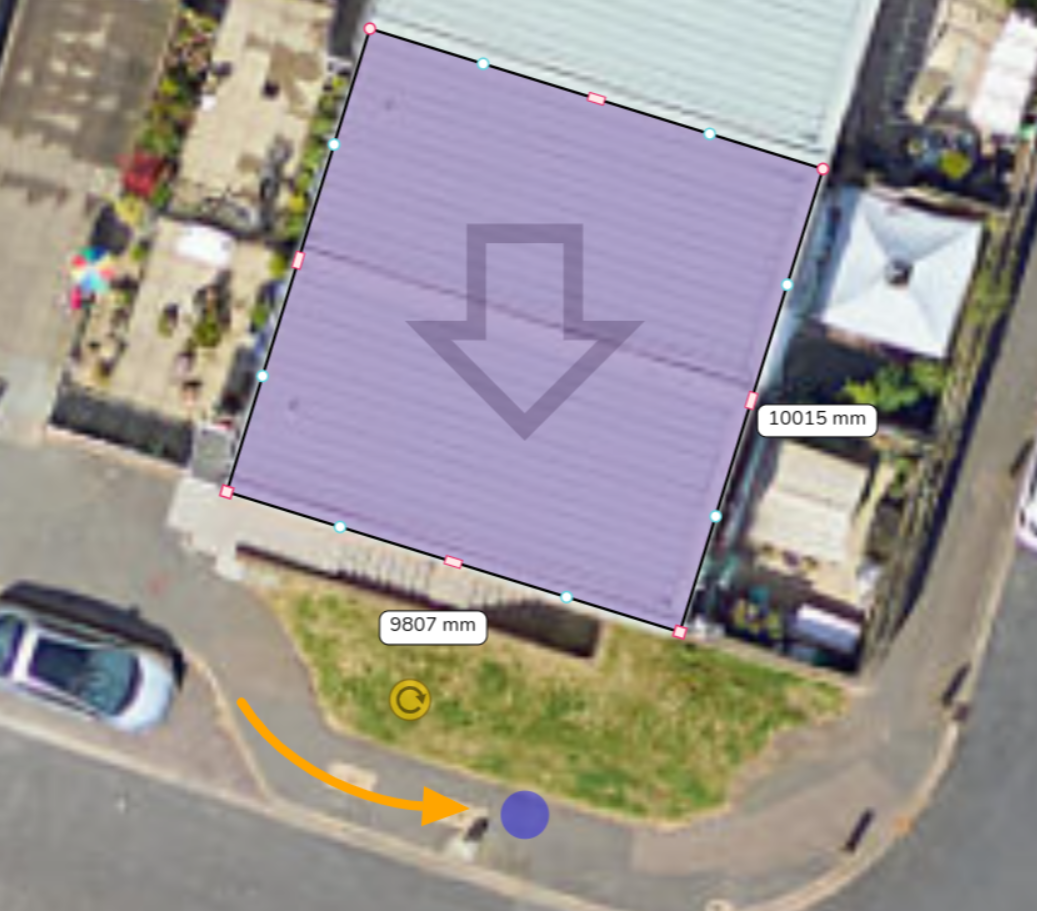
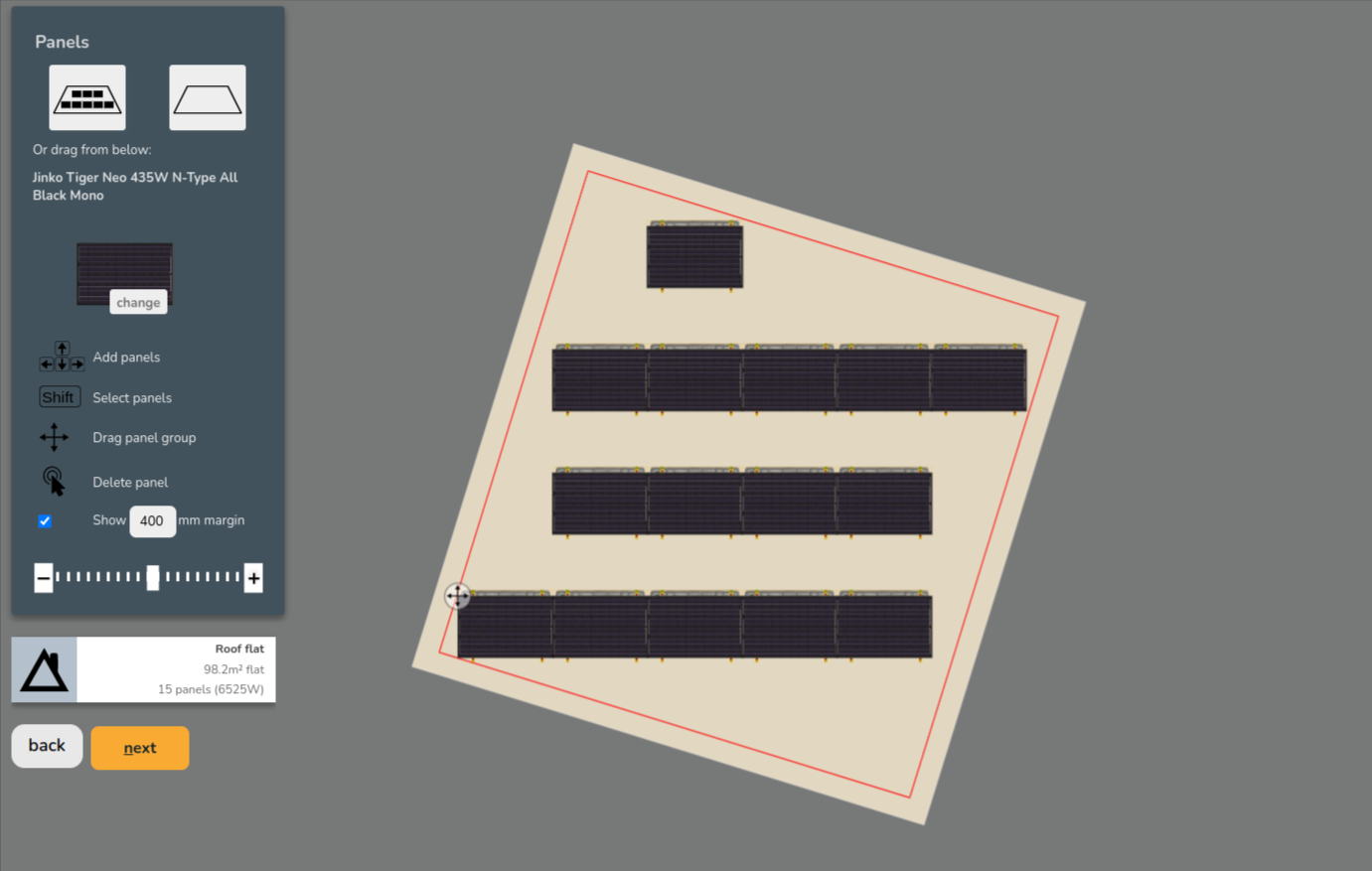
Then when you enter the panels task, the panels will face the direction specified:

[![image.png](https://help.easy-pv.co.uk/uploads/images/gallery/2024-09/scaled-1680-/dwlSeAKITwT3FNnk-image.png)](https://help.easy-pv.co.uk/uploads/images/gallery/2024-09/dwlSeAKITwT3FNnk-image.png)
# The roof type I want isn't an option, what do I choose?

The roof options on Easy PV are slate, concrete tile, plain tile, sheet metal, standing seam, fibre cement, flat and ground mount.

If you need an option that isn't available, the choice you make here will depend on which **mounting system** you plan on using. You will need to work backwards and select whichever roof covering allows you to select the mounting you want.

# What is the difference between orthorectified and standard satellite imagery?

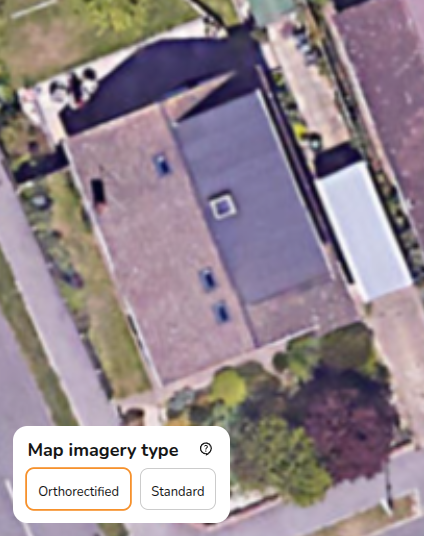
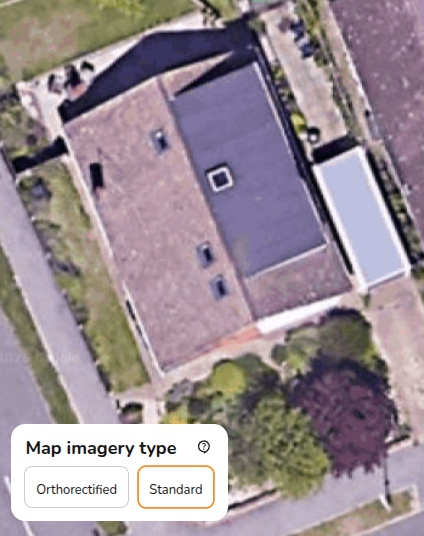
The **orthorectified** map is geometrically corrected to give more accurate dimensions. The **standard** map uses raw satellite data which means dimensions may be distorted, particularly for sloped structures.

Where possible you will want to use the orthorectified map, if it is not available then the dimensions in Easy PV may not be accurate to the actual dimensions.

<table border="1" id="bkmrk-" style="border-collapse: collapse; width: 100%; height: 37px; background-color: rgb(255, 255, 255); border: 1px hidden rgb(255, 255, 255);"><colgroup><col style="width: 50%;"></col><col style="width: 50%;"></col></colgroup><tbody><tr style="height: 37px;"><td style="height: 37px; border-color: rgb(255, 255, 255);">[![image.png](https://help.easy-pv.co.uk/uploads/images/gallery/2025-10/scaled-1680-/S0I4GZIsh8bUAXC7-image.png)](https://help.easy-pv.co.uk/uploads/images/gallery/2025-10/S0I4GZIsh8bUAXC7-image.png)

</td><td style="height: 37px; border-color: rgb(255, 255, 255);">[![image.png](https://help.easy-pv.co.uk/uploads/images/gallery/2025-10/scaled-1680-/urD5l1iuaKjRCzyC-image.png)](https://help.easy-pv.co.uk/uploads/images/gallery/2025-10/urD5l1iuaKjRCzyC-image.png)

</td></tr></tbody></table>

# What do I set as the orientation in Quick Roof?

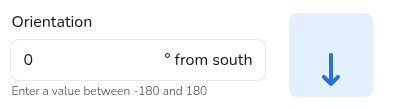
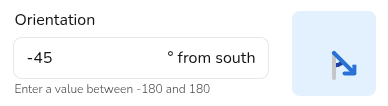
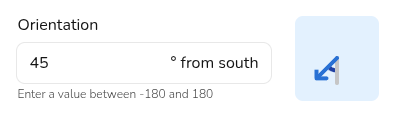
For Quick Roof projects, you have to directly set the orientation rather than it being calculated based on the satellite map. This is done in degrees from south, going clockwise.

**For example:**

<table border="1" id="bkmrk-south%3A-0%C2%B0-from-south" style="border-collapse: collapse; width: 65.9524%; background-color: rgb(255, 255, 255); border: 1px hidden rgb(255, 255, 255);"><colgroup><col style="width: 30.6859%;"></col><col style="width: 69.3141%;"></col></colgroup><tbody><tr><td style="border-color: rgb(255, 255, 255);">- **South**:   
      
    0° from south

</td><td style="border-color: rgb(255, 255, 255);">[![image.png](https://help.easy-pv.co.uk/uploads/images/gallery/2025-11/scaled-1680-/vv2gzC6YSRC7DiuN-image.png)](https://help.easy-pv.co.uk/uploads/images/gallery/2025-11/vv2gzC6YSRC7DiuN-image.png)

</td></tr><tr><td style="border-color: rgb(255, 255, 255);">- **South-east**:   
      
    -45° from south

</td><td style="border-color: rgb(255, 255, 255);">[![image.png](https://help.easy-pv.co.uk/uploads/images/gallery/2025-11/scaled-1680-/ij3mWVgvu9Wd3RqP-image.png)](https://help.easy-pv.co.uk/uploads/images/gallery/2025-11/ij3mWVgvu9Wd3RqP-image.png)

</td></tr><tr><td style="border-color: rgb(255, 255, 255);">- **South-west**:  
      
    45° from south

</td><td style="border-color: rgb(255, 255, 255);">[![image.png](https://help.easy-pv.co.uk/uploads/images/gallery/2025-11/scaled-1680-/7cZBtP7bC7ly2Eqo-image.png)](https://help.easy-pv.co.uk/uploads/images/gallery/2025-11/7cZBtP7bC7ly2Eqo-image.png)

</td></tr></tbody></table>

Navigate to the [performance task](https://help.easy-pv.co.uk/books/performance-and-consumption/page/performance-task "Performance task") and the roofs tab (click edit inputs) to see the orientation diagrams shown above.

# Panels, inverter and electrical


# How can I model an east-west panel layout?

To model an east-west panel layout, create a flat roof or ground mount area in [any design mode](https://help.easy-pv.co.uk/books/buildings-and-roofs/page/choosing-a-design-mode "Choosing a design mode").

In the panels task follow these steps:

1. **Add panels** to the roof/area and then **select 'No mounting'**
2. Set the direction to **east-west** and configure the spacing as needed [![image.png](https://help.easy-pv.co.uk/uploads/images/gallery/2025-11/scaled-1680-/3wfX4yjO6sAiK0AN-image.png)](https://help.easy-pv.co.uk/uploads/images/gallery/2025-11/3wfX4yjO6sAiK0AN-image.png)
3. Select option 1 to fill the roof/area with portrait panels, option 2 to fill the roof with landscape panels and 3 to clear the roof [![image.png](https://help.easy-pv.co.uk/uploads/images/gallery/2025-11/scaled-1680-/Fifwh6FaWO87Cqi3-image.png)](https://help.easy-pv.co.uk/uploads/images/gallery/2025-11/Fifwh6FaWO87Cqi3-image.png)  
    Or drag and drop portrait (right) or landscape (left) panels to build panel layout
    
    [![image.png](https://help.easy-pv.co.uk/uploads/images/gallery/2025-11/scaled-1680-/KoKnfdpnEQ85BTqM-image.png)](https://help.easy-pv.co.uk/uploads/images/gallery/2025-11/KoKnfdpnEQ85BTqM-image.png)

<p class="callout info">This will not spec the mounting components but will mean the pitch and orientation of the panels is correctly modelled in performance calculations. Get in touch with [Midsummer (UK)](https://midsummerwholesale.co.uk/) / [(IE)](https://midsummer.ie/) for guidance on mounting components. </p>

# I can’t allocate my panels to an inverter - all the options are red.

When all of the allocation options are red, Easy PV has determined the panel/inverter combination is not electrically viable. This means that the technical specifications of either the panels or the inverter are out of the range of the other.

When panels have been allocated to an input, Easy PV will outline any electrical issues in red text to make you aware of why it is not compatible. For a custom component this could mean one of the values you have input is incorrect

1. Select the option you think should be possible with the inverter and panel
2. See which option appears in red  
    [![image.png](https://help.easy-pv.co.uk/uploads/images/gallery/2025-10/scaled-1680-/tblhyfT4aRgZVlbA-image.png)](https://help.easy-pv.co.uk/uploads/images/gallery/2025-10/tblhyfT4aRgZVlbA-image.png)
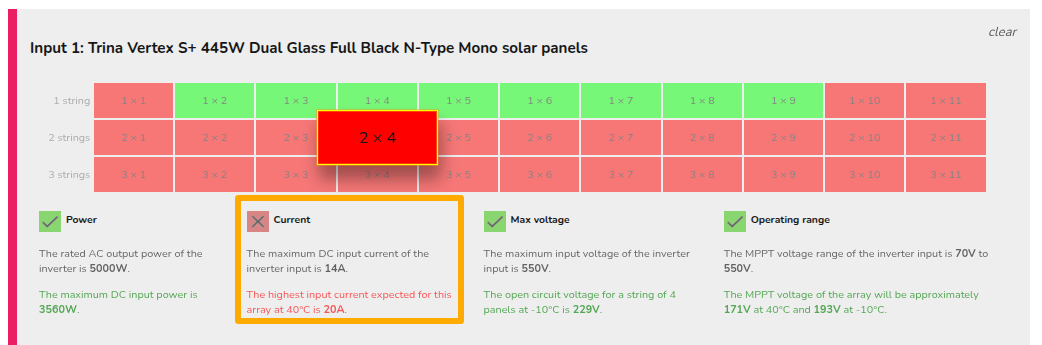
3. Check that value against the datasheet, it may be helpful to reference our [component upload guide](https://help.easy-pv.co.uk/books/creating-components/chapter/create-and-manage-your-own-components "Create and manage your own components").

# The max voltage calculated in the inverter task doesn't match the Voc from the panel datasheet, why is this?

The max voltage factors in both the **open circuit voltage** (V<sub>oc</sub>) and the **temperature coefficient** (ΔV<sub>oc</sub>/°C) of the panel. The value on the datasheet is measured at standard test conditions (STC) but the actual V<sub>oc </sub>of the panels will depend on the ambient temperature. As the temperature decreases, the V<sub>oc</sub> increases, so it is important to factor this into sizing the inverter.

In Easy PV, we do a calculation at -10°C, since the voltage increases at lower temperatures, the max voltage given in Easy PV will be **higher** than the number of panels multiplied by the open circuit voltage of the panels.

<details id="bkmrk-example-calculation-"><summary>Example calculation</summary>

[![image.png](https://help.easy-pv.co.uk/uploads/images/gallery/2025-10/scaled-1680-/Y6H6AdxxJxlAN8UU-image.png)](https://help.easy-pv.co.uk/uploads/images/gallery/2025-10/Y6H6AdxxJxlAN8UU-image.png)

In the above case, the V<sub>oc</sub> is 37.45V and the temperature coefficient is -0.276%. This means for every increase in °C, the V<sub>oc </sub>decreases by 0.276%.

For standard test conditions (STC), the panel temperature is 25°C so the change in temperature to -10°C is 35°C, meaning we have

**37.45 \* (1 + (|-0.00276| \* 35)) \* 8 = 328.5 V**

Easy PV does a slightly more conservative calculation:

**37.45 \* (1 - (-0.00276))<sup>35</sup> \* 8 = 329.94 V**

where in each case 0.276% is divided by 100 to convert it 0.00276 per °C. This is then rounded to give 330V.

</details>

# How is DC cable sizing and voltage drop calculated?

Easy PV returns the smallest cable cross-sectional area that achieves a voltage drop less than 1% of the voltage across the cable (or the largest cable if none do).

The voltage drop along a cable is the product of the current and resistance. The current is calculated in the inverter task and we calculate cable resistances from the IEC 60228/BS 6360 stranding chart.

# Custom components

If your problem is not addressed here, it likely will be covered in our detailed custom component guides. 

# Can I add components that aren't listed on Easy PV?

Yes, for instructions on how to add different components, please read our full [component upload guide](https://help.easy-pv.co.uk/books/creating-components "Create and manage your own components").

Note, you are not able to add custom optimisers or mounting systems due to the complexity involved in integrating these into the software.

# I added a battery in ‘My Components’ but it isn’t showing up as an option in the Inverter task.

When you add a battery component, you must ensure that you have set the compatibility with your custom inverter category or specific inverter:

1. Create battery component
2. Under battery rules select '**Selected inverter groups only'** or '**Selected specific inverters only**'
3. Click on the text to show the different inverters and select the check box under your relevant inverter group or inverter  
      
    [![image.png](https://help.easy-pv.co.uk/uploads/images/gallery/2025-10/scaled-1680-/U99UyFYuhCMRPF0F-image.png)](https://help.easy-pv.co.uk/uploads/images/gallery/2025-10/U99UyFYuhCMRPF0F-image.png)

If this does not resolve the issue or now too many the options are showing in red, you will need to look at the **max battery capacity** value in the **Battery** section of the hybrid inverter and compare this with the **battery capacity** of your custom battery.

# I added a hybrid inverter to ‘My Components’ but can’t add a battery to it in the Inverter Task.

If you are trying to use custom hybrid Inverter and battery components - you will need to make sure you have added the battery as its own component. This is true even for all-in-one systems.

You can do this under **Components** &gt; **Edit Batteries**. For more detailed instructions, take a look at our [guide to setting up batteries in Easy PV](https://help.easy-pv.co.uk/books/creating-components/page/custom-battery "Custom battery").

# I have added a new inverter in 'My Components', but I'm unable to allocate panels to its inputs. How do I fix this?

Navigate back to **My Components** and open the inverter you have added. Under the **Solar** section make sure you have added trackers, if you have not added them the **Solar** section will look like this:

[![image.png](https://help.easy-pv.co.uk/uploads/images/gallery/2024-12/scaled-1680-/BYYXzehKoyzbii6A-image.png)](https://help.easy-pv.co.uk/uploads/images/gallery/2024-12/BYYXzehKoyzbii6A-image.png)

Check on the manufacturer’s datasheet to see how many trackers there are for the inverter. Click the ***Add tracker*** option in the solar section on the right and input the relevant information. Once this is filled in you will be able to allocate the panels to the input.

# GSE showing as not compatible with my panel but I've checked that is it compatible - why?

Open up the details for your custom panel and follow these steps

1. Click the text 'Compatible with GSE'
2. In the drop down menu select 'half-frame'  
    [![Screenshot from 2025-05-09 14-58-22.png](https://help.easy-pv.co.uk/uploads/images/gallery/2025-05/scaled-1680-/zzpMXOo7C8i3mcqa-screenshot-from-2025-05-09-14-58-22.png)](https://help.easy-pv.co.uk/uploads/images/gallery/2025-05/zzpMXOo7C8i3mcqa-screenshot-from-2025-05-09-14-58-22.png)

Then the panel will be compatible with the GSE frames we have in Easy PV!

# Performance and consumption task

A detailed guide on the consumption task can be found here. 

# Where is section C, D and E of the performance report?

These sections are displayed in both the **MCS performance report** and the **performance and battery pages of the customer proposal**. You can find the performance report from the 'forms' drop-down or by clicking the three dots in the top corner of the [Performance task](https://help.easy-pv.co.uk/books/performance-and-consumption/page/performance-task "Performance task").

Easy PV will only show these sections in the MCS performance report if the [MCS self-consumption calculation](https://help.easy-pv.co.uk/books/performance-and-consumption/page/performance-task "Performance task") has been completed. The MCS method can only be completed if the generation is less than 6000kWh, the consumption is between 1500-6000kWh and the usable battery capacity is less than 15.1kWh. An alternative method is offered in the [Consumption task](https://help.easy-pv.co.uk/books/performance-and-consumption/page/getting-started-with-the-consumption-task "Consumption task").

As long as the Easy PV or MCS method is selected in the [Financial task](https://help.easy-pv.co.uk/books/financial-task/page/using-the-financial-task "Financial Task"), the equivalent to section C and D (if there is a battery) can be found in the bottom left corner of the performance and battery storage pages of the Customer Proposal. If there is no battery, sections A-C will appear in the bottom left corner of the performance page.

<div id="bkmrk-if-you-instead-you-h"></div>

# What is self-consumption?

Self-consumption is the proportion of electricity generated that is then consumed within the property. This could be directly or via a battery:

**Self consumption = Solar PV electricity consumed within property (kWh) / Solar PV electricity generated (kWh)**

Energy that is not self-consumed is then exported to the grid. A higher self-consumption typically means a faster payback period since this reduces the amount spent on energy bills. Read here for guidance on how to [reduce your payback period](https://help.easy-pv.co.uk/books/faqs/page/the-payback-period-is-too-long-how-can-i-fix-this "The payback period is too long, how can I fix this?").

# What are the differences between the MCS and Easy PV self-consumption calculations?

<p class="callout info">This guide applies to [easy-pv.co.uk](https://easy-pv.co.uk/). For [easy-pv.ie](https://easy-pv.ie/) only the Easy PV method is available.</p>

There are a few differences between the Easy PV and MCS self-consumption calculations:

1. **System size**
    - MCS: can be used for projects with consumption between 1500-6000kWh, generation below 6000kWh and usable batter capacity below 15.1kWh.
    - Easy PV: can be used for any system size and consumption level.
2. **Consumption profiles**
    - MCS: choice between domestic consumption profiles: home all day, home half the day and out all day.
    - Easy PV: additional choices between [commercial consumption profiles](https://help.easy-pv.co.uk/link/93#bkmrk-annual-usage-if-you-). You also have the option to upload half-hourly meter data to ensure the consumption profile is entirely accurate to the customer's usage.
3. **Method**
    - MCS: self-consumption is determined based on [lookup tables](https://mcscertified.com/?standard=look-up-tables-pv-self-consumption) specified in MGD 003.
    - Easy PV: uses the same total generation figure but then uses PVGIS data to model how this is distributed across the year. Easy PV then calculates steps minute by minute over the course of the year, looking at how much is being generated, how much is being consumed and how charged the battery is and diverting the energy accordingly, factoring in the charge rate of the battery.
4. **Additional options**
    - Since Easy PV calculates how the generated electricity is used minute-by-minute rather than annually, it means **export limits**, **variable tariffs** and **forced charging/discharging of batteries** can be factored into the model. Easy PV also factors in **inverter clipping**.

# The MCS self-consumption calculations in the Performance task don't work for my project - why?

The MCS calculations won’t work for projects with an annual generation greater than 6000 kWh, annual consumption not between 1500-6000kWh or with battery storage over 15.1kWh.

For these situations, we recommend using the Easy PV [Consumption task](https://help.easy-pv.co.uk/books/performance-and-consumption/page/getting-started-with-the-consumption-task "Consumption task") to generate accurate system projections and then ensure you select the Easy PV calculations in the [Financial task](https://help.easy-pv.co.uk/books/financial-task/page/using-the-financial-task "Using the financial task").

# Structural task


# Why won't the structural calculations work for my project?

Not all combinations of roof material types and mounting systems have structural calculations in Easy PV since the calculations are based on information provided by MCS in [MIS 3002](https://mcscertified.com/wp-content/uploads/2025/01/MIS-3002-2025-V1.0.pdf).

If you are unable to complete structural calculations in Easy PV you will need to consult a structural engineer.

# Why are the weight loading calculations failing for my plain tile roof?

Weight loading calculations will often fail for plain tile roofs. This is because we use MCS default values for the tile weight, and the value for plain tiles is much higher than other roof coverings. If you are finding your calculations are failing when you don't expect them to, you can get a tile from the exact roof and measure the kg/m<sup>2</sup> to replace this value:

[![image.png](https://help.easy-pv.co.uk/uploads/images/gallery/2025-11/scaled-1680-/gSOdOcTIze7GV2ZK-image.png)](https://help.easy-pv.co.uk/uploads/images/gallery/2025-11/gSOdOcTIze7GV2ZK-image.png)

If the calculations are still failing, you will then need to consult a structural engineer.

# Financial task


# Why are there two consumption figures to choose from in the financial task?

If you have completed both the MCS self-consumption calculation (end of the [Performance task](https://help.easy-pv.co.uk/books/performance-and-consumption/page/performance-task "Performance task") for easy-pv.co.uk) and the Easy PV consumption calculation ([Consumption task](https://help.easy-pv.co.uk/books/performance-and-consumption/page/getting-started-with-the-consumption-task "Consumption task")) in the project, both figures will appear as options when you open the [Financial task](https://help.easy-pv.co.uk/books/financial-task/page/using-the-financial-task "Using the financial task") in Easy PV.

Both are acceptable methods for calculating the self-consumption, you are free to choose either calculation.

# How is the payback period calculated?

The payback period is the time it takes for the benefits of the system to outweigh the costs.

Easy PV calculates how much is saved on the electricity bill and earned from exporting across the payback period, using the selected tariffs and factoring in any financial projection settings. It then similarly calculates any costs incurred across the payback period including the upfront cost, finance payments and any maintenance costs.

Take a look at our guide on [using the financial task](https://help.easy-pv.co.uk/books/financial-task/page/using-the-financial-task "Financial Task") for additional information and please reach out at <help@easy-pv.co.uk> or <help@easy-pv.ie> if you're having any trouble.

# The payback period is too long, how can I fix this?

There are a few things that can help with the payback period. The payback period is calculated by weighing up the cumulative benefits of the system against the cumulative costs. Therefore, to improve the payback period, you either need to **reduce costs** or **increase the benefits**, there are a few ways to do this:

- **Add batteries**: this will increase the initial investment required but will allow the customer to store energy produced from peak times in the day to be used later which will reduce their grid dependence and reduce their cumulative costs.
- **Check tariffs are correct**: tariffs are input into Easy PV in p/kWh, not £/kWh, so make sure your tariffs are in the correct units. This will ensure the savings and benefits are calculated accurately.
- **Add export tariff**: if an export tariff is not configured, any benefits from exporting excess energy that cannot be used directly or to charge a battery will not be modelled. Including an export tariff will appropriately model these potential benefits.
- **Factor in forced charging and discharging**: if your system has a battery, you can estimate the benefits of forced charging and discharging the battery at different periods, in line with a variable tariff. Read more about that in our [Consumption task guide](https://help.easy-pv.co.uk/books/performance-and-consumption/page/getting-started-with-the-consumption-task#bkmrk-export-limitation).
- **Configure tariff switch**: this is an option when using the Easy PV self-consumption method. If you are assuming a tariff switch, it's important to account for this in the [Consumption task](https://help.easy-pv.co.uk/books/performance-and-consumption/page/getting-started-with-the-consumption-task#bkmrk-export-limitation). When calculating the payback, their bill savings need to be calculated in terms of their current tariff.

Further information on tariffs can be found in our [tariffs](https://help.easy-pv.co.uk/books/performance-and-consumption/page/editing-and-creating-tariffs "Editing and creating tariffs") guide.

# How can I factor VAT into the cost?

Yes, you can do so by following these steps:

1. Navigate to the [Financial task](https://help.easy-pv.co.uk/books/financial-task/page/using-the-financial-task "Using the financial task")
2. Click the pen in the top right corner
3. Then under **Tax settings** you can set a rate for materials and services, and include whether the customer can claim this tax back  
    [![image.png](https://help.easy-pv.co.uk/uploads/images/gallery/2025-10/scaled-1680-/hsM0FWQAoDlTC9I4-image.png)](https://help.easy-pv.co.uk/uploads/images/gallery/2025-10/hsM0FWQAoDlTC9I4-image.png)

# Why do some of the financial savings appear to be different on the Customer Proposal and Easy PV Project Report?

Easy PV uses two different methods of calculating financial savings.

1\) We do a basic calculation to work out a headline **year one/first year saving** figure that can be used on proposal summaries, etc. This calculation doesn’t take into account inflation or degradation rate.

2\) We calculate a **financial forecast** showing payback for a longer period (25 years by default). This takes into account inflation, degradation, and discount rates. In the first year, we apply half the % values for each of these rates rather than the full % value. If you're wondering why we use half the % values for the first year, please see below for an explanation.

<details id="bkmrk-further-information-"><summary>Further information</summary>

When you pay for a PV install you do so in a lump sum on day 0. You then start getting savings and export income from it. But by the end of the first year, monetary values have risen by inflation. So if you were saving £100 / month for electricity on day 0, by the end of the year - day 365 - you are saving £104 / month if the inflation rate is 4%.

When working out the savings for year 1 therefore, we need to work out the average for the year. If savings were £100/month at the beginning, and £104/month at the end the average is £102/month. So for that first year, we use half the inflation value to work out the average savings.

For year two, we again need to use the average value of money over the course of the year. This will have increased by the value of inflation from the value that we used for year one. Basically we are comparing the value of money at 6 months to the value at 18 months. So £102 for year one becomes £106.08 (£102 \* 1.04) if the inflation rate is 4%.

It's exactly the same with degradation. On day zero the panels are generating at 100%. By day 365 they have degraded slightly. With degradation of 1% a year we would expect them to be at 99% capacity. The expected *average* generation for the year is halfway between those two values, so we use 99.5% for year one rather than 99%.

</details>

# Which components are supported by Hometree?

Below lists each panel, inverter and battery that you can use with Hometree finance options in Easy PV.

Expand the sections for each brand to see the full list. If a brand stocked by Midsummer is not listed, it means no components from that brand are supported.

### Panels

<details id="bkmrk-aiko-%C2%A0"><summary>Aiko</summary>

Aiko Neostar 2P 470W Black White ABC N-Type Mono  
Aiko Neostar 2P+ 470W Dual Glass Black White ABC N-Type Mono  
Aiko Neostar 2S 460W All Black ABC N-Type Mono  
<span data-sheets-root="1">Aiko Neostar 2S+ 460W Dual Glass All Black ABC N-Type Mono</span>

</details><details id="bkmrk-drop-down-per-brand-"><summary>Eurener</summary>

Eurener 440W All Black N-Type Mono (Ultra Premium)  
Eurener Nexa 500W TOPCon All Black Bifacial Mono

</details><details id="bkmrk-jinko-jinko-tiger-ne"><summary>Jinko</summary>

<span data-sheets-root="1">Jinko Tiger Neo 440W All Black N-Type Mono</span>

</details><details id="bkmrk-longi-longi-himo6-ht"><summary>Longi</summary>

Longi HiMo6 HTB 435W All Black Mono  
Longi HiMo6 HTH 435W Black White Mono  
Longi HiMo6 HTH 530W Black White Mono

</details><details id="bkmrk-meyer-burger-meyer-b"><summary>Meyer Burger</summary>

<span data-sheets-root="1">Meyer Burger 385W All Black Mono</span>

</details><details id="bkmrk-trina-trina-vertex-s"><summary>Trina</summary>

Trina Vertex S+ 445W Dual Glass N-Type Bifacial with Clear Backsheet  
Trina Vertex S+ 450W Dual Glass Black White N-Type Mono  
Trina Vertex S+ 450W Dual Glass Full Black N-Type Mono  
Trina Vertex S+ 450W Dual Glass Full Black N-Type Mono (Traceable)

</details>### Inverters

<details id="bkmrk-ecoflow-ecoflow-3.68"><summary>EcoFlow</summary>

EcoFlow 3.68kW 1ph (2 MPPTs)  
EcoFlow 5kW 1ph (2 MPPTs)  
EcoFlow 6kW 1ph (2 MPPTs)

</details><details id="bkmrk-enphase-enphase-iq8a"><summary>Enphase</summary>

Enphase IQ8AC (with integrated MC4) 1ph  
Enphase IQ8HC (with integrated MC4) 1ph  
Enphase IQ8MC (with intergrated MC4) 1ph  
Enphase IQ8X (with integrated MC4) 1ph

</details><details id="bkmrk-fox-ess-fox-ess-h1-g"><summary>Fox ESS</summary>

Fox ESS H1 G2 3.0kW 1ph Hybrid  
Fox ESS H1 G2 3.68kW 1ph Hybrid  
Fox ESS H1 G2 5.0kW 1ph Hybrid  
Fox ESS H1 G2 6.0kW 1ph Hybrid  
Fox ESS H3 Pro 30kW 3ph Hybrid  
Fox ESS KH 10kW 1ph Hybrid  
Fox ESS KH 7kW 1ph Hybrid  
Fox ESS KH 8kW 1ph Hybrid  
Fox ESS KH 9kW 1ph Hybrid  
Fox ESS S Series (G2) 3000W 1ph 1MPPT String

</details><details id="bkmrk-givenergy-g3-givener"><summary>GivEnergy</summary>

G3 GivEnergy 3.6kW hybrid  
G3 GivEnergy 5kW hybrid  
Giv.AC 3.0  
GivEnergy 12kW All in One 2 13.5kWh

</details><details id="bkmrk-growatt-growatt-min-"><summary>Growatt</summary>

Growatt MIN 3.6kW 1ph Hybrid (inc DC switch)  
Growatt MIN 8000 TL-X2 Three MPPT 1ph

</details><details id="bkmrk-libbi-libbi-3.68kw-1"><summary>Libbi</summary>

Libbi 3.68kW 1ph  
Libbi 5kW 1ph

</details><details id="bkmrk-sigenergy-sigenergy-"><summary>Sigenergy</summary>

Sigenergy Sigenstor 3.6kW 1ph Hybrid  
Sigenergy Sigenstor 5kW 1ph Hybrid  
Sigenergy Sigenstor 8kW 1ph Hybrid

</details><details id="bkmrk-solax-solax-x1-g4-3."><summary>SolaX</summary>

SolaX X1 G4 3.7D hybrid  
SolaX X1 G4 5.0D hybrid  
SolaX X1 G4 6.0D hybrid  
SolaX X1 G4 7.5D hybrid  
SolaX X1-IES 3.7kW 1ph Hybrid  
SolaX X1-IES 6kW 1ph Hybrid  
SolaX X3 Hybrid G4 PRO 10kW

</details>### Batteries

<details id="bkmrk-ecoflow-ecoflow-powe"><summary>EcoFlow</summary>

<span data-sheets-root="1">EcoFlow Power Ocean LFP 5kWh</span>

</details><details id="bkmrk-fox-ess-fox-ess-cm29"><summary>Fox ESS</summary>

Fox ESS CM2900 2.88kWh Li-ion - Master  
Fox ESS EP11-H 10.36kWh Li-ion (10yr) w/ heating function  
Fox ESS EP11-H 10.36kWh Li-ion (10yr) w/ heating function (for H3 Pro)  
Fox ESS EP5-H 5.18kWh Li-ion (10yr) w/ heating function  
Fox ESS EP5-H 5.18kWh Li-ion (10yr) w/ heating function (for H3 Pro)  
Fox ESS EQ2900 2.88kWh Li-ion (double stack; for H3 Pro)  
Fox ESS EQ2900 2.88kWh Li-ion (for H1, KH, AC1)  
Fox ESS EQ2900 2.88kWh Li-ion (for H3 Smart, H3 Pro, AC3)  
Fox ESS EQ2900-S 2.88kWh Li-ion - Slave  
Fox ESS EQ4800 4.66kWh Li-ion (double stack)  
Fox ESS EQ4800 4.66kWh Li-ion (for H1, KH, AC1)  
Fox ESS EQ4800 4.66kWh Li-ion (for H3, H3 Pro, H3 Smart, AC3)  
Fox ESS EQ4800-M 4.66kWh Li-ion - Master  
Fox ESS EQ4800-S 4.66kWh Li-ion - Slave

</details><details id="bkmrk-givenergy-givenergy-"><summary>GivEnergy</summary>

<span data-sheets-root="1">GivEnergy 12kW All In One 2 13.5kWh</span>  
GivEnergy All In One 2  
GivEnergy Expansion Battery 13.5kWh  
GivEnergy Gen3 5.12kWh LiFePO4  
GivEnergy Gen3 9.5kWh LiFePO4 Unlimited (integrated DC breaker)

</details><details id="bkmrk-growatt-growatt-apx-"><summary>Growatt</summary>

Growatt APX HV 5.0P-B1 (battery) (for MID and MOD HV inverters)  
Growatt APX HV 5.0P-B1 (battery) (for MIN HV inverters)

</details><details id="bkmrk-libbi-libbi-5kwh-hom"><summary>Libbi</summary>

<span data-sheets-root="1">Libbi 5kWh Home</span>

</details><details id="bkmrk-sigenergy-sigenergy--1"><summary>Sigenergy</summary>

Sigenergy 5.2kWh Battery  
Sigenergy 7.8kWh Battery

</details><details id="bkmrk-solaredge-solaredge-"><summary>Solaredge</summary>

SolarEdge 10kWh 400V Home  
SolarEdge 4.6kWh 48V Home

</details><details id="bkmrk-solax-solax-tp30-3kw"><summary>SolaX</summary>

SolaX TP30 3kWh  
SolaX TP30 3kWh (for X1 &amp; X3 Hybrids (inc. FIT))  
SolaX TP30 3kWh (for X1 Hybrids) (inc. 1x Parallel Box G2)  
SolaX TP30 3kWh (for X3 Hybrids) (inc. 1x Parallel Box G2)  
SolaX TP30 3kWh (for X3 Ultras and X3 Hybrid G4 PROs)  
SolaX TP30 3kWh (for X3 Ultras) (inc. 1x Parallel Box G2)  
SolaX TP30 3kWh (for X3 Ultras) (inc. 2x Parallel Box G2)  
SolaX TP58 5.8kWh  
SolaX TP58 5.8kWh (for X1 Hybrids)  
SolaX TP58 5.8kWh (for X1 Hybrids) (inc. 1x Parallel Box G2)  
SolaX TP58 5.8kWh (for X3 Hybrids)  
SolaX TP58 5.8kWh (for X3 Hybrids) (inc. 1x Parallel Box G2)  
SolaX TP58 5.8kWh (for X3 Ultras and X3 Hybrid G4 PROs)  
SolaX TP58 5.8kWh (for X3 Ultras) (inc. 2x Parallel Box G2)  
SolaX TP58 5.8kWh (Primary)  
SolaX TP58 5.8kWh (Secondary)

</details>

# Customer proposal


# My customer proposoal isn't loading - why?

If your report isn't loading, it's likely because Easy PV is missing some information it needs to generate it.

Usually blank proposal are caused by issues with the Performance task. Navigate to the task, and see if there are any errors (they may say 'undefined' or 'NaN’) on the table. If the postcode zone row has an error, you know you need to change the postcode.

If you go to the performance task and there are no errors, then we suggested contacting us on [help@easy-pv.co.uk.](mailto:help@easy-pv.co.uk)

# How do I attach my logo/branding to the customer proposal or Easy PV project report?

To attach your Logo to the Easy PV Project Report navigate to **My Account** in the top right of the Easy PV home page and then **Preferences**. Once in this menu, scroll down to the **Company Logo** section and click on the current logo image. You can then upload your logo.

Please note that the logo will only appear on the quote page of the customer proposal report. Further customisation of the customer proposal is available with [Easy PV Pro](https://help.easy-pv.co.uk/books/getting-started-with-pro/page/pro-customer-proposal-customisation "Customer Proposal Customisation"), get in touch with us at <help@easy-pv.co.uk> if you're interested in a free trial!

# How do I hide line prices in the customer proposal?

Select **Customer Proposal** from the **Tasks** drop-down menu.

[![image.png](https://help.easy-pv.co.uk/uploads/images/gallery/2025-12/scaled-1680-/Yk7VusR68xCJA8yR-image.png)](https://help.easy-pv.co.uk/uploads/images/gallery/2025-12/Yk7VusR68xCJA8yR-image.png)

In the section titled **Quotation** you can change the pricing to:

- Show line items,
- Show equipment and services subtotals,
- Only show total.

# I’ve done a 3D design, can I include the 3D preview in the customer proposal document?

Yes, select **Customer Proposal** from the **Tasks** drop-down menu. In the bottom section titled **Overview images** you can select the 3D viewpoint you would like to show on the proposal.

Note if you change the 3D design or panel layout in your project after generating the 3D image you’ll need to come back to this task and regenerate the image to be used in your proposal.

# Where do the numbers on the Financial Benefits page come from?

The Financial Benefits calculated based on the tariffs that you input. You can take a look at how to create and manage your tariffs [here](https://help.easy-pv.co.uk/books/performance-and-consumption/page/editing-and-creating-tariffs).

Here is a breakdown of the figures on the graph given on the Financial Benefits page of the Customer Proposal.

[![Screenshot_20251013_123616.png](https://help.easy-pv.co.uk/uploads/images/gallery/2025-10/scaled-1680-/6tkrcGdNK5ovBdbu-screenshot-20251013-123616.png)](https://help.easy-pv.co.uk/uploads/images/gallery/2025-10/6tkrcGdNK5ovBdbu-screenshot-20251013-123616.png)

**A -** The total cost per year before the PV system.

**B -** The cost after PV and battery including savings from exporting (In this case, a negative number because they will actually be making a profit).

**C -** The difference between the original cost before PV &amp; battery and after.

**D -** The export profit with energy management (overnight charging).

**E -** The difference between how much you pay for energy before solar and what you 'pay' after energy management.

# The battery page is showing as incomplete but I have a battery?

This page can only generate with the Easy PV or MCS self-consumption method selected in the [Financial task](https://help.easy-pv.co.uk/books/financial-task/page/using-the-financial-task "Using the financial task").

Navigate to the Financial task. Click the **Financial inputs** in the top right, then make sure **MCS** or **Easy PV** is selected:

[![image.png](https://help.easy-pv.co.uk/uploads/images/gallery/2025-10/scaled-1680-/STva0E5b8kPuXg6f-image.png)](https://help.easy-pv.co.uk/uploads/images/gallery/2025-10/STva0E5b8kPuXg6f-image.png)

If you have opted to use a custom self-consumption percentage, Easy PV doesn't have the information required to determine the battery utilisation, which is why this page is hidden.

# The 3D image on the proposal has not updated after I made changes, how do I fix this?

The overview image must be updated when changes are made to the design. To do this, navigate to the Customer proposal form (before clicking generate pdf) and scroll down to the **Overview page** section:

[![image.png](https://help.easy-pv.co.uk/uploads/images/gallery/2025-10/scaled-1680-/8hXrWLew6Sh96GDZ-image.png)](https://help.easy-pv.co.uk/uploads/images/gallery/2025-10/8hXrWLew6Sh96GDZ-image.png)

Select **Set Image** and then **Save**.