# Customer proposal
# Why does the quote page still show components I've removed from a project?
If you changed the component *after* initially opening the financial task, you will need to **refresh the kit list**.
1. Open the financial task
2. Click the [](https://help.easy-pv.co.uk/uploads/images/gallery/2025-08/Wput4MsdkFFLpIse-image.png) icon in the top right
3. Click *Recalculate cost of goods*.
[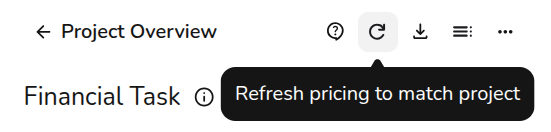](https://help.easy-pv.co.uk/uploads/images/gallery/2026-07/FdM5O2C1XPH5aUhF-image.png)
If the component is a battery and it's still not showing up, make sure you haven't selected the *Exclude from shopping cart* rule on the battery:
[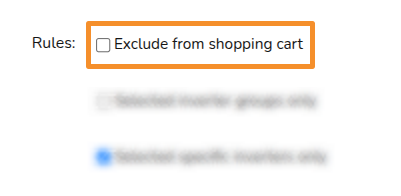](https://help.easy-pv.co.uk/uploads/images/gallery/2026-05/YZypBzODmIOP3CoJ-image.png)
# Why are the incorrect tariffs being used in the proposal?
If the tariffs in the proposal do not match the ones you've set up, it's likely you're using the wrong self-consumption method, as these use separate tariffs.
To fix this, follow these steps:
1. Navigate to the Financial task
2. Select *Financial inputs* in the top right
3. Under self-consumption, you can see the method selected and which tariffs are being used. Make sure you have both the right tariffs and method selected there: [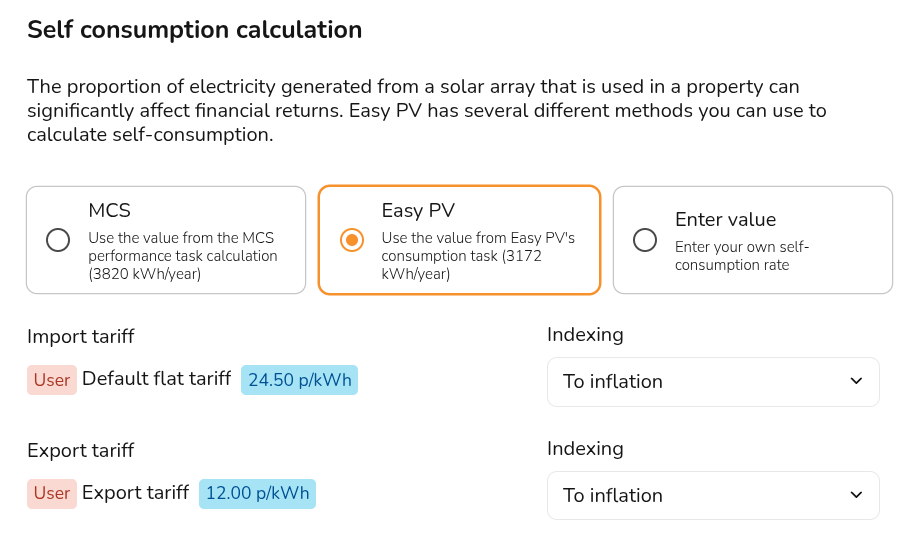](https://help.easy-pv.co.uk/uploads/images/gallery/2026-06/AWaMNCoCGjjlBbhx-image.png)
4. Save and exit
# How can I remove VAT from the cost on the proposal?
You can do so by following these steps:
1. Navigate to the [Financial task](https://help.easy-pv.co.uk/books/financial-task-customer-proposal/page/using-the-financial-task "Using the financial task")
2. Click the pen in the top right corner
3. Then under **Tax settings** select 'Yes' under 'Will the customer be able to reclaim the tax?' [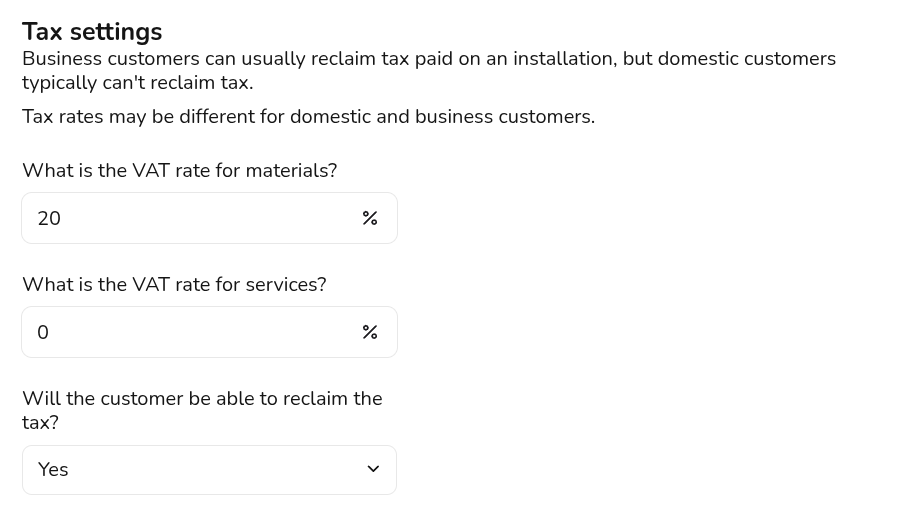](https://help.easy-pv.co.uk/uploads/images/gallery/2026-06/JRyDNnkFtmwf2rHY-image.png)
The cover page cost will then display excl. VAT. The quote total will still display inclusive of VAT.
# My customer proposoal isn't loading - why?
If your report isn't loading, it's likely because Easy PV is missing some information it needs to generate it.
Usually blank proposal are caused by issues with the [Performance task](https://help.easy-pv.co.uk/books/performance-and-consumption/page/performance-task "Performance task"). Navigate to the task and make sure each step has been completed. If you go to the performance task and there are no errors, then we suggested contacting us on [help@easy-pv.co.uk.](mailto:help@easy-pv.co.uk)
# Why is the battery page showing as incomplete but I have a battery in the project?
This page can only generate with the Easy PV or MCS self-consumption method selected in the [Financial task](https://help.easy-pv.co.uk/books/financial-task-customer-proposal/page/using-the-financial-task "Using the financial task").
To fix this, follow these steps:
1. Navigate to the Financial task
2. Click the **Financial inputs** in the top right
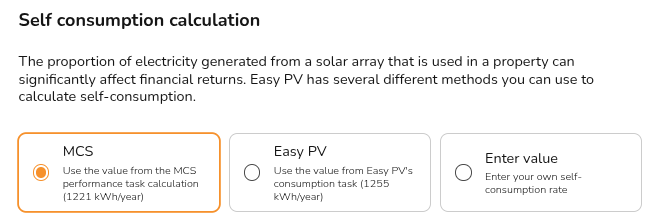
3. Then make sure **MCS** or **Easy PV** is selected:
[](https://help.easy-pv.co.uk/uploads/images/gallery/2025-10/STva0E5b8kPuXg6f-image.png)
This is because Easy PV needs to model how much of the consumption is coming from solar directly, from the battery or from the grid in order to generate that page. When you select 'Enter value', you are giving a flat self-consumption rate that includes all solar self-consumption, regardless of whether it's used to charge the battery before it's consumed directly.
# Why is the payback period on my Easy PV project different from an identical design produced on a different software?
There is a variety of reasons the payback period could have come out differently. Even with identical kit and system cost, many different assumptions made throughout a design can lead to significant differences in the payback period.
The first things to check are:
- [**Performance task**](https://help.easy-pv.co.uk/link/113#bkmrk-performance-results--1): Is the generation figure the same? If not, are the proposals using the same shading factors?
- **[Consumption](https://help.easy-pv.co.uk/link/93#bkmrk-below-that-will-be-t)/[Financial task](https://help.easy-pv.co.uk/link/75#bkmrk-financial-task-input)**: Is the total consumption the same? Are the tariffs the same? Is the self-consumption calculation method the same?
- [**Financial task**](https://help.easy-pv.co.uk/link/75#bkmrk-financial-task-input): Is the inflation, degradation and discount rate the same?
The most common reason for significant differences in payback time is that most other software calculates a standard payback period, whereas we use a *discounted* payback period. In short, a discount rate helps reflect the fact that £100 now is worth more than £100 earned in 10 years. Translating future earnings into terms of today's money has a negative impact on the total income and savings values and leads to a higher, but more accurate figure. The discount rate can be adjusted down to 0 in the [financial settings](https://help.easy-pv.co.uk/link/75#bkmrk-financial-settings-s) of a project to make Easy PV also calculate a standard payback period.
**Learn more**: [Consumption task](https://help.easy-pv.co.uk/books/performance-and-consumption/page/getting-started-with-the-consumption-task "Getting started with the Consumption task"), [Financial task](https://help.easy-pv.co.uk/books/financial-task-customer-proposal/page/using-the-financial-task "Using the Financial task"), [Performance task](https://help.easy-pv.co.uk/books/performance-and-consumption/page/performance-task "Performance task").
# How do I attach my logo/branding to the customer proposal or Easy PV project report?
To attach your Logo to the Easy PV Project Report navigate to **My Account** in the top right of the Easy PV home page and then **Preferences**. Once in this menu, scroll down to the **Company Logo** section and click on the current logo image. You can then upload your logo.
Please note that the logo will only appear on the quote page of the customer proposal report. Further customisation of the customer proposal is available with [Easy PV Pro](https://help.easy-pv.co.uk/books/getting-started-with-pro/page/pro-customer-proposal-customisation "Customer Proposal Customisation"), get in touch with us at if you're interested in a free trial!
# The 3D image on the proposal has not updated after I made changes, how do I fix this?
The overview image must be updated when changes are made to the design. To do this, navigate to the Customer proposal form (before clicking generate pdf) and scroll down to the **Overview page** section:
[](https://help.easy-pv.co.uk/uploads/images/gallery/2025-10/8hXrWLew6Sh96GDZ-image.png)
Select **Set Image** and then **Save**.
# How do I hide/show line prices on the customer proposal quote page?
Select **Customer Proposal** from the **Tasks** drop-down menu.
[](https://help.easy-pv.co.uk/uploads/images/gallery/2025-12/Yk7VusR68xCJA8yR-image.png)
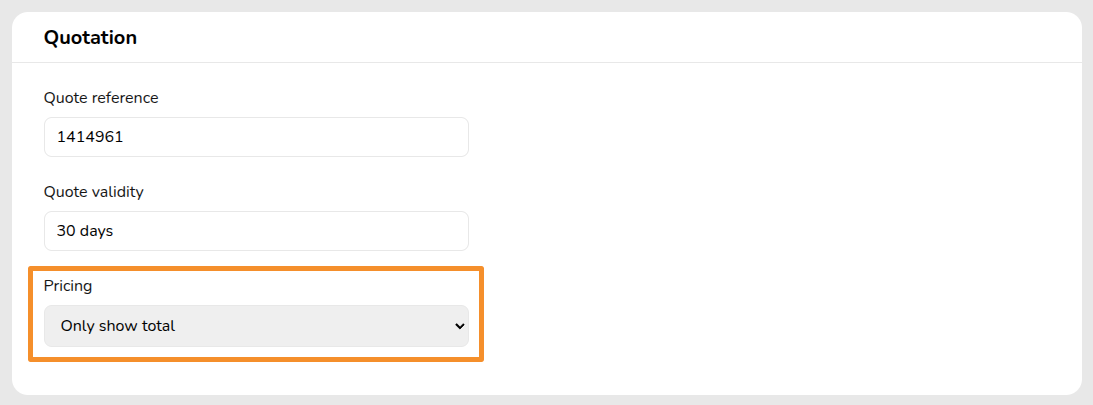
In the section titled **Quotation** you can change the pricing to:
- Show line items,
- Show equipment and services subtotals,
- Only show total.
# Where do the numbers on the Financial Benefits page come from?
The Financial Benefits calculated based on the tariffs that you input. You can take a look at how to create and manage your tariffs [here](https://help.easy-pv.co.uk/books/financial-task-customer-proposal/page/editing-and-creating-tariffs).
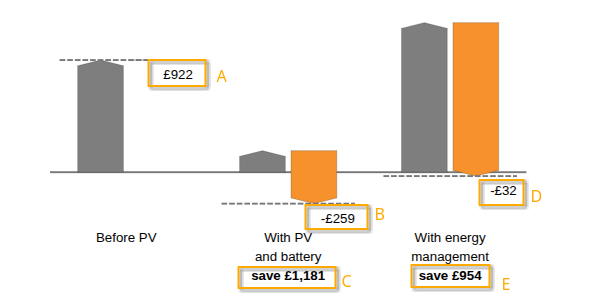
Here is a breakdown of the figures on the graph given on the Financial Benefits page of the Customer Proposal.
[](https://help.easy-pv.co.uk/uploads/images/gallery/2025-10/6tkrcGdNK5ovBdbu-screenshot-20251013-123616.png)
**A -** The total cost per year before the PV system.
**B -** The cost after PV and battery including savings from exporting (In this case, a negative number because they will actually be making a profit).
**C -** The difference between the original cost before PV & battery and after.
**D -** The export profit with energy management (overnight charging).
**E -** The difference between how much you pay for energy before solar and what you 'pay' after energy management.